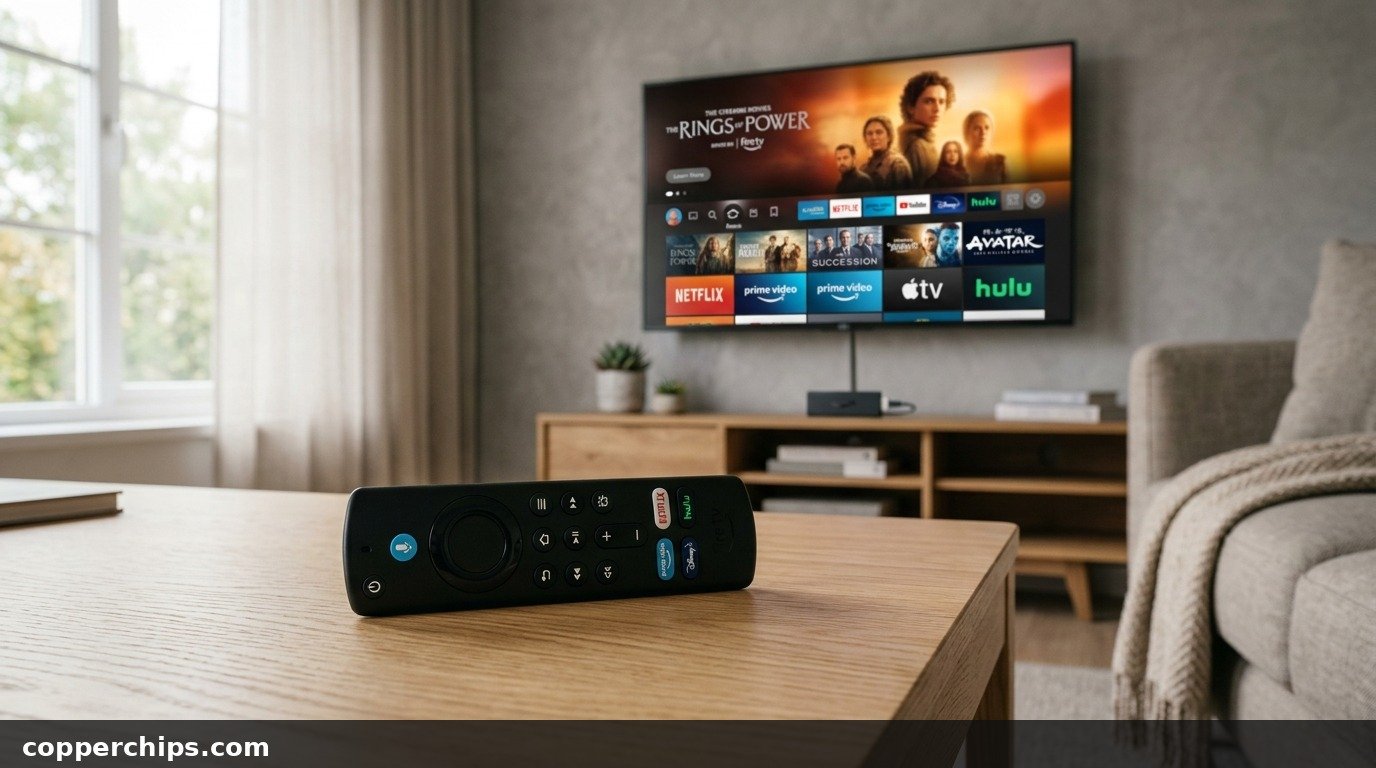
You sit down on the couch to watch your favorite streaming series, grab the remote, and press the power button. Nothing happens. You press Home, click the directional navigation ring, and tap volume, but your television screen remains frozen on the home menu. Finding your firestick remote not working is one of the most common tech headaches in modern living rooms. Many owners assume the remote died completely and buy a costly replacement. Most unresponsive remotes simply suffer from Bluetooth desynchronization, battery voltage dropouts, or radio interference from your television rear housing. You can restore your controller in minutes using built-in hardware reset commands.
To fix an unresponsive Firestick remote, perform a hardware reset: unplug your Fire TV streaming stick from its power outlet and wait 60 seconds. On the remote, press and hold the Left directional button, the Menu button (three horizontal lines), and the Back button simultaneously for 12 seconds. Release the buttons, wait 5 seconds, and remove both AAA batteries. Plug your Firestick back into the wall and wait for the home screen to load. Reinsert fresh 1.5V alkaline batteries into the remote and hold the Home button down for 10 seconds until the blue LED flashes to re-pair.
- ✓Bluetooth vs Infrared Split: Volume and power buttons use direct infrared (IR) light to control your TV, while navigation keys require active Bluetooth Low Energy.
- ✓Battery Voltage Dropouts: Rechargeable 1.2V NiMH batteries lack sufficient voltage for the Bluetooth transmitter; always install 1.5V alkaline cells.
- ✓The 12-Second Reset: Holding Left + Menu + Back clears corrupted cryptographic pairing tokens stored in the remote flash memory.
Why Fire TV Remotes Stop Responding
Traditional television remotes communicate through simple infrared light pulses. Amazon Alexa Voice Remotes are much more complex wireless microcomputers. They contain an infrared emitter for legacy television volume and power controls, but they use short-range digital radio to control the streaming interface. As established by the global communication protocols maintained by the Bluetooth SIG official wireless connection standards, modern controllers exchange encrypted packets over Bluetooth Low Energy (BLE) in the 2.4 GHz radio frequency spectrum.
This dual-radio setup explains why many users experience a confusing symptom: the remote can turn the TV on and adjust volume, but the navigation ring, Home button, and voice microphone do nothing. Infrared requires very little electrical voltage to flash an optical diode. The Bluetooth radio and internal microcontroller require steady electrical current. When your AAA batteries drop from 1.5 volts down to roughly 1.1 volts, the internal circuit shuts down the Bluetooth radio to prevent firmware memory errors, while the infrared diode continues working.
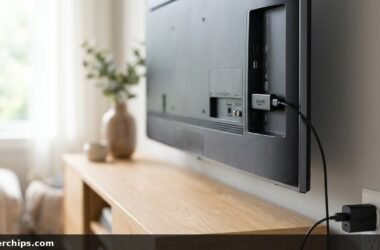
Physical radio frequency interference is another frequent culprit. When you plug a Fire TV Stick directly into a recessed HDMI port on the back of your television, the streaming dongle sits sandwiched between the metal TV chassis, high-voltage display power boards, and the television internal Wi-Fi antenna. Metal plates reflect and absorb 2.4 GHz radio signals. This electromagnetic shielding causes missed clicks, extreme input lag, and sudden connection dropouts.
How to Fix an Unresponsive Firestick Remote: 7 Proven Solutions
Work through these solutions step-by-step. We start with the fast 10-second re-pairing command, move into battery voltage diagnostics, and cover full hardware resets and mobile app bypasses.
Fix 1: Execute the 10-Second Home Button Re-Pair Command
Re-initiating the Bluetooth handshake forces the Fire TV Stick to search for nearby paired accessories and re-establish a dropped link.
- Situate yourself within 10 feet of your television, with a clear line of sight to the Firestick.
- Press and hold the Home button on your remote continuously for 10 to 15 seconds.
- Watch the tiny LED status indicator at the top of the remote above the voice button.
- If the remote enters discovery mode, the LED will begin pulsing blue or amber rapidly.
- Release the Home button when an on-screen message appears in the bottom right corner of your television: “Amazon Fire TV Remote Connected.”
This fast command resolves minor software desynchronization caused by streaming stick operating system updates or temporary radio drops.
Fix 2: Replace Batteries with 1.5V Alkaline Cells and Clean Contacts
Subtle battery voltage drops frequently disable Bluetooth communication while leaving infrared volume keys operational.
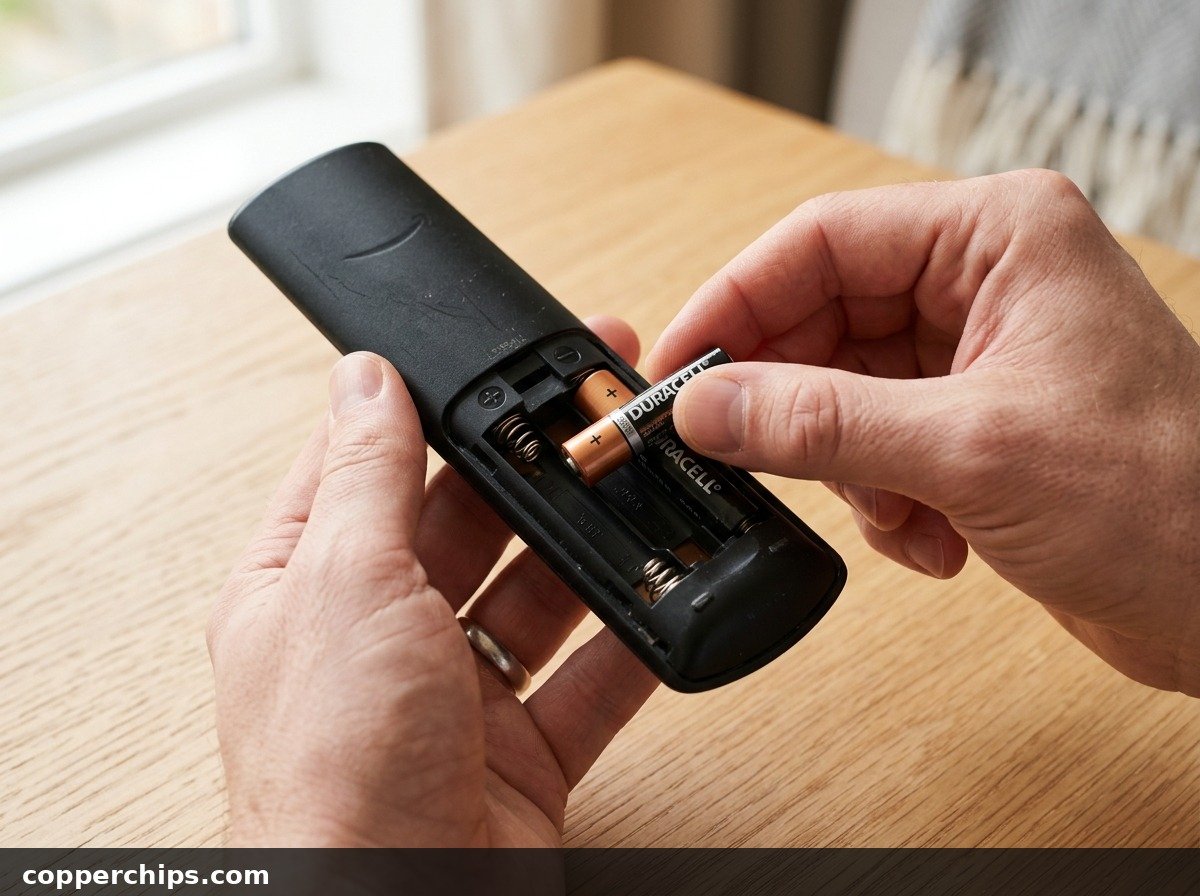
- Slide off the rear battery cover. Press down firmly on the indentation and slide downward.
- Remove both AAA batteries and examine the metallic spring contacts inside the battery tray.
- Check for white, powdery crust or blue-green oxidation caused by alkaline leakage. If residue is present, dip a cotton swab in white vinegar to neutralize the alkaline base, scrape the contact clean, and dry thoroughly.
- Inspect battery orientation. Both positive ends must point in the correct direction indicated by the embossed icons inside the battery plastic casing. In many Fire TV remotes, both batteries face opposite directions.
- Install brand new 1.5V standard alkaline batteries (such as Duracell or Energizer). Avoid rechargeable NiMH batteries, which output only 1.2V and trigger early low-voltage radio shutdowns.
Fresh alkaline cells supply the required current to sustain continuous Bluetooth transmission.
Fix 3: Perform the 12-Second Hardware Button Reset Sequence
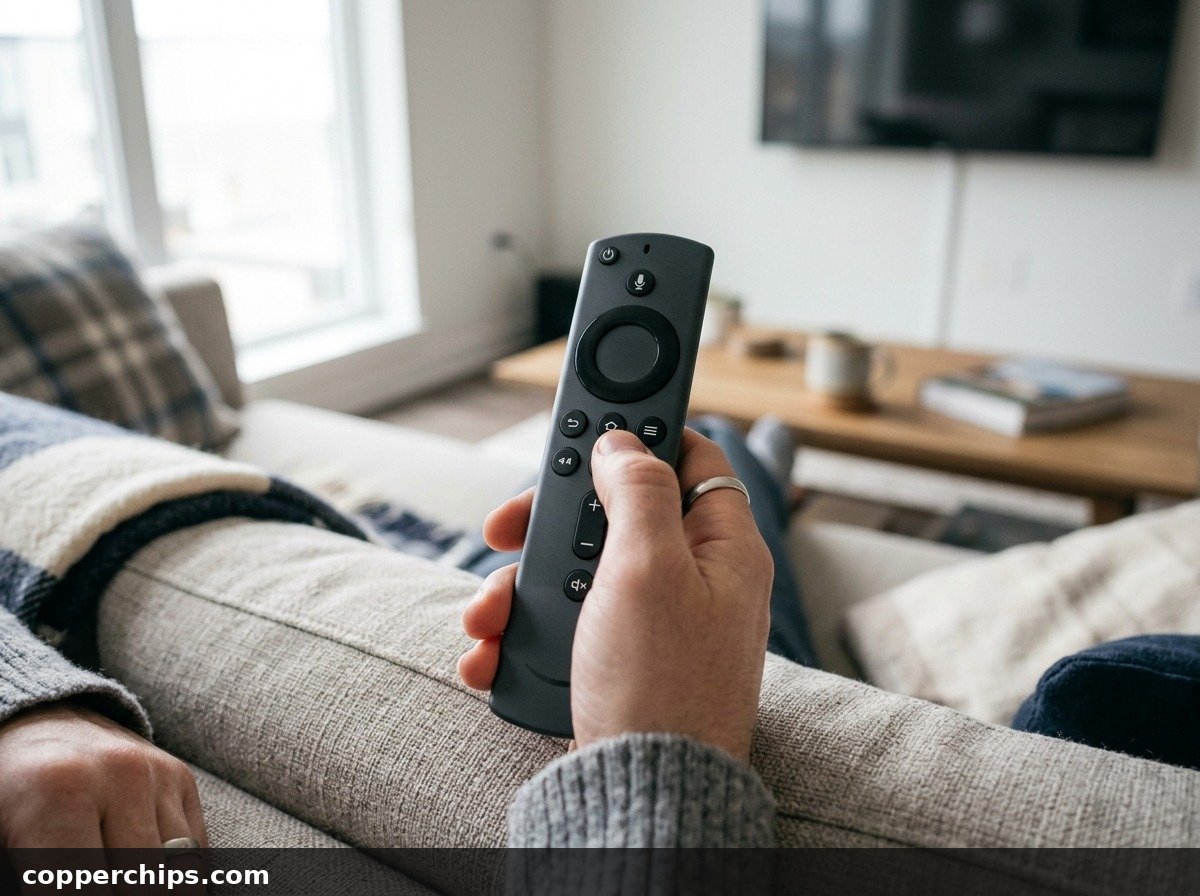
Executing the factory button reset combination clears corrupted cryptographic handshake tokens stored inside the remote microchip memory. This procedure works on all 2nd Gen, 3rd Gen, 4th Gen, and 4K Max Alexa Voice Remotes.
- Unplug your Fire TV Stick from its wall power adapter. Do not just turn off the TV; pull the power adapter from the electrical outlet.
- Wait a full 60 seconds to allow internal capacitors on the Firestick circuit board to discharge completely.
- Pick up your remote. Press and hold three buttons simultaneously:
- Left on the directional navigation ring.
- Menu (the button with three horizontal lines).
- Back (the curved left-pointing arrow button).
- Hold all three buttons down firmly for exactly 12 seconds without letting go.
- Release the buttons and wait 5 seconds.
- Remove both AAA batteries from the remote.
- Plug your Fire TV Stick power adapter back into the wall outlet and wait for the television to boot up to the main home screen.
- Reinsert the batteries into your remote.
- Press and hold the Home button for 10 seconds to complete the re-pairing cycle.
The remote LED will flash blue for several seconds and then establish a fresh link with your streaming device.
Fix 4: Install the HDMI Extender Cable to Defeat RF Shielding
Plugging your Fire TV Stick directly into your television rear panel creates severe radio frequency shielding that blocks remote signals.
Every Amazon Fire TV Stick comes in the retail box with a flexible 4-inch HDMI extender dongle. Many users skip using this small cable, assuming it is only needed when physical HDMI port spacing is tight. In practice, the extender cable serves a critical wireless function. It moves the internal streaming stick Wi-Fi and Bluetooth antennas four inches away from the metal backing, circuit boards, and electromagnetic interference emitted by the television panel.
Disconnect your Firestick, attach the flexible HDMI extender cable to the stick, plug the extender into your TV HDMI port, and reposition the stick so it hangs free. In over 30 percent of persistent remote drop cases, this simple physical repositioning permanently eliminates missed clicks and input latency.
Fix 5: Use the Fire TV Mobile App to Control and Re-Pair
When your physical remote will not respond, the official Amazon Fire TV smartphone app gives you instant control over the interface.
- Download the free Amazon Fire TV app from the Apple App Store or Google Play Store.
- Connect your smartphone to the exact same Wi-Fi network that your Firestick uses. For reliable local discovery, verify your home network adheres to the wireless standards defined by the Wi-Fi Alliance official wireless network specifications.
- Launch the app. It will scan your local network and display your Fire TV device name.
- Tap your Fire TV device. A 4-digit verification code will appear on your television screen.
- Type that 4-digit code into your smartphone app to establish the connection.
Your phone touchscreen now functions as a full-featured virtual trackpad and remote control. You can navigate menus, launch streaming apps, and access system settings while repairing your physical controller.
Fix 6: Clear Phantom Remotes in Fire TV Settings
Fire OS allows up to seven connected Bluetooth controllers simultaneously. If old remotes, gaming pads, or wireless headphones remain registered in memory, the system may refuse to pair additional controllers.
- Using the Fire TV mobile app or your TV remote via HDMI-CEC, open the Settings menu (the gear icon on the far right of the home bar).
- Select Controllers & Bluetooth Devices.
- Choose Amazon Fire TV Remotes.
- Examine the list of paired remotes. If you see ghost remotes or offline controllers listed, select the unused controller.
- Press the Menu button (three horizontal lines) on your active controller and select Unpair.
- Select Add New Remote.
- Pick up your unresponsive physical remote and hold down the Home button for 10 seconds. The Firestick will detect the remote and register it cleanly.
Purging stale Bluetooth controller profiles clears pairing slot contention, letting your primary remote connect without resistance.
Fix 7: Clear Television HDMI-CEC Bus Lockups
A frozen HDMI-CEC bus can lock out remote commands and prevent your television from communicating with connected streaming peripherals.
Modern smart televisions use HDMI Consumer Electronics Control to transmit remote signals back and forth between your TV remote and the Firestick. As detailed in the official protocol definitions published by the HDMI Licensing Administrator official HDMI-CEC control specifications, HDMI-CEC lines can experience bus freezes when multiple components (such as soundbars, gaming consoles, and streaming sticks) send simultaneous power packets.
- Turn off your television and unplug the TV power cord from the wall outlet.
- Unplug all HDMI cables from your television, including soundbars and consoles.
- Press and hold the physical power button on the television chassis for 30 seconds to drain all residual board power.
- Reconnect the Fire TV Stick into HDMI Port 1.
- Plug the television power cord back in and power on the TV.
- Test your Firestick remote. If navigation resumes, reconnect your remaining HDMI peripherals one by one.
Still Not Working? Try This
If your remote fails to respond after replacing batteries, resetting button memory, and clearing HDMI-CEC locks, you must determine whether the failure lies inside the remote or the Firestick hardware itself.
Perform the smartphone camera sensor test to verify infrared diode operation. Launch the camera app on your smartphone and aim the lens directly at the dark plastic window at the very top edge of your Firestick remote. Press the Power or Volume button while watching your phone screen. If the infrared emitter is working, you will see a bright purple or white light flash through your phone camera view. If no light flashes, the physical buttons or power rail traces on the circuit board are damaged.
The camera confirms the infrared diode flashes, but the remote never pairs over Bluetooth; your Firestick’s internal Bluetooth radio may be locked. Unplug the streaming stick from the wall, leave it disconnected for 10 minutes to cool down, and re-test. If the issue persists across multiple sets of fresh alkaline batteries, the remote internal Bluetooth chip has failed. At that stage, replacing the remote with a compatible replacement Alexa Voice Remote is the most reliable long-term solution.
Frequently Asked Questions
Why is my Firestick remote blinking orange?
An orange blinking light indicates your remote has lost connection to your Fire TV Stick and is actively searching for a paired host. To fix it, unplug your Firestick from the wall for 60 seconds, plug it back in, and hold the Home button on your remote for 10 seconds to re-establish the connection.
Why does my Firestick remote volume work but not the navigation buttons?
Volume and power buttons use infrared light directly aimed at your television sensor, while directional arrows and the Home button use Bluetooth to communicate with the streaming stick. When battery voltage drops below approximately 1.1V, the remote shuts off its Bluetooth radio to prevent memory errors while the low-power infrared diode continues operating. Replacing batteries with fresh 1.5V alkalines resolves this immediately.
How do I pair an unpairing Firestick remote without Wi-Fi?
You can pair a remote without an active Wi-Fi connection because remotes communicate with the Firestick over direct Bluetooth Low Energy, not your home Wi-Fi network. Power cycle the Fire TV stick, wait until the home screen loads, and hold down the Home button for 10 seconds within 10 feet of the television.
Can I use my phone as a Firestick remote permanently?
Yes. The official Amazon Fire TV mobile app provides complete remote functionality, including directional navigation, playback controls, voice search, and an on-screen keyboard for typing passwords. As long as your phone and Fire TV stay connected to the same home Wi-Fi network, the mobile app works indefinitely.
How do I reset a Firestick remote that has no power button?
Older 1st Generation Alexa Voice Remotes lack dedicated power and volume controls. To reset these models, unplug the Fire TV stick from power for 60 seconds. On the remote, press and hold the Left directional button and Menu button together for 12 seconds, remove the batteries, plug the Firestick back in, reinsert the batteries, and press Home for 10 seconds.
The Bottom Line
An unresponsive Firestick remote rarely requires throwing out your streaming setup. In most cases, the issue traces back to weak AAA battery voltage, Bluetooth pairing desynchronization, or electromagnetic interference from the television frame. Running the 12-second hardware reset sequence, installing fresh 1.5V alkaline cells, and attaching the included HDMI extender cable resolves the problem in minutes. While working through physical repairs, you can use the free Fire TV mobile app to retain full control over your streaming entertainment.
If you are troubleshooting other streaming hardware in your home entertainment center, read our step-by-step repair guide for when your Firestick displays a black screen, or discover fixes for when screen mirroring is not working on your TV. You can also explore our tutorial on how to repair headphones with sound in one ear, or browse our complete Device Fixes troubleshooting hub for more home tech guides.
- Outbound Authority: Bluetooth SIG official wireless connection standards
- Outbound Authority: HDMI Licensing Administrator official HDMI-CEC control specifications
- Outbound Authority: Wi-Fi Alliance official wireless network specifications
- Internal Hub: Firestick displays a black screen
- Internal Hub: screen mirroring is not working on your TV
- Internal Hub: how to repair headphones with sound in one ear
- Internal Hub: Device Fixes troubleshooting hub