

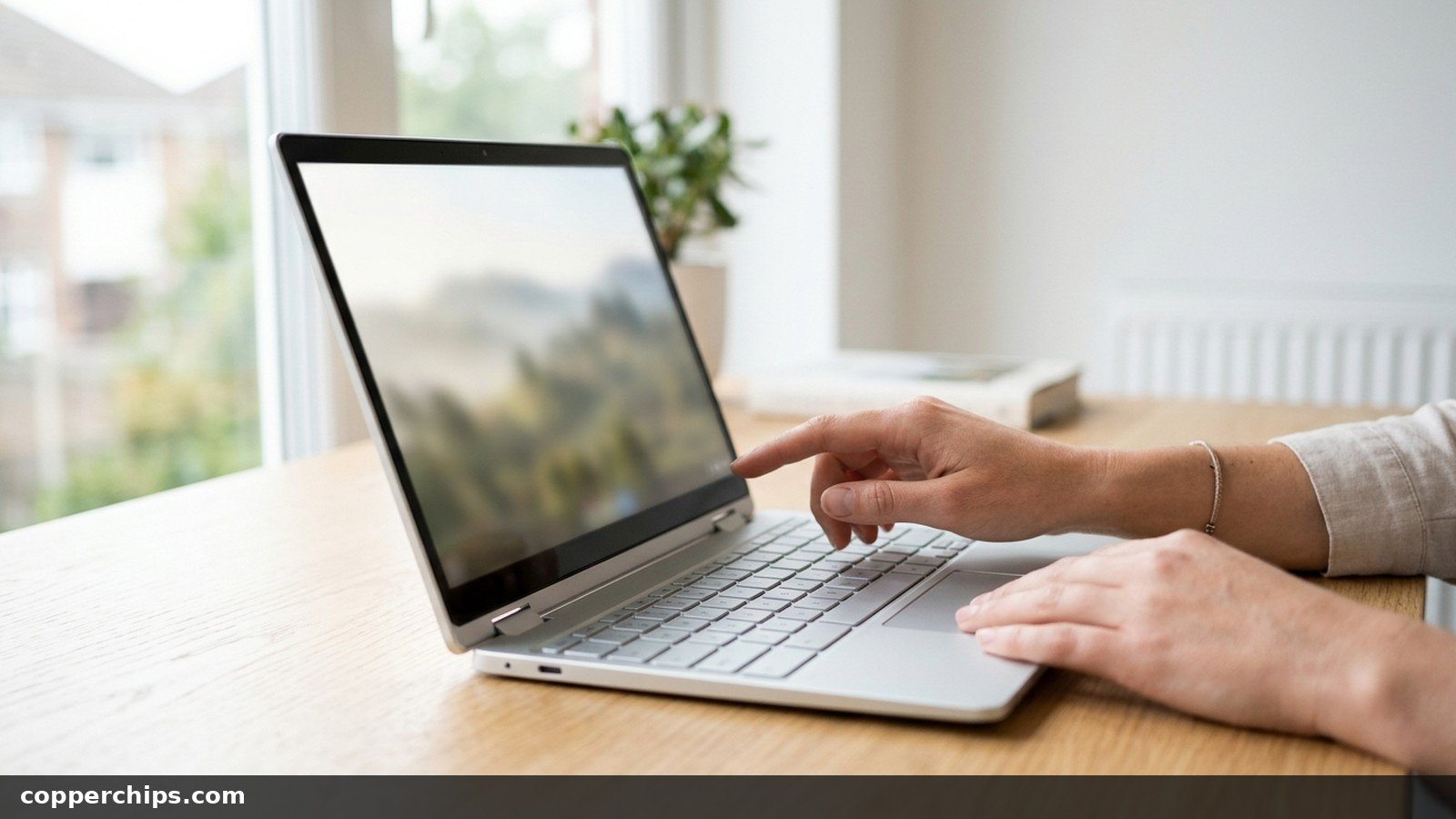
Your palm brushes the screen mid-sentence and the cursor jumps three lines up. Or a cracked panel is tapping things on its own. Either way, you want to know how to turn off touchscreen on Chromebook models without hunting through Settings for a switch that isn’t there.
ChromeOS does have a way to do it. It sits behind one hidden flag and a three-key shortcut, and it has a few quirks that trip people up: it resets on reboot, it fails if your Search key is remapped, and school Chromebooks often block it. This guide covers the full setup, how to undo it, and what to do when the shortcut does nothing.
Open Chrome and go to chrome://flags/#ash-debug-shortcuts. Set Debugging keyboard shortcuts to Enabled, then click Restart. After the Chromebook reboots, press Search + Shift + T to turn the touchscreen off. Press the same keys again to turn it back on. There is no confirmation message, so tap the screen to check. The touchscreen comes back after every reboot, and on a school or work Chromebook the flags page may be blocked by the administrator.
- vNo Settings switch: ChromeOS Settings has touchpad and stylus options, but nothing that turns the touchscreen off.
- vThe real fix: enable the Debugging keyboard shortcuts flag, restart, then use Search + Shift + T as an on/off toggle.
- vIf flags are blocked: lock the screen with Search + L, run the Chromebook lid-closed on a monitor, or ask your IT admin.
Can You Turn Off the Touchscreen on a Chromebook?
Yes, but not from Settings. Open Settings and you will find touchpad and stylus options, yet no touchscreen on/off switch. Some guides tell you to look under Device or Display for one. You can look, but you won’t find it on current ChromeOS.
What exists instead is a set of debugging shortcuts that Google hides behind a Chrome flag. Flip that flag once and you get two hardware toggles: one for the touchscreen and one for the touchpad. It works the same way on Lenovo, HP, Acer, Asus, Dell and Samsung Chromebooks, because it is part of ChromeOS rather than the hardware.
People usually want touch off for one of these reasons:
- Ghost touches. A cracked or faulty panel registers taps nobody made, opening apps and zooming at random.
- Palm taps while typing. On convertible models, your hand rests close to the display.
- Kids and cleaning. You want to wipe the screen or hand the laptop over without things getting tapped.
- External monitor setups. The Chromebook sits open beside a monitor and stray touches move windows around.
How to Turn Off Touchscreen on Chromebook (Step by Step)
The whole process takes about two minutes, most of it waiting for the restart. Save anything open first, because the Chromebook reboots in step 2.
Step 1: Open the Debugging Keyboard Shortcuts Flag
- Open the Chrome browser on your Chromebook.
- Click the address bar, type
chrome://flags/#ash-debug-shortcutsand press Enter. - The flags page opens with Debugging keyboard shortcuts highlighted at the top.
If the direct address doesn’t jump to it, go to chrome://flags and type “Debugging keyboard shortcuts” into the search box at the top of the page.
Step 2: Set It to Enabled and Restart
- Click the drop-down next to Debugging keyboard shortcuts. It will say Default or Disabled.
- Choose Enabled.
- A blue Restart button appears at the bottom of the screen. Click it.
Closing the browser is not enough here. The flag does nothing until the Chromebook itself reboots, so let the full restart happen and sign back in.
Step 3: Press Search + Shift + T
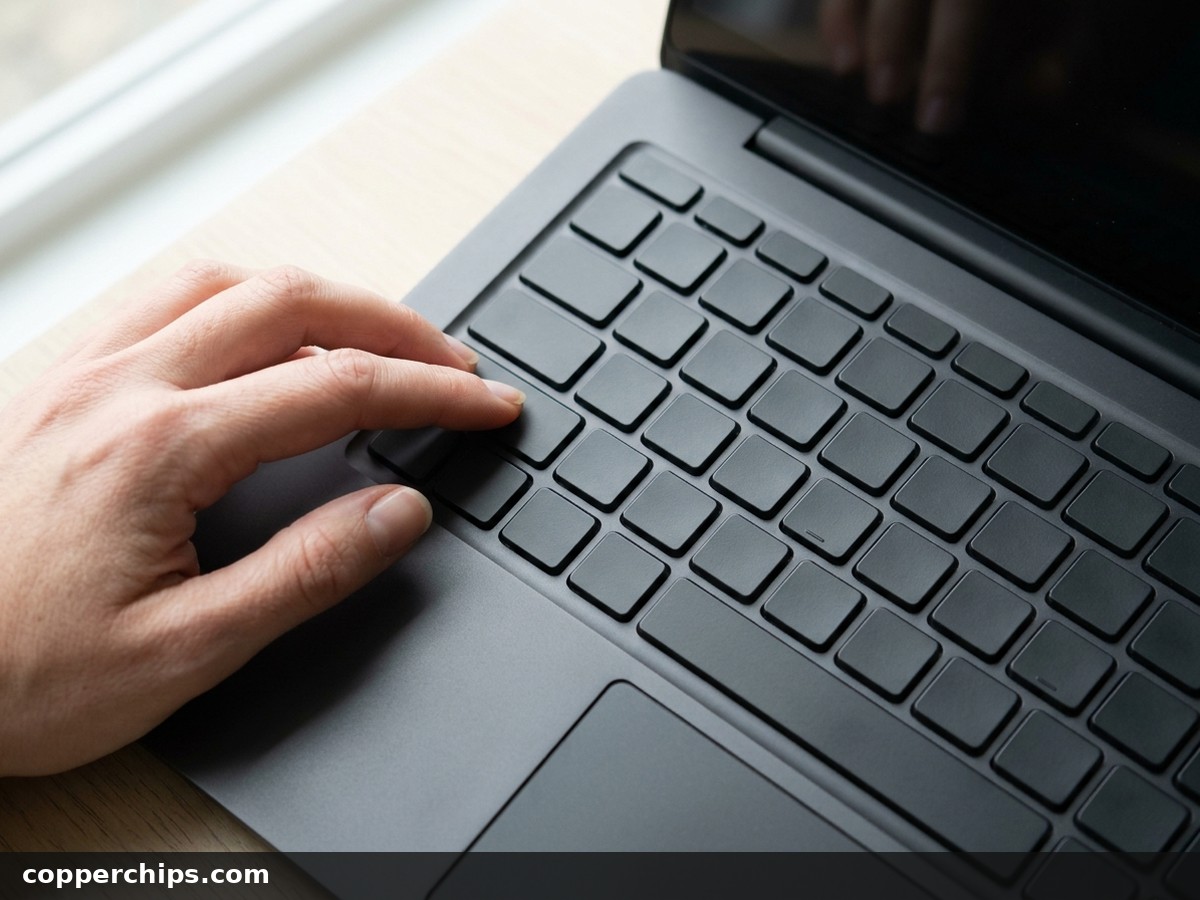
Press Search + Shift + T together once you’re signed back in. The Search key sits where Caps Lock lives on other keyboards. On newer Chromebooks it carries a launcher or “Everything” symbol instead of a magnifying glass, but it’s the same key.
You won’t see a pop-up or notification. Tap the screen to confirm: if nothing reacts, the touchscreen is off. Your keyboard and touchpad keep working normally.
How to Turn the Touchscreen Back On
You have three ways to get touch back, from fastest to most permanent:
- Press Search + Shift + T again. The shortcut is a toggle, so the same keys flip it back on instantly.
- Restart the Chromebook. The touchscreen comes back after every reboot. The flag stays enabled, so the shortcut is still ready when you need it.
- Set the flag back to Default. Go to
chrome://flags/#ash-debug-shortcuts, change the drop-down to Default, and restart. This removes the shortcut entirely, which is handy if a child keeps switching touch off by accident.
That reboot reset is the part most guides skip. If you want touch off for good, you have to press the shortcut again after each restart. There is no documented way to make it stick.
Turn Off the Touchpad With the Same Flag
The same flag also adds a touchpad toggle: Search + Shift + P. Press it once to turn the touchpad off and again to bring it back. It’s useful when you work with an external mouse and your palm keeps clicking things.
Be careful turning both off at once. With touchscreen and touchpad disabled, you need a mouse or the keyboard to get around. If you get stuck, a restart brings both back.
Here’s every toggle in one place:
| What you want | Shortcut | Needs the flag? |
|---|---|---|
| Touchscreen off or on | Search + Shift + T | Yes |
| Touchpad off or on | Search + Shift + P | Yes |
| Lock the screen (blocks all taps) | Search + L | No |
| ChromeVox spoken feedback | Ctrl + Alt + Z | No |
How to Turn Off Touchscreen on Chromebook Without Flags
Without the flag, you can’t fully turn the touchscreen off. You can still stop stray touches in the situations that matter most:
- Lock the screen with Search + L. A locked Chromebook ignores taps until you sign back in. It’s the quickest option for wiping the display or passing the laptop to a child for a minute.
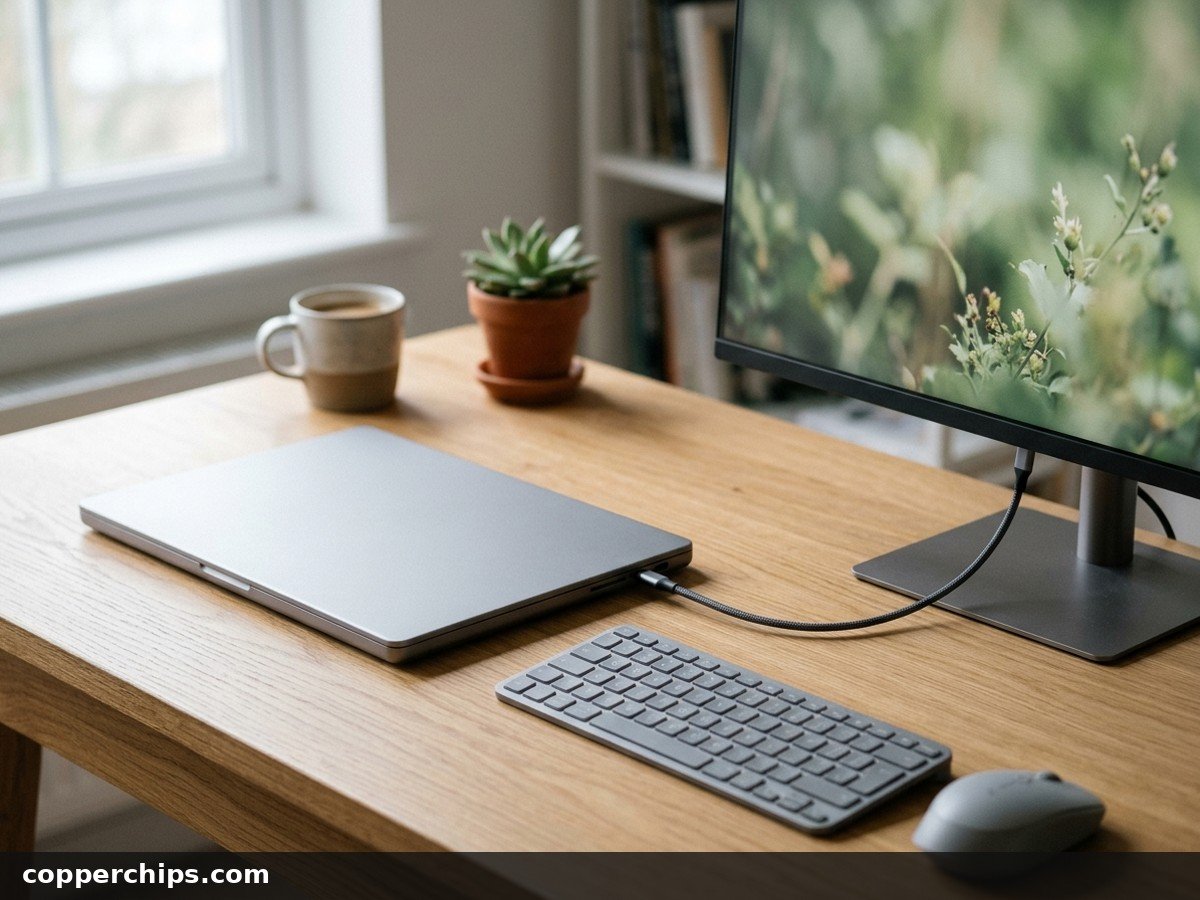
- Close the lid and use an external monitor. Connect a monitor, keyboard and mouse, keep the Chromebook plugged in, and shut the lid. Nobody can touch a screen that’s folded shut. If the monitor won’t light up through a hub, our guide to a USB-C hub not detecting a monitor covers the usual causes.
- Turn off the on-screen keyboard if that’s the real annoyance. Many people who “want the touchscreen off” are actually fighting the keyboard that pops up in tablet mode. Go to Settings, then Accessibility, then Keyboard and text input, and switch off On-screen keyboard.
Two things people try that do not work: turning the brightness all the way down (the dark screen still reacts to touch) and folding a convertible back into laptop mode (the layout changes but touch stays on).
School or Work Chromebook: Flags Blocked
On a managed Chromebook, the flags page often refuses to open and shows a “Blocked by your administrator” message. IT teams can block internal Chrome pages from the Google Admin console, and nothing on your side gets around that.
If you see that message, your options are the no-flag workarounds above or a request to IT. Tell them why you need it (a cracked screen with ghost touches is a reason most admins will act on). Don’t try to force your way past the block with Developer Mode on a school device. It wipes the machine, and school and work devices usually have policies against it.
Shortcut Not Working? Fixes to Try
If Search + Shift + T does nothing, work through these in order:
Fix 1: Do a Full Restart
Restart the whole Chromebook, not just the browser. The flag only takes effect after a reboot. Click the time in the bottom-right corner, click the power icon, then choose Restart.
Fix 2: Check the Flag Is Still Enabled
Reopen chrome://flags/#ash-debug-shortcuts and confirm the drop-down still says Enabled. A Powerwash or a big ChromeOS update can reset flags back to Default without telling you.
Fix 3: Check Your Search Key Hasn’t Been Remapped
Open Settings, go to Device, then Keyboard, and look at the drop-down next to Search. If it’s set to something else (Caps Lock, Ctrl or Disabled), the shortcut can’t fire. Set it back to Search and try again.
Fix 4: Press the Right Key
Use Search, not Ctrl or Alt. It’s the key in the Caps Lock position on the left edge of the keyboard. On an external Windows keyboard, use the Windows key instead.
Fix 5: Rule Out an Experimental Flag Change
Accept that flags can change. Google labels everything on the flags page as experimental. If the shortcut stops working after an update, check that the flag is still listed and still Enabled. Setting it to Default, restarting, then enabling it again with a second restart is a quick thing to try before you give up on it.
What About the Terminal xinput Method?
Some older guides tell you to open the Crosh terminal with Ctrl + Alt + T, type shell, and disable the touchscreen with an xinput command. Skip it unless you already run Developer Mode.
The shell command needs Developer Mode, and Developer Mode requires a full device wipe (Powerwash) to turn on. Turning it off wipes the device again. Google’s factory reset instructions for Chromebooks explain what a Powerwash erases. Losing everything stored locally just to switch off a touchscreen is a bad trade when the flag method does the same job in two minutes.
Still Not Working? Try This
If the flag is enabled, the Search key is set correctly, and the touchscreen still won’t turn off, the problem may be the panel itself. A badly damaged digitizer can send input that software toggles don’t catch. That’s more common on screens with visible cracks near the edge.
Test it by restarting and watching the screen before you sign in. If taps register on the sign-in screen with nobody touching it, the hardware is faulty. Until you can repair it, use the lid-closed external monitor setup so the broken panel stays out of the way.
For a Chromebook still under warranty, contact the manufacturer. Ghost touches from a defective panel are a hardware fault, and a screen replacement is the only lasting fix. Out of warranty, get a repair quote and compare it against the cost of a new Chromebook before you commit.
Frequently Asked Questions
Is there a setting to turn off the touchscreen on a Chromebook?
No. ChromeOS Settings has options for the touchpad and stylus but no touchscreen switch. The only built-in way is the Debugging keyboard shortcuts flag plus Search + Shift + T.
Does the touchscreen stay off after a restart?
No. The flag stays enabled, but the touchscreen turns back on after every reboot. Press Search + Shift + T again after you sign in if you want it off.
How do I turn the touchscreen back on?
Press Search + Shift + T again. You can also restart the Chromebook, or set the flag back to Default and restart to remove the shortcut completely.
What does Ctrl+Alt+Z do on a Chromebook?
It turns ChromeVox, the built-in screen reader, on or off. If your Chromebook suddenly starts talking, that’s why. Press Ctrl + Alt + Z again to switch it off.
Why is my Chromebook stuck in touchscreen mode?
Usually it’s in tablet mode, which a convertible switches to when the screen folds past a certain angle. Fold it back to laptop position and the on-screen keyboard and tablet layout should go away. If the on-screen keyboard keeps appearing, turn it off under Settings, Accessibility, Keyboard and text input.
Is the Debugging keyboard shortcuts flag safe?
Yes. It only adds shortcuts that toggle hardware like the touchscreen and touchpad, and it makes no lasting change. You can set it back to Default at any time. Just don’t change other flags you don’t recognise while you’re on that page.
The Bottom Line
To turn off a Chromebook touchscreen, enable the Debugging keyboard shortcuts flag once, restart, and use Search + Shift + T whenever you need touch gone. Remember the three gotchas: it resets on reboot, a remapped Search key breaks it, and school admins can block the flags page.
If flags are off-limits, Search + L or a lid-closed monitor setup will stop stray taps. For the rest of the built-in shortcuts, Google’s full Chromebook shortcut list is worth a bookmark. And if you’re grabbing proof of a ghost-touch problem for a repair shop, here’s how to screenshot on a Chromebook.
