



In today’s digital world, video files have become a great source of entertainment, knowledge transfer, communication, and documentation. From watching movies to online tutorials, you can explore everything as videos on your device. However, sometimes you may encounter issues when your video gets damaged or becomes unplayable.
A damaged video file can be frustrating, especially if it contains important information or valuable memories. When a video gets damaged, it may fail to play, show distorted images, freeze during playback, lose audio, or display error messages. In these cases, you need to apply adequate video repair workarounds to make them playable.
This guide explains the causes of video corruption and provides practical solutions to repair video on Windows systems.
Why Do Video Files Get Corrupted? [Common Reasons]
Understanding the exact cause of your video damage can help you determine adequate video repair workarounds. Some main reasons why videos get damaged include:
- Interrupted File Transfer: Any error while transferring video from your camera, phone, or external drive may damage its file structure and make the video unplayable.
- Incomplete Download: If your video downloading process is interrupted by slow internet or any other reason, it can damage the downloaded file.
- Storage Device Errors: Bad sectors on hard drives, SSDs, or memory cards can damage video files stored on those devices.
- System Crashes: If your Windows PC shuts down unexpectedly while recording, editing, or saving a video file, the file may become partially written.
- Malicious Programs:Certain malicious programs, like viruses or malware, can damage stored files, including video formats.
Quick Methods to Repair Damaged Videos on Windows
Fortunately, there are several methods available that can help you repair damaged video files with ease. You can go with the following workarounds one by one to fix your video playback issues:
Method 01: Change the Video File Format
Let’s start with the simplest method first. Sometimes the issue lies with your video container format rather than the video data itself. In such a case, you can convert your video file to a different format to rebuild its file structure and eliminate minor corruption problems.
Follow the below steps to convert a video file format using VLC:
- Open VLC Player on your PC, then click Media from the menu bar located at the top.
- Choose Convert/Save and add the corrupted video file that you need to change.
- Now, select Convert and choose a new output format (e.g., MP4).
- Select an appropriate destination and start the conversion.
Method 02: Repair Damaged Videos with VLC
Windows systems support a free and open-source VLC media player, which can play videos of several file formats and also fix minor corruption issues. Here’s how to repair a video with VLC:
- Firstly, launch the VLC player on your Windows computer.
- Click on Media from the top menu bar.
Go to Convert / Save, then click Add to upload the damaged video file.
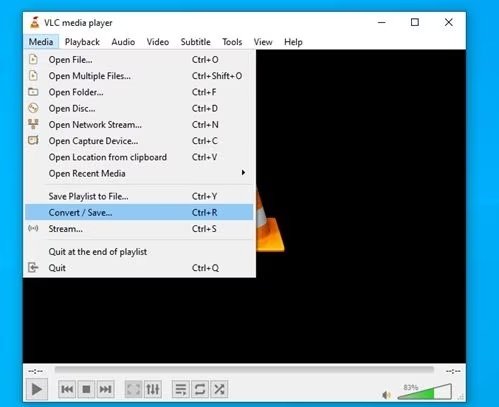
- Click Convert / Save again and choose the desired output format (such as MP4).
- Now, select an appropriate destination folder.
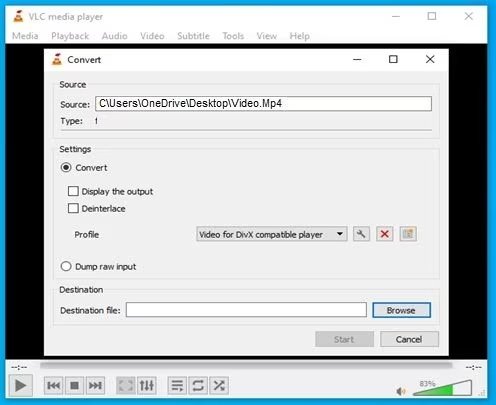
- Click Start to initiate the conversion process.
Once it is completed, VLC rebuilds the file structure, which can repair minor corruption issues.
Method 03: Repair Videos Using FFmpeg
Videos contain metadata that tells the media player how to repair frames and audio streams. If this metadata gets damaged, you can use FFmpeg, a powerful open-source command-line tool designed for processing and repairing multimedia files.
To repair your damaged videos using FFmpeg:
- Download and install FFmpeg on Windows PC.
- Now, launch Command Prompt.
- Go to the folder containing the damaged video.
- Run the following command in CMD:
- ffmpeg -i damaged.mp4 -c copy repaired.mp4
This command copies the video and audio streams into a new container file, thus repairing structural errors.
Method 04: Use Online Video Repair Tools
When the aforementioned video repair workarounds fail, you can use third-party online video repair software like Stellar Repair for Video Online to fix it. These online tools are specifically designed to analyse video structure, detect errors, and reconstruct corrupted frames or metadata. You can use this software to repair damaged or corrupted video files of several file formats, such as MP4, MOV, AVI, MKV, and 3GP.
The Stellar Repair for Video Online software allows you to fix video files stored on any internal or external storage media, including SD cards, hard drives, USB drives, etc. The software can help you repair video files captured from smartphones, digital cameras, drones, or other recording devices. It also lets you preview the repaired video files before saving them on your device.
This online video repair tool allows you to repair damaged video files in three simple steps: Select, Repair, and Save. Let’s explore the repair steps in detail:
Step 1: Firstly, open your web browser on a Windows computer and visit the Stellar Repair for Video Online website. Click the Upload Video button and select the corrupted video from your computer.
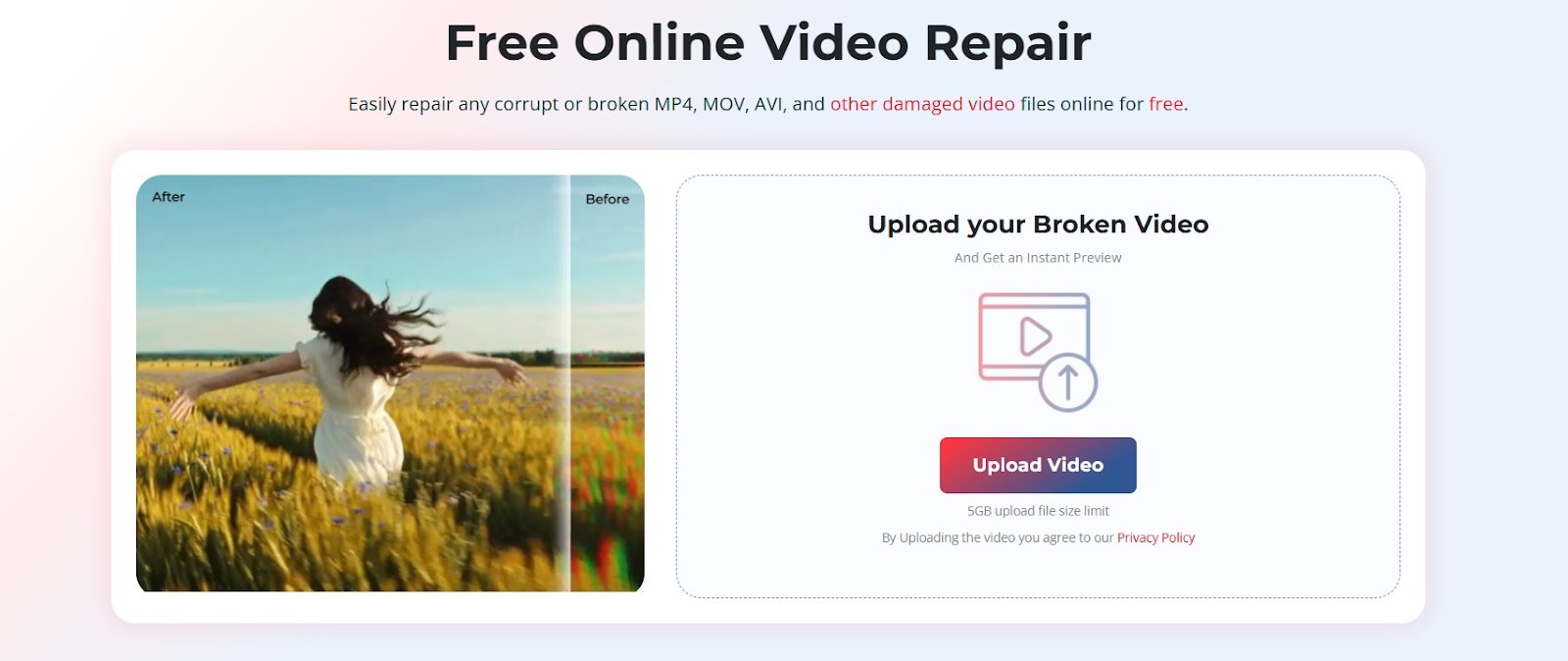
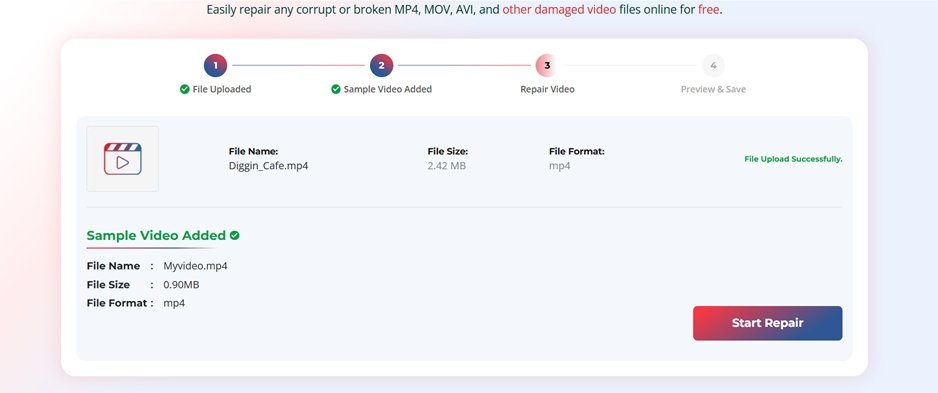
Step 2: After the upload is complete, click Start Repair to initiate the repairing process and wait till the software identifies errors in the video frames, header information, or audio streams.
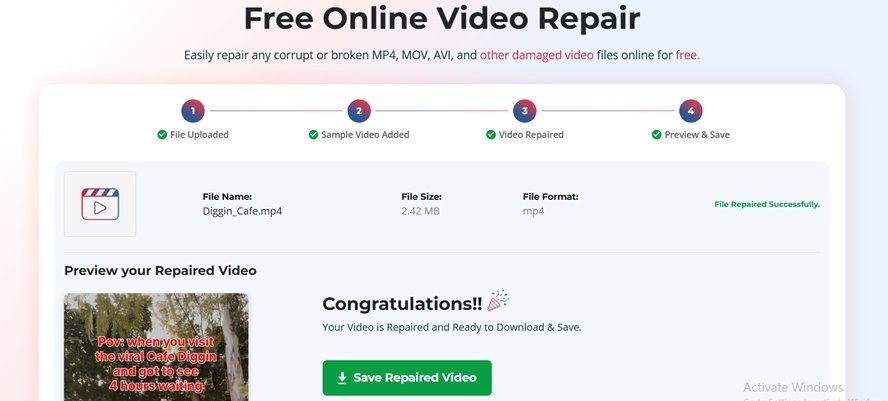
Step 3: Once the repair is completed, preview the repaired files and click Save Repaired Video to download the repaired file to your Windows computer.
Additional Tip: Prevent Future Video File Corruption
Repairing corrupt or damaged videos using the aforementioned video repair methods can be time-consuming and sometimes impossible. Therefore, prevention is always better than repair.
You can consider preventive measures to avoid video file corruption:
- Safely eject storage devices: Always use the “Safely Remove Hardware” option before unplugging USB drives or external storage devices.
- Maintain a stable power supply: Ensure your computer is connected to a proper power supply, especially during recording or file transfer.
- Keep backups: Create multiple copies of your important video files on external drives or cloud storage.
- Install antivirus software: Avoid video corruption instances caused by viruses or malware using a reliable antivirus program.
Taking these precautions can significantly reduce the risk of video corruption.
Wrapping Up
Damaged video files can put you in trouble, but don’t lose hope. By using simple right repair techniques, such as video format conversion, VLC repair tools, and FFmpeg commands, you can easily restore corrupted videos and recover valuable data. If the video is severely corrupted, you can use third-party online video repair software like Stellar Repair for Video Online to fix the file structure and reconstruct missing data.
Moreover, you can consider preventive measures like regular backups, safe file transfers, and reliable storage devices to avoid such video damage issues in the future.