

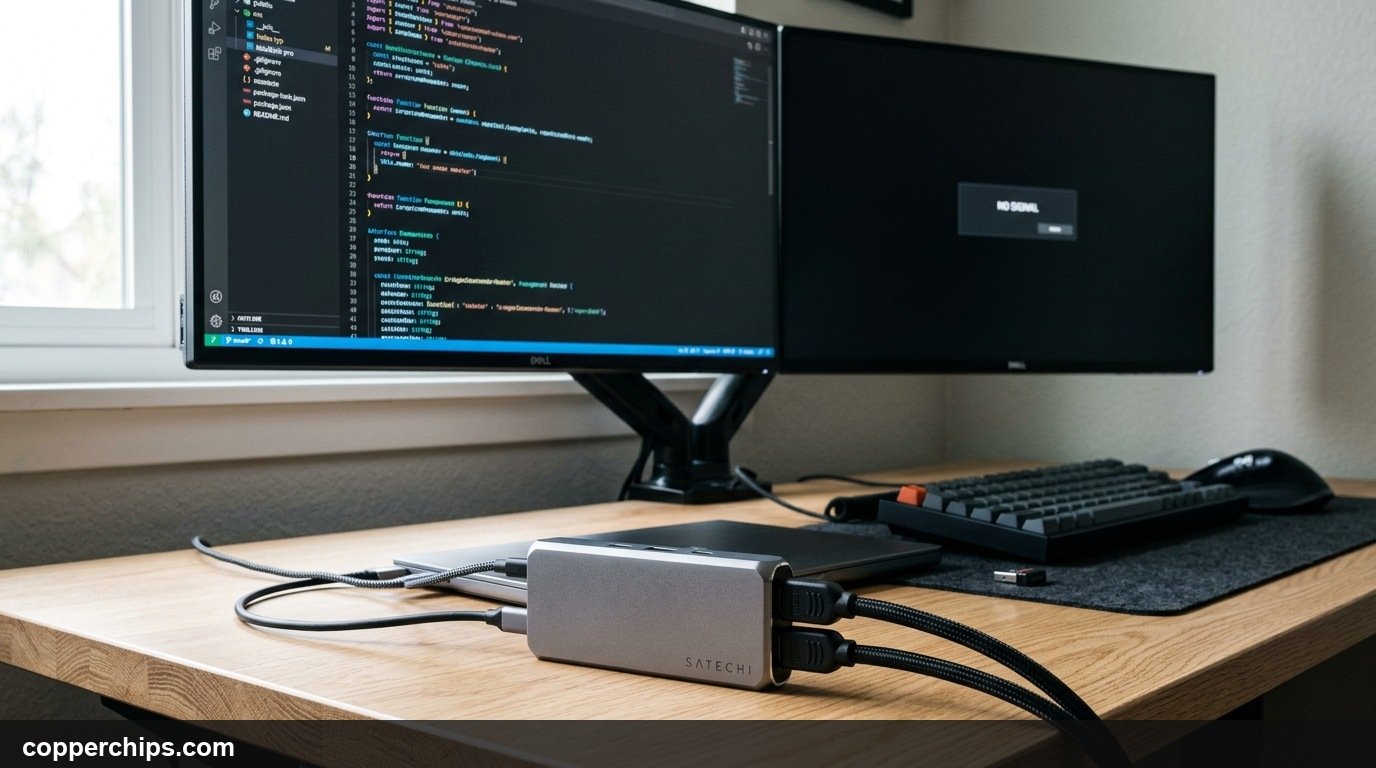
You plug your laptop into a multi-port adapter, expect dual screens, and get greeted by a blank display showing “No Signal.” When your usb-c hub not detecting second monitor issues stall your workflow, standard advice like replugging the cable rarely solves the underlying protocol mismatch. Modern USB-C ports carry video, power, and data across separate high-speed lanes, meaning a small configuration error can knock out your secondary screen instantly.
Most connection failures boil down to hardware power starvation, missing DisplayPort Alt Mode capabilities, or stale Windows display cache states. This guide walks you through eight diagnostic solutions to restore your second display quickly.
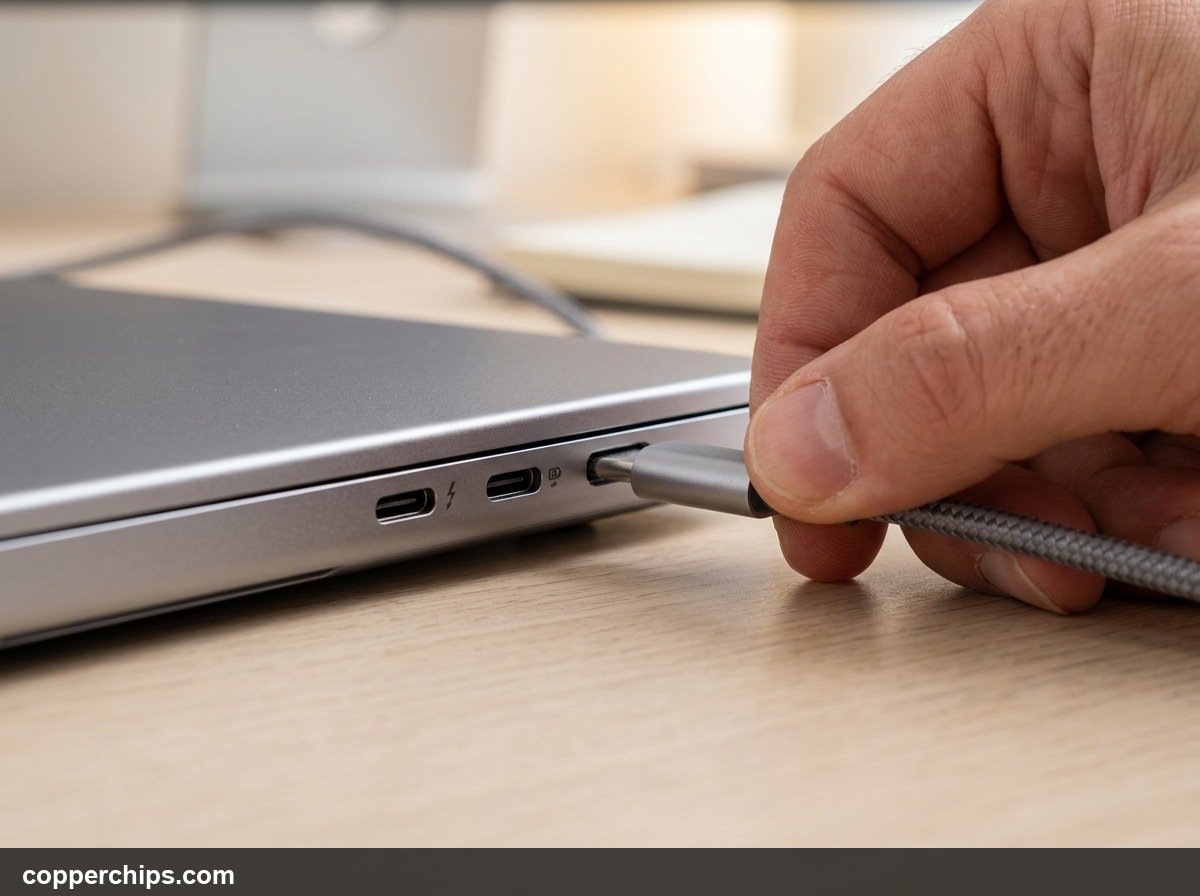
Press Windows Key + Ctrl + Shift + B to instantly restart your graphics driver stack. If the screen remains dark, connect your laptop charger directly to the hub’s Power Delivery (PD) port. Bus-powered hubs frequently shut down HDMI controllers when running low on wattage. Finally, verify that your computer port features a DisplayPort (D) or Thunderbolt bolt icon, as standard data-only USB-C ports cannot transmit display signals.
- vPower Starvation: Driving two external monitors requires dedicated wall power plugged into the hub passthrough port.
- vPort Capability: Data-only USB-C ports lack physical wiring for native HDMI or DisplayPort signaling.
- vDriver Hotkey: The Windows display subsystem can be cleared in two seconds without rebooting your laptop.
Why Your USB-C Hub Fails to Detect External Displays
USB Type-C is a physical connector shape, not an automatic guarantee of display capabilities. Manufacturers frequently install USB-C ports wired exclusively for USB 3.2 data transfer to save manufacturing costs. Connecting an HDMI adapter to one of these data-only ports produces no video output because the required physical lines simply do not connect to the graphics chip.
Bandwidth saturation presents another frequent roadblock. Driving two displays at high resolutions demands significant data throughput. If one monitor runs at 144Hz or 4K resolution, the USB-C link may lack the leftover bandwidth required to initialize the second screen.
Operating system display handshakes can also freeze. When your laptop sleeps or switches power profiles, Windows sometimes fails to poll connected external video receivers. Resetting the connection state forces the operating system to negotiate a fresh handshake.
How to Fix USB-C Hub Second Monitor Detection: 8 Solutions
Fix 1: The 3-Second Graphics Driver Hotkey Reset
Restart your display driver stack using the universal Windows keyboard shortcut. This quick action flushes video buffer memory and forces the GPU to re-enumerate every active physical display port.
- Leave your laptop powered on with the USB-C hub and both monitors firmly plugged in.
- Press Windows Key + Ctrl + Shift + B simultaneously.
- Listen for a short beep from your computer while the screen flickers black for one second.
Windows refreshes the graphics pipeline immediately upon release. If stale display memory caused the glitch, your second monitor will light up within three seconds.
Fix 2: Connect Dedicated Power Delivery to the Hub
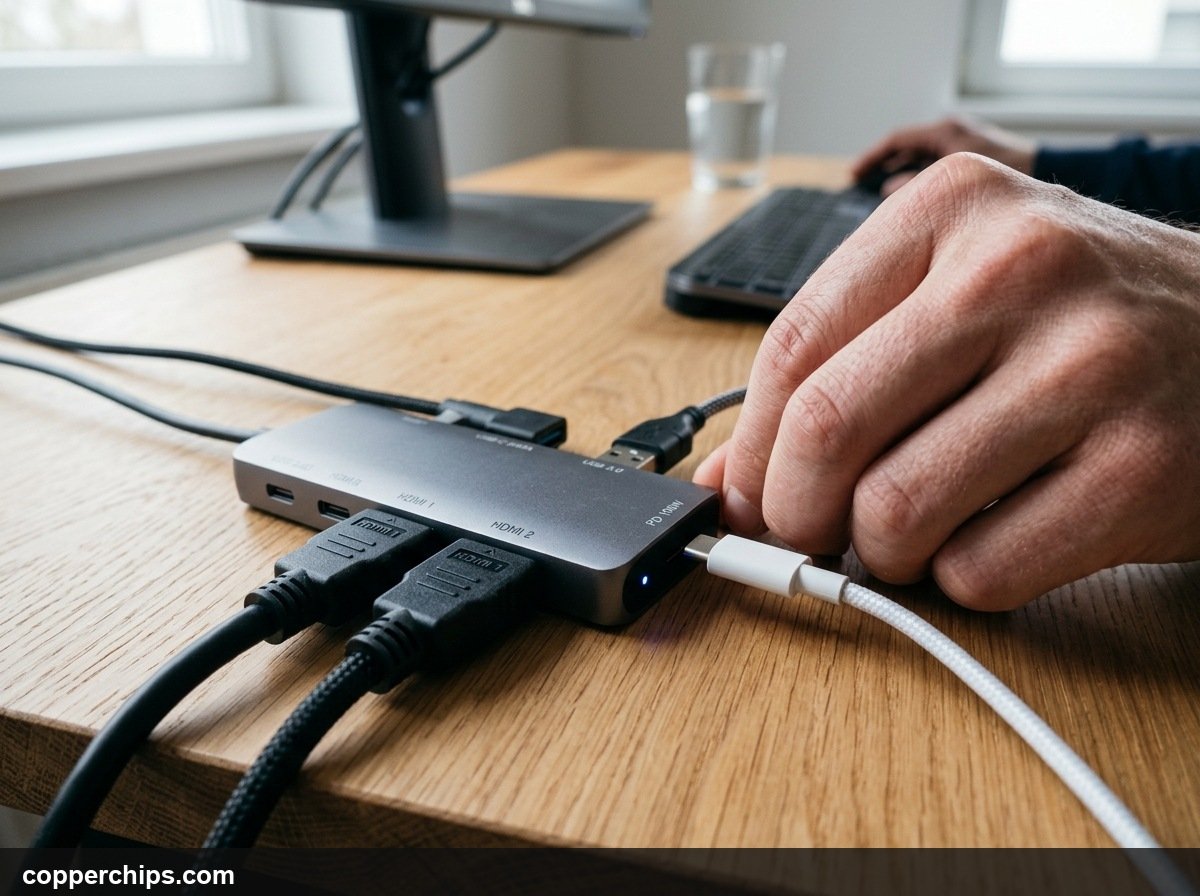
Plug your laptop original USB-C power adapter directly into the hub dedicated PD port. Operating a multi-port hub solely on laptop battery power causes severe voltage drops across internal video converter chips.
- Disconnect the hub from your laptop chassis.
- Take your 65W, 90W, or 100W USB-C charger cable and insert it into the port labeled “PD” or “Power” on the side of the hub.
- Plug the primary USB-C cable back into your laptop.
- Power on the external monitors.
Dedicated current allows the hub internal HDMI bridge controllers (such as Realtek or Parade chips) to maintain steady voltage. Many multi-display adapters refuse to power secondary video lines without external wattage.
Fix 3: Force Windows Multiple Displays Detection
Manually trigger display hardware detection inside Windows Settings. Windows occasionally halts background polling when monitors are connected while the system is locked.
- Right-click any empty space on your desktop and select Display settings.
- Scroll down to the Multiple displays section.
- Click the gray Detect button.
- Press Windows Key + P on your keyboard to open the Project menu.
- Ensure the mode is set to Extend rather than “PC screen only.”
Clicking Detect instructs Windows to send active voltage pulses across all detected video interfaces. If the monitor was idling in low-power standby, this wakes the panel up.
Fix 4: Verify USB-C Port Video Capability
Confirm that the port you are using supports DisplayPort Alternate Mode (DP Alt Mode) or Thunderbolt. Many modern laptops include two or three USB-C ports, but only one is physically wired to the internal GPU.
| Port Icon / Type | Video Protocol | Dual Monitor Status |
|---|---|---|
| Lightning Bolt Icon | Thunderbolt 3 / 4 / USB4 | Full Native Support (Dual 4K) |
| “D” or DisplayPort Icon | USB-C DP Alt Mode | Supported (Via MST Hub) |
| Standard “SS” (SuperSpeed) | USB 3.2 Data Only | No Native Video (Requires DisplayLink) |
| Plain Unmarked USB-C | Varies by Manufacturer | Check Laptop Manual |
Inspect the side of your laptop with a flashlight. If your laptop has multiple USB-C ports, move your hub connector to the one stamped with a lightning bolt or the letter “D”.
Fix 5: Lower the Refresh Rate to 60Hz
Reduce display refresh rates to eliminate USB-C transmission bandwidth bottlenecks. Running an external gaming monitor at 120Hz or 144Hz over a shared hub frequently exhausts available data lanes, leaving zero bandwidth for the second display.
- Open Settings and navigate to System > Display > Advanced display.
- Select your first external display from the top dropdown menu.
- Locate the Choose a refresh rate setting and lower it to 60.00 Hz.
- Repeat the same step for the second display if it appears in the menu.
Lowering the refresh rate cuts DisplayPort bandwidth consumption by more than half. This creates immediate headroom for the hub multi-stream transport engine to initialize the second screen.
Fix 6: Disable USB Power Management in Device Manager
Prevent Windows from cutting power to the USB composite controller. Aggressive power-saving policies often turn off internal hub chips when the system decides peripheral power usage is too high.
- Right-click the Start button and choose Device Manager.
- Scroll down and double-click Universal Serial Bus controllers to expand the list.
- Right-click on USB Root Hub (USB 3.0) and choose Properties.
- Click the Power Management tab at the top.
- Uncheck the box that says Allow the computer to turn off this device to save power.
- Click OK and repeat this step for any generic USB Hub entries listed.
This setting guarantees steady current flow across the physical port even during background sleep transitions.
Fix 7: Reinstall USB Hub and Display Drivers
Clear corrupted device registry entries by reinstalling the host controller. Windows updates occasionally leave behind orphaned device descriptor keys that prevent secondary displays from handshaking properly.
- Open Device Manager.
- Expand the Display adapters section.
- Right-click your graphics card (Intel Iris Xe, AMD Radeon, or NVIDIA GeForce) and select Update driver.
- Choose Search automatically for drivers.
- Next, expand Universal Serial Bus controllers, right-click your external hub or composite device, and choose Uninstall device.
- Restart your laptop.
Windows automatically detects the hardware during startup and builds a clean driver configuration file.
Fix 8: Address macOS MST Limitations (Dual Screen Mirroring)
Understand how Apple silicon handles multi-stream transport. If you connect a standard dual-HDMI USB-C hub to a MacBook (M1, M2, or M3), macOS will mirror both external monitors instead of extending them.
Apple operating systems intentionally do not support DisplayPort MST (Multi-Stream Transport) over standard USB-C. To achieve two independent extended desktop screens on a Mac, you must either use two separate cables running to individual laptop Thunderbolt ports, or invest in a docking station powered by DisplayLink technology. DisplayLink transmits video over standard USB data packets using a virtual graphics driver.
Still Not Working? Try This
When software adjustments fail to awaken the monitor, isolate physical hardware using an elimination test. Connect the second monitor directly to your laptop via a standalone HDMI or USB-C cable without the hub. If the screen wakes up immediately, your monitor, video cable, and laptop GPU are working properly. The bottleneck exists entirely inside the hub conversion chip.
Inspect the HDMI and DisplayPort cables connecting the hub to the monitor. Cheap passive cables frequently fail to negotiate HDCP 2.2 copy protection handshakes, causing the hub to kill the video stream silently. Swap in a certified High-Speed HDMI 2.0 or 2.1 cable to eliminate signal degradation.
If your laptop USB-C port is data-only, no passive hub will ever display video. You can solve this permanently by using an external DisplayLink USB adapter or certified docking station.
[AFFILIATE LINK: Certified Thunderbolt 4 Multi-Display Docking Station]Frequently Asked Questions
Why does my USB-C hub only mirror my second monitor instead of extending it?
Mirroring occurs when your hub or operating system lacks Multi-Stream Transport (MST) capabilities. Windows supports MST natively, but basic hubs only split a single video stream across two ports. On macOS, Apple disables MST over USB-C, forcing all non-Thunderbolt dual hubs into mirror mode.
Can any USB-C port connect to an external monitor?
No. A USB-C port must specifically support DisplayPort Alternate Mode (DP Alt Mode) or Thunderbolt to transmit video. Ports marked solely with the USB SuperSpeed logo carry data and power only, requiring a DisplayLink adapter for video output.
Does a USB-C hub need external power to run two monitors?
Yes, in most setups. Dual video conversion chips consume significant electrical current. Connecting your laptop USB-C charger to the hub Power Delivery port prevents voltage drops that cause monitors to disconnect or flicker.
Why does my second monitor say No Signal when plugged into a USB-C dock?
A “No Signal” message indicates that the monitor detects a physical cable connection but receives no active data stream. This typically results from an incorrect input source selection on the monitor, an inactive display setting in Windows, or an unpowered hub.
The Bottom Line
Fixing a second monitor that refuses to connect through a USB-C hub usually takes under five minutes. Start by resetting your graphics driver with Windows Key + Ctrl + Shift + B, then plug wall power into your hub passthrough port to eliminate voltage starvation.
For more home connectivity troubleshooting guides, check out our walkthrough on how to connect TV to internet or explore our complete library of device fixes and laptop hardware solutions.
