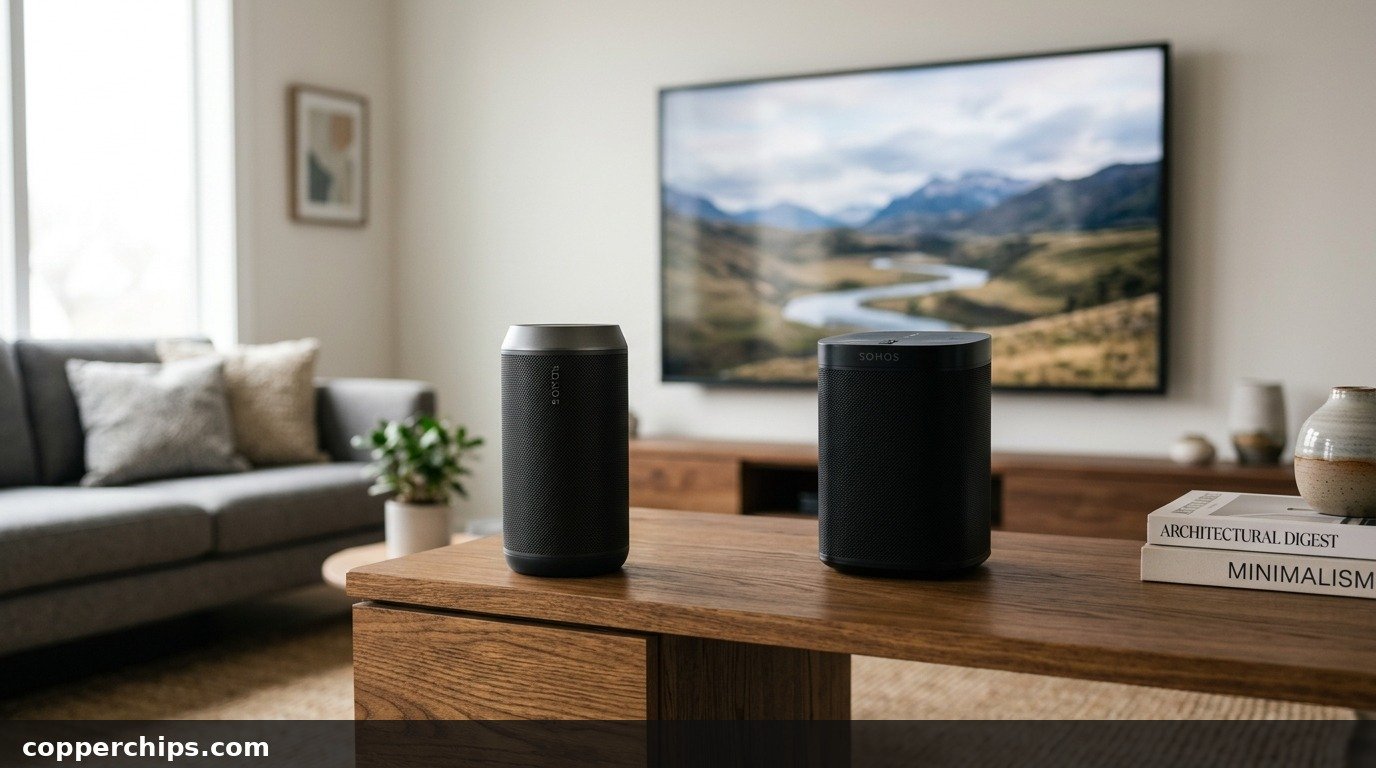
Modern flat-screen televisions deliver stunning 4K visuals, but their ultra-thin chassis leaves almost no physical space for decent speakers. Built-in TV speakers fire downward or backward against drywall, creating muddy dialogue and weak bass that ruins movies and sporting events. Pairing an external wireless speaker solves this problem immediately without running wires across your living room floor. Understanding how to connect Bluetooth speaker to TV setups gives you instant cinematic audio using hardware you likely already own.
To connect a Bluetooth speaker to your TV, put your speaker into discovery mode by holding its Bluetooth pairing button until the status LED pulses. On your TV, navigate to Settings > Sound > Sound Output (or Remotes & Accessories on Google TV and Fire TV). Select your speaker from the Bluetooth device list to pair. If your TV lacks built-in Bluetooth, plug a 3.5mm AUX or optical Bluetooth transmitter into the audio output port. To fix lip-sync delay, switch TV digital audio format from Dolby to PCM.
- vPairing Preparation: Turn off Bluetooth on nearby phones and tablets first so your speaker does not hijack an old connection.
- vBrand Menu Paths: Samsung uses Sound Output, LG uses Sound Out, while Sony, Roku, and Fire TV manage audio under Remotes and Accessories.
- vAudio Delay Fix: Change audio output to PCM and adjust your television A/V Sync slider to eliminate dialogue lag.
- vLegacy TV Workaround: Older TVs without Bluetooth require an external 3.5mm AUX or optical TOSLINK audio transmitter.
Why Connecting Bluetooth Audio to Your TV Can Be Tricky
Most people assume pairing a speaker to a television works exactly like pairing with a smartphone. In reality, televisions handle wireless audio protocols differently than mobile operating systems. Televisions prioritize low-latency video decoding, meaning video frames process faster than standard Bluetooth audio packets can travel.
Televisions also support different Bluetooth profiles. Many budget sets include Bluetooth hardware exclusively for their factory voice remote controls rather than audio streaming (A2DP). When a television does support audio streaming, aggressive background reconnect algorithms on your phone or laptop often seize the speaker before your TV scanning window finishes opening.
Clearing these initial roadblocks takes less than two minutes once you know the exact operating sequence. Follow the steps below to prepare your hardware, locate your specific television audio menus, and tune the wireless audio feed for synchronized playback.
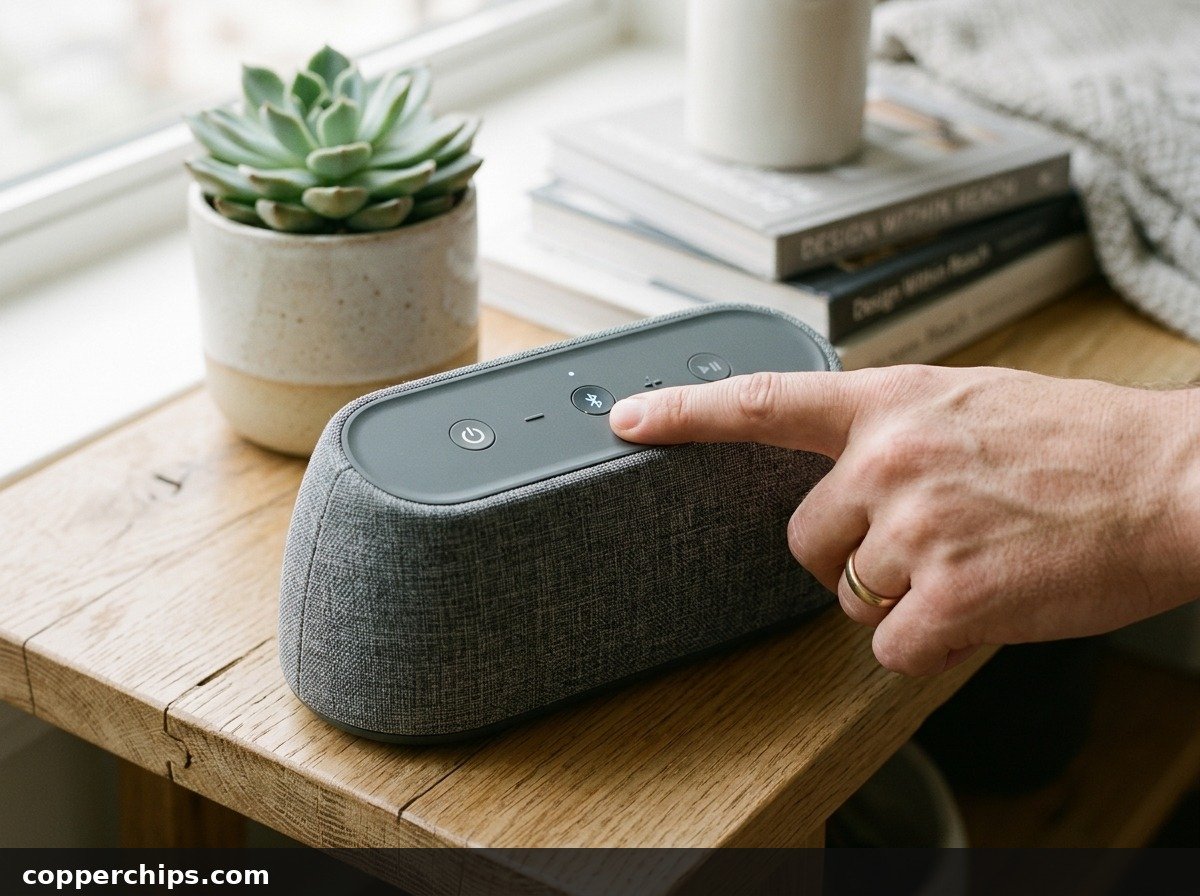
Step 1: Put Your Bluetooth Speaker in Pairing Mode
Your television cannot discover an audio device that is simply powered on. The speaker must be placed into dedicated discovery mode so it broadcasts its identifier beacon across the 2.4 GHz spectrum.
- Power on your speaker: Press the power button and wait for the power chime or indicator light to settle.
- Press and hold the Bluetooth button: On most portable speakers (JBL, Sony, Bose, Anker Soundcore, Ultimate Ears), press and hold the Bluetooth symbol button for 3 to 5 seconds.
- Watch the status LED: The indicator light will change from solid to rapid blinking, accompanied by an acoustic pairing tone.
Step 2: Connect on Your Specific TV Brand
Every major television brand uses its own smart platform and menu layout. Select your manufacturer below to follow the exact menu paths tested on current firmware builds.
Samsung Smart TVs (Tizen OS)
Samsung groups wireless audio under the general Sound Output menu rather than general system accessories. Review the Samsung official TV sound output setup guide for hardware variations across model years.
- Grab your Samsung remote and press the Home button.
- Navigate left to Settings (gear icon) and select All Settings.
- Select Sound, then open Sound Output.
- Select Bluetooth Speaker List (or Bluetooth Audio Device on older Tizen versions).
- Locate your speaker name in the list, select it, and choose Pair and Connect.
The television screen will display a confirmation banner, and audio will immediately switch from the internal speakers to your Bluetooth unit. On 2022 to 2026 Samsung sets, you can also access this list instantly by pressing the Quick Settings button on your remote and clicking the Sound Output tile.
LG Smart TVs (webOS)
LG webOS handles wireless audio output through its dedicated Sound Out subsystem. The manufacturer details full menu options in the LG official webOS Bluetooth audio pairing documentation.
- Press the Settings button (gear icon) on your LG Magic Remote.
- Select All Settings at the bottom of the quick menu rail.
- Choose Sound from the left sidebar, then click Sound Out.
- Select Use Wireless Speaker, then choose Bluetooth Device.
- Click the three dots next to Bluetooth Device or select Device List to trigger a fresh scan.
- When your speaker appears under available hardware, click it to establish the link.
LG also offers a feature called LG Sound Sync on select models. If your speaker supports it, volume control commands from your Magic Remote will sync directly to the external speaker volume amplifier.
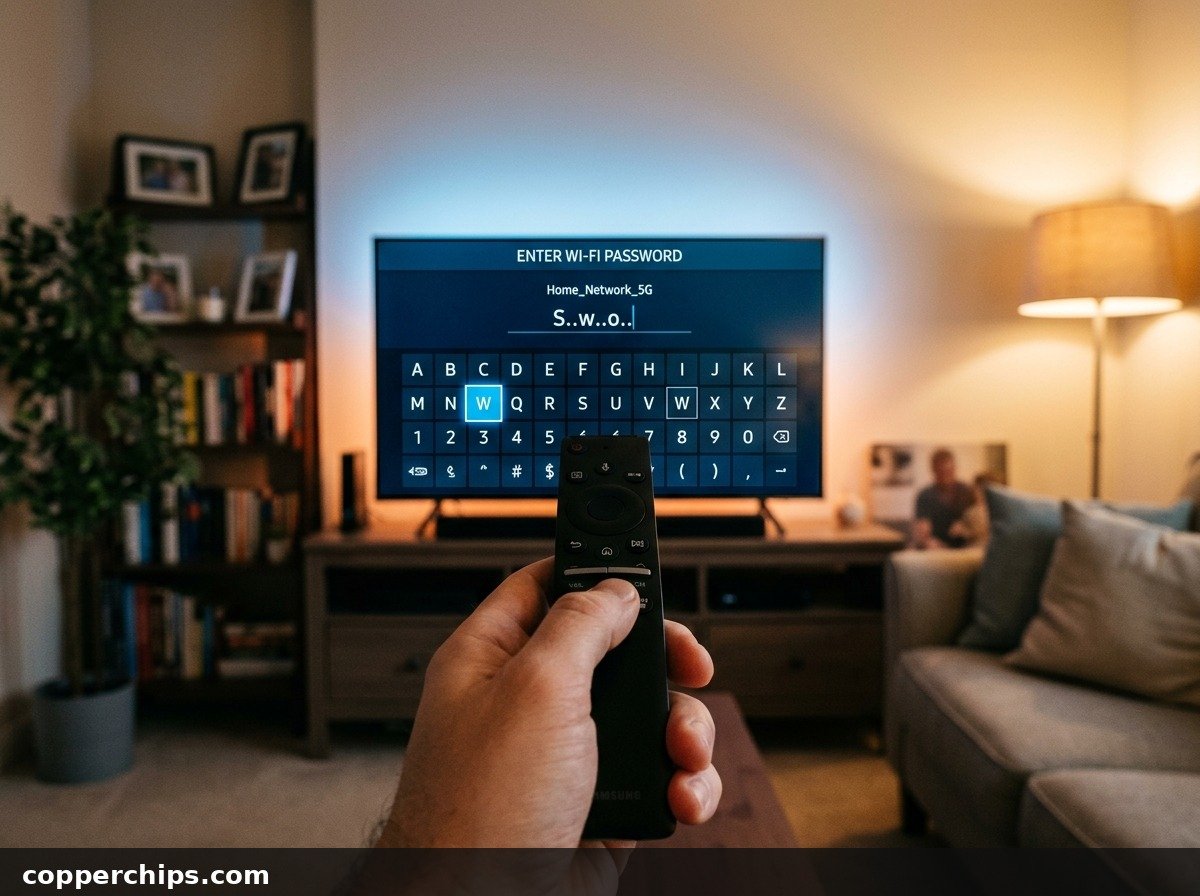
Sony Smart TVs (Google TV & Android TV)
Sony sets running Google TV handle audio accessories through standard Android peripheral management. Check the Sony Google TV Bluetooth accessory setup guide if your specific model uses older Android TV builds.
- Press the Settings button (gear icon) on your Sony remote.
- Select Settings on screen, then scroll down to Remotes & Accessories.
- Ensure the Bluetooth toggle at the top is turned On.
- Select Pair accessory (or Add accessory on Android TV 9 and 10).
- The TV will search for nearby discovery beacons. Select your speaker when its name populates.
- Confirm the pairing request on screen.
Sony Bravia models running A2DP will mute internal speakers automatically once the accessory handshake completes. If you encounter silent output, check our Bluetooth connected but no sound guide to verify default audio routing.
Roku TVs (TCL, Hisense, Sharp, Onn)
Standard Roku TVs handle wireless audio with specific hardware restrictions. Most Roku TVs only support Roku Wireless Speakers or Roku Soundbars directly through the TV menus. General Bluetooth speaker support is limited to Roku Plus Series models.
If your Roku TV does not have a native Bluetooth Audio menu under Remotes & Devices, use the Roku Mobile App Private Listening workaround:
- Connect your Bluetooth speaker directly to your smartphone.
- Open the free Roku app on your phone (ensure phone and TV are on the same Wi-Fi network).
- Tap the Remote tab inside the application.
- Tap the Headphones icon (Private Listening).
The Roku TV immediately routes all television audio through your phone over local Wi-Fi, which passes the sound out to your connected Bluetooth speaker. This bypasses Roku hardware limitations entirely without buying extra equipment.
Amazon Fire TV & Fire Edition Smart TVs
Amazon Fire TV OS allows direct pairing of third-party Bluetooth speakers, soundbars, and headphones across all modern models.
- Hold down the Home button on your Alexa Voice Remote and select Settings.
- Select Controllers & Bluetooth Devices.
- Choose Other Bluetooth Devices.
- Click Add Bluetooth Devices.
- Wait for your speaker name to appear in the discovery list, then click to pair.
Once paired, Fire TV remembers your device. Whenever you power on the speaker in the future, audio automatically transfers over within 5 seconds.
Apple TV 4K & Apple TV HD
Apple TV streaming boxes feature fast Bluetooth audio management with support for multiple wireless accessories.
- Open Settings from the Apple TV home screen.
- Select Remotes and Devices, then click Bluetooth.
- Ensure your speaker is in discovery mode.
- Select your speaker under Other Devices to establish the connection.
You can also swipe down from the top-right corner on your Apple TV remote during any movie to open the Control Center, tap the AirPlay icon, and quickly route audio to your Bluetooth speaker on the fly.
How to Connect to an Older TV Without Built-in Bluetooth
If your television was manufactured before 2017, it likely lacks an internal Bluetooth audio transmitter. You do not need to replace your television to get wireless audio. You can add modern Bluetooth capability for under $25 using a dedicated external transmitter adapter.
- Identify your TV audio outputs: Inspect the rear or side connection panel on your television. Look for either a 3.5mm Headphone / AUX Out jack or an Optical Digital Audio Out (TOSLINK) port.
- Purchase a low-latency Bluetooth transmitter: Look for an adapter that supports Bluetooth 5.3 and aptX Low Latency codecs. Standard consumer transmitters often introduce noticeable lip-sync lag.
- Plug the transmitter into power: Most transmitters draw power from a standard USB cable. Plug this cable into an open USB service port on the back of your television so the adapter turns on and off automatically with the TV.
- Connect the audio cable: Run the 3.5mm cable or optical TOSLINK cable from your TV output port into the transmitter input port.
- Pair the adapter to your speaker: Press the pairing button on the transmitter and on your speaker. The two hardware units will negotiate their connection directly without involving TV software.
How to Fix Audio Delay and Lip-Sync Lag
The most common complaint after connecting a wireless speaker to a television is out-of-sync audio. An actor speaks on screen, but their voice arrives a quarter-second later through the speaker. This happens because video processing on modern 4K panels takes time, while wireless audio compression adds its own transmission delay.
Use these three adjustments to synchronize your sound perfectly:
1. Switch Digital Audio Output to PCM
By default, televisions attempt to pass encoded audio formats like Dolby Digital or DTS. Compressing and packing these complex streams across a Bluetooth link requires heavy processing buffers. Switching the output format to uncompressed stereo PCM eliminates this decoding overhead.
- Samsung: Settings > Sound > Expert Settings > Digital Output Audio Format > PCM.
- LG: Settings > Sound > Advanced Settings > Digital Sound Output > PCM.
- Sony: Settings > Display & Sound > Audio Output > Digital Audio Out > PCM.
2. Adjust the TV Audio Delay (A/V Sync) Slider
Smart televisions include a built-in synchronization slider designed specifically to balance audio and video timing offsets. Navigate to your sound settings menu and look for A/V Sync, Audio Delay, or Lip Sync.
Adjust the slider in small 10-millisecond increments while playing a news broadcast or talk show where speech mouth movements are clearly visible. Most users find that adding 40 to 80 milliseconds of delay aligns dialogue cleanly.
3. Minimize 2.4 GHz Radio Interference
Bluetooth transmits across the crowded 2.4 GHz radio frequency band. If your wireless Wi-Fi router sits directly next to your television or Bluetooth speaker, strong Wi-Fi packets can cause packet dropouts and buffer latency. Maintain at least 3 feet of physical distance between your Wi-Fi router and your Bluetooth audio hardware. For broader connection stability solutions, consult our guide on why Bluetooth keeps disconnecting troubleshooting steps.
Still Not Working? Try This
If your television refuses to pair with your speaker or drops the connection after a few minutes, work through these advanced isolation steps:
- Clear the speaker pairing cache: Most wireless speakers store up to 8 past device profiles. When that memory fills, the speaker rejects new discovery attempts. Hold down the speaker power and volume-down buttons simultaneously for 10 seconds to execute a complete hardware memory reset.
- Perform a cold TV reboot: Modern smart TVs enter standby mode when you press the remote power button; they rarely fully power down. Unplug your TV power cord from the wall outlet for a full 60 seconds. Hold the physical power button on the TV chassis for 15 seconds to drain capacitor power, then plug it back in. This clears cached audio driver errors in the operating system.
- Update TV firmware: Manufacturers frequently patch Bluetooth stack compatibility errors through software updates. Head to Settings > Support > Software Update to install the latest build.
- Verify speaker volume independently: Some television software sets Bluetooth output at a fixed line-level, disabling the TV remote volume rocker. If you hear nothing, press the physical volume-up button directly on the speaker housing.
If your speaker connects reliably to your smartphone but consistently fails on your television, your television Bluetooth chip may lack A2DP audio support. In that situation, an external 3.5mm transmitter remains the most reliable permanent fix. Explore our full Bluetooth troubleshooting category hub for more hardware pairing walkthroughs.
Frequently Asked Questions
What if my TV doesn’t have built-in Bluetooth?
You can easily add wireless audio capability using an external Bluetooth transmitter. These compact adapters plug into your TV 3.5mm headphone jack or optical TOSLINK audio output and transmit audio wirelessly to your speaker.
Why is there audio delay when watching TV through a Bluetooth speaker?
Bluetooth audio involves digital compression and buffering that can lag behind fast video processing. You can fix this by setting your TV audio output format to PCM and adjusting the A/V Sync or Lip-Sync slider in your sound settings menu.
Can I connect two Bluetooth speakers to one TV simultaneously?
Most televisions only support a single active Bluetooth audio output connection at a time. To stream audio to two speakers at once, use a dual-link Bluetooth 5.3 external transmitter that supports simultaneous multipoint audio transmission.
Why does my TV remote not change the volume on my Bluetooth speaker?
Many televisions output Bluetooth audio at a fixed line-level volume, meaning the TV remote volume keys do not affect external accessories. You must adjust the volume using the physical buttons on the speaker itself or use the speaker companion mobile app.
Why won’t my TV discover my Bluetooth speaker?
The most common cause is that the speaker has already automatically reconnected to your phone, tablet, or computer. Turn off Bluetooth on all nearby mobile devices, then hold the pairing button on the speaker until the status light blinks rapidly before initiating a scan on the TV.
The Bottom Line
Connecting a wireless speaker to your television transforms thin, hollow dialogue into rich, room-filling sound without running messy wires across your living room. The process requires only putting your speaker into pairing mode and selecting it inside your television sound output menu. If you experience dialogue lag, switching your digital sound output to PCM and tweaking the A/V Sync slider restores perfect synchronization. For older televisions lacking native wireless chips, an affordable optical or 3.5mm transmitter provides the exact same high-quality wireless listening experience.