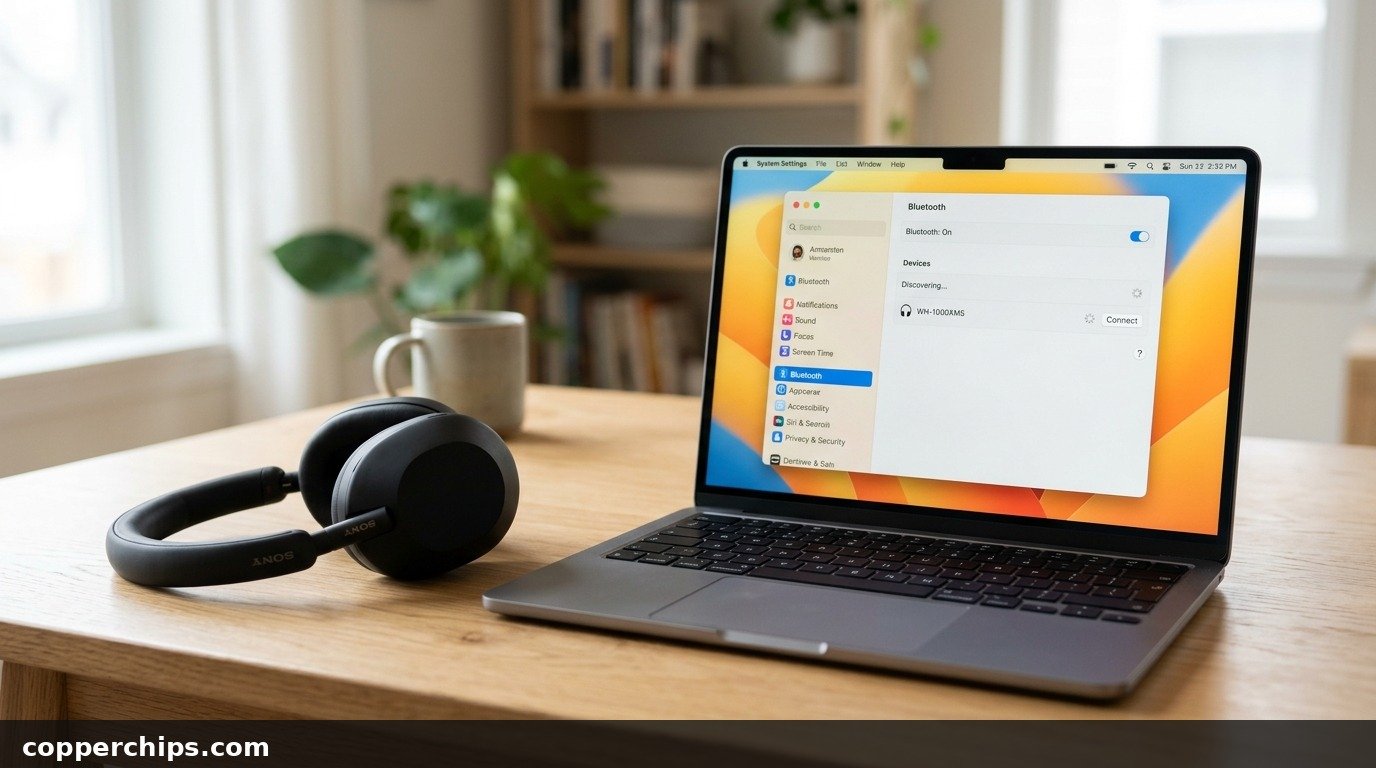
You settle in to listen to a favorite playlist, attend a remote video conference, or drive with hands-free navigation, and without warning, the audio cuts out. Your wireless earbuds chiming “Disconnected”, your wireless mouse freezing in place, or your car audio suddenly falling silent is maddening. Three seconds later, the connection re-establishes itself, only to drop again five minutes down the line. If you find yourself asking why does my bluetooth keep disconnecting, the issue is almost always tied to software power-saving cutoffs, multipoint pairing conflicts, or radio frequency congestion.
Bluetooth disconnects repeatedly because aggressive operating system power management turns off the Bluetooth adapter to save battery, dual-device multipoint audio gets hijacked by a secondary paired phone or tablet, 2.4GHz Wi-Fi radio frequency interference occurs, or corrupted pairing cache tokens cause issues. To fix it immediately: on Windows, open Device Manager, double-click your Bluetooth adapter, and uncheck “Allow the computer to turn off this device to save power” under the Power Management tab. On smartphones, disable Bluetooth on secondary paired devices and delete and re-pair the accessory from scratch.
- ✓Power-Save Throttle: Windows and Android power-saving profiles silently suspend the Bluetooth radio during micro-pauses in audio streaming.
- ✓Multipoint Audio Stealing: Modern headphones paired to both a laptop and a phone disconnect when background phone notifications force-switch the audio profile.
- ✓2.4GHz ISM Congestion: Unshielded USB 3.0 ports and crowded 2.4GHz home Wi-Fi channels emit radio frequency noise that overpowers low-power Bluetooth signals.
Why Your Bluetooth Connection Keeps Dropping
Bluetooth operates as a short-range radio frequency protocol in the globally unlicensed 2.4 GHz Industrial, Scientific, and Medical (ISM) band. Unlike high-power Wi-Fi routers that blast up to 1,000 milliwatts of radio energy across an entire house, standard consumer Bluetooth operates on a tiny power budget between 2.5 and 10 milliwatts. Because the signal is intentionally low-energy, it is vulnerable to subtle hardware and software interruptions.
The most common hidden cause on laptops and desktop computers is power-management suspension. By default, Windows actively monitors USB and PCIe buses. When audio streams pause briefly (or during quiet moments in video playback), the operating system flags the Bluetooth receiver as idle and momentarily shuts down its power rail through a feature known as USB Selective Suspend. When audio resumes, the hardware tries to wake up, causing a three-second drop followed by an automated reconnection chime.
A second common culprit is multipoint connection conflict. Most modern premium wireless headphones and earbuds support pairing to two source devices simultaneously. If your headphones are paired to both your computer and your smartphone, your phone background activity (such as an incoming text alert, keyboard tap sounds, or an app refreshing) repeatedly commands the headset to switch audio profiles. This causes your active computer stream to drop out abruptly.
Third is radio frequency interference and physical attenuation. As established by the official wireless communication specifications maintained by Bluetooth SIG global wireless technology standards, Bluetooth frequency-hops across 79 channels to dodge interference. However, unshielded USB 3.0 storage drives, legacy 2.4 GHz Wi-Fi routers, and physical barriers like human body tissue (which is primarily water and heavily absorbs 2.4 GHz radio waves) can cause packet loss severe enough to break the link.
How to Fix Bluetooth Keeps Disconnecting: 7 Proven Solutions
Follow these practical troubleshooting steps in order, moving from the most common operating system power-saving glitches to wireless clearing and driver reinstalls.
Fix 1: Disable Windows Bluetooth Power Management Suspension
Preventing Windows from turning off your Bluetooth adapter to save power fixes random dropouts on laptops and desktop PCs. This single setting is responsible for over 60 percent of unexplained computer Bluetooth disconnects.
- Right-click the Windows Start menu button and select Device Manager.
- Expand the Bluetooth category in the device list.
- Right-click your primary Bluetooth adapter (such as Intel Wireless Bluetooth, Realtek Bluetooth Adapter, or Generic Bluetooth Radio) and choose Properties.
- Click on the Power Management tab at the top of the properties window. If you do not see a Power Management tab on the adapter itself, proceed to step 7.
- Uncheck the box that says Allow the computer to turn off this device to save power.
- Click OK to save your changes.
- Next, scroll down Device Manager and expand the Universal Serial Bus controllers section.
- Right-click on each USB Root Hub and Generic USB Hub, open Properties > Power Management, and uncheck “Allow the computer to turn off this device to save power” on those controllers as well.
Disabling this aggressive power-saving feature keeps electrical voltage constantly supplied to your wireless radio, ending sudden random dropouts.
Fix 2: Disconnect Secondary Devices and Disable Multipoint Handoff
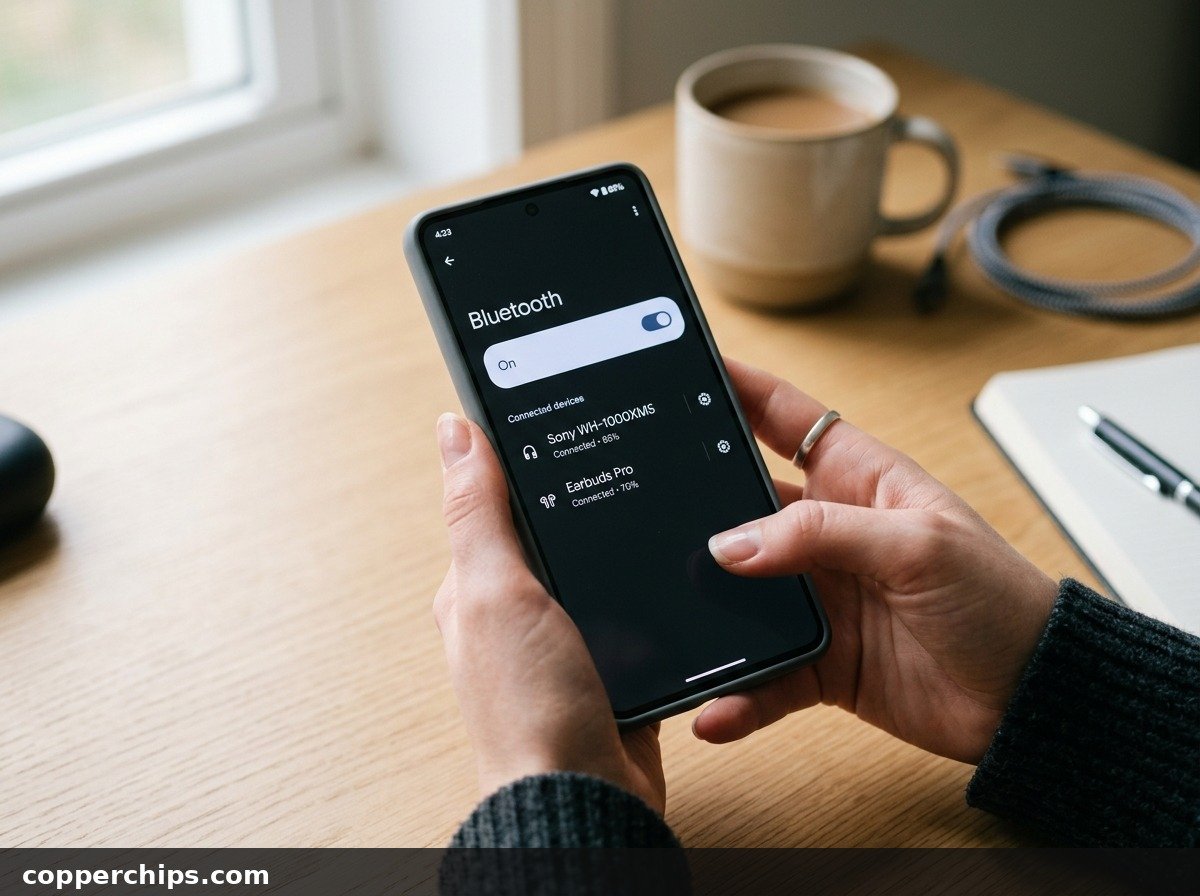
Multipoint dual-device pairing often causes wireless headphones to drop connection whenever a secondary paired device pings in the background. Isolating your audio stream to a single host device restores rock-solid stability.
- If you are listening to music on your computer, open the Bluetooth menu on your smartphone or tablet and temporarily toggle Bluetooth Off.
- If your headphones utilize a companion mobile app (such as Sony Headphones Connect, Bose Music, or Sennheiser Smart Control), open the app settings.
- Locate the setting labeled Connect to 2 devices simultaneously or Multipoint Pairing and toggle it to Disabled.
- If using an iPhone and Mac with AirPods, navigate on your phone to Settings > Bluetooth, tap the “i” info icon next to your AirPods, and change Connect to This iPhone from “Automatically” to “When Last Connected to This iPhone”.
Preventing secondary devices from fighting for control over the audio channel stops unexpected audio dropouts immediately.
Fix 3: Forget the Device and Clear Corrupted Pairing Cache
Over time, cryptographic security tokens exchanged between paired Bluetooth devices become stale or corrupted, causing authentication drops during channel hopping. Deleting the pairing profile and establishing a fresh handshake resolves handshake fatigue.
- On Windows: Open Settings > Bluetooth & devices > Devices. Click the three dots next to your problematic accessory and select Remove device.
- On Android: Open Settings > Connected devices, tap the gear icon next to your accessory, and choose Forget.
- On iPhone: Open Settings > Bluetooth, tap the info icon next to the device name, and tap Forget This Device.
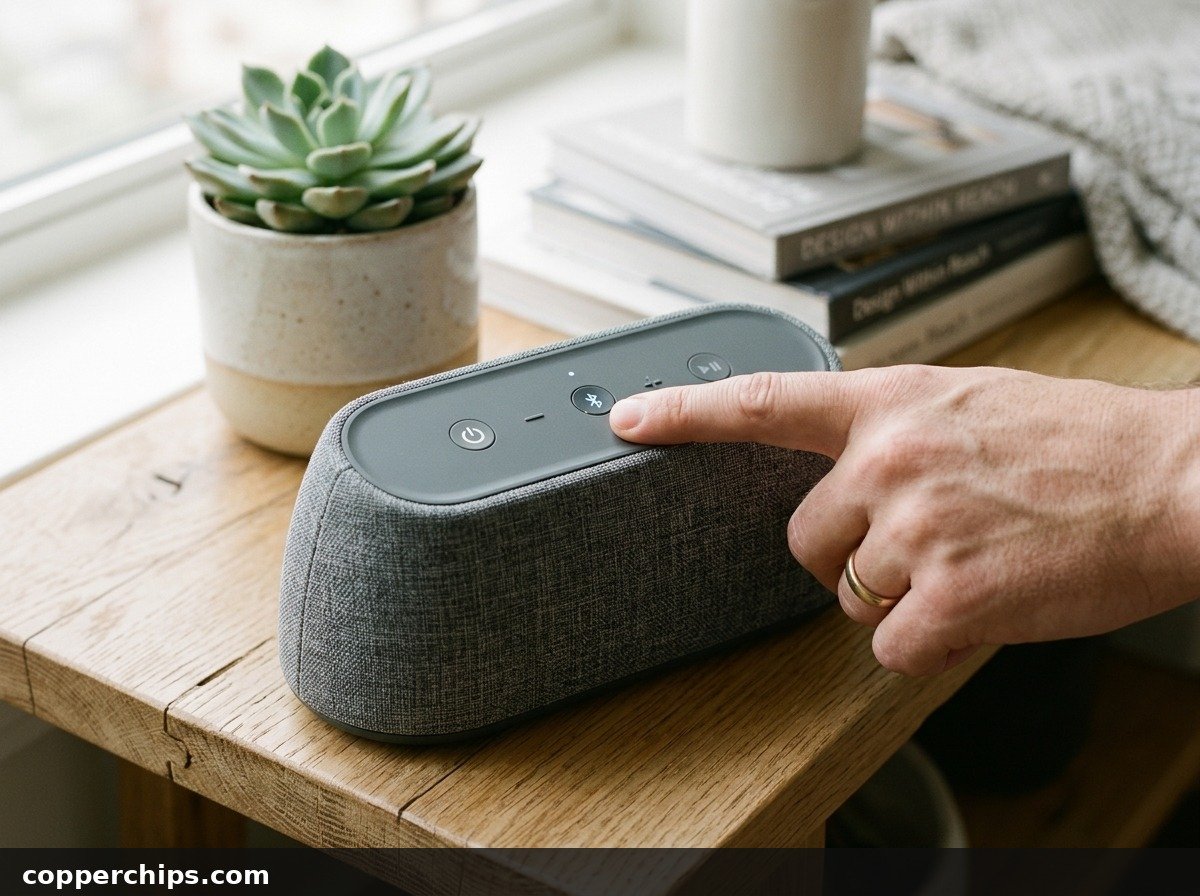
- Put your accessory into active pairing mode by holding down its physical pairing button until its status LED flashes rapidly.
- Search for available accessories on your host device and initiate a fresh pairing connection from scratch.
If you experience silent audio after re-pairing your accessories, consult our guide on Bluetooth connected but no sound fixes to resolve audio stream assignments.
Fix 4: Minimize 2.4GHz RF Interference and Shield USB 3.0 Ports
Unshielded USB 3.0 computer accessories and crowded 2.4GHz home Wi-Fi routers broadcast electromagnetic radiation that drowns out delicate Bluetooth packets. As documented in official diagnostics from Apple official wireless interference and Bluetooth resolution guidelines, physical spacing makes an immediate difference.
- Unplug unshielded external USB 3.0 hard drives, flash drives, or poorly shielded USB-C display cables that sit directly beside your Bluetooth adapter or internal Wi-Fi antennas.
- If you use a desktop PC with an external USB Bluetooth dongle, plug it into a USB 2.0 port (usually black) rather than a USB 3.0 port (blue), or use a short USB extension cable to position the dongle away from the metal chassis.
- Switch your home router from the congested 2.4 GHz band to a dedicated 5 GHz network for all computers and phones in the room.
- Avoid placing metal objects, thick glass dividers, or large microwave ovens between your host device and your wireless accessory.
If you have questions regarding device connectivity across platforms, read our tutorial on how to enable Bluetooth on any device for specific setup walkthroughs.
Fix 5: Configure Windows Bluetooth Services for Automatic Recovery
If the underlying Windows background service crashes or fails to respond, your Bluetooth hardware drops offline until manually restarted. Configuring automated service recovery ensures continuous background operation.
- Press the Windows Key + R on your keyboard to launch the Run dialog box.
- Type
services.mscand press Enter to open the Windows Services console. - Scroll down the alphabetical list and locate Bluetooth Support Service.
- Right-click on it and select Properties.
- In the General tab, change the Startup type from “Manual” to Automatic.
- Next, click on the Recovery tab at the top of the window.
- Set First failure, Second failure, and Subsequent failures all to Restart the Service.
- Set the “Reset fail count after” option to 1 days and click Apply and OK.
- Repeat these steps for the Bluetooth Audio Gateway Service if present.
Configuring automatic recovery ensures that if a background audio buffer overflow occurs, Windows restarts the wireless pipeline within milliseconds without disconnecting your gear.
Fix 6: Reset Network and Bluetooth Settings on Mobile Devices
On smartphones, accumulated operating system network cache can corrupt background scanning services. A network reset flushes stale connection logs cleanly.
- On Android: Open Settings > System > Reset options. Tap Reset Wi-Fi, mobile & Bluetooth (or Reset network settings). Confirm your PIN and tap Reset Settings.
- On iPhone: Open Settings > General > Transfer or Reset iPhone > Reset. Tap Reset Network Settings. Enter your passcode to confirm.
- Allow your phone to reboot. This resets stored Wi-Fi passwords and Bluetooth pairings, removing persistent background protocol conflicts.
For detailed mobile connectivity steps directly from the operating system developer, review the Google Android official Bluetooth connection troubleshooting documentation.
Fix 7: Reinstall Clean Manufacturer Bluetooth Drivers
Corrupted device drivers can cause the physical radio controller to hang under sustained data transfers. Removing generic drivers and installing clean manufacturer packages restores stability.
- Open Device Manager and expand the Bluetooth section.
- Right-click your main wireless adapter (e.g. Intel, Realtek, MediaTek, or Broadcom) and choose Uninstall device.
- Check the box labeled Attempt to remove the driver for this device and click Uninstall.
- Restart your computer immediately. Upon reboot, Windows automatically detects the bare hardware and installs a fresh, uncorrupted driver stack.
- For optimal performance on custom PCs or laptops, visit the official support page for your motherboard or laptop brand (such as Dell, Lenovo, HP, or ASUS) and download the latest dedicated Bluetooth package.
If you also encounter pairing failures when syncing mobile devices in vehicles, check our guide on phone won’t connect to car Bluetooth for vehicle-specific diagnostic advice.
Still Not Working? Try This
If your Bluetooth device continues to drop offline after adjusting power profiles, updating drivers, and clearing pairing lists, investigate these deeper hardware realities:
- Battery Depletion on the Accessory: Many wireless mice, keyboards, and headphones enter an aggressive low-power standby mode when their battery level falls below 20 percent. The accessory deliberately drops the polling rate or severs the connection to preserve internal cells. Charge your accessory to 100 percent before assuming hardware failure.
- Disable Absolute Volume (Windows & Android): Absolute Volume synchronizes your phone or computer volume with the internal amplifier inside your headphones. When firmware conflicts arise, adjusting the volume can trigger an instant connection crash. In Windows, this can be managed through registry adjustments or third-party audio tools. On Android, toggle Disable Absolute Volume under Developer Options.
- Upgrade to an External Long-Range Bluetooth 5.3 Dongle: Built-in motherboard Bluetooth antennas on budget laptops and desktop motherboards often suffer from poor reception, especially if external antenna rods were not screwed into the rear I/O plate. An inexpensive USB Bluetooth 5.3 dongle with an external antenna provides ten times the broadcast range and complete immunity to internal motherboard electrical noise.
Explore our complete Bluetooth troubleshooting hub for additional wireless pairing walkthroughs and audio setup guides.
Frequently Asked Questions
Why does my Bluetooth disconnect every few minutes?
Disconnecting every few minutes is the hallmark symptom of operating system power management throttling. Windows and Android automatically suspend power to the wireless adapter when audio pauses. Unchecking “Allow the computer to turn off this device to save power” in Windows Device Manager fixes this issue permanently.
Can low battery make Bluetooth disconnect randomly?
Yes. When wireless headphones or Bluetooth peripherals drop below 15 to 20 percent battery capacity, their internal power management circuits reduce radio broadcast power to prevent sudden voltage collapse. This leads to dropped audio packets and frequent disconnections.
Why do my Bluetooth headphones disconnect when I walk into another room?
Bluetooth uses 2.4GHz radio waves that attenuate rapidly when passing through solid objects. Drywall, metal studs, human bodies, and electrical wiring absorb the low-power signal. While line-of-sight range is typically 30 feet, passing through two solid walls often drops signal strength below operating thresholds.
How do I stop Windows from disabling my Bluetooth adapter?
Open Device Manager, expand Bluetooth, right-click your Bluetooth radio adapter, select Properties, open the Power Management tab, and uncheck “Allow the computer to turn off this device to save power.” Also repeat this step for USB Root Hubs listed under Universal Serial Bus controllers.
The Bottom Line
A Bluetooth connection that keeps dropping is rarely due to a broken headset or damaged computer. In the vast majority of cases, the culprit is software: Windows silently putting the radio to sleep, a secondary phone stealing the multipoint audio stream, or heavy 2.4GHz radio interference from unshielded USB cables. Disable power-saving mode in Device Manager, turn off multipoint on secondary devices, and re-pair your accessory cleanly. These straightforward fixes will give you stable, uninterrupted wireless audio every time.