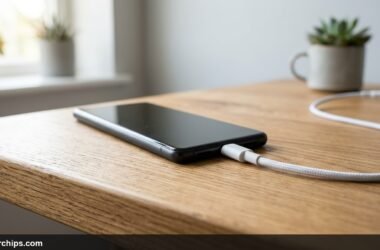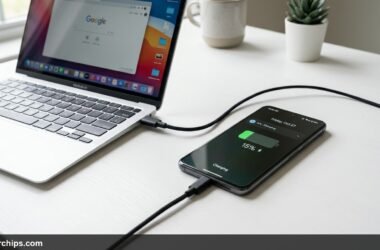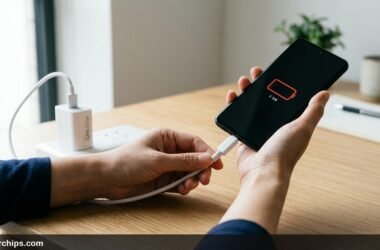
You connect your phone to its charging cable after a run, a day at the beach, or simply stepping out of the shower, and a sudden warning screen blocks power delivery. On an iPhone, a yellow warning triangle flashes “Liquid Detected in Lightning Connector” or “Liquid Detected in USB-C Connector.” On a Samsung or Android device, a persistent water droplet icon locks out the charging port. Seeing a phone charging port wet detected alert is alarming, but this safety mechanism is actively protecting your device motherboard from catastrophic electrical failure.
When your phone detects moisture in the charging port, hardware sensors disable the charging pins to prevent electrolytic corrosion and electrical shorts. To resolve it safely: unplug the cable immediately, hold the phone upright with the port facing down, and tap it gently against your open palm to dislodge standing liquid droplets. Next, place the phone in a well-ventilated dry area in front of an ambient room fan for 30 to 60 minutes. Never put your phone in rice, never use a hair dryer, and use a Qi wireless or MagSafe charger if you need immediate emergency power.
- ✓Electrolytic Protection: Moisture sensor cutoffs prevent active electric current from corroding gold connector pins through rapid electrochemical oxidation.
- ✓The Rice Myth Hazard: Putting phones in bags of rice deposits microscopic starch dust into the port, forming a conductive paste that locks the sensor permanently.
- ✓Wireless Charging Safe Zone: Qi wireless charging pads and MagSafe pucks bypass the physical connector pins, allowing 100% safe battery recharges while the port dries.
Why Your Phone Triggers the Moisture Detected Alert
Every modern smartphone with water resistance (rated IP67 or IP68) incorporates sophisticated moisture-detection circuitry built directly into the charging port housing. The port cavity itself cannot be hermetically sealed because metal pins must maintain physical contact with your charging cable. To prevent catastrophic hardware damage, mobile manufacturers implement automated sensor routines.
The detection mechanism works by measuring electrical resistance across specific pins. When water, sweat, or even dense atmospheric condensation enters the socket, dissolved mineral salts turn the liquid into a conductor. As soon as you insert a charging cable, the phone diagnostic controller runs a sub-millivolt test current. If it registers an unexpected short or low-resistance path between the power pins and the ground shield, the operating system locks out the charging circuit instantly.
If electric current (up to 20 volts in modern fast-charging protocols) were allowed to flow through wet pins, a process called electrolysis occurs within seconds. Electrolysis rapidly strips the microscopic gold plating from your charging pins, eating away the metal and causing permanent corrosion. This leaves the port incapable of ever transferring power or data again.
According to official documentation on Apple official liquid-detection alert guidelines, this safeguard protects both the iPhone and the connected accessory from permanent pin erosion. However, false alarms are also common. Highly compressed pocket lint damp with human perspiration can hold sufficient moisture to trigger the sensor, even if your phone has been nowhere near open water.
How to Fix Phone Charging Port Moisture Detected: 7 Solutions
Follow these safe, manufacturer-approved recovery methods in order. These steps remove trapped moisture without damaging internal delicate electronic components.
Fix 1: Dislodge Free Water with the Palm-Tap Technique
Never shake your phone violently, as centrifugal force drives water droplets sideways into microphone membranes and speaker meshes. Instead, use controlled mechanical tapping to evacuate liquid from the port cavity.
- Disconnect all charging cables, headphones, or adapters immediately.
- Turn the smartphone so the charging port faces straight downward toward the floor.
- Hold your opposite hand open and flat, palm facing up.
- Gently tap the bottom edge of the phone against your palm several times.
- Inspect your palm. You will usually see several small droplets of water that were held inside the connector by surface tension.
- Wipe the outer metal frame dry with a clean microfiber cloth or lint-free towel.
Evacuating pooled water from the deep recess of the socket cuts the total natural evaporation time by more than half.
Fix 2: Set Up Active Ambient Air Evaporation (Never Use Heat)
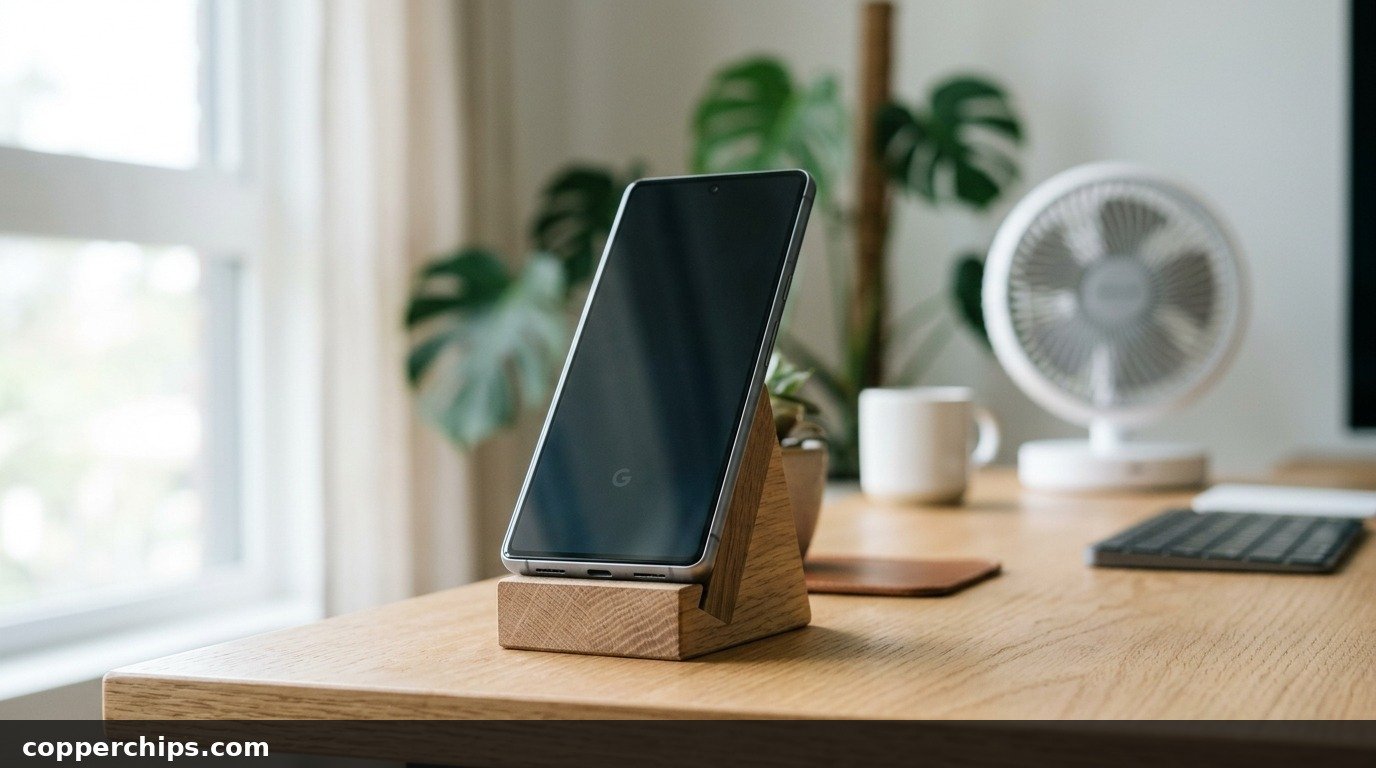
Positioning your phone in front of an ambient room fan accelerates drying through convective airflow without risking thermal damage. Evaporation requires dry, moving air, not intense heat.
- Place your phone standing upright or leaned against a stand in a dry, low-humidity room.
- Position an electric desk fan or oscillating household fan so its airflow blows directly across the bottom charging port.
- Leave the phone undisturbed in the airflow for at least 30 to 60 minutes.
- Avoid closed drawers, dark cupboards, or humid bathrooms where moisture cannot dissipate into the air.
Do not use a hair dryer, heat gun, or oven. As noted in research on Battery University lithium-ion charging safety and thermal limits, concentrated heat degrades the chemical stability of lithium-ion batteries and melts the rubber water-sealing gaskets surrounding the chassis.
Fix 3: Use a Wireless Charger or MagSafe for Immediate Power
If your phone battery is critically low and you need power immediately, bypass the physical connector entirely using wireless charging. Qi wireless induction coils operate independently of the USB port pins.
- Ensure the back glass panel of your phone is completely dry.
- Do not plug any wired accessories into the charging port.
- Place your smartphone directly onto a Qi-certified wireless charging pad, horizontal charging stand, or magnetic MagSafe puck.
- Verify that the wireless charging animation illuminates on your display.
- Allow the phone to charge wirelessly while the physical charging socket continues to dry naturally through ambient evaporation.
If your phone still refuses to charge normally once dried, consult our guide on phone battery draining while plugged in to troubleshoot net power delivery issues.
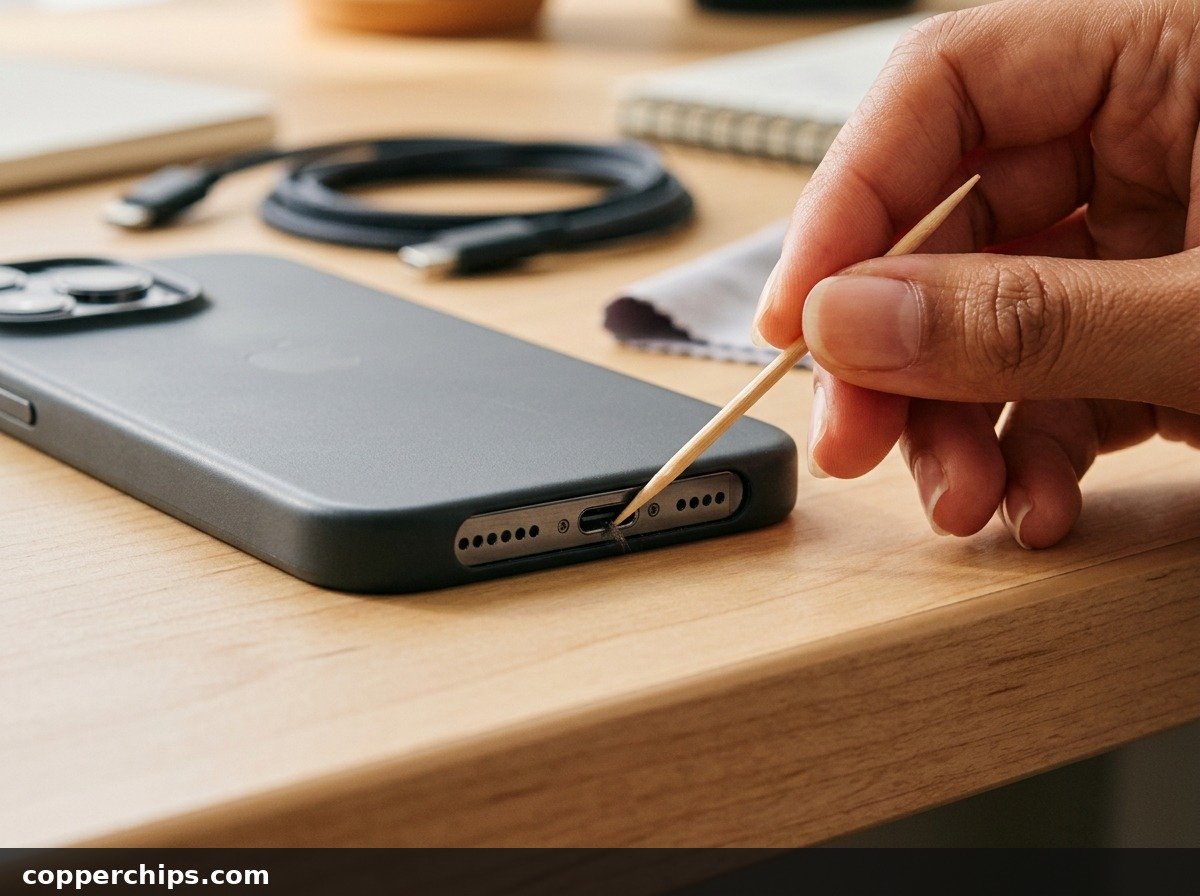
Fix 4: Extract Trapped Damp Pocket Lint with a Wooden Toothpick
Damp pocket lint is the number one cause of persistent moisture detected warnings that refuse to clear after hours of drying. Fabric fibers act like a miniature sponge, absorbing humidity from rain or body sweat.
- Power off your smartphone completely before inspecting the port.
- Take a bright flashlight and peer directly into the port cavity. Look for a gray or dark brown felt matting compressed at the very bottom.
- Take a clean, completely dry wooden toothpick or a plastic dental pick. Never use a metal sewing needle or paperclip.
- Gently insert the toothpick along the outer walls of the port cavity, carefully avoiding the delicate central wafer board.
- Lightly scrape the bottom corners and pull outward. You will often extract a small ball of damp, compressed lint.
- Once the lint is removed, let the port sit in open air for 15 minutes before testing the cable.
Similar physical pin maintenance is necessary for accessories; see our guide on earbud charging pin maintenance for cleaning small electronic contacts.
Fix 5: Clear the USB Settings System Cache (Android / Samsung Fix)
On Android devices, the moisture detection flag can become stuck in operating system cache even after the physical socket is bone-dry. Clearing the system USB daemon cache resets the sensor state.
- Open Settings on your Android phone and tap Apps.
- Tap the filter/sort icon next to “Your apps” and toggle on Show system apps, then tap OK.
- Scroll down alphabetically or use the search bar to locate USBSettings (or USB C Settings).
- Tap Storage within the USBSettings app menu.
- Tap Clear Cache at the bottom of the screen, followed by Clear Data.
- Restart your phone normally. As the operating system boots up, it re-polls the hardware pins from a clean state.
This software reset clears stubborn phantom alerts that linger due to temporary operating system logging glitches.
Fix 6: Inspect and Clean the Charging Cable Tip
The moisture alert will trigger if the cable connector is wet or corroded, even if your phone port is entirely dry. Connecting a damp cable transfers liquid directly onto dry phone pins.
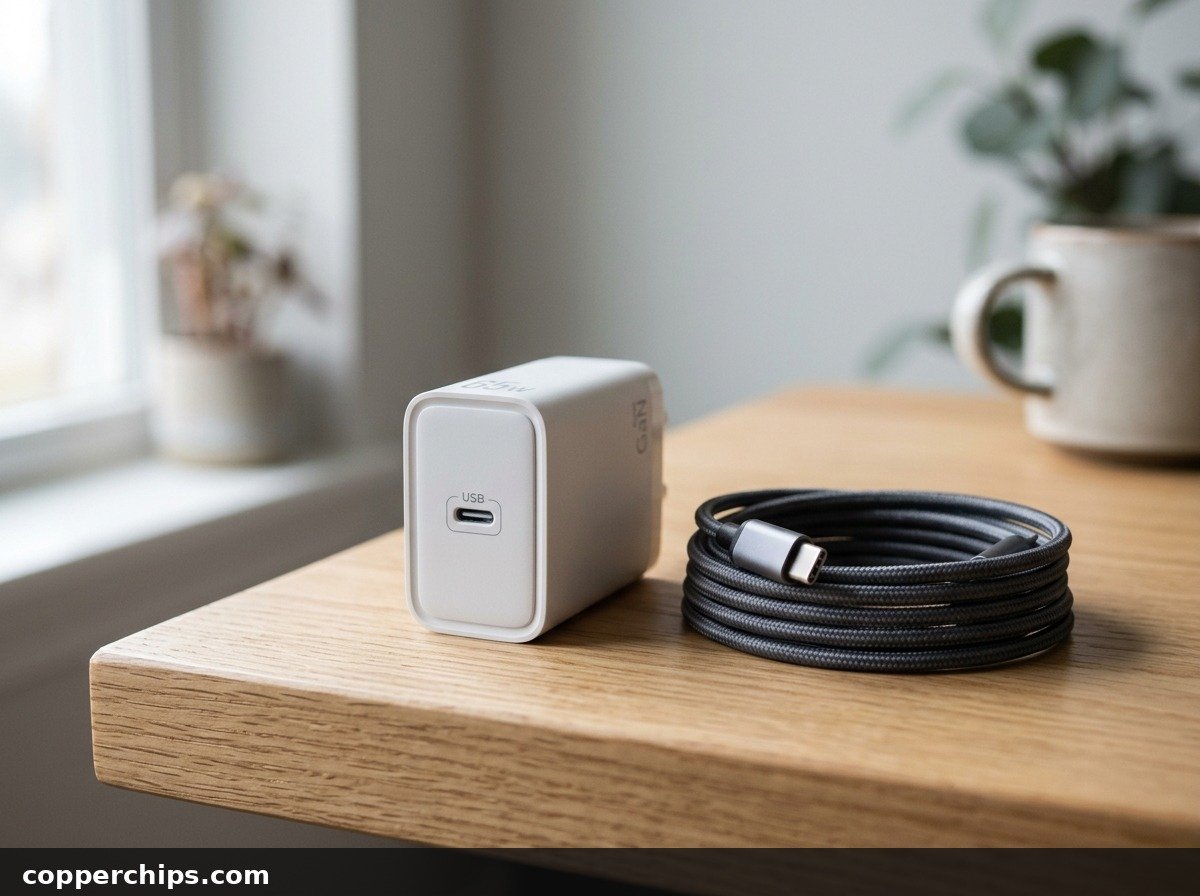
- Disconnect the charging cable from both your phone and the wall adapter.
- Examine the gold pins on the Lightning or USB-C tip under good light.
- Check for water droplets, sticky residue, or dark blackish-green oxidation marks.
- Wipe the metal tip firmly with a dry microfiber cloth. If sticky residue is present, dip a cloth corner in 99 percent isopropyl alcohol (which evaporates in seconds) and scrub the pins clean.
- Test charging with a completely different, verified dry cable. If you need temporary power options while inspecting cables, read our tutorial on how to charge your phone without a charger.
Official device guidelines from the Google Pixel battery and charging hardware care documentation emphasize that inspecting cable connectors is mandatory during port troubleshooting.
Fix 7: Perform a Forced Hardware Restart
A forced restart reboots the micro-controller that monitors charging port pin impedance. A standard software restart may not reset the low-level sensory bus.
- On iPhone 8 and newer: Press and quickly release Volume Up, press and quickly release Volume Down, then press and hold the Side Power button continuously until the Apple logo appears.
- On Samsung and Google Pixel devices: Press and hold both the Power button and Volume Down button simultaneously for 10 to 15 seconds until the device reboots.
- Once the phone reboots to the lock screen, wait two minutes, then connect your dry charging cable.
Still Not Working? Try This
If you have waited several hours, cleaned lint, cleared the cache, and verified the cable, but the moisture warning still blocks charging, consider these deeper diagnostic realities:
- Understanding Emergency Override (iPhone): When the liquid alert appears on iOS, you can tap “Emergency Override” to force power delivery. However, do this only during genuine life safety emergencies. If physical liquid remains inside, the incoming voltage will trigger galvanic electrolysis, destroying the connector pins within minutes.
- Galvanic Pin Corrosion: If salt water, soda, or sports drinks entered the port, simple drying is insufficient. Salt crystals remain conductive when dry and corrode copper. The port must be flushed using a specialized non-conductive electrical contact cleaner or professionally serviced.
- Hardware Sensor Board Failure: If the moisture warning persists for days across multiple clean cables and dry environments, the micro-impedance sensor has suffered internal electrical failure. On modern smartphones, the USB charging daughterboard is a modular component that can be replaced by an authorized technician without replacing the entire phone.
Explore our complete Cables and Chargers troubleshooting hub for additional cable maintenance walkthroughs and power setup guides.
Frequently Asked Questions
How long does it take for a wet phone charging port to dry?
Under normal indoor conditions, a phone charging port takes between 1 and 4 hours to dry completely. Standing the phone upright in front of an electric fan speeds up the process significantly, often drying the pins in 30 to 45 minutes. High-humidity environments can extend drying times up to 12 hours.
Can I put my phone in rice to dry the charging port?
No. Major smartphone manufacturers explicitly advise against using rice. Rice does not accelerate drying compared to circulating room air, and fine starch grains and dust enter the socket cavity, creating a thick paste that damages connector pins and permanently locks the sensor.
Is it safe to use Emergency Override to charge my phone?
Emergency Override should only be used in true emergencies when you must make a critical call. If liquid is present on the pins when electric current flows, electrolytic corrosion will permanently burn the contacts, ruining the port and voiding your warranty.
Why does my phone say moisture detected when it is dry?
A false moisture warning is typically caused by damp pocket lint compressed at the bottom of the socket, sticky residues from sugary liquids that leave conductive mineral salts behind, or corrupted system app cache on Android devices. Cleaning the port with a dry wooden toothpick and clearing the USB settings cache usually resolves false triggers.
The Bottom Line
The moisture detected warning on your smartphone is a protective circuit breaker designed to save your device from irreversible pin corrosion. In nearly all cases, resolving the alert requires nothing more than gentle patience and proper physics. Dislodge free water by tapping the phone port-down against your palm, place the device in front of a circulating room fan, and never apply heat or rice. If you are in a rush for power, place your phone on a wireless charging pad while the physical port dries naturally.