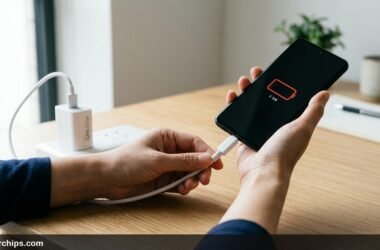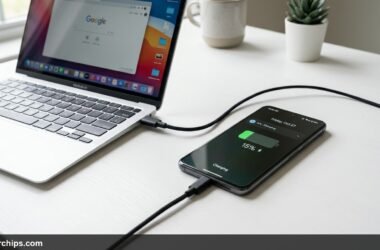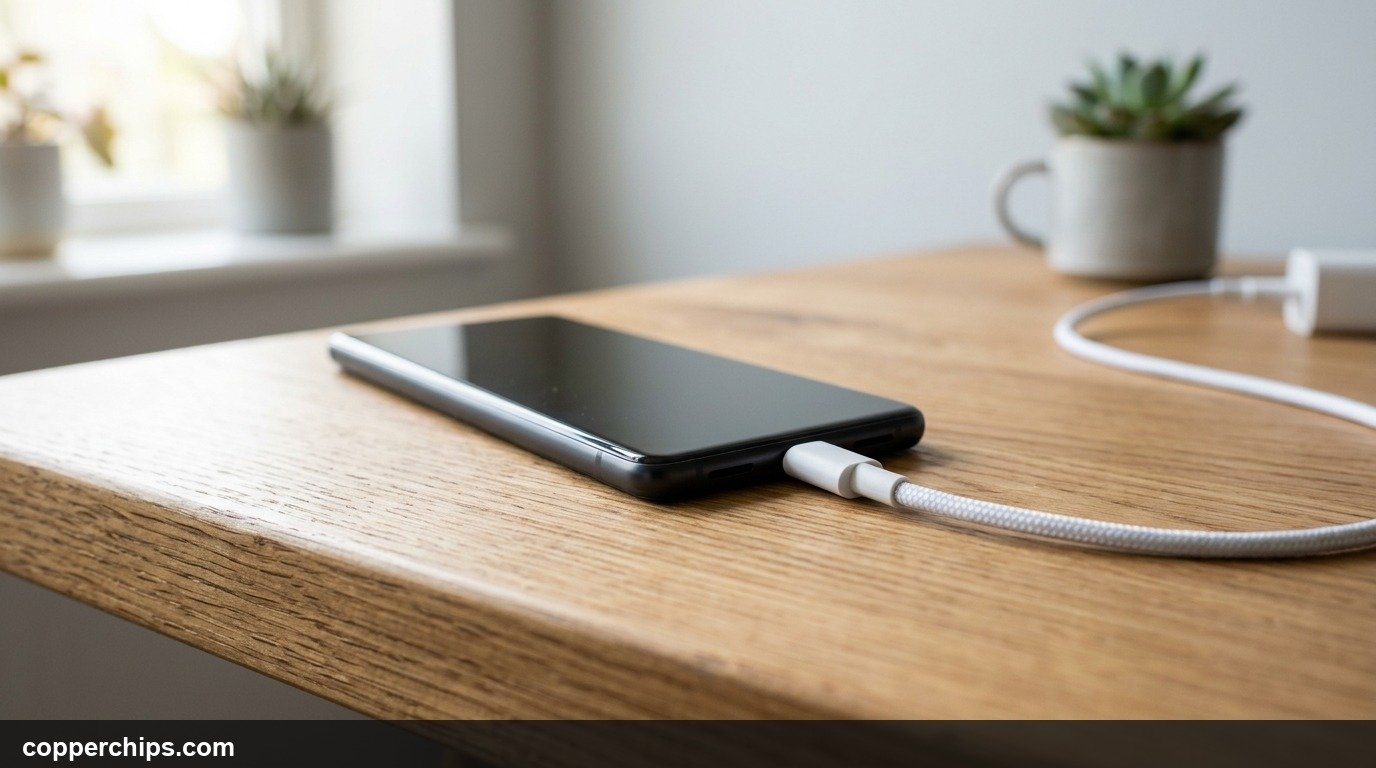
You plug your phone in, see the familiar lightning bolt icon on the battery indicator, and walk away expecting a full recharge. Thirty minutes later, you check the screen and discover the opposite: your battery level dropped from 28 percent down to 14 percent while plugged into the wall. When your phone says charging but the battery percentage is going down, your device is suffering from a net power deficit. The battery indicator only confirms that an electrical circuit is complete, not that enough current is flowing to actually charge the cell.
When your phone displays the charging symbol while the battery percentage drops, your device is consuming more power than the charger supplies (net negative wattage). This issue is typically caused by a failed Power Delivery handshake dropping current to 0.5A, pocket lint insulating the port pins, damaged copper strands inside the cable, or thermal throttling above 45 degrees Celsius. To fix it immediately: switch to a certified 20W+ wall adapter, gently clean the charging port with a wooden toothpick, swap to a known-working USB-C cable, and let the device cool down.
- ✓Net Power Deficit: A charging icon only requires 5V detection; it does not guarantee adequate amperage to outpace device power consumption.
- ✓Primary Hardware Culprits: Lint accumulation on USB-C Configuration Channel (CC) pins, worn charging cables with high internal resistance, and weak USB ports (laptops or car consoles).
- ✓Thermal Cutoff: Smartphone charge controllers intentionally throttle or halt intake when internal battery temperature climbs past 45 degrees Celsius (113 degrees Fahrenheit).
Why Your Phone Loses Battery While Plugged In
Every modern mobile device operates on a simple energy equation: incoming power minus outgoing power. When incoming wattage exceeds system power draw, your battery charges. When incoming wattage is smaller than active power draw, your battery discharges to supply the remaining current, even though the charging icon remains illuminated on your status bar.
Under normal conditions, a modern fast charger negotiates between 15W and 45W of power. However, if the digital handshake between the charger and your phone fails, modern charging protocols drop back to baseline USB safety limits: 5 volts at 0.5 amps, which equals just 2.5 watts of total power. If your screen is turned on, background apps are syncing cloud photos, or mobile hotspot is active, your phone can easily consume 4 to 8 watts. The phone draws 2.5W from the charger and pulls the remaining 3W directly from the battery cell. The result is steady battery drain while plugged in.
According to Battery University research on lithium-ion charging safety, charging controllers also enforce strict thermal safety cutoffs. If heavy gaming or a thick insulating phone case causes internal temperatures to spike, the battery management system deliberately throttles current intake to prevent thermal runaway. This leaves active applications running on battery reserves.
How to Fix Phone Losing Charge While Plugged In: 7 Solutions
Follow these steps in order, moving from the most common environmental and accessory issues to internal software and diagnostic checks.
Fix 1: Switch to a High-Wattage Dedicated Wall Adapter
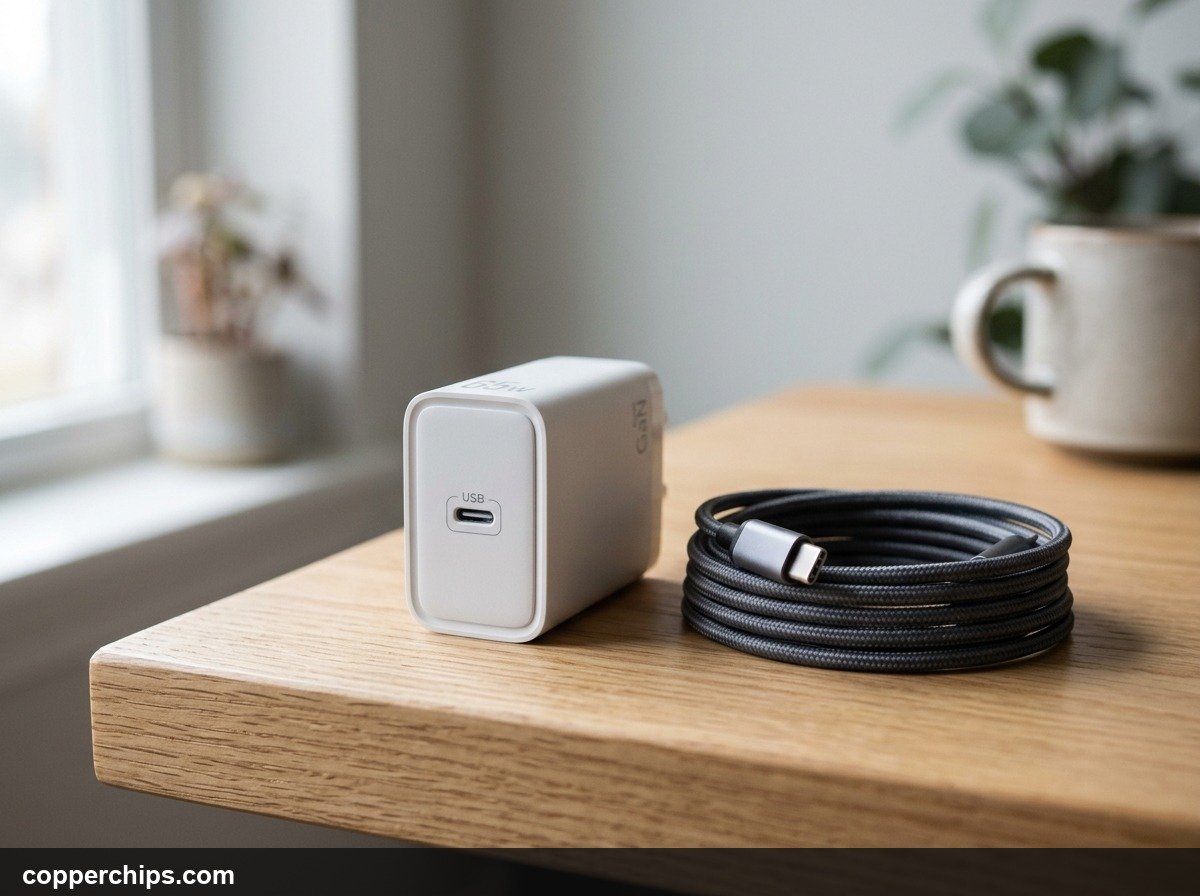
Stop charging your phone through laptop USB ports, shared desk strips, or vehicle USB-A dashboard sockets. These low-output ports rarely deliver more than 2.5W to 5W of power. Plug directly into an AC wall socket using a dedicated fast-charging brick that supports USB Power Delivery (USB-PD) with an output rating of at least 20 watts.
- Disconnect your charging cable from secondary hubs, vehicle ports, or computer USB slots.
- Inspect the tiny printed text on your wall charger. Check the output line for specifications such as 9V at 2.22A (20W) or 12V at 1.67A (20W). If the charger only lists 5V at 1A, it maxes out at 5W, which is insufficient for modern smartphones running background tasks.
- Plug the high-wattage power adapter directly into an unswitched wall outlet rather than a daisy-chained extension strip.
Using an official or certified high-wattage brick ensures the charger can supply substantial headroom over your phone’s active hardware draw.
Fix 2: Clean Compressed Pocket Lint from the Charging Port
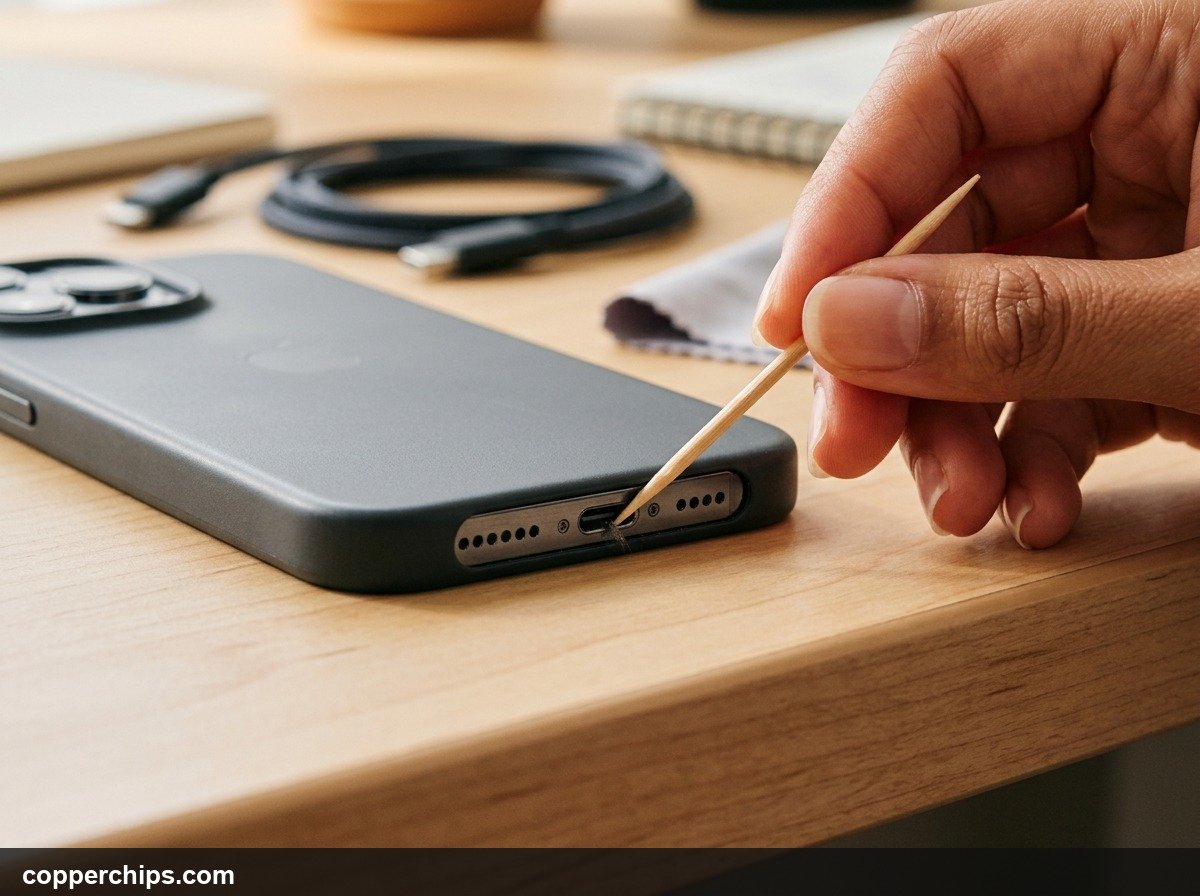
Pocket lint inside your phone charging port is the single most frequent reason for partial charging connections. Every time you slide your phone into your pocket, microscopic fabric fibers enter the port. Over weeks of inserting your charging cable, those fibers get compressed into a dense felt pad at the bottom of the socket.
This debris prevents the cable plug from seating completely. The pins for baseline 5V power might make intermittent physical contact, but the sensitive data pins and Configuration Channel (CC) pins fail to connect. Without CC pin communication, fast-charging protocols cannot negotiate higher voltages, leaving your phone stuck at minimal current.
- Power down your smartphone completely before cleaning the port.
- Take a clean, dry wooden toothpick or a non-conductive plastic dental pick. Never use metal objects like paperclips, needles, or safety pins, which can short out delicate gold connector pins.
- Insert the toothpick gently along the bottom edge of the port cavity, staying clear of the fragile central wafer pin board inside USB-C ports.
- Sweep lightly from side to side and gently pull outwards. You will often extract a tight clump of compacted lint.
- Use a canister of compressed air or a gentle hand air blower to blow out any remaining loose particles.
- Reinsert the charging cable firmly. You should feel a distinct, mechanical snap as the connector locks into place flush with the frame.
Fix 3: Replace the Charging Cable to Eliminate High Internal Resistance
A damaged or frayed charging cable can deliver enough voltage to trigger the on-screen charging animation while failing under load. Charging cables contain separate tiny copper conductors for power delivery and data communication. When a cable is repeatedly bent near the strain-relief collar, internal copper strands snap one by one.
As the cross-sectional area of healthy copper wire decreases, internal electrical resistance climbs sharply. While an idle phone senses 5 volts and activates the charging indicator, the moment the battery controller attempts to pull 2 amps of current, the voltage drops dramatically across the damaged cable wire. The phone automatically throttles power intake down to protect the circuit, resulting in a negative net charge rate.
- Inspect the entire length of your cable for kinks, visible pinching, split outer jackets, or exposed shielding braid near the connectors.
- Look closely at the gold pins on the connector tip. Check for black burn marks or dark green corrosion caused by minor moisture exposure.
- Test charging with a certified replacement cable (such as an Apple MFi-certified cable or a certified USB-IF USB-C cable). If you need temporary power while sorting out cables, consult our guide on how to charge your phone without a traditional charger.
Fix 4: Close Heavy Background Processes and Disable GPS Hotspot
If your phone is running power-intensive background tasks, energy consumption will outpace slow or standard charging inputs. Certain applications and system features draw continuous high amperage, turning your phone into an active heater.
Common battery-draining culprits include running a mobile Wi-Fi hotspot, streaming high-definition video over 5G networks, continuous GPS navigation with the screen at maximum brightness, and cloud backup sync operations running in the background.
- On Android: Navigate to Settings > Battery > Battery usage. Review the list of apps since the last full charge. If an unfamiliar background app shows 25 percent or higher consumption, tap it and select Force Stop, then set its background usage to Restricted.
- On iPhone: Open Settings > Battery. Scroll down to review battery usage by app. Check if apps show heavy “Background Activity”. Turn off Background App Refresh under Settings > General > Background App Refresh.
- Disable features that generate continuous radio activity: turn off Mobile Hotspot, disable Personal Hotspot, and reduce screen brightness below 50 percent while charging.
For official diagnostic recommendations from device manufacturers, refer to the Google Pixel battery and charging troubleshooting documentation.
Fix 5: Remove Heavy Phone Cases and Allow Device to Cool
Excessive thermal buildup causes modern charge controllers to throttle current down to a negligible trickle. Modern smartphones contain integrated thermal sensors positioned directly against the battery pack and the system-on-chip. Lithium-ion chemistry degrades rapidly when subjected to elevated temperatures during charging.
If your phone reaches approximately 40 to 45 degrees Celsius (104 to 113 degrees Fahrenheit), the hardware controller cuts the incoming charge current by 50 to 80 percent to protect battery longevity. When combined with regular background battery usage, the percentage will decline steadily.
- Unclip thick rubber, heavy-duty armor, or leather wallet cases that trap heat around the phone chassis.
- Remove the phone from direct sunlight, car dashboard mounts exposed to sun, or soft surfaces like beds and blankets that block passive heat dissipation.
- Let the device rest unplugged in a cool room for 15 minutes until the frame feels neutral to the touch.
- Reattach the charger and keep the display turned off while charging resumes.
Similar thermal safety cutoffs also frequently occur in portable accessories; read our troubleshooting guide on charging issues on wireless earbuds for related contact and thermal diagnostics.
Fix 6: Measure Real-Time Current Intake with a Diagnostic App
Measuring actual milliamp intake removes the guesswork from troubleshooting charging hardware. Instead of waiting 30 minutes to see if the battery percentage rises or falls, you can see live net power flow in real time.
- On Android devices: Download a trusted hardware diagnostic tool like Ampere or AccuBattery from the Google Play Store. Open the app while unplugged to note your phone baseline discharge rate (typically between -250 mA and -500 mA with the screen on).
- Plug in your charger and watch the live measurement. A healthy fast charger will flip the number to positive green, reading between +1,500 mA and +3,500 mA.
- If the measurement remains in negative numbers (for example, -180 mA) or hovers around a tiny positive value (+50 mA), your charger or cable is failing to supply adequate current under load.
- On iPhone: iOS does not expose live mA current to third-party App Store utilities due to sandbox privacy rules. However, you can connect your iPhone to a Mac and launch CoconutBattery, which displays live charging wattage and charging status. Alternatively, check official advice via Apple official iPhone charging troubleshooting documentation.
Fix 7: Check Battery Maximum Capacity and Cycle Degradation
Severely degraded lithium-ion cells suffer from high internal resistance and erratic voltage reporting. As a phone battery completes hundreds of charge cycles, its internal cathode materials break down. A failing battery can report 40 percent remaining charge, but under system load, its output voltage sags below operating thresholds.
When this happens, the battery gauge calibration drops rapidly, giving the appearance that the phone is actively losing charge even while connected to power.
- On iPhone: Open Settings > Battery > Battery Health & Charging. Inspect the Maximum Capacity percentage. If this number is below 80 percent, or if you see a service notification stating “Important Battery Message”, the battery can no longer support peak performance or accept regular charge rates.
- On Android: Open Settings > Battery (or Settings > About Phone > Battery Information on Samsung devices). Check the battery health status. You can also dial
*#*#4636#*#*on supported dialers to open the hardware test menu. - If maximum capacity is severely depleted, replacing the internal battery restores normal charging speed and battery retention.
Still Not Working? Try This
If you have verified that your charger delivers 20W or more, swapped cables, and cleaned the port, but your battery still drops while plugged in, the issue may involve deeper hardware or software faults:
- Boot into Safe Mode: On Android, press and hold the Power button, then touch and hold the on-screen Power Off icon until the “Reboot to safe mode” prompt appears. Safe Mode disables all third-party apps. If the phone charges rapidly in Safe Mode, a rogue app running in your standard profile is causing severe background drain.
- Damaged Charging IC (PMIC / Tristar / Hydra Chip): Smartphones contain a dedicated power management integrated circuit (PMIC) on the motherboard that regulates incoming current. If the phone previously suffered a power surge from a cheap car adapter or water exposure, this chip can fail partially. A damaged charging controller reports to the operating system that charging is active while completely blocking current flow into the cell. This requires board-level micro-soldering repair at an authorized service center.
- Loose Port Solder Joints: If moving the cable tip slightly alters charging behavior or triggers rapid connect-disconnect chimes, the physical connector pins have detached from the main circuit board. Avoid wiggling the cable, which can short adjacent power traces.
Browse our complete Cables and Chargers troubleshooting hub for additional hardware diagnostics and power setup walkthroughs.
Frequently Asked Questions
Why does my battery percentage go down while charging?
Your battery percentage decreases because your phone consumes more electrical power than the attached charger supplies. Even though the lightning bolt icon appears, a low-wattage port, broken cable wire, or dirty port limits incoming power to under 2.5 watts, forcing the battery to drain to keep the phone operating.
Can a faulty cable make a phone discharge while connected?
Yes. When internal copper wires break or become corroded, electrical resistance climbs. The phone detects the initial 5-volt circuit and displays the charging icon, but when current is demanded, the voltage collapses. The device then drops back to safe minimum current levels that cannot outpace normal device consumption.
Is it harmful to use my phone while it charges?
Using your phone for basic messaging or reading while charging is safe. However, heavy gaming or video recording generates significant internal heat. When charging heat combines with processing heat, thermal throttling activates, which slows down charging and accelerates long-term battery degradation.
How do I know if my charging port is broken or just dirty?
If a charging cable feels loose, wobbles excessively, or does not sit completely flush against the phone frame, packed pocket lint is almost always the cause. If the port is completely clean and the cable fits tightly, but charging disconnects whenever the plug is gently nudged, the internal solder joints or gold pins are mechanically damaged.
The Bottom Line
A phone that loses charge while plugged in is almost always dealing with a net power deficit rather than a dead battery. In over 80 percent of cases, the solution comes down to three factors: switching away from weak laptop and car USB ports to a certified 20W+ wall adapter, replacing a worn cable with broken internal strands, and cleaning compacted pocket lint out of the socket with a wooden toothpick. Start with those physical checks before assuming your smartphone needs an expensive battery replacement.