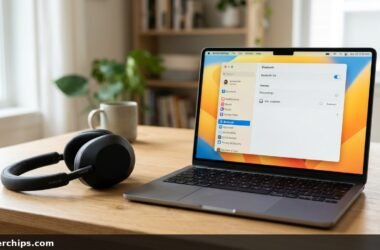
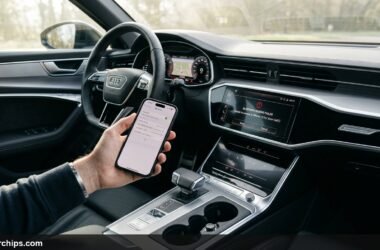
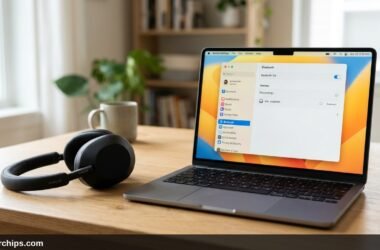
You sit down with a brand-new pair of wireless headphones, an ergonomic mouse, or an external keyboard, ready to pair them with your computer or phone. You open your system settings, search for the wireless toggle, and realize the option is nowhere to be found. Knowing how to enable bluetooth across different desktop and mobile operating systems is the first step toward connecting everyday wireless accessories.
Bluetooth is a short-range 2.4 GHz radio frequency protocol that links peripherals without physical cables. While turning Bluetooth on takes only two taps on a healthy device, software glitches, missing drivers, disabled background services, or missing hardware adapters can cause toggles to vanish. This guide covers standard activation paths for Windows, Mac, iOS, and Android, along with proven troubleshooting fixes when the toggle refuses to turn on.
To enable Bluetooth on Windows 11 or 10, press Windows Key + A to open Quick Settings, then click the Bluetooth tile. On a Mac, click the Control Center icon in the top-right menu bar and toggle Bluetooth on. On iPhone or iPad, open Settings, tap Bluetooth, and switch the toggle to green (avoid using Control Center, which only disconnects accessories temporarily). On Android, swipe down twice from the top of your screen to reveal Quick Settings and tap the Bluetooth icon. If the toggle is missing on a PC, open Device Manager to verify your Bluetooth adapter driver is enabled, or restart the Windows Bluetooth Support Service (bthserv).
- ✓Shortcut Access: Use Windows Key + A on Windows or swipe down from the battery icon on iOS and Android for instant 2-second access.
- ✓The iOS Control Center Trap: Tapping the blue Bluetooth icon in iPhone Control Center disconnects accessories until 5:00 AM, but leaves the radio active. Use the Settings app for full control.
- ✓Desktop Hardware Reality: Custom desktop PCs often lack built-in Bluetooth cards on their motherboards, requiring an inexpensive USB dongle.
How to Turn on Bluetooth: Step-by-Step by Operating System
Different operating systems place Bluetooth toggles in distinct locations. Follow the steps below for your specific platform.
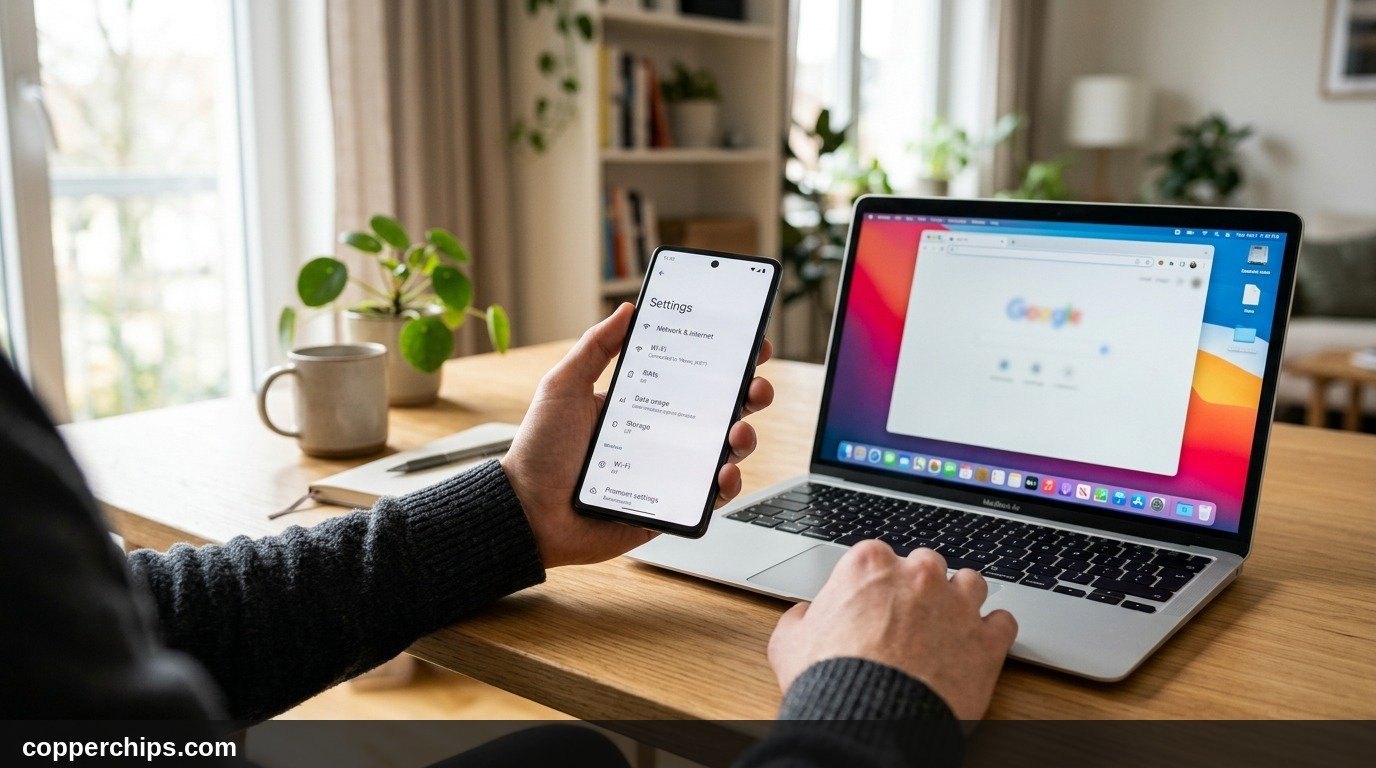
1. How to Enable Bluetooth on Windows 11
Windows 11 features a streamlined Quick Settings panel that provides access to wireless radios with a single keyboard shortcut.
- Press Windows Key + A on your physical keyboard to open the Quick Settings panel on the right side of your taskbar.
- Locate the Bluetooth tile. If it appears grey, click it once to turn it blue, indicating Bluetooth is enabled.
- To pair a device, click the small arrow (>) next to the Bluetooth icon to view nearby discoverable devices.
Alternatively, open the full settings hub by pressing Windows Key + I, selecting Bluetooth & devices from the left sidebar, and toggling the primary Bluetooth switch to On.
2. How to Enable Bluetooth on Windows 10
Windows 10 integrates wireless controls into the Action Center and the main system settings app.
- Click the Action Center icon (speech bubble shape) in the far bottom-right corner of your taskbar, or press Windows Key + A.
- Look at the quick action tiles at the bottom. If collapsed, click Expand.
- Click the Bluetooth tile to turn it on.
- To manage pairings, open Start > Settings > Devices > Bluetooth & other devices, and verify the toggle switch reads On.
For more detailed connection options, review the official Microsoft Windows Bluetooth documentation.
3. How to Enable Bluetooth on macOS (MacBook, iMac, Mac Mini)
Apple places Bluetooth management inside macOS Control Center and the system menu bar for rapid access.
- Look at the top-right corner of your Mac menu bar and click the Control Center icon (two slider switches).
- Click the Bluetooth module.
- Click the circular toggle switch so it turns blue.
- Your Mac will automatically begin scanning for discoverable headphones, trackpads, and keyboards.
You can also navigate to Apple Menu () > System Settings > Bluetooth and toggle the switch to on. To keep the icon permanently visible on your top bar, check the box labeled Show in Menu Bar in Control Center settings, as recommended in Apple official Bluetooth configuration guidelines.
4. How to Enable Bluetooth on iPhone and iPad
iOS handles Bluetooth through two separate interfaces, and understanding the difference between them matters for reliable connectivity.
- Open the Settings app on your home screen.
- Tap Bluetooth near the top of the menu list.
- Toggle the switch to the green On position.
- Your iPhone will immediately display connected devices and an active spinning wheel under Other Devices.
5. How to Enable Bluetooth on Android Devices (Samsung, Pixel, Motorola)
Android provides quick tile access from any screen, including the lock screen.
- Swipe down from the top edge of your screen with one finger to view notifications, then swipe down a second time to expand the full Quick Settings grid.
- Locate the Bluetooth tile (B-shaped rune icon).
- Tap the tile once to turn it on. On modern Android versions, tapping the tile opens a quick drawer showing saved accessories.
- To pair a new device, long-press the Bluetooth tile for two seconds to jump straight to Settings > Connected devices > Pair new device.
Troubleshooting: Why Is Bluetooth Missing or Not Turning On?
If you followed the steps above and found the Bluetooth button missing, greyed out, or unresponsive, your device is experiencing a software crash, driver conflict, or hardware absence.
Issue 1: Bluetooth Toggle Missing in Windows Settings
A missing toggle switch in Windows 11 or 10 means the operating system cannot communicate with your wireless network card.
- Right-click the Start button and select Device Manager.
- Look for a category labeled Bluetooth. If it is missing, click View > Show hidden devices at the top.
- If your Bluetooth adapter displays a yellow exclamation mark or a down arrow, right-click it and select Enable device.
- If an error persists, right-click your adapter (such as Intel Wireless Bluetooth or Realtek Bluetooth Adapter), select Update driver, and choose Search automatically for drivers.
Next, verify that Windows background services are operating properly. Press Windows Key + R, type services.msc, and press Enter. Scroll down to locate Bluetooth Support Service. Right-click the service, select Properties, set the Startup type to Automatic, click Start, and press OK.
Issue 2: Desktop PC Lacks Built-in Bluetooth Hardware
Many custom-built desktop gaming towers and budget desktop PCs do not include wireless Bluetooth chips on their motherboards.
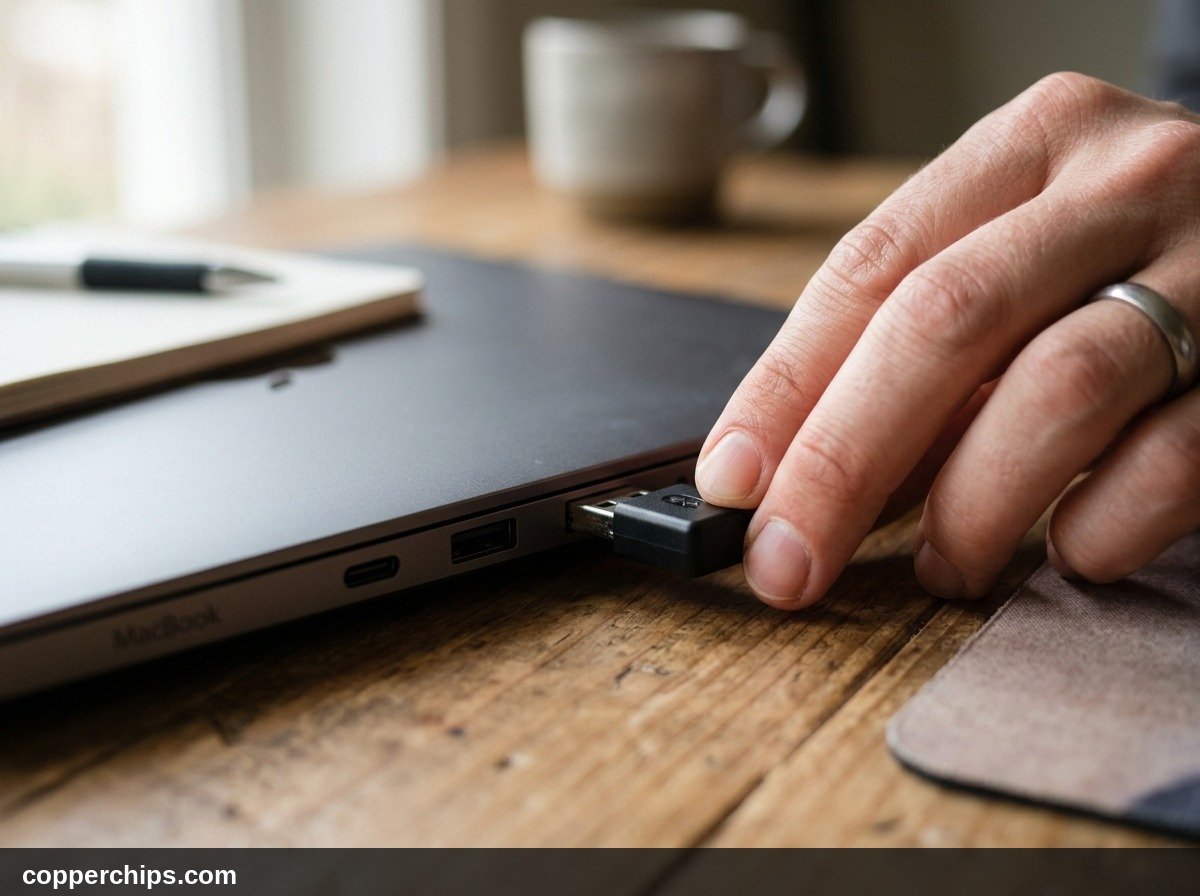
If Device Manager lists no Bluetooth radios even after showing hidden devices, your computer lacks the physical hardware. The fastest and most affordable solution is plugging a compact USB Bluetooth 5.3 or 5.4 dongle into an open USB port. Modern USB adapters are plug-and-play, installing generic Microsoft drivers automatically within thirty seconds without requiring external software discs.
Issue 3: Bluetooth Greyed Out or Spinning Indefinitely on iPhone / Android
When a smartphone shows a greyed-out Bluetooth toggle that cannot be slid into the on position, the baseband modem firmware has stalled.
- Toggle Airplane Mode on for thirty seconds, then turn it back off. This forces the power management chip to power-cycle cellular, Wi-Fi, and Bluetooth radios simultaneously.
- Perform a hard reboot on your phone (press Volume Up, Volume Down, then hold the Power button until the brand logo appears).
- Reset network settings. On iPhone, navigate to Settings > General > Transfer or Reset iPhone > Reset > Reset Network Settings. On Android, go to Settings > System > Reset options > Reset Wi-Fi, mobile & Bluetooth.
Issue 4: “Bluetooth Not Available” on Mac
Mac users running macOS Sonoma or Ventura occasionally encounter a menu bar status reading "Bluetooth Not Available" after system sleep.
To resolve this without restarting your machine, kill the background Bluetooth daemon and force macOS to reload clean preference files:
- Open Terminal via Spotlight Search (Command + Space).
- Type
sudo pkill bluetoothdand press Return. - Type your Mac user password when prompted and press Return.
- Wait five seconds while the top menu bar icon flickers and resets.
If the error persists after a daemon kill, navigate in Finder to /Library/Preferences/ and delete the file named com.apple.Bluetooth.plist, then reboot your Mac. The operating system will generate a fresh, uncorrupted configuration file on restart.
Bluetooth Operational Reference Matrix
Use this reference table to quickly locate your Bluetooth controls and identify instant fixes for common platform errors.
| Platform | Primary Menu Path | Fastest Shortcut | Most Common Fix for Missing Toggle |
|---|---|---|---|
| Windows 11 | Settings > Bluetooth & devices | Windows Key + A | Restart Bluetooth Support Service in services.msc |
| Windows 10 | Settings > Devices > Bluetooth | Action Center tile | Update adapter driver in Device Manager |
| macOS | System Settings > Bluetooth | Control Center icon | Execute sudo pkill bluetoothd in Terminal |
| iOS (iPhone) | Settings > Bluetooth | Control Center swipe | Toggle Airplane Mode or Reset Network Settings |
| Android | Settings > Connected devices | Quick Settings pull-down | Restart device and clear Bluetooth system app cache |
Pro Tips for Fast and Reliable Pairing
Once you turn on Bluetooth, connecting and maintaining a stable link requires clean radio conditions. Follow these best practices established by the official Bluetooth Special Interest Group standards:
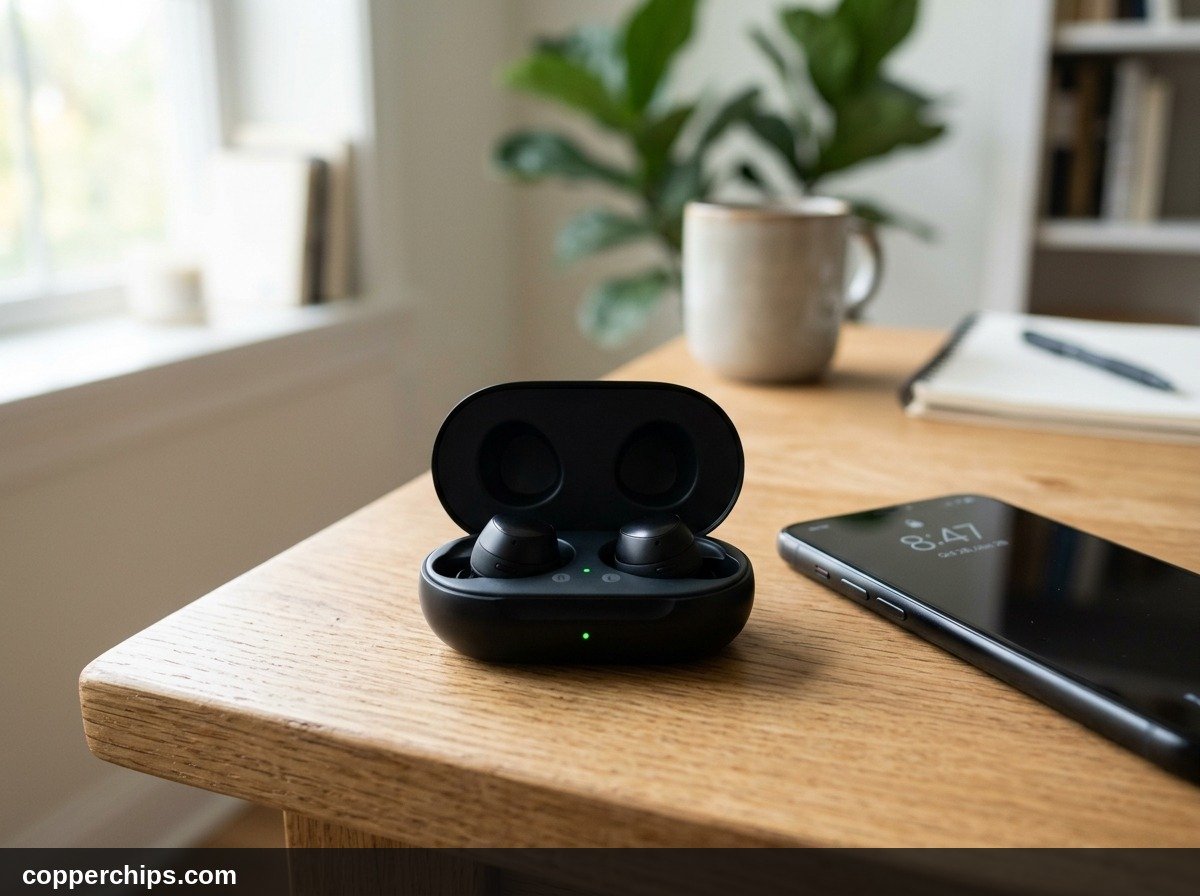
- Put the Accessory into True Discovery Mode: Simply powering on a speaker or pair of earbuds does not always make them visible to new devices. Most accessories require holding the power button or pairing button down for three to five seconds until an LED blinks rapidly or an audio chime plays.
- Keep Distance Under Three Feet During Pairing: While Bluetooth Class 2 devices transmit up to thirty feet in open air, the initial cryptographic handshake requires strong signal packets. Place the accessory directly beside your phone or computer during the first connection.
- Clear Old Inactive Pairings: Operating systems maintain pairing keys for every accessory you ever connected. If your list contains dozens of forgotten headphones or rental car profiles, delete them to prevent handshake timeouts.
- Avoid 2.4 GHz Wi-Fi Congestion: Bluetooth shares the 2.4 GHz ISM band with legacy Wi-Fi routers and microwave ovens. If audio stutters or drops, read our guide on troubleshooting Bluetooth connection drops to minimize radio interference.
If you want to pair home entertainment audio, learn how to stream wireless audio easily in our step-by-step tutorial on connecting Bluetooth speakers to your TV.
Still Not Working? When to Replace Hardware
If software resets, driver updates, and terminal commands fail to restore Bluetooth functionality, hardware failure is the likely culprit.
On laptops and desktop motherboards, Bluetooth and Wi-Fi functionality are integrated into a single M.2 PCIe network card (such as an Intel AX210 or Killer Wi-Fi chip). If the card suffers an electrostatic shock or physical degradation, the Bluetooth portion frequently fails while Wi-Fi continues functioning normally.
Replacing an internal M.2 wireless card is relatively simple on modular desktop motherboards and older laptops. However, modern ultra-thin laptops and smartphones have Wi-Fi and Bluetooth chips soldered directly onto the main logic board. In these scenarios, purchasing an external USB Bluetooth adapter is the most cost-effective and practical alternative to an expensive motherboard replacement.
For more home connectivity breakdowns, explore our dedicated Bluetooth setup and troubleshooting archive.
Frequently Asked Questions
#### Why is there no Bluetooth toggle in my Windows settings?
A missing Bluetooth toggle indicates that Windows cannot detect a functional Bluetooth adapter. Common causes include a disabled adapter in Device Manager, an outdated driver, a stopped Bluetooth Support Service, or a motherboard that lacks physical Bluetooth hardware entirely.
#### How do I turn on Bluetooth using my keyboard?
Many Windows laptops feature a dedicated function key (often F2, F8, or F12) marked with a radio tower, airplane, or Bluetooth icon. Pressing that key, or pressing Fn in combination with that key, hardware-toggles wireless radios on and off. You can also press Windows Key + A to open Quick Settings directly.
#### Does turning on Bluetooth drain battery life quickly?
Modern devices use Bluetooth Low Energy (BLE) protocols (Bluetooth 4.0 through Bluetooth 5.4). When idle and not actively streaming high-bitrate audio, an enabled Bluetooth radio consumes less than one to two percent of battery power over an entire day.
#### Can I add Bluetooth to an older desktop PC?
Yes. You can add Bluetooth functionality to any Windows, Mac, or Linux computer by inserting a compact USB Bluetooth adapter into an available USB 2.0 or USB 3.0 port. Most USB dongles cost under fifteen dollars and install automatically without external software.
#### What is the difference between pairing and enabling Bluetooth?
Enabling Bluetooth powers on the radio transmitter inside your device, allowing it to broadcast and listen for wireless signals. Pairing is the secondary security handshake where two specific devices exchange authentication keys to create a permanent, trusted connection.
## The Bottom Line
Enabling Bluetooth is usually as quick as clicking a taskbar tile or tapping your smartphone settings tray. When the toggle behaves normally, connecting wireless headphones, mice, and keyboards takes seconds.
If the toggle vanishes or refuses to turn on, approach the problem methodically. Check Device Manager on Windows to verify driver health, restart the Bluetooth Support Service, toggle Airplane Mode on mobile devices, or terminate the macOS bluetoothd daemon. If your computer simply lacks internal hardware, a ten-dollar USB adapter will have your wireless accessories working smoothly without hassle.