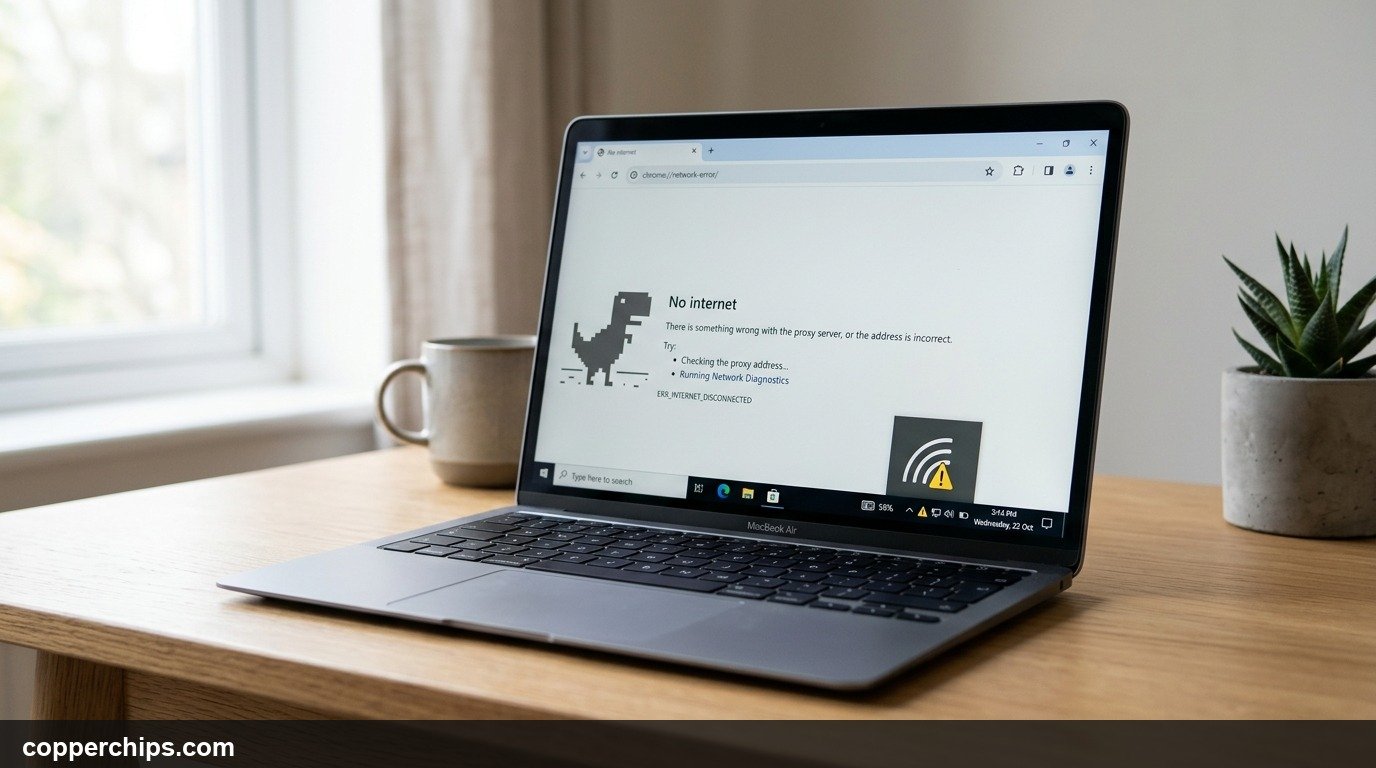
Your phone or laptop shows full WiFi bars. But nothing loads. You can not open a single webpage. The device is connected to the network but not to the internet itself – and those are two completely different things.
Before you try random fixes, run a 3-step diagnostic that tells you exactly where the break is: your device, your router, or your ISP. Then go directly to the right fix. This saves you from running through 10 steps that have nothing to do with your actual problem.
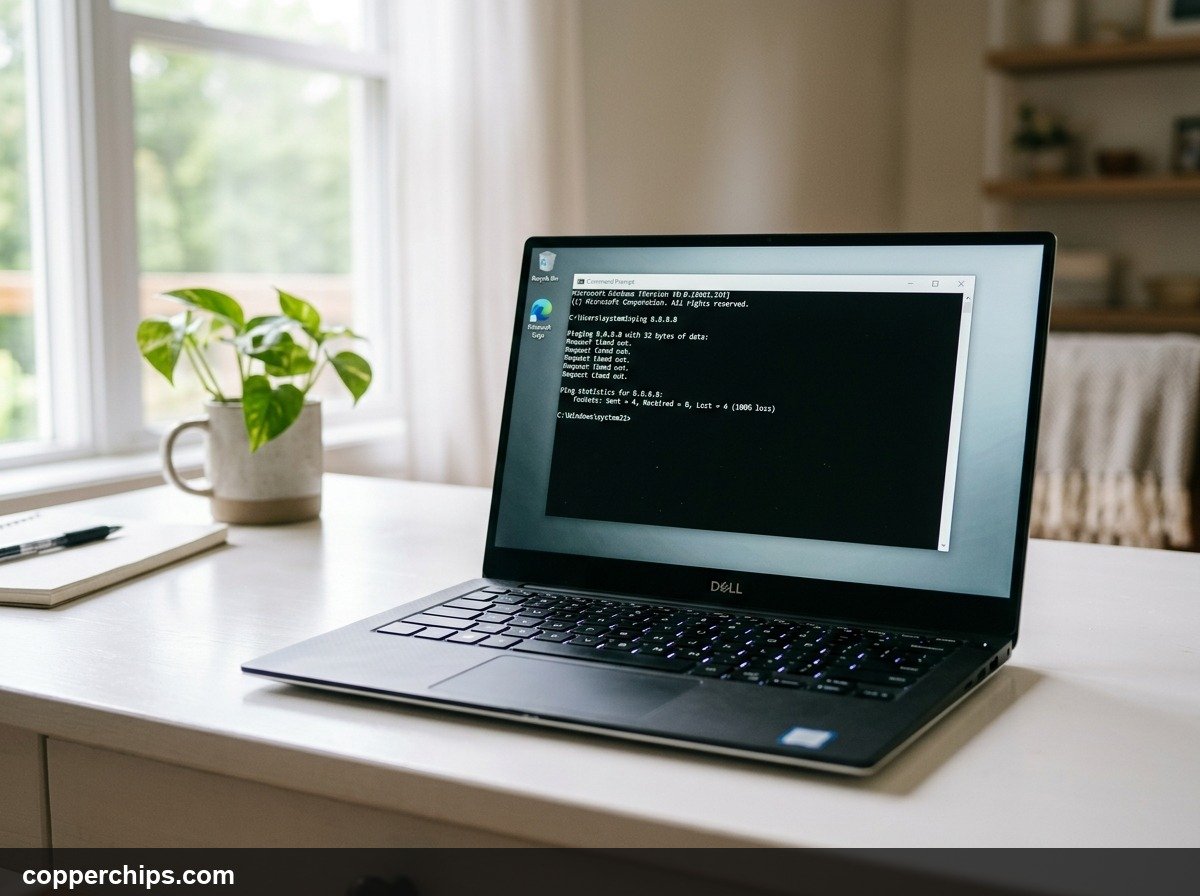
Power cycle your router and modem first: unplug both, wait 30 seconds, plug the modem in, wait for it to connect, then plug in the router. This fixes the majority of “WiFi connected but no internet” cases. If that does not work, open Command Prompt and run ping 8.8.8.8 – the result tells you whether the problem is your device, your router, or your ISP.
- ✓Connected ? internet: Your device can be on the WiFi network but still have no path to the internet – these are separate layers of the connection.
- ✓Diagnose first: A ping test to 8.8.8.8 takes 30 seconds and tells you exactly which layer is broken before you spend time on the wrong fix.
- ✓Most common cause: The router or modem needs a restart. Power cycling fixes this in under 2 minutes with no settings changes.
Step 1: Diagnose Which Layer Is Broken (Takes 30 Seconds)
This ping test tells you exactly where the problem is before you try a single fix.
On Windows
- Press Win + R, type
cmd, press Enter. - Type
ping 8.8.8.8and press Enter.
On Mac or Linux
- Open Terminal.
- Type
ping -c 4 8.8.8.8and press Enter.
On Android or iPhone
Check if other devices on the same WiFi have internet. If they do, the problem is your device. If none do, the problem is the router or ISP.
Reading the Result
| Ping Result | What It Means | Go To |
|---|---|---|
| Request timed out | No internet leaving your network | Router or ISP fixes below |
| Replies received | Internet works, problem is DNS or browser | Device fixes – DNS section |
| Ping works on PC, not phone | Issue is isolated to that one device | Device fixes – forget WiFi section |
Device-Layer Fixes (Problem Is on One Device Only)
Fix 1: Forget the WiFi Network and Reconnect
A corrupted DHCP lease can leave your device with a bad IP address that connects but routes nowhere.
- Go to WiFi Settings on your device.
- Tap or click the network name and select Forget.
- Wait 10 seconds, then reconnect by selecting the network and entering your password.
Fix 2: Flush DNS Cache
A stale DNS cache can block name resolution even when the connection itself works fine.
Windows: Open Command Prompt as Administrator and run:
ipconfig /flushdns
ipconfig /release
ipconfig /renew
Mac: Open Terminal and run:
sudo dscacheutil -flushcache; sudo killall -HUP mDNSResponderFix 3: Change DNS to Google (8.8.8.8)
Your ISP’s DNS servers may be down even when the internet connection itself is live. Switching to Google’s DNS bypasses them.
Windows: Control Panel > Network and Internet > Network Connections > right-click your WiFi > Properties > Internet Protocol Version 4 > Use the following DNS server addresses > Preferred: 8.8.8.8 / Alternate: 8.8.4.4.
Android: Settings > WiFi > tap and hold your network > Modify network > Advanced options > IP settings: Static > set DNS 1 to 8.8.8.8.
Fix 4: Reset Network Settings
On phones, resetting network settings clears all saved WiFi passwords, Bluetooth pairings, and VPN configs but also clears any corrupted network state causing the issue.
Android: Settings > General management > Reset > Reset network settings.
iPhone: Settings > General > Transfer or Reset iPhone > Reset > Reset Network Settings.
Router-Layer Fixes (Multiple Devices Affected)
Fix 5: Power Cycle Router and Modem
This is the single most effective fix when all devices lose internet at the same time.
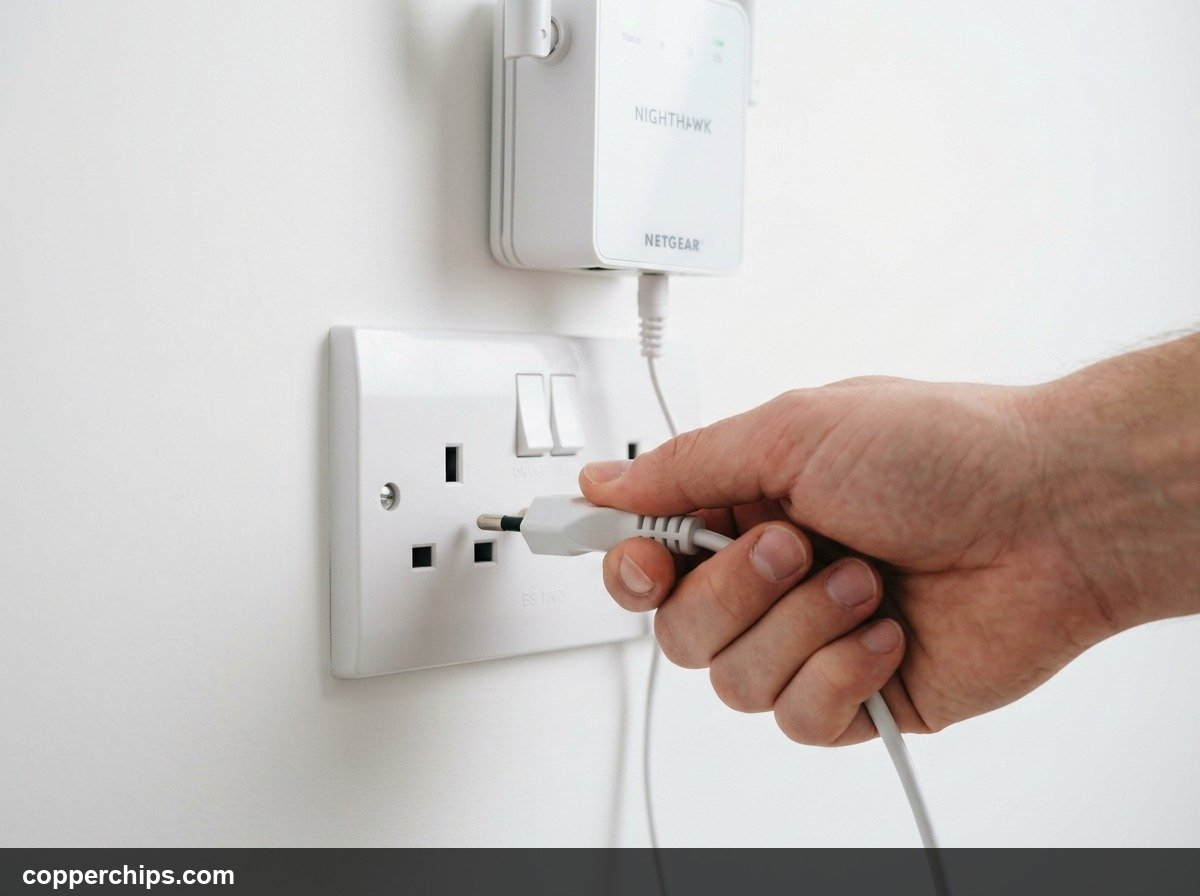
- Unplug the power cable from both your router and your modem.
- Wait 30 seconds.
- Plug the modem back in first. Wait for its internet/activity light to go solid (1-2 minutes).
- Plug the router back in. Wait 1-2 minutes for it to fully come up.
- Test your connection.
Fix 6: Check Router Admin Panel for WAN Status
- Open a browser and go to your router admin address – usually
192.168.0.1or192.168.1.1. - Look for a WAN, Internet, or Status page.
- If WAN status shows “Disconnected” or no IP address, the router is not getting a signal from your modem or ISP line.
- Try clicking “Connect” or “Renew” on the WAN page. If it fails repeatedly, the problem is upstream (ISP).
For detailed steps on every router brand, see our how to restart your router guide.
Fix 7: Check Cables Between Modem and Router
The ethernet cable running from your modem to your router’s WAN port is one of the most overlooked causes. Unplug it from both ends and reseat it firmly. Try a different cable if you have one – ethernet cables can fail without any visible damage.
ISP-Layer Fixes (Internet Is Down at the Source)
Fix 8: Check for an ISP Outage
Before calling your ISP, check their outage status page from your phone’s mobile data:
- Comcast/Xfinity: xfinity.com/support/status
- AT&T: att.com outage checker
- Verizon: verizon.com/home/network-outage
- Spectrum: spectrum.net outage info
You can also check Downdetector.com for crowd-reported outages across all ISPs.
Fix 9: Check the Physical Line Into Your Home
Look at the cable coming into your modem from the wall – coax cable for cable internet, phone line for DSL. Make sure it is firmly seated at both the wall plate and the modem input. A loose coax connector causes exactly this symptom: WiFi connects but no internet.
For a detailed walkthrough of modem cable checks, see our modem reset guide.
Fix 10: Call Your ISP
If the outage page shows no issues in your area but you still have no internet after all the above steps, call your ISP’s technical support line. Ask them to run a line test remotely. They can often detect signal degradation or provisioning issues on your account that do not show on public outage maps.
Still Not Working?
If you have worked through all 10 fixes and still have no internet, the modem itself may be failing. Modems have a lifespan of 4-6 years. If yours is older and rebooting it no longer resolves connection drops, it is likely due for replacement.
Also check whether your ISP has updated their DOCSIS or provisioning requirements recently – some older modems lose compatibility after ISP infrastructure upgrades. Your ISP’s support line can confirm whether your modem model is still on their approved list.
If you have WiFi issues on your router side specifically – range problems, devices dropping intermittently – visit our WiFi troubleshooting guides for deeper diagnostics.
Frequently Asked Questions
Why does my phone say “connected, no internet” on WiFi?
This message means your device joined the WiFi network successfully but cannot reach the internet through it. The most common causes are a router that needs rebooting, an ISP outage, or a DNS issue on the device. Start with a router power cycle – it resolves this in most cases.
Why does WiFi work on some devices but not others?
When some devices have internet and others do not, the problem is device-specific. The affected device has a bad IP lease or corrupted network config. Forget the WiFi network on that device, reconnect from scratch, and flush the DNS cache if the problem persists.
Can a VPN cause “connected but no internet”?
Yes. An active VPN can route all traffic through a failed or blocked tunnel, making the connection appear broken. Disable your VPN, then test your connection. If internet returns, the VPN server is down – switch servers or temporarily disconnect.
Will restarting the router fix no internet access?
In most cases, yes. A router restart clears its routing table, renews DHCP leases, and re-establishes the WAN connection to your modem. It is the single most effective first step and fixes the majority of “connected but no internet” cases within 2 minutes.
How do I know if my ISP is the problem?
If a router power cycle does not restore internet, check your router’s admin panel for WAN status. If WAN shows no IP address or “Disconnected,” the problem is upstream of your router – either the coax or phone line into your home, or your ISP’s network. Check your ISP’s outage page and Downdetector from mobile data to confirm.
The Bottom Line
The 30-second ping test is the fastest way to stop guessing and start fixing. Once you know whether the problem is your device, your router, or your ISP, the right fix takes under 5 minutes in most cases. Power cycling your router and modem resolves the majority of “WiFi connected but no internet” issues without changing any settings.
For full router troubleshooting, visit the Routers & Modems section. If the issue is device-specific and persists after the above fixes, check our Device Fixes hub.