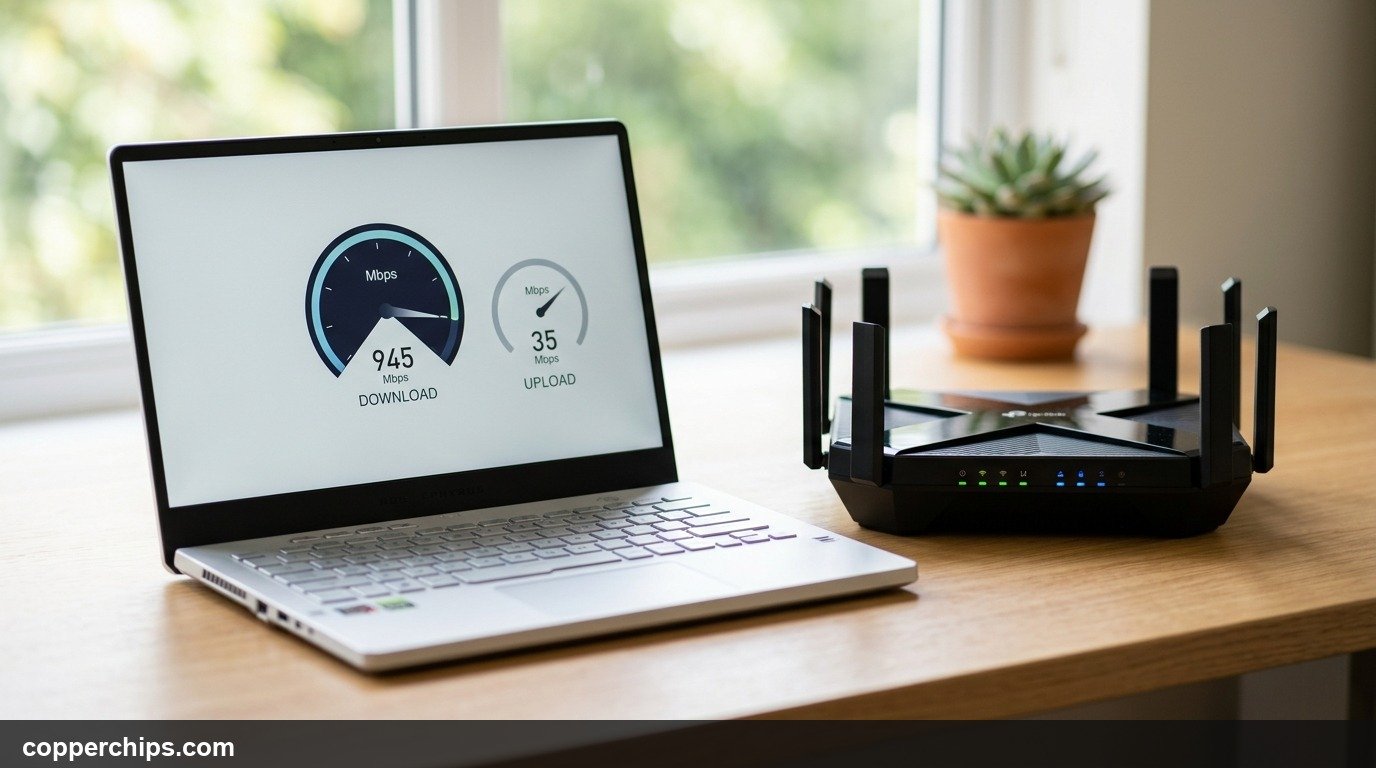
Running a broadband speed test only to find your download speed cruising at 400 Mbps while your upload crawls at barely 2 Mbps is infuriating. When you wonder why your upload speed is so slow, you usually notice it at the worst possible moment: your Zoom camera freezes mid-presentation, your Twitch stream drops frames repeatedly, or a simple batch of smartphone photos takes three hours to back up. A fast download speed means very little when your outbound connection is choked.
Your upload speed is slow mainly because standard coaxial cable internet plans are asymmetrical by design, giving 90% of line capacity to downloads and as little as 10 to 35 Mbps to uploads. Common secondary culprits include silent background cloud backups (OneDrive, iCloud, Google Drive) saturating your upstream pipe, severe router bufferbloat queuing outbound packets, or 2.4GHz Wi-Fi radio interference. The fastest immediate fix is to connect via Cat 6 Ethernet and pause background cloud synchronizations.
- ✓Cable Asymmetry Is Real: Coaxial cable internet offers asymmetrical speeds by design. A 500 Mbps download plan often caps upload speeds between 10 and 20 Mbps.
- ✓Top Fix for Instant Relief: Open Task Manager or Activity Monitor and pause unthrottled cloud sync utilities like OneDrive and iCloud Photos.
- ✓When to Escalate: If hardwired Ethernet speed tests show upload rates below 50% of your subscribed tier, check for degraded coaxial splitters or request an ISP line technician.
Why Slow Upload Speed Happens: The 4 Hidden Bottlenecks
Most home users assume internet speed is a single two-way highway. In reality, your internet connection handles inbound and outbound traffic over completely separate channels. Understanding why your outbound data gets stalled helps you pinpoint the exact bottleneck before wasting hours restarting devices.
1. Coaxial Cable (DOCSIS) Bandwidth Asymmetry
If you receive internet from an ISP like Spectrum, Xfinity, Cox, or Optimum over a coaxial cable, your physical plan is inherently asymmetric. Coaxial lines use the DOCSIS standard, which reserves over 90% of available radio frequency spectrum for downloads. In most legacy DOCSIS 3.0 and 3.1 networks, frequencies between 54 MHz and 1002 MHz carry download packets, while a narrow slice between 5 MHz and 42 MHz handles all upload requests.
Because of this physical frequency split, your ISP can easily sell you 500 Mbps or 1,000 Mbps downstream, yet cap your upstream pipeline at a modest 10 to 35 Mbps. Standard internet activities outlined in the FCC official broadband speed guidelines note that high-definition video calls require consistent upstream stability, making this narrow pipe particularly vulnerable to overload.
3. Bufferbloat: Unmanaged Router Queue Delays
Bufferbloat is a critical networking flaw where home routers hold too many packets in memory buffers instead of transmitting or dropping them efficiently. When multiple devices push outbound traffic simultaneously, your router fills its internal hardware buffers to maximum capacity.
This creates massive latency spikes under load. While an idle speed test might report 15 milliseconds of ping, saturated upload traffic can push latency past 800 milliseconds. Time-sensitive applications like Zoom, Discord, Microsoft Teams, and online gaming experience severe stutter, audio distortion, and dropped frames because packets sit trapped in queue buffers.
4. Wi-Fi Upstream Transmitter Deficits & 2.4GHz Noise
Wi-Fi communication is two-way, but power distribution is heavily unbalanced. Your wireless home router transmits radio signals with substantial power through external high-gain antennas and steady wall current. Conversely, your smartphone, tablet, or thin laptop runs on a tiny battery with a low-power internal Wi-Fi transmitter chip.
Your laptop may easily hear the router powerful downstream signal from three rooms away. However, the laptop weak upstream transmitter struggles to punch data back through plaster walls, metal ducts, and electrical interference. If you are connected to an overcrowded 2.4GHz band competing with microwave ovens and neighbor networks, upstream packet loss escalates rapidly.
How to Fix Slow Upload Speeds: 7 Actionable Solutions
Follow these targeted troubleshooting solutions in sequence. We begin with immediate 30-second tests to eliminate software bottlenecks before moving to hardware and router settings.
Fix 1: Connect via Cat 6 Ethernet Cable
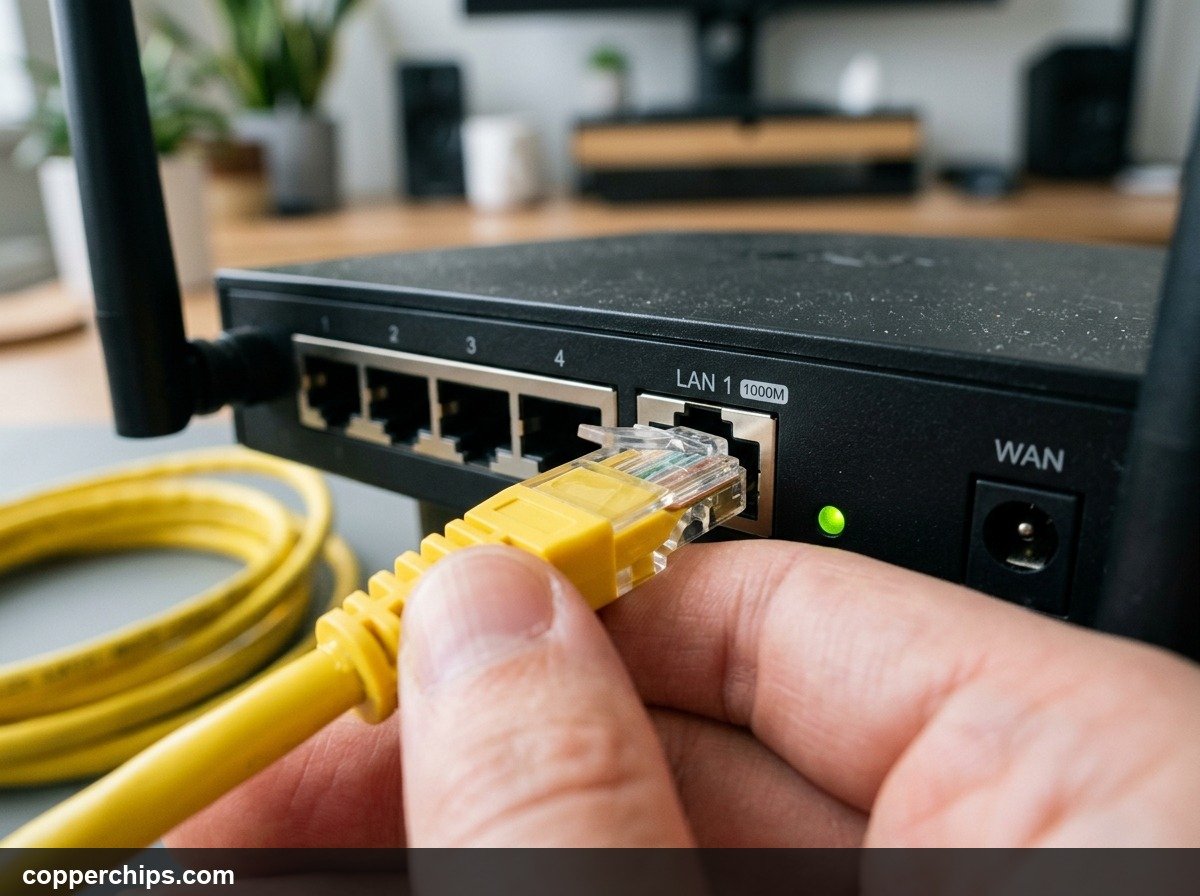
Bypass all wireless radio interference by plugging directly into your router LAN port. This single physical step isolates whether your upload problem originates inside your wireless environment or at the ISP level.
- Retrieve a Category 6 (Cat 6) or Category 5e Ethernet cable.
- Plug one end directly into a numbered gigabit LAN port on the back of your router.
- Plug the other end into your laptop or desktop Ethernet port (or a dedicated USB-C Ethernet adapter).
- Disable your computer Wi-Fi to force the operating system onto the wired interface.
- Run a fresh speed test on an independent testing tool like Speedtest.net or Fast.com.
If your upload speed doubles or triples on Ethernet, your ISP connection is functioning properly, and the bottleneck is localized to Wi-Fi signal attenuation or radio interference. If wired speeds remain crippled, proceed to the next fix.
Fix 2: Identify and Throttle Background Cloud Syncing
Identify hidden processes that continuously upload gigabytes of data in the background. Finding and capping these services instantly frees your outbound pipeline.
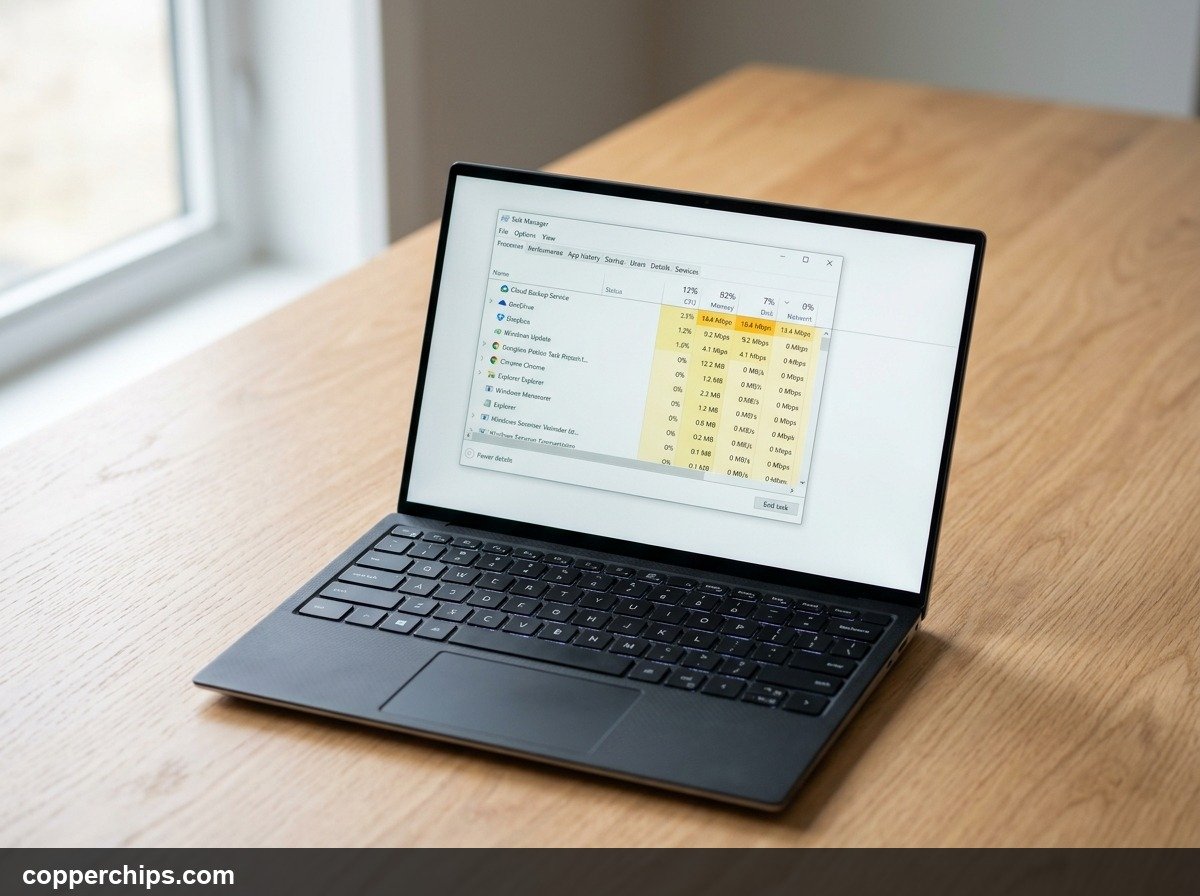
- On Windows: Press Ctrl + Shift + Esc to open Task Manager. Click the Network column header to sort all running applications from highest to lowest bandwidth usage.
- On macOS: Press Command + Space, type Activity Monitor, hit Enter, and navigate to the Network tab. Sort by Sent Bytes.
- Look for high-consumption services: OneDrive.exe, GoogleDriveFS.exe, Dropbox.exe, Steam, BitTorrent clients, or creative backup suites like Adobe Creative Cloud.
- Right-click the culprit application and pause synchronization temporarily.
- Open the application settings and set a permanent upload bandwidth ceiling. For example, in OneDrive Settings > Network, switch the upload rate from “Don’t limit” to a fixed value equal to 50% of your total plan upload speed.
Restricting background applications ensures that automatic backups take place quietly without choking live video calls or web browsing.
Fix 3: Switch From 2.4GHz to the 5GHz Wi-Fi Band
Migrate your devices away from congested low-frequency radio channels to the wider 5GHz spectrum. The 2.4GHz band offers longer range, but it only contains three non-overlapping channels (1, 6, and 11) shared by baby monitors, Bluetooth headsets, and nearby residential routers.
- Open your computer or phone Wi-Fi settings.
- Scan the list of available networks. If your router broadcasts split SSIDs (for example, “HomeNetwork_2.4G” and “HomeNetwork_5G”), disconnect from the 2.4G network and join the 5G network.
- If your router uses a single combined network name via Band Steering, access your router web management dashboard (typically
192.168.1.1or192.168.0.1). - Navigate to Wireless Settings > Advanced and verify that 5GHz transmission is enabled with a channel width of 80 MHz.
The 5GHz frequency band provides vastly higher throughput and much lower latency, allowing battery-powered devices to complete upstream packet handshakes efficiently. For comprehensive wireless steps, review our guide on WiFi connected but no internet access.
Fix 4: Enable SQM or QoS to Eradicate Bufferbloat
Configure Quality of Service (QoS) or Smart Queue Management (SQM) on your router to prioritize interactive traffic. This prevents heavy file uploads from choking video calls.
- Open a browser tab and enter your router default IP address to access the administration panel.
- Enter your administrator username and password (found on the router underside sticker if unchanged).
- Navigate to Advanced Settings > Quality of Service (QoS) or Traffic Management.
- Enable QoS and enter your verified upload speed limit (set the value to 85% or 90% of your measured upload rate).
- Ensure Wi-Fi Multimedia (WMM) is toggled on, which complies with Wi-Fi Alliance WMM quality of service specifications to prioritize voice and video data over bulk file transfers.
- Save settings and allow the router sixty seconds to restart its routing tables.
By artificially capping upload bursts slightly below your ISP line maximum, your router queue never fills completely. Interactive video packets skip past large background uploads without delay.
Fix 5: Disable Large Send Offload in Windows Adapter Settings
Prevent network interface cards from corrupting packet segmentation on high-speed lines. Large Send Offload (LSO) is designed to shift packet assembly from your CPU to the network card. However, buggy drivers often miscalculate packet lengths, triggering massive upload packet loss.
- Right-click the Windows Start menu button and select Device Manager.
- Expand the Network adapters category.
- Right-click your active Wi-Fi or Ethernet card (such as Intel Wi-Fi 6E AX211 or Realtek PCIe GbE) and select Properties.
- Click the Advanced tab.
- Scroll down the property list and locate Large Send Offload v2 (IPv4) and Large Send Offload v2 (IPv6).
- Change the value for both from Enabled to Disabled.
- Consult the Microsoft official network adapter troubleshooting documentation to verify additional driver rollback steps if errors persist.
- Click OK and restart your computer.
Disabling LSO forces your computer CPU to handle packet segmentation directly, completely removing hardware-level segmentation freezes that throttle outbound speeds.
Fix 6: Power Cycle Both Modem and Router to Clear Frequency Channels
Force your cable modem to renegotiate clean upstream DOCSIS channels with the ISP headend. Cable modems lock onto bonded upstream channels when powered on. If electrical interference or local grid fluctuations degrade those specific channels, your modem remains stuck on impaired frequencies until restarted.
- Unplug the power transformer cable from the back of your standalone cable modem.
- Unplug the power cable from your Wi-Fi router.
- Wait sixty full seconds to allow all internal capacitors to drain completely.
- Plug the power cable back into your modem first. Watch the front LED indicator panel.
- Wait three full minutes until the Online or Downstream/Upstream lights show solid green or white.
- Plug your router back in and allow two minutes for the wireless network to initialize.
Power cycling forces the modem digital signal processor to sweep local line frequencies and bond to the cleanest, highest-signal upstream channels available on your street. Detailed step-by-step instructions are available in our guide on how to restart your router properly.
Fix 7: Disconnect Third-Party VPN Software
Eliminate encrypted tunnel overhead and congested commercial VPN gateway servers. Virtual Private Networks (VPNs) route your entire internet connection through an encrypted intermediate tunnel before releasing it to the destination website.
- Open your VPN client (such as NordVPN, ExpressVPN, Surfshark, or corporate Cisco AnyConnect).
- Click Disconnect.
- Run a fresh upload speed test.
- If you require a VPN for remote work or privacy, switch your protocol inside the VPN settings from OpenVPN TCP to WireGuard (or Lightway/NordLynx).
- Manually select a VPN server geographically closer to your physical city rather than using generic auto-connect.
Standard OpenVPN protocols impose significant packet encapsulation penalties that severely restrict upstream throughput on consumer broadband plans.
Still Not Working? Try This
If you have tested over Ethernet, paused all cloud sync utilities, and power cycled your equipment, yet your upload speed remains stuck under 1 Mbps, the issue likely resides in physical cabling or ISP provisioning faults.
- Check Modem Upstream Power Levels: Open a browser and type
192.168.100.1into your address bar to view your cable modem diagnostic diagnostics. Check the Upstream Power (Tx) column across all locked channels. Normal upstream power levels should rest between 38 dBmV and 48 dBmV. If your upstream levels exceed 50 dBmV, your modem is screaming at full transmitter power because physical line resistance or noise is choking signal delivery. - Inspect and Remove Coaxial Splitters: Follow the coaxial cable running from your modem back to the wall plate. If you discover cheap gold or zinc cable splitters tucked behind furniture, remove them and connect the line directly to the wall jack. Splitters weaken radio power by 3.5 dB to 7 dB per split and introduce RF noise into upstream channels. If hardware degradation is suspected, see our instructions on how to reset your modem.
- Request an ISP Line Technician: Contact your provider technical support department. Request that they run an upstream noise test on your node. Water infiltration in street pedestals, rusted ground blocks, or neighboring damaged drop lines can flood your local tap with ingress noise that destroys upstream capacity while leaving downstream channels untouched.
Frequently Asked Questions
What is considered a good upload speed for home Wi-Fi?
For most households, an upload speed between 10 Mbps and 25 Mbps is sufficient for multiple simultaneous 1080p Zoom calls, cloud file updates, and online gaming. Content creators streaming 1080p or 4K video to YouTube or Twitch need at least 15 to 30 Mbps of consistent, unjittered upstream bandwidth. Symmetrical fiber connections delivering 300 to 1,000 Mbps upload represent the gold standard for home offices.
Why is my download speed fast but my upload speed slow?
This is almost always due to the architectural asymmetry of coaxial cable internet. Cable providers engineer networks to cater to mass consumer consumption (streaming Netflix, loading web pages, downloading games) by assigning over 90% of coaxial frequency channels to downloads. A user with 400 Mbps download speed on cable will frequently have a contracted upload ceiling of only 10 to 20 Mbps.
How much upload speed does Zoom or Microsoft Teams require?
A standard one-on-one HD video call on Zoom or Microsoft Teams requires approximately 1.5 to 3.0 Mbps of upload bandwidth. Group video conferences with screen sharing require 3.0 to 4.0 Mbps. However, if background syncing or bufferbloat creates packet loss, even a nominal 10 Mbps line will drop video feeds.
Does a VPN reduce upload speeds significantly?
Yes. VPN encryption algorithms wrap every outgoing data packet in security headers, adding data overhead. Furthermore, all outbound traffic must travel through the VPN intermediary server before reaching destination web servers. Connecting through distant VPN servers or congested endpoints frequently reduces upload speeds by 20% to 50%.
What is bufferbloat and how can I test for it?
Bufferbloat is the delay caused when an overburdened router excessively buffers packets instead of transmitting them in real time. You can test your network for free using the Waveform Bufferbloat Test. A grade of C, D, or F indicates that your router queues are lagging your connection whenever upstream traffic spikes, which can be resolved by enabling SQM or QoS in your router settings.
The Bottom Line
Diagnosing an upload speed bottleneck starts with recognizing that your internet pipeline is asymmetrical by nature. Before replacing equipment, hardwire with an Ethernet cable and check Task Manager to halt silent background cloud uploads. If you rely on stable upstream bandwidth daily for remote employment or content creation, investigate whether a local fiber-optic provider offers true symmetrical upload and download speeds in your neighborhood. For more connectivity guides, explore our full WiFi troubleshooting and connectivity section.