Your modem is acting up. Internet is slow, dropping, or completely dead. You’ve heard “reset your modem” a hundred times, but nobody tells you there are actually two completely different types of resets, and one of them will wipe all your settings.
This guide covers both. The soft restart takes 30 seconds and fixes most problems without touching any settings. The factory reset is the nuclear option. Use it only when the soft restart fails and you know what you’re getting into.
To reset your modem, unplug the power cable from the back, wait 30 seconds, then plug it back in. This soft restart clears temporary faults and fixes most connectivity issues. A factory reset (holding the pinhole button for 10-30 seconds, as specified in the NETGEAR official cable modem reset instructions) wipes all custom settings and should only be used if the soft restart fails or you are locked out of the admin panel.
- ✓Two types of reset: A soft restart (unplug/replug) keeps your settings. A factory reset (pinhole button) erases everything.
- ✓Try the soft restart first: Unplug power, wait 30 seconds, replug. This fixes slow speeds, dropped connections, and most outages.
- ✓After factory reset: Your ISP username, password, and any custom WiFi name/password will be gone. You will need to set them up again.
Soft Restart vs. Factory Reset: What’s the Difference?
A soft restart (also called a power cycle or reboot, detailed in TP-Link hardware reset specifications) just turns your modem off and back on. It clears its memory, reconnects to your ISP, and resolves most temporary glitches. Your WiFi name, password, and any custom settings survive completely.
A factory reset returns the modem to the exact state it was in when it left the factory. Every setting you or your ISP configured gets erased: your WiFi network name, your WiFi password, any port forwarding rules, custom DNS servers, all of it. You will need to set everything up from scratch.
Start with the soft restart. It fixes the problem 90% of the time.
How to Reset Your Modem: 3 Methods
Method 1: Soft Restart (Power Cycle) – Do This First
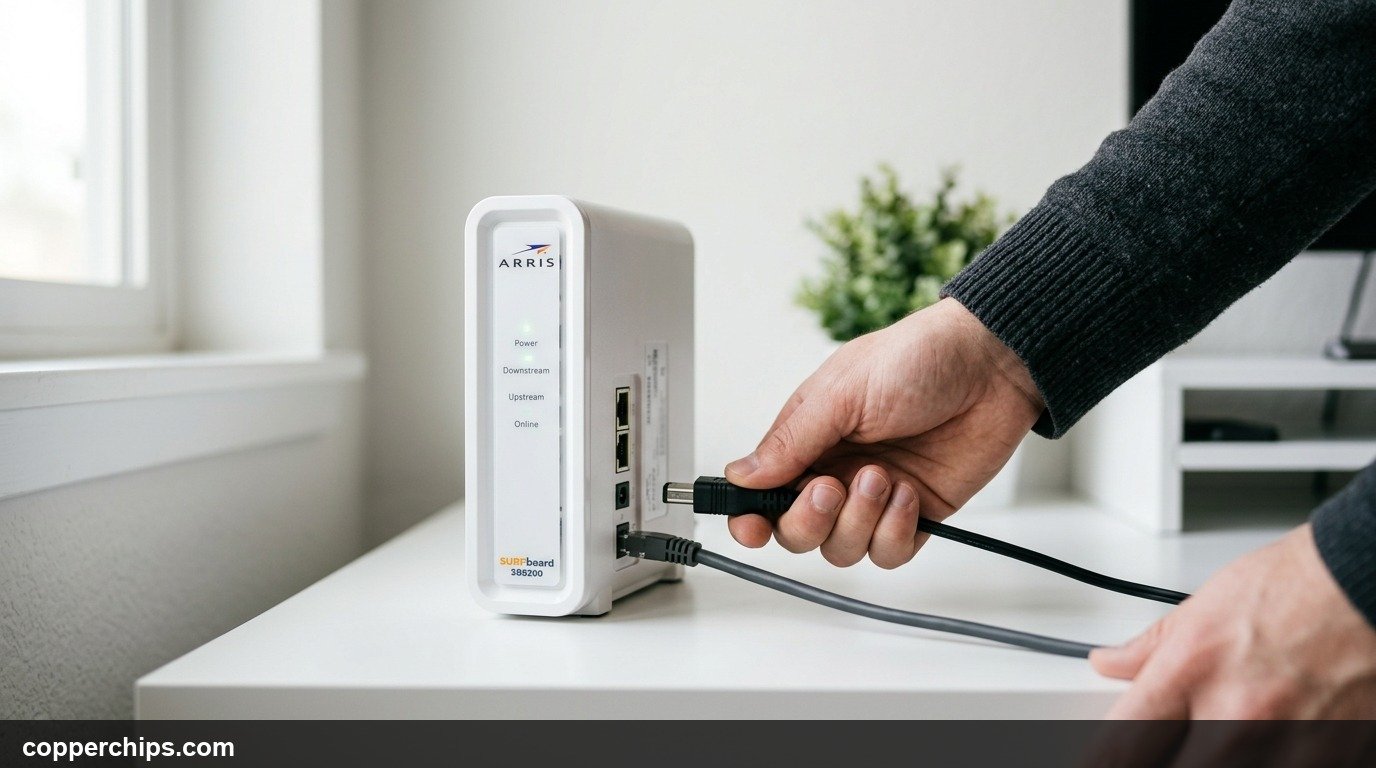
Unplug the power cable from the back of your modem. Not the coax or phone cable. Just the power cable – it is usually the thickest cable on the unit, going to a wall outlet or power brick.
- Locate the power cable on the back of your modem.
- Unplug it from the modem or from the wall outlet – either works.
- Wait 30 seconds. Not 5 seconds. The modem has capacitors that hold charge, and 30 seconds lets them fully discharge.
- Plug the power cable back in.
- Wait 2-3 minutes for the modem to fully reconnect to your ISP. The lights will cycle through their startup sequence.
You will know it worked when your internet light (usually labeled “Internet” or “Online”) turns solid green or white. If it stays orange, red, or blinking, your ISP may have an outage. Check their status page before doing anything else.
Method 2: Restart via Browser Admin Panel
Open your browser and navigate to your modem’s admin panel. This lets you trigger a restart without physically touching the device – useful if it is mounted or hard to reach.
- Open any browser on a device connected to your network.
- Type your modem’s admin address into the URL bar. Common addresses:
- Xfinity/Comcast:
10.0.0.1 - Spectrum:
192.168.100.1 - AT&T:
192.168.1.254 - Most others:
192.168.0.1or192.168.1.1
- Xfinity/Comcast:
- Log in. Default username and password are on a sticker on the bottom of your modem. Common defaults: admin/admin, admin/password, or admin/[blank].
- Look for a “Reboot,” “Restart,” or “Reset” button. It is often under Advanced, Utilities, or Administration.
- Click it and confirm. The modem will restart and take 2-3 minutes to come back up.

Some ISP-provided modems (like Xfinity XB6 or XB7) lock the admin panel. In that case, use the Xfinity app: go to Account > Devices > [modem name] > Restart.
Method 3: Factory Reset (Pinhole Button)
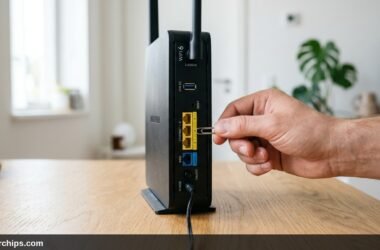
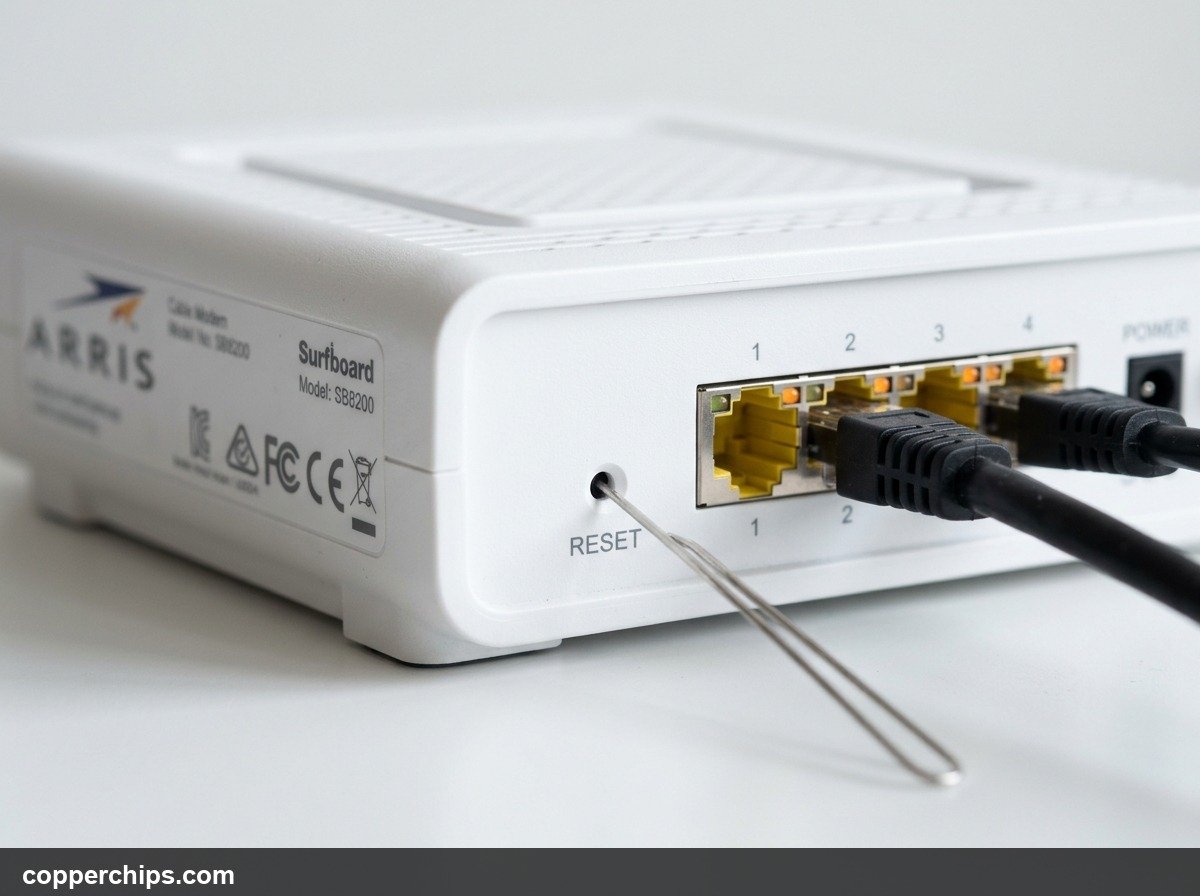
Find the small pinhole labeled “Reset” on the back of your modem. Do not confuse it with the WPS button. The reset pinhole requires a paperclip or SIM ejector tool to press.
- Make sure your modem is powered on. Factory resetting a powered-off modem does nothing.
- Insert a straightened paperclip into the pinhole labeled “Reset.”
- Hold it in for 10-30 seconds. The exact time varies by brand:
- Netgear: 10 seconds
- TP-Link: 10 seconds
- Motorola/Arris: 15 seconds
- ASUS: 10 seconds
- Release when all the lights flash simultaneously or the modem restarts on its own.
- Wait 3-5 minutes for the full startup. Factory resets take longer than soft restarts.
After the reset, your modem broadcasts its default WiFi network using credentials printed on its label. You will need to reconnect all devices and reconfigure any custom settings.
Still Not Working? Try This
If your modem will not connect after a restart or factory reset, the problem may not be the modem at all.
Check for an ISP outage first. Search “[ISP name] outage” and check their status page. No modem reset will fix a network outage on their end.
If there is no outage, call your ISP’s support line and ask them to “push a signal to the modem.” ISP-provided modems sometimes lose their authorization and need the ISP to re-provision them remotely. This is especially common after a factory reset. Review your provider portal such as the Xfinity gateway troubleshooting guide before requesting a truck roll.
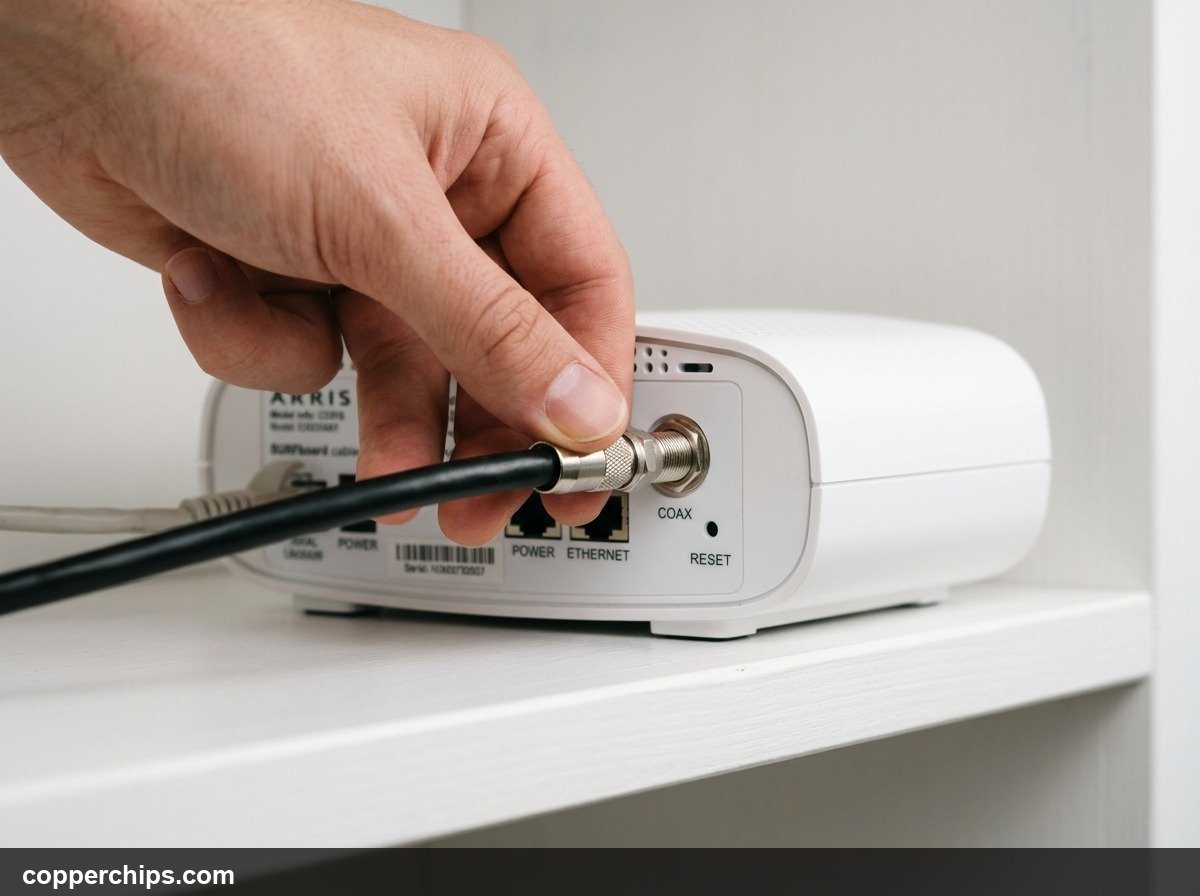
One more check: inspect the coaxial cable connection screwed into the back of the modem. A loose coax causes exactly the symptoms a reset will not fix. Unscrew it, check the center pin is not bent, and retighten by hand.
If your modem is over 5-7 years old and seeing frequent disconnections or slow speeds, the hardware itself may be failing. Most ISPs will replace a failing modem at no charge if it is one they provided – ask them directly.
Frequently Asked Questions
How long should I hold the reset button on a modem?
Hold the reset pinhole button for 10-30 seconds depending on your modem brand. Netgear and TP-Link models typically need 10 seconds. Motorola and Arris modems often need 15 seconds. The modem restarts automatically when the reset is complete.
Will resetting my modem change my WiFi password?
A soft restart does not change your WiFi password. A factory reset erases your WiFi name and password, reverting to the defaults printed on the modem label. Check that sticker after a factory reset for the new login credentials.
How often should I reset my modem?
A monthly soft restart keeps the modem running well. Many routers support scheduled automatic reboots – set one for 3am and forget about it. If you are restarting more than once a week to fix connectivity, that is a sign of a deeper issue. Call your ISP.
What does the reset button on a modem actually do?
The pinhole reset button triggers a factory reset, returning the modem to its original out-of-box state. On most models, pressing it briefly (under 3 seconds) triggers only a soft restart. Holding it for 10 or more seconds triggers the full factory reset.
Does resetting the modem reset the router too?
No, if they are separate physical devices. Resetting the modem only affects the modem. If you have a modem-router combo unit (a gateway), resetting it affects both functions at once.
The Bottom Line
Start with the soft restart: unplug the power cable, wait 30 seconds, plug it back in. That one step clears most connection problems without touching any settings.
Use the factory reset only when the soft restart fails and you have a specific reason, like a forgotten admin password or persistent issues after an ISP call. Have your ISP account credentials ready before pressing that pinhole.
If problems keep coming back after restarts, check our Routers & Modems guides for deeper diagnostics, or visit the WiFi troubleshooting section if the issue is with wireless connectivity specifically.
If your modem is over 5 years old and you restart it every week, replacing it is cheaper than the ongoing hassle. A DOCSIS 3.1 modem compatible with your ISP pays for itself in under a year versus renting one from your provider. [AFFILIATE LINK: DOCSIS 3.1 modem compatible with Xfinity/Spectrum/Cox]