Your internet drops in the middle of an important video meeting or during an evening streaming session. Your devices display “Connected without internet,” or the Wi-Fi network vanishes from your settings entirely. Before spending an hour on hold waiting for customer support, learning how to reset spectrum router hardware can restore your connection in under five minutes.
Most connection drops stem from clogged system memory, expired IP address leases, or temporary network desynchronization between your router and modem. A fast restart flushes these temporary software errors and forces your equipment to renegotiate fresh signal handshakes with the local node. Depending on your issue, you can choose between a painless 60-second power cycle or a complete factory reset.
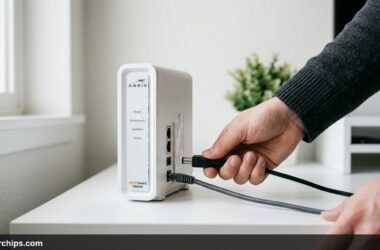
To restart your Spectrum router without losing your custom Wi-Fi password, unplug the power cable from the back of the router, wait 60 seconds, and plug it back in. Allow 2 to 3 minutes for the status ring to turn solid blue. To perform a full factory reset that restores factory defaults, press and hold the recessed Reset button on the back panel with a paperclip for 10 to 15 seconds until the front light flashes red and amber. You can also trigger an automated reboot through the My Spectrum mobile app under Services > Internet > Restart Equipment.
- ✓Reboot vs. Reset: A power cycle retains your network name and password, while a factory reset wipes all settings back to the factory label defaults.
- ✓Fastest Solution: The 60-second power cycle resolves over 85 percent of temporary connectivity drops and speed slowdowns.
- ✓Two-Device Sequencing: If you use a separate modem and router, always let the modem reach a steady online state before powering on the router.
Why Your Spectrum Router Needs a Reset
Home wireless routers operate continuously for months without resting. During normal operation, your router handles dozens of simultaneous network connections from smartphones, laptops, smart televisions, and automated home sensors. Over time, internal memory fills up with routing tables, DNS lookup caches, and old DHCP lease records.
When system memory runs low, packet processing slows down noticeably. You may experience random latency spikes during online gaming, slow website loading, or unexpected drops on individual wireless bands. Rebooting releases locked memory blocks and forces the operating firmware to rebuild active device maps from scratch.
A reset also updates your local network configuration. According to FCC broadband home networking guidelines, residential gateways require periodic power cycling to renew their public IP leases with local Internet service provider nodes. If Spectrum performs upstream maintenance or reconfigures neighborhood routing, your router needs a clean reboot to align with updated network parameters.
Soft Reboot vs. Factory Reset: Which Should You Use?
Before touching your equipment, understand the critical difference between restarting your router and executing a full factory wipe. Confusing these two actions can lead to unexpected frustration and lost network configurations.
| Feature | Soft Reboot (Power Cycle) | Factory Reset (Pinhole Button) |
|---|---|---|
| Custom Wi-Fi Name (SSID) | Preserved | Erased (Returns to sticker label) |
| Custom Password | Preserved | Erased (Returns to sticker label) |
| Port Forwards & Static IPs | Preserved | Completely Wiped |
| Time to Complete | 2 to 3 minutes | 5 to 10 minutes |
| Recommended Scenario | Slow speeds, dropped signals, general hiccups | Forgotten admin password, corrupted firmware |
Always attempt a simple power cycle or app reboot first. Only proceed to a full factory reset if your router remains unresponsive or if customer support explicitly directs you to wipe the device.
Method 1: Restart via the My Spectrum App
The cleanest way to reboot your router without crawling behind furniture is through the official smartphone application. This method sends an authenticated software command directly from Spectrum servers to your home gateway.
- Open the My Spectrum app on your iPhone or Android phone. Sign in with your primary Spectrum username and password if prompted.
- Select the Services tab located on the bottom navigation bar.
- Tap Internet under the Services heading to open your connected equipment dashboard.
- Locate your router in the list of hardware. If Spectrum detects a line issue, you will see a yellow warning icon next to the equipment status.
- Tap Restart Equipment, then select your router and confirm by tapping the blue Restart button.
The router will disconnect all wireless devices and begin its reboot sequence. Do not press any physical buttons or unplug the power adapter while the software reboot executes. The process typically completes within three minutes.
Method 2: The 60-Second Physical Power Cycle
If your router has frozen completely or the mobile app cannot establish communication with the device, a manual power cycle is the most effective hardware troubleshooting technique. Cutting electrical power completely forces all capacitors to drain, clearing temporary volatile memory.
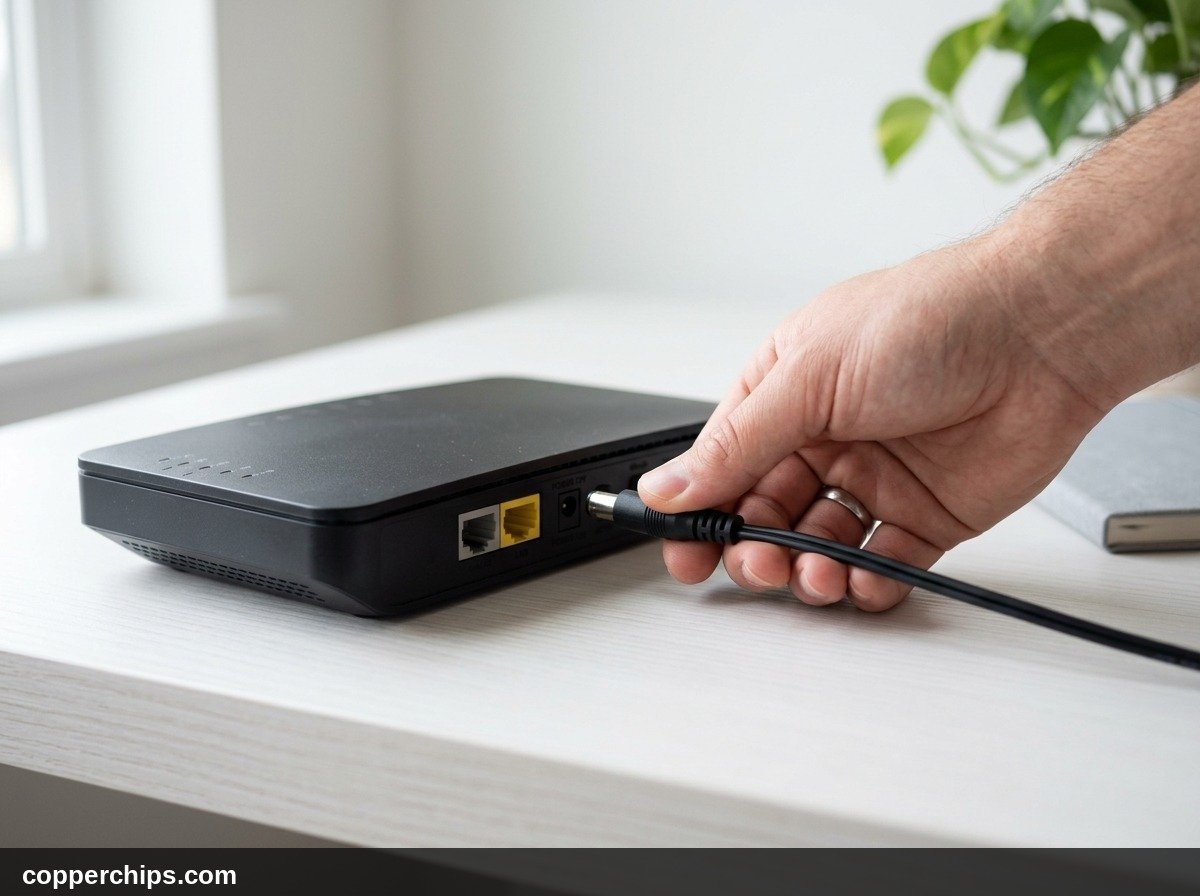
- Unplug the power cable directly from the circular DC input jack on the back of the router. Leaving the wall adapter plugged in while pulling the cord from the unit ensures the socket contacts reset cleanly.
- Wait a full 60 seconds. Modern routers contain internal capacitors that hold electrical charge for up to 30 seconds after disconnection. Waiting a full minute guarantees that all circuits drop to zero volts.
- Check the Ethernet patch cable connecting your standalone modem to the yellow or blue WAN port on the router. Ensure the connector clip clicks firmly into place.
- Plug the power cable back in. The front LED ring will illuminate and begin a boot sequence.
- Wait 2 to 3 minutes for the front light to turn solid blue before attempting to reconnect your wireless devices.
Method 3: Full Factory Reset Using the Pinhole Button
When your Wi-Fi settings are corrupted, you have forgotten your administrative login credentials, or a software reboot fails to clear a stubborn error, a factory reset is your final recourse. This action wipes all user configurations and returns the hardware to its original factory state.
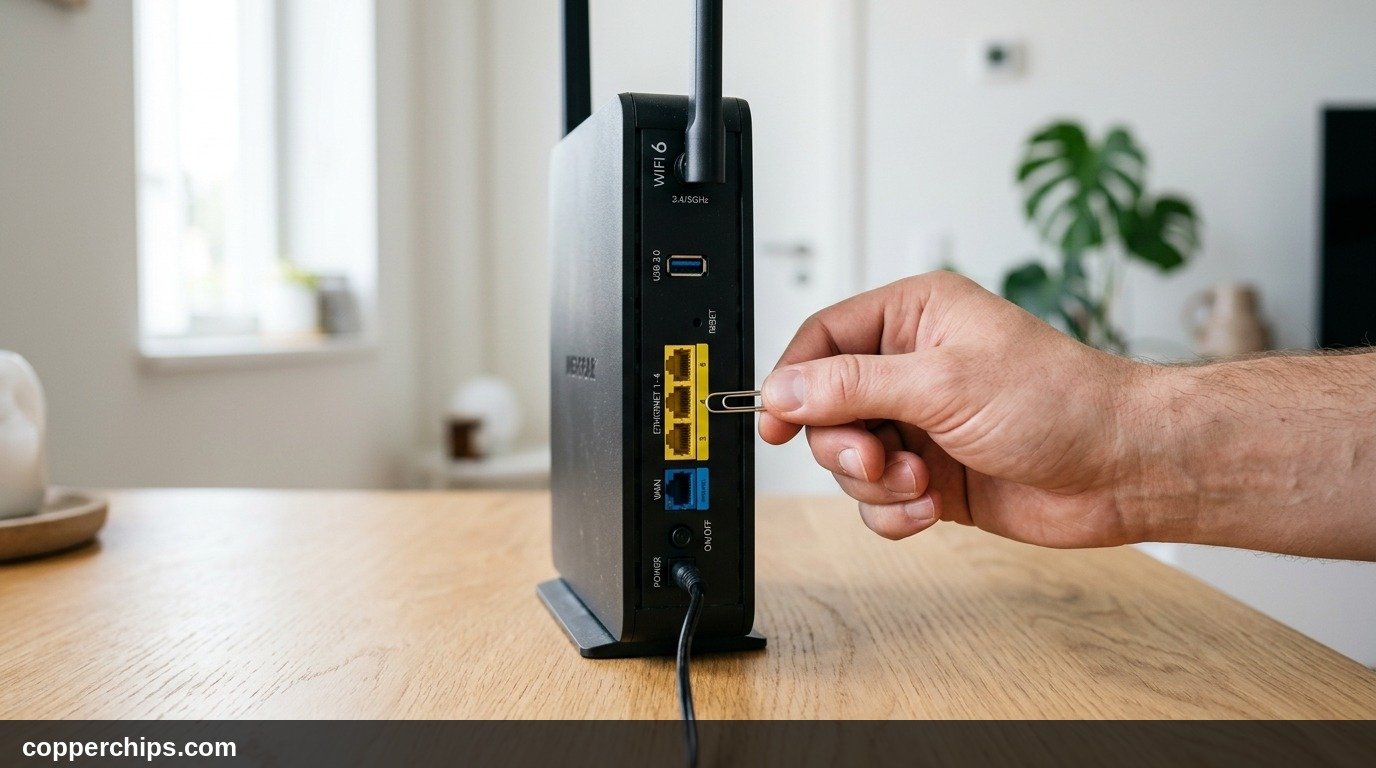
- Locate the Reset button on the rear panel of your Spectrum router. On modern Wi-Fi 6 models (such as the SAX1V1K, SAX1V1R, and SAX1V1S), this is a small recessed hole marked “Reset.” On older Wave 2 units, it may appear as a small round push-button.
- Straighten a metal paperclip or locate a SIM card ejector tool.
- Gently insert the tip into the hole until you feel a distinct mechanical click. Keep the router plugged into power while doing this.
- Hold the button firmly for 10 to 15 seconds. Watch the front status light closely. Release the pin once the indicator begins flashing rapidly in red and amber.
- Allow 5 to 10 minutes for the reset to complete. The unit will format its flash memory partition, re-initialize factory firmware, and fetch current provisioning files from the Spectrum network.
- Reconnect using the default credentials. Look at the white label on the bottom or back of the router chassis. Enter the original network name and network key to reconnect your devices.
Method 4: Rebooting via the Spectrum Web Portal
If you prefer using a desktop computer connected via an Ethernet cable or want to manage equipment through a browser, Spectrum provides an online management console.
- Navigate to Spectrum.net in any modern desktop or mobile browser.
- Sign in with your primary account credentials.
- Click Your Services in the top navigation menu, then choose the Internet sub-tab.
- Locate your router in the listed hardware inventory. Review the connection diagnostic status displayed on the card.
- Click Restart Equipment, verify your selection, and click the confirmation prompt.
This process communicates through the cable line to trigger a warm restart. Detailed steps are documented in Spectrum official internet troubleshooting documentation for both residential and commercial gateway hardware.
Decoding Spectrum Router LED Status Lights After a Reset
Once you trigger a restart or factory wipe, the front LED indicator provides real-time diagnostic feedback regarding the boot cycle. Knowing what each color and pulse pattern signifies prevents premature power cycling while the unit is processing updates.
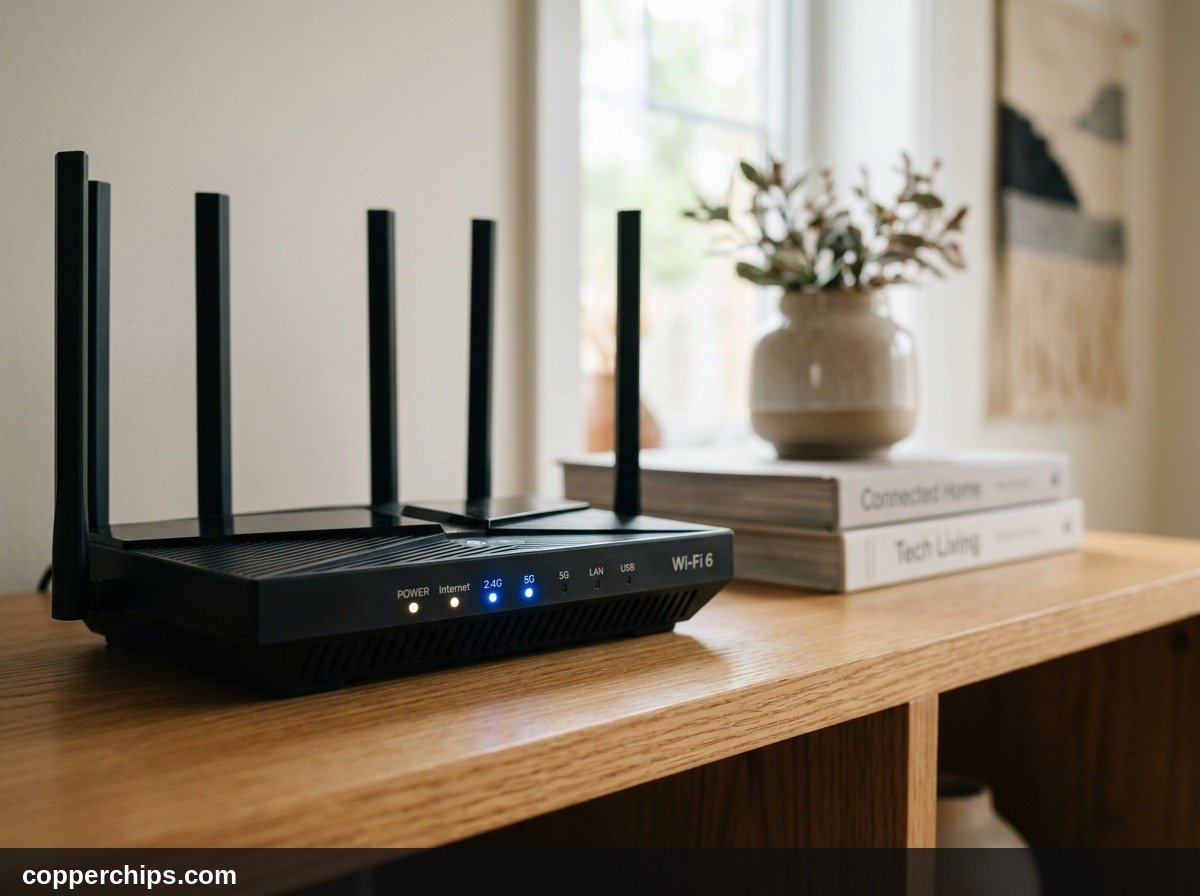
| Light State | System Meaning | Required Action |
|---|---|---|
| Pulsing Blue | Device is booting, establishing WAN link, or searching for IP address. | Wait 2 to 3 minutes. Do not disconnect power. |
| Solid Blue | Internet connection established and operational. | Normal state. Reconnect your wireless devices. |
| Pulsing Red | No internet signal received from upstream modem or wall jack. | Check Ethernet link cable to modem. Verify modem online status. |
| Alternating Red & Blue | Critical firmware update downloading and installing. | NEVER unplug during this state. Interruption corrupts system ROM. |
| Solid Red | Critical internal hardware failure or complete line outage. | Perform 60-second power cycle. If red persists, replace unit. |
If your router light continues blinking red for more than ten minutes after a reboot, consult our in-depth troubleshooting guide for a Spectrum router blinking red light guide to diagnose specific line faults.
The Proper Modem and Router Reboot Sequence
Most Spectrum installations use a separate standalone DOCSIS 3.1 modem paired with an independent Wi-Fi 6 router. If you reboot both devices simultaneously, your network connection will often fail.
When powered on together, the router finishes its internal boot cycle before the modem has locked onto downstream cable frequencies. Consequently, the router requests an IP address through its WAN port before the modem can provide one. This timing mismatch results in an invalid local address (such as 169.254.x.x) and leaves your Wi-Fi without internet connectivity.
- Unplug both devices. Pull the power cables from the back of the modem and the router.
- Wait 60 seconds to allow memory registers in both units to clear completely.
- Plug in the modem first. Leave the router unplugged. Watch the lights on your modem front panel.
- Wait for the modem Online light to turn solid. On Spectrum modems, the “Online” indicator must be steady blue or green before proceeding. This step can take up to three minutes.
- Plug in the Spectrum router. Once the modem reports a stable internet connection, reconnect the router power adapter.
- Allow the router status ring to turn solid blue. The router will now receive a valid public IP handshake immediately.
For standalone cable modems that refuse to synchronize, follow our dedicated step-by-step modem reset guide to verify coaxial signal integrity.
Still Not Working? Try This
If you have completed a 60-second power cycle, executed a factory reset, and followed the proper sequencing without achieving a solid blue indicator, the issue lies outside standard router software glitches. Take these escalation steps before requesting an on-site service technician:
1. Check for Regional Service Outages
Local line disruptions, fiber cuts, and neighborhood node maintenance stop incoming internet traffic before it ever reaches your house. Open the My Spectrum app on a smartphone using mobile data. A large banner on the primary dashboard will announce any active service interruptions affecting your street address. You can also sign in to Spectrum.net to view estimated restoration timelines.
2. Inspect Physical Coaxial Cables and Splitters
Walk the coaxial cable line connecting your wall plate to the modem input port. Ensure the screw-on F-connector is finger-tight and seated straight on the threads. If your line passes through an unpowered two-way splitter behind a desk, bypass the splitter and connect the modem directly to the primary wall outlet to rule out damaged passive hardware.
3. Perform a Direct Ethernet Isolation Test
Disconnect the Ethernet cable from the yellow WAN port on your Spectrum router. Plug that cable directly into the network port of a laptop or desktop computer. If your computer connects to the internet without issues, your modem and cable line are healthy, proving that the Spectrum router hardware has failed.
If Windows displays network configuration errors during the direct test, reference Microsoft official network connection support to reset your computer local TCP/IP stack before condemning your equipment.
4. Swap Faulty Hardware at a Spectrum Retail Store
Spectrum provides equipment replacement at no additional charge for subscribers renting provider hardware. If the router status LED remains solid red or the internal radio fails to broadcast an SSID after a factory reset, take the power brick and router to your nearest Spectrum store for an immediate counter exchange.
Frequently Asked Questions
Does resetting a Spectrum router delete my Wi-Fi password?
A standard power cycle or app reboot preserves all of your customized network settings. However, performing a factory reset by holding down the physical reset pinhole button for 15 seconds erases your custom password and reverts the network name to the default credentials printed on the router label.
How long does a Spectrum router take to reset?
A standard power cycle takes between two and three minutes to complete. A full factory reset takes longer, usually between five and ten minutes, as the router must reformat its settings partition and download initial provisioning files from the Spectrum network.
Why is my Spectrum router blinking red after a reset?
A pulsing red indicator means the router is powered on but cannot detect an incoming internet connection through its WAN port. Ensure the Ethernet cable between your modem and router is securely seated, and verify that your modem front Online indicator shows a solid connection.
Can I reboot my Spectrum router from my phone when I am away from home?
Yes. The My Spectrum app communicates with Spectrum cloud management servers. As long as your router has power and an active cable connection, you can initiate an equipment restart remotely through the app Services menu.
How do I change my network name back after a factory reset?
Once the router reboots to a solid blue light, connect a phone or computer to the default Wi-Fi network printed on the unit label. Open the My Spectrum app, navigate to Services > Internet, and select Edit Wi-Fi to assign your preferred network name and secure password.
The Bottom Line
Knowing how to reset spectrum router equipment saves hours of frustration when your home internet stalls. Always start with a gentle 60-second physical power cycle or an automated restart through the My Spectrum mobile application. These non-destructive methods resolve almost all temporary DNS hiccups, memory leaks, and channel interference without wiping your personal network configuration.
Reserve the recessed physical reset button for persistent hardware freezes or forgotten passwords. If a clean reset combined with the proper modem-first reboot sequence fails to restore a solid blue indicator light, inspect your coaxial cables and explore our complete home router troubleshooting library for advanced connectivity repairs.
• Internal: Spectrum Router Blinking Red Guide
• Internal: Modem Reset Guide
• Internal: Routers & Modems Hub
• External: FCC Broadband Home Networking Guidelines
• External: Spectrum Official Internet Equipment Troubleshooting
• External: Microsoft Official Network Connection Support