You open your web browser, attempt to load a work dashboard, and encounter an endless loading wheel. You walk over to your networking shelf, see blinking indicator lights, and realize your internet connection is frozen. When everyday troubleshooting fails, knowing how to reset netgear router hardware back to factory specifications is the ultimate fix for persistent network drops, forgotten administrative passwords, and corrupted firmware tables.
A factory reset wipes every custom setting, reverting your router back to the exact state it left the factory floor. While a quick restart clears temporary memory, a true factory reset clears deep configuration errors that cause sluggish Wi-Fi speeds or IP conflicts. The reset process takes under five minutes once you know where to look.
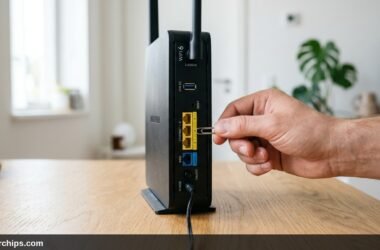
To factory reset a Netgear router, locate the recessed Reset pinhole on the rear or bottom panel. While the router is powered on, insert an unfolded paperclip or SIM ejector tool into the hole, press the internal switch firmly, and hold it down for seven to ten seconds until the Power LED blinks amber. Release the pin and allow the router two minutes to reboot back to factory defaults. You can also perform a software reset by logging into routerlogin.net, selecting Advanced, clicking Administration, choosing Backup Settings, and tapping Erase. After resetting, reconnect using the default Wi-Fi network name and password printed on the router bottom label.
- ✓Reboot vs. Factory Reset: A simple reboot flushes volatile RAM without deleting settings. A factory reset wipes custom SSIDs, passwords, port forwarding rules, and DNS records.
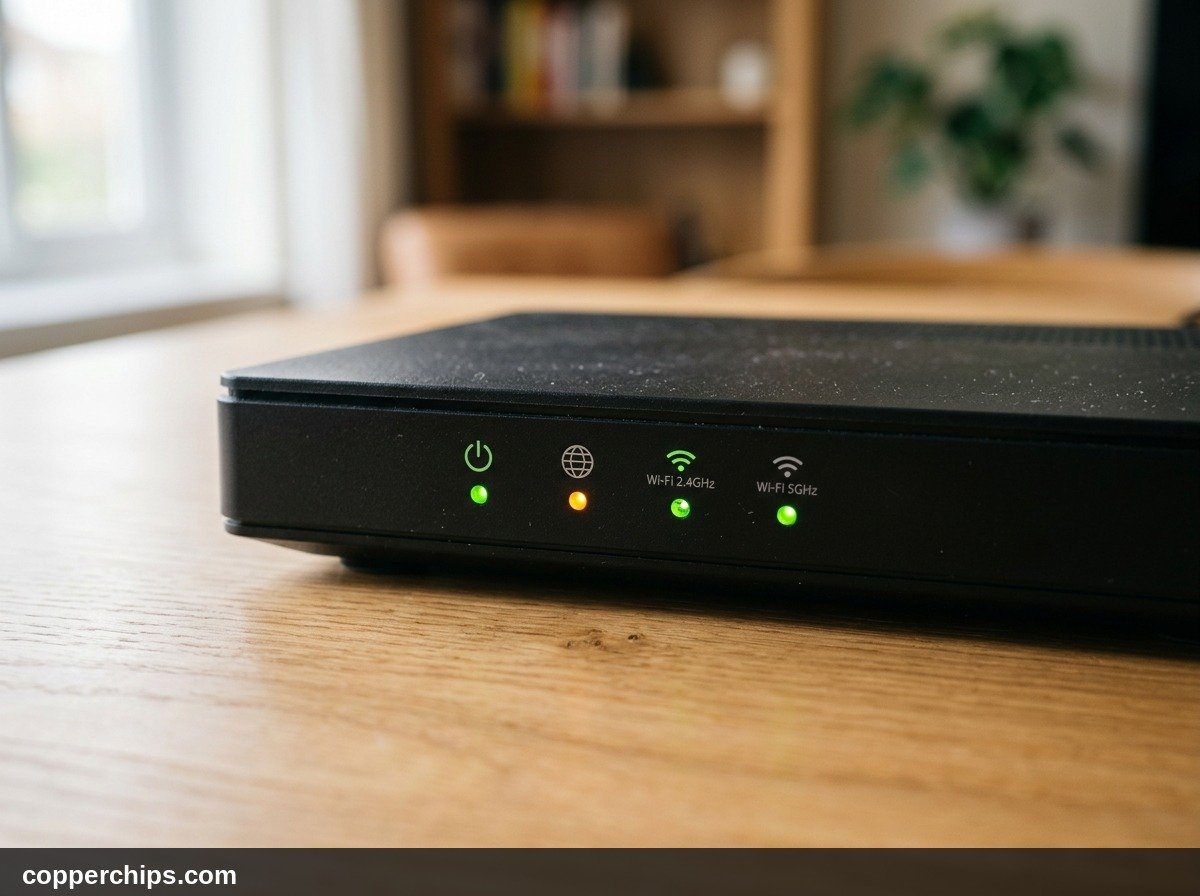
- ✓The 10-Second Amber Rule: Watch the Power LED light closely during a pinhole reset. Release the paperclip only after the LED shifts from solid white to blinking amber.
- ✓Sticker Credentials Restored: Following a reset, the router default IP returns to 192.168.1.1, administrative username resets to admin, and default Wi-Fi passwords re-engage.
Restart vs. Factory Reset: Understanding the Difference
Homeowners frequently confuse restarting a router with resetting a router. Performing the wrong action can create unnecessary work by forcing you to reconfigure dozens of connected smart home devices.
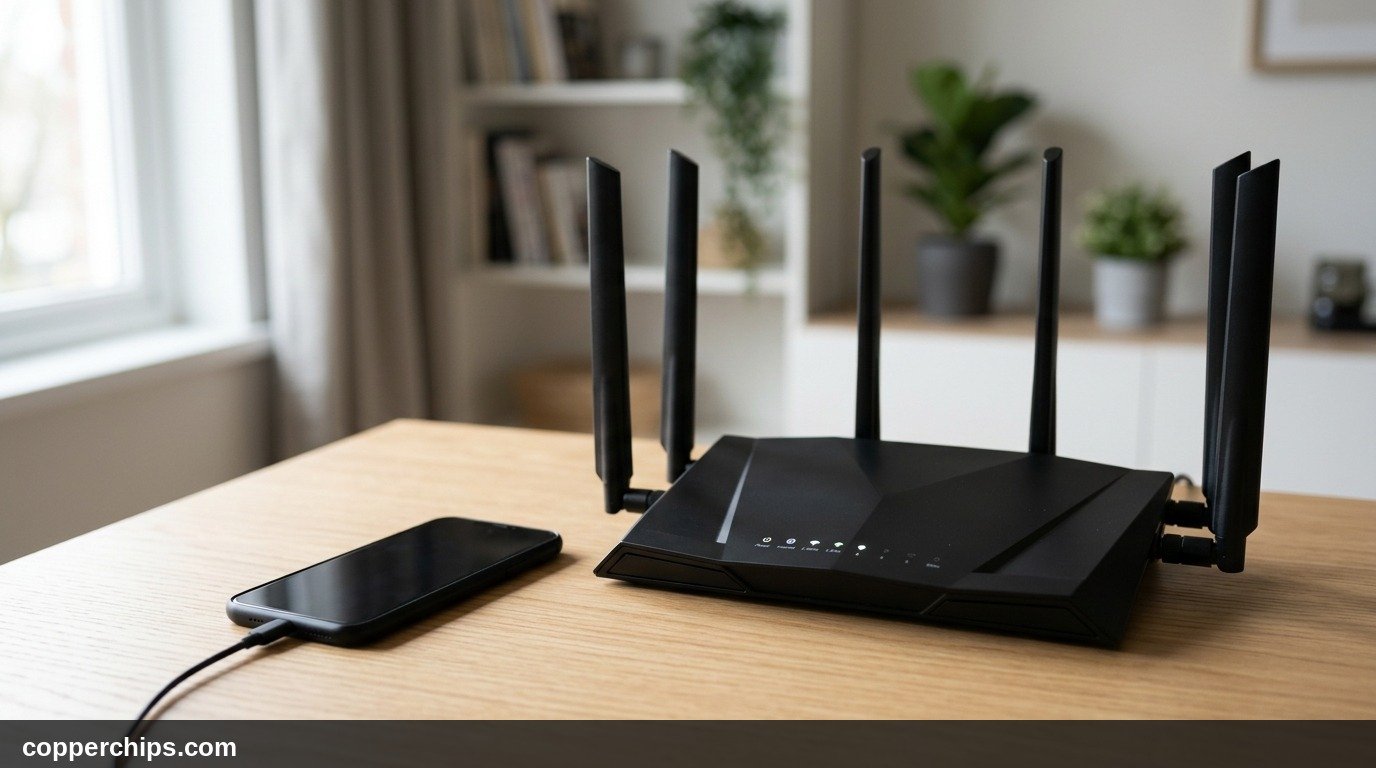
A restart (also known as a soft reboot or power cycle) disconnects electrical power to clear volatile system RAM, renew DHCP leases, and flush stale DNS cache tables. It retains all your custom wireless passwords, parental control rules, and network names. If your internet feels sluggish, read our complete guide on restarting your home WiFi router before touching the reset pinhole.
A factory reset (also called a hard reset or master clear) overwrites non-volatile flash memory (NVRAM). This restores the operating system to original factory firmware values. You should only execute a full reset when troubleshooting critical bugs, recovering lost admin passwords, or preparing a router for resale.
When Should You Factory Reset a Netgear Router?
A factory reset is your nuclear troubleshooting tool. Reserve this action for the following specific networking dilemmas:
- Forgotten Admin Password: You changed the local web interface login password and the security questions fail to open the dashboard.
- Corrupted Firmware Flash: A recent automated firmware update stalled halfway, leaving the Power LED flashing green or amber indefinitely.
- Persistent IP Subnet Conflicts: Your router refuses to hand out valid local DHCP addresses to laptops, smartphones, or gaming consoles.
- Suspected Malware or DNS Hijacking: Rogue configuration files redirect your web browsing to malicious third-party servers.
- Moving or Selling Hardware: You are gifting or returning the hardware and must scrub private network data.
How to Reset a Netgear Router: 3 Proven Methods
You can execute a factory reset through physical hardware or software management panels. Choose the method that best matches your current physical access to the device.
Method 1: The Hardware Reset Pinhole (The Universal Paperclip Method)
Use the physical reset button on the router chassis when you cannot access web admin menus or mobile applications. This physical override works across all Netgear Nighthawk, Orbi, and standard dual-band models.
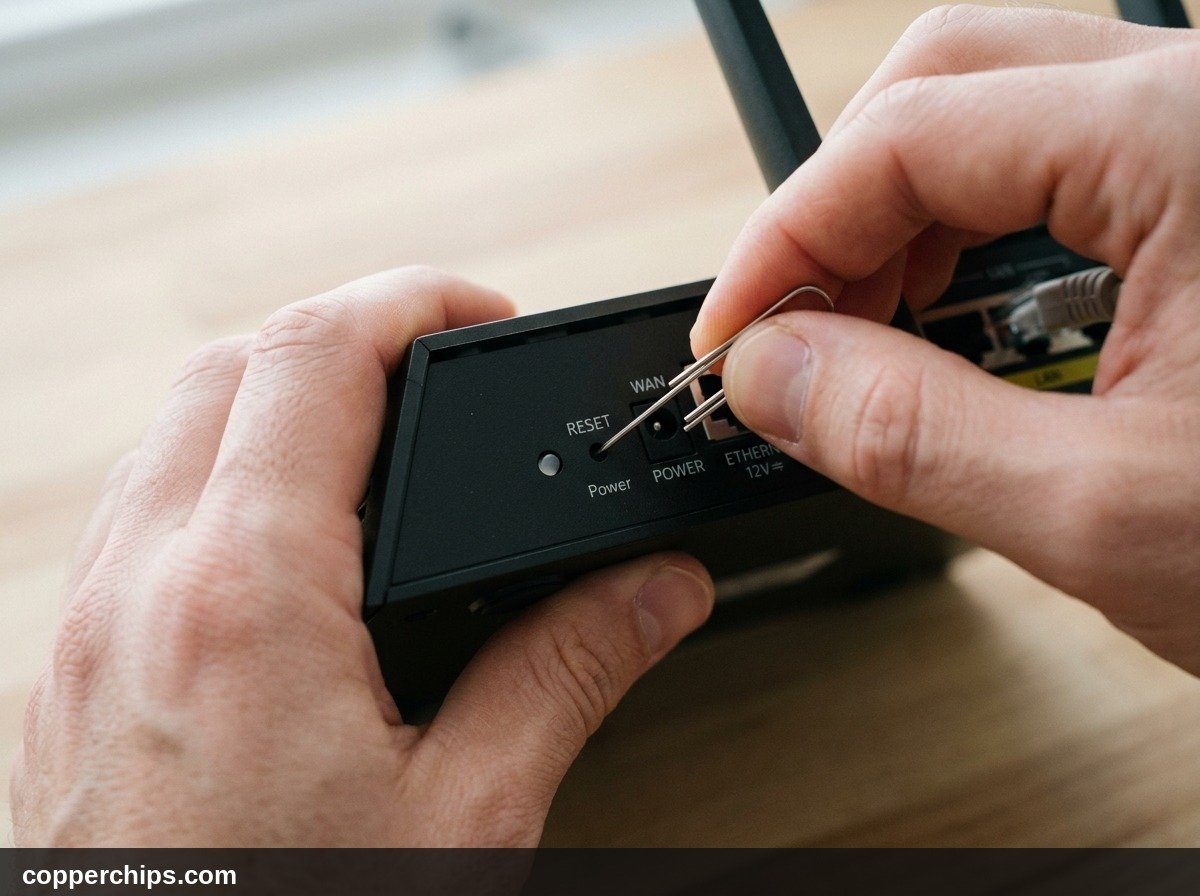
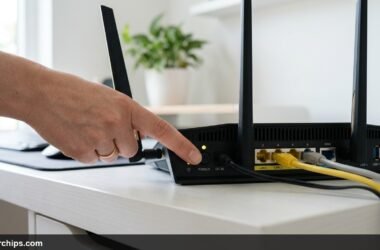
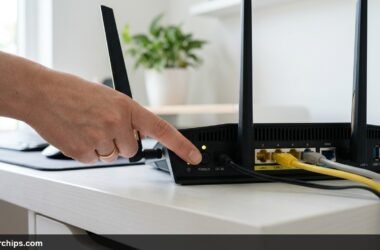
- Verify that your Netgear router is plugged into electrical power and the Power LED is illuminated.
- Locate the small recessed hole labeled Reset on the rear input panel or bottom casing of the router.
- Straighten one end of a metal paperclip, SIM card tray ejector, or small mechanical wire.
- Insert the wire straight into the pinhole until you feel a faint physical click as the micro-switch depresses.
- Hold the button down steadily for seven to ten seconds without shifting your grip.
- Watch the front LED indicators. Release the pin the instant the Power LED blinks amber or flash lights cycle off.
- Allow the router two full minutes to complete its internal reboot cycle and restore factory firmware tables.
Once the Power LED turns solid white or solid green, your router has returned to factory status. Similar physical pinhole procedures also resolve gateway stalls when learning how to reset a Spectrum router across major internet service provider hardware.
Method 2: Software Factory Reset via Web Browser Admin Panel
Execute a clean erase through the local web graphical interface if you still remember your router administrative login password. This method prevents physical wear on the internal reset spring.
- Connect your laptop or desktop computer to your Netgear router using an Ethernet cable or through your local Wi-Fi network.
- Launch any web browser, such as Google Chrome, Mozilla Firefox, or Microsoft Edge.
- Type
http://www.routerlogin.net,http://www.routerlogin.com, or the local IP address192.168.1.1into the address bar and press Enter. - Enter your current administrator username and password in the login prompt dialog box.
- Click the ADVANCED tab located at the top navigation banner.
- Select Administration from the left sidebar menu to expand the sub-options.
- Click on Backup Settings.
- Locate the section labeled Revert to factory default settings and click the Erase button.
- Confirm the prompt by clicking Yes.
The router will display a progress percentage bar across the screen while erasing NVRAM blocks. Do not disconnect the power adapter during this sequence. Interrupting an active NVRAM flash erase can permanently corrupt the bootloader.
Method 3: Reset Using the Official Netgear Nighthawk or Orbi Mobile App
Trigger a system reset from your smartphone if your home network is managed through the cloud-enabled Nighthawk or Orbi mobile application on iOS or Android devices.
- Open the Nighthawk or Orbi app on your smartphone while connected to your home Wi-Fi.
- Log into your Netgear cloud account using your registered email and password.
- Tap the Home dashboard icon in the top left corner.
- Select Settings, then scroll down and tap Router Settings.
- Scroll to the bottom of the management screen and tap Factory Reset.
- Review the warning dialog box detailing data loss, then tap Reset to confirm.
Your smartphone will disconnect from Wi-Fi immediately as the router drops its wireless radio broadcast. Wait three minutes before scanning for the factory default network name.
Advanced Recovery: The 30-30-30 Hard Reset Rule
What should you do if standard reset procedures fail to clear a stubborn bug? If your Netgear router is stuck in a boot loop, where the Power LED blinks amber continuously and refuses to load, perform the classic 30-30-30 hard reset. This legacy engineering procedure drains lingering capacitor voltage and forces the bootloader to read clean factory ROM code.
- First 30 Seconds: While the router is powered on, press and hold the physical Reset button with a paperclip for thirty seconds continuously.
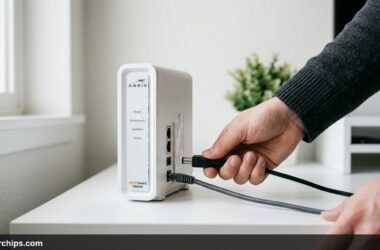
- Second 30 Seconds: Without releasing the Reset button, unplug the power adapter cable from the back of the router. Continue holding the button down for another thirty seconds.
- Final 30 Seconds: Still holding the Reset button firmly, plug the power adapter back into the router. Keep holding the button down for a final thirty seconds.
- Release the paperclip completely.
After completing this ninety-second sequence, let the router sit idle for three minutes. This protocol flushes corrupt NVRAM blocks on older and modern Netgear units alike, as documented across official Netgear knowledge base documentation.
Netgear Router LED Status Light Reference Matrix
Monitoring your router LED indicators during and after a reset provides direct visual confirmation of hardware health. Use this reference matrix to evaluate system states.
| LED Indicator | Color & Behavior | Operational Meaning | Required User Action |
|---|---|---|---|
| Power LED | Solid Amber | Device is running internal power-on self-test (POST) | Wait sixty seconds for firmware initialization to finish |
| Power LED | Blinking Amber | Reset button depressed or corrupted firmware detected | Release reset pin if resetting, or apply TFTP firmware recovery |
| Power LED | Solid White / Green | Router is fully powered and operating normally | None; proceed with network configuration |
| Internet LED | Solid Amber | Ethernet cable connected to modem, but no IP assigned | Power cycle your standalone modem to bind WAN MAC address |
| Internet LED | Solid White / Green | Active internet connection established with modem | None; broadband communication is functioning |
| Wi-Fi Radios | Blinking White | Wireless data packets transmitting across 2.4 GHz or 5 GHz | Normal wireless operational activity |
Post-Reset Setup: 4 Steps to Secure Your Network
Once your Netgear router reboots after a factory reset, your home network is completely unconfigured. Leaving factory credentials in place leaves your local network vulnerable to intrusion. Follow these mandatory setup steps immediately:
- Connect Using Default Sticker Credentials: Check the white regulatory sticker on the bottom or back panel of your router. Locate the default SSID (Network Name) and the unique Network Key (Password). Connect your computer or phone to this factory network.
- Change Default Admin Credentials: Open your browser, navigate to
192.168.1.1, and log in using usernameadminand passwordpassword. The setup wizard will immediately prompt you to create a secure personal administrator password. Select a strong passphrase to prevent unauthorized local access. - Reconfigure Wireless Security: Under wireless settings, enable modern WPA3 personal encryption (or WPA2-PSK AES fallback) as established by Wi-Fi Alliance wireless security standards. Create distinct network names if you prefer separate 2.4 GHz and 5 GHz bands, or enable Smart Connect for automatic dual-band band steering.
- Install the Latest Security Firmware: Navigate to Advanced > Administration > Firmware Update and click Check. Installing the latest firmware patches known security vulnerabilities and optimizes wireless radio performance.
If you encounter complex configuration challenges across your home gateways or mesh access points, explore our dedicated routers and modems troubleshooting guide archive for step-by-step technical walkthroughs.
Still Not Working? When to Call Your ISP vs Replace the Router
If you completed both physical pinhole resets and the 30-30-30 hard reset procedure, but your Netgear router still fails to connect to the internet, isolate the hardware failure before buying a new unit.
First, test your broadband modem directly. Unplug the Ethernet cable connecting your Netgear router Internet port to your modem. Plug that Ethernet cable directly into a laptop Ethernet port. If your laptop cannot access the internet, the fault lies with your internet service provider or a malfunctioning standalone modem, not your Netgear router.
Second, inspect the router power adapter. Modern dual-band and tri-band Netgear routers require steady 12-volt direct current at 2.5 to 3.5 amps. A failing, degraded power brick often provides enough current to illuminate faint LED lights but lacks the amperage needed to power high-gain wireless transmitter radios.
Third, verify hardware age. If your router has been operating continuously for more than five or six years, thermal degradation of internal capacitors and solid-state silicon can cause chronic packet drops. Upgrading to a modern Wi-Fi 6 or Wi-Fi 7 model will deliver superior range, lower latency, and modern security protocols.
Frequently Asked Questions
What happens when I reset my Netgear router?
A factory reset erases all custom configurations stored in the router non-volatile memory. This includes your custom Wi-Fi network name, custom Wi-Fi password, guest network settings, port forwarding rules, parental controls, and admin login passwords. The device reboots with the original factory default settings printed on the product label.
What is the default username and password for a Netgear router?
The factory default administrative username for almost all Netgear routers is admin. The factory default administrative password is password. Note that some newer Netgear models require you to enter the unique admin password printed directly on the product barcode label during initial setup.
Why is my Netgear router Power LED blinking amber after a reset?
A blinking amber Power LED indicates that the router is either in recovery mode, detecting corrupted firmware, or unable to pass its power-on self-test. Leave the router undisturbed for two minutes. If the amber light persists, perform a 30-30-30 hard reset or use the Netgear TFTP firmware recovery utility to reflash the stock firmware.
How do I reset my Netgear router without a paperclip?
You can use a SIM card tray removal tool, a small mechanical sewing pin, an unbent wire twist tie with plastic stripped from the tip, or a sturdy jewelry wire. If you still have access to the web dashboard, you can also execute a software reset by logging into routerlogin.net, selecting Advanced, clicking Administration, opening Backup Settings, and clicking Erase.
How long should I hold the reset button on a Netgear router?
Hold the physical reset button for seven to ten seconds while the router is powered on. Watch the front LED panel and release the button as soon as the Power LED blinks amber. Holding the button for less than five seconds will only reboot the device without erasing settings.
The Bottom Line
Resetting a Netgear router is a straightforward, reliable method to resolve frozen connections, forgotten administrator passwords, and corrupted firmware bugs. Always start by distinguishing between a simple power-cycle reboot and a full factory reset to avoid reconfiguring your entire home network unnecessarily.
When a complete reset is required, the ten-second paperclip method on the recessed reset pinhole provides the most dependable physical override. Follow up immediately by logging into the router management dashboard to update your default admin password, configure strong wireless encryption, and verify your firmware version. With clean factory tables restored, your home network will operate at peak speed and stability.