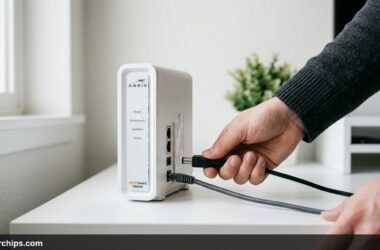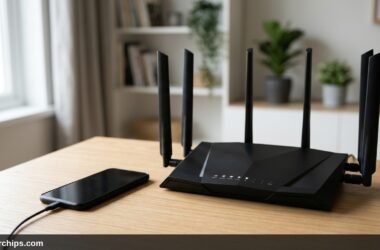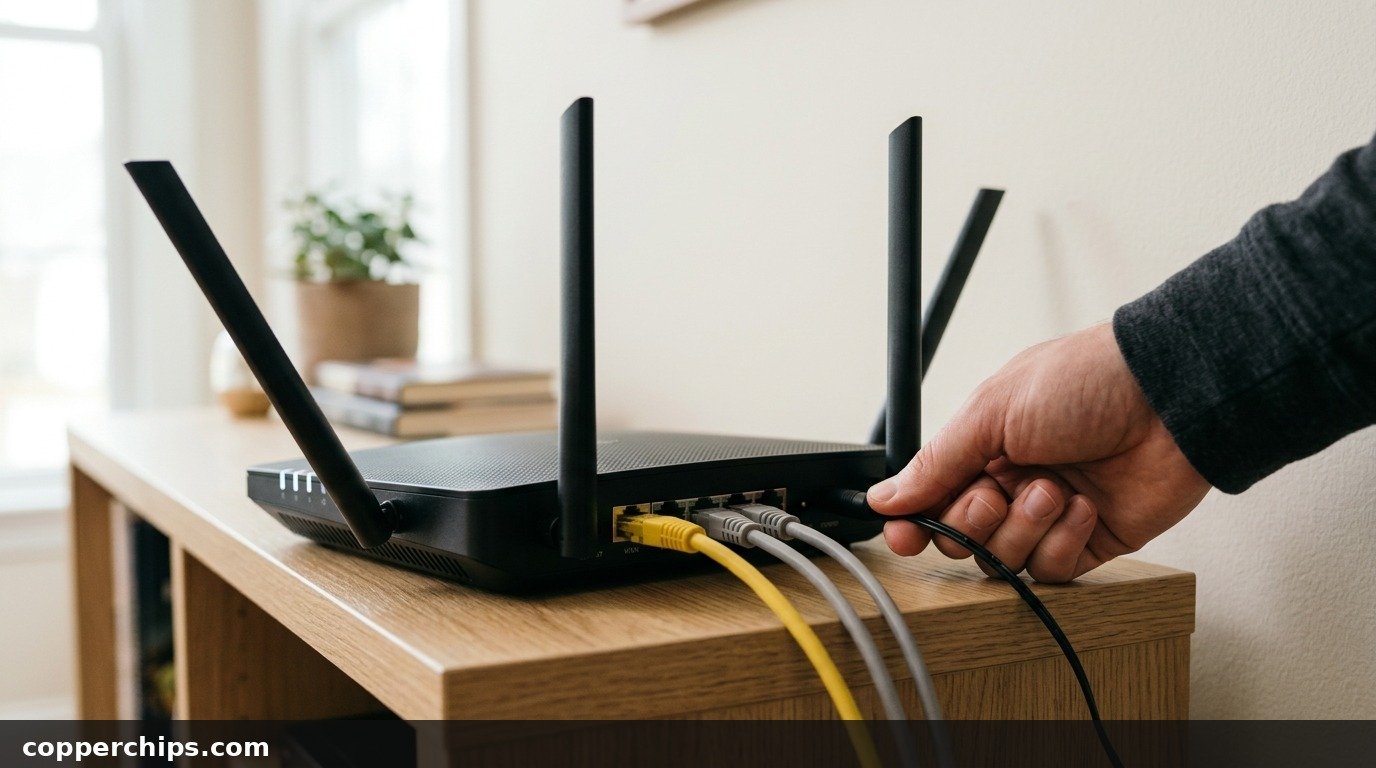
The WiFi is crawling, a video call keeps freezing, or one device refuses to connect. Someone in the house says “restart the router,” and you realize you aren’t sure which box that is. You might also wonder whether the little button on the back will erase your setup.
Restarting a router is safe and takes about three minutes when you do it right.
Below are five ways to restart your router. You can unplug it, use your phone, use the admin page, restart a whole mesh network, or set an automatic schedule. It also covers the one button you should leave alone and what to do when the internet doesn’t come back.
To restart your router, unplug its power cord from the back, wait 30 to 60 seconds, and plug it back in. Give it 1 to 3 minutes until the WiFi or Internet light is solid, then reconnect. You can also restart from the router’s app (eero, Google Home, Deco, Nighthawk) or its admin page, usually at 192.168.0.1 or 192.168.1.1. Never press the pinhole Reset button for a restart. Holding it erases your WiFi name, password and settings.
- vRestart, don’t reset: Unplugging or using the app restarts the router and keeps every setting.
- vTop fix: Unplug for a full 30 to 60 seconds, and bring the modem up before the router.
- vEscalation: If restarts only help for a day or two, update the firmware or plan for a newer router.
Why Restarting Your Router Fixes So Much
A router is a small computer that runs all day, every day. Over days or weeks, its memory fills with old connection records, stuck processes and the occasional firmware glitch. Performance slowly sags until something breaks.
Restarting clears all of that.
The router reloads its firmware, rebuilds its list of connected devices, and asks the modem for a fresh connection. Routers set to automatic channel selection often scan for the least crowded WiFi channel on boot. That helps in busy apartment buildings.
Start by finding the right box.
The router is the one with WiFi antennas or a WiFi logo, connected to the modem by an ethernet cable. If you have a single box with a coax or phone line plugged into it, you have a gateway (a modem and router combined). Restart it the same way, but read our guide on how to reset your modem safely for the modem-specific details, such as backup batteries.
How to Restart My Router: 5 Methods
Method 1: Unplug It (Works on Every Router)
Pull the power cord from the back of the router and wait 30 to 60 seconds. This is the most reliable method because it works even when the router is too frozen to respond to an app.
- Unplug the router’s power cord at the router itself, not at a power strip you can’t see.
- Wait at least 30 seconds. A full minute is better, since it lets the router power down completely.
- Plug the cord back in.
- Wait 1 to 3 minutes. Verizon’s own support guide gives the same window for its routers to finish starting up.
- Look for a solid WiFi or Internet light (white, green or blue, depending on the brand), then reconnect a device and load a page.
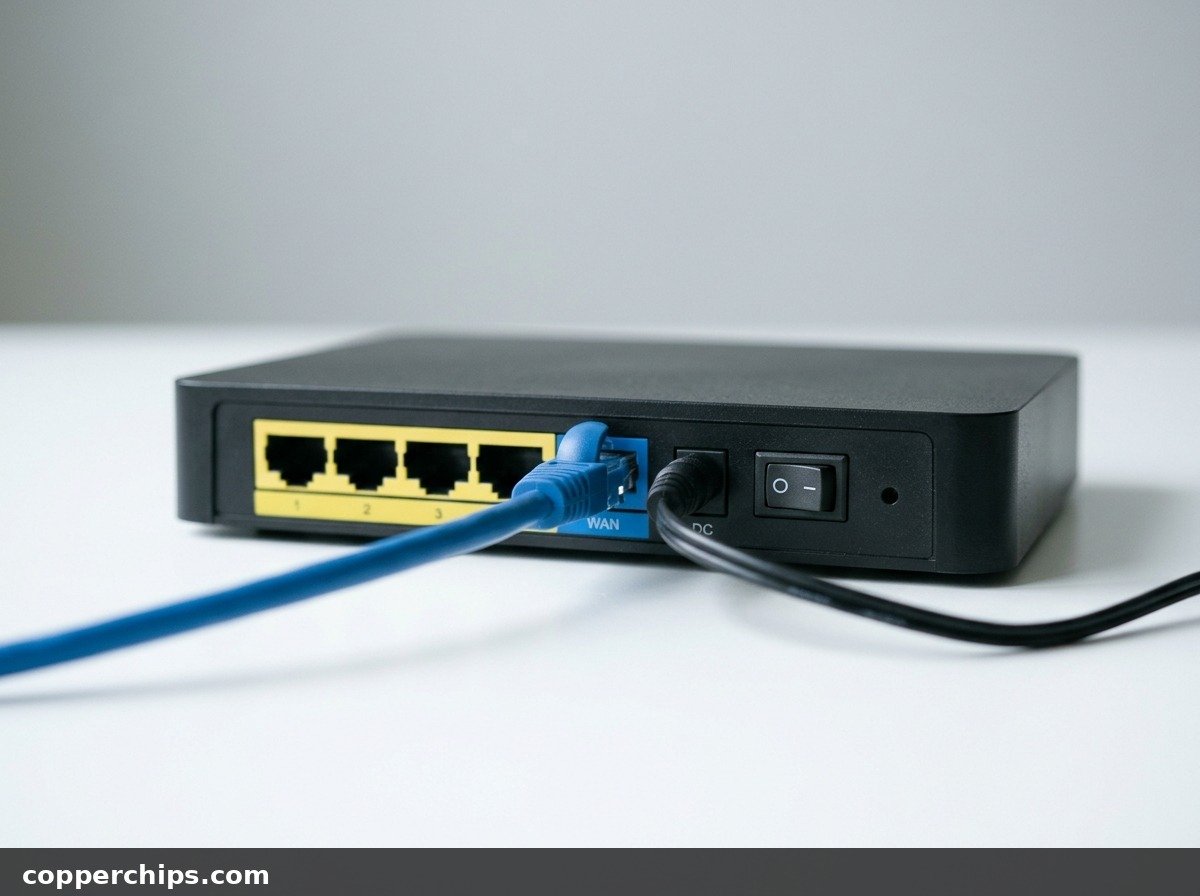
Some routers have a real power button, usually marked with a power symbol. Pressing it twice (off, wait, on) does the same job. It is a separate control from the Reset hole, which is covered below.
You will know it worked when devices reconnect on their own and pages load at normal speed.
Method 2: Restart the Router From Your Phone
Open your router’s app and use its restart option. This is the easiest route when the router sits in a closet or behind the TV. Here is where the option lives on popular systems:
- eero: Open Settings, tap Advanced networking, open the menu at the top, and choose Restart Network. To restart one unit, tap it on the Home tab, open its menu, and tap Restart. The official eero reboot instructions cover both.
- Google Nest Wifi and Google Wifi: In the Google Home app, open Wi-Fi settings and tap Restart network. Single points restart from their own device settings, as Google’s Nest Wifi restart help page explains.
- TP-Link Deco: Open the Deco app, select the unit, and look for the reboot option in its settings.
- Netgear Nighthawk and TP-Link Archer: Most models have a reboot option in the Nighthawk or Tether app, usually under settings or tools.
- ISP gateways: Xfinity, Spectrum and AT&T gateways restart from the provider’s app.
App menus change with updates, so the exact labels may differ on your phone.
One catch matters more than the labels. If the internet is down, a cloud-based app may not reach the router at all. In that case, connect your phone to the router’s WiFi first, or go back to Method 1.
Method 3: Restart From the Router’s Admin Page
Log in to the router through a web browser and use its Reboot button. This works on almost any router, including older models with no app.
- Connect a laptop or phone to the router by WiFi or ethernet.
- Open a browser and type the router’s address. The most common ones are 192.168.0.1 and 192.168.1.1. Netgear also accepts routerlogin.net, and TP-Link accepts tplinkwifi.net.
- Sign in with the admin password. If you never changed it, the default is usually on a sticker on the bottom of the router.
- Find the reboot control. Look under System, Administration, Maintenance or Advanced. On many Netgear models it sits on the Advanced home screen, and on TP-Link Archer models it is under System Tools.
- Confirm the reboot and wait 2 to 3 minutes before you sign back in.
Method 4: Restart the Modem, Router and Mesh Points in Order
When the whole house is offline, restart everything, starting from the modem. A router that boots before the modem is ready may come up with no internet address and stay that way.
- Unplug the modem, the router and any mesh points or extenders.
- Wait 60 seconds.
- Plug in the modem only, and wait until its Online or Internet light is solid (2 to 5 minutes).
- Plug in the main router and give it 2 minutes.
- Plug in mesh points or extenders last, starting with the one closest to the router.
Google gives the same order for Nest Wifi systems: modem first, then the router, then additional points. Skipping the order is the most common reason a restart “didn’t work.”
Method 5: Set Up Automatic Restarts
Schedule a weekly reboot if your router slows down every few days. Many routers can restart themselves at a set time, such as 4 a.m. on Mondays, when nobody is online.
- TP-Link Deco: Supported models have a reboot schedule under More, then System. The TP-Link Deco reboot schedule guide lists the steps.
- TP-Link Archer: Look under Advanced, then System Tools, then Reboot. Set the router’s clock correctly first, or the schedule fires at the wrong hour.
- Other brands: Look for “Reboot Schedule,” “Auto Reboot” or “Scheduled Restart” in the admin page. Availability depends on model and firmware.
If your router has no scheduler, a smart plug with a schedule can cut power for a minute overnight. It works, though it is a blunt tool. Avoid it if the router installs firmware updates automatically at night, since losing power mid-update can damage it.
Restart vs. Reset: Don’t Press the Wrong Button
Most routers have a small pinhole on the back labeled Reset. It is not a restart button. Holding it for several seconds (often 7 to 30, depending on the model) wipes the router back to factory settings.
Save the reset for when the router won’t stay working after restarts or you are locked out of the admin page. For step-by-step help with specific brands, see our Netgear router reset walkthrough.
Still Not Working? Try This
If the router restarts but the internet stays down, look at the modem’s lights. A blinking Online light means the problem sits upstream of your router. Check your ISP’s outage map, then restart the modem using Method 4.
If the WiFi works but pages won’t load, the router is connected to your devices but not to the internet. Our guide to fixing WiFi with no internet access works through that problem step by step.
When restarts only help for a day or two, update the router’s firmware from the app or admin page. Old firmware is a common cause of memory leaks that slowly choke a router.
Heat matters too. A router stuffed in a closed cabinet can overheat and throttle itself, so give it open air.
Plan on replacing the router if it no longer receives firmware updates, runs hot to the touch, or needs a restart every day. Routers more than five years old often lack the current WiFi 6 or WiFi 7 standards your newer devices expect. [AFFILIATE LINK: WiFi 7 mesh router system]
Frequently Asked Questions
Is it good to restart your WiFi router?
Yes. Restarting clears the router’s memory, ends stuck connections, and gets a fresh link from the modem.
It is harmless and often fixes slow or dropping WiFi. Some manufacturers suggest a routine restart every month or two.
Where is the restart button on a router?
Most routers don’t have a dedicated restart button. Some have a power button labeled with a power symbol. The pinhole button marked Reset is for factory resets, so restart by unplugging the power cord instead.
Can I restart my router from my phone?
Yes, if your router has an app, such as eero, Google Home, TP-Link Deco or Netgear Nighthawk. You can also open the router’s admin page in your phone’s browser. If the internet is down, connect to the router’s WiFi first so the phone can reach it.
Should I restart the router or the modem first?
Restart the modem first and wait for its Online light to turn solid. Then restart the router. If you only have a WiFi problem and the modem looks fine, restarting the router alone is enough.
How long should I unplug my router to restart it?
Leave it unplugged for 30 to 60 seconds. After you plug it back in, allow 1 to 3 minutes for it to finish booting before you test the connection.
Why is there no internet after I restarted my router?
The router may have booted before the modem was ready. Unplug the router, check that the modem’s Online light is solid, then plug the router back in. If the modem’s light keeps blinking, contact your ISP.
The Bottom Line
For almost every WiFi hiccup, the fix is the same 3-minute routine. Unplug the router, wait 30 to 60 seconds, plug it back in, and give it time to boot.
When the router is hard to reach, use its app or admin page instead. If the whole house is offline, restart the modem first.
Leave the Reset button alone unless restarts stop working.
If you find yourself restarting every few days, update the firmware or schedule an automatic weekly restart. Still slow after that? The router is telling you it is time for a replacement.