You walk into your back bedroom, basement, or patio, and your smartphone signal abruptly drops from full bars down to a single blinking line. Videos start buffering, voice calls distort, and web pages refuse to load. Searching for a fix online brings up endless retail listings for wifi booster vs wifi extender devices, often using the two phrases as if they mean the exact same piece of equipment.
The confusion is intentional on the retail side. Sellers slap the word “booster” onto every networking gadget on the market to catch desperate shoppers searching for faster speeds. In the real world, hardware architecture matters. Buying the wrong device can leave you with cut-in-half internet speeds, doubled ping latency, and constant frustration switching between separate network names.
A WiFi booster is a generic umbrella marketing term, whereas a WiFi extender is a specific physical hardware device. Extenders capture your existing wireless router signal and rebroadcast it into dead zones. Standard single-band extenders cut maximum network throughput by roughly 50 percent due to half-duplex radio repetition. For smaller apartments or a single dead room, a plug-in dual-band extender placed halfway to the problem area is an economical fix. For larger multi-story homes requiring consistent high speeds and uninterrupted roaming, a mesh system or wired access point is the superior technical solution.
- ✓Marketing vs. Hardware: “Booster” is a retail catch-all label, while “Extender” denotes actual repeaters, powerline plugs, or access points.
- ✓The Throughput Penalty: Basic wireless repeaters slash theoretical bandwidth by half because one antenna must both receive and retransmit packets.
- ✓The Halfway Rule: Extenders must always sit midway between the main router and the dead zone to receive a healthy incoming signal.
The Marketing Trap: Booster vs. Extender Defined
Manufacturers know that ordinary consumers do not search for “half-duplex 802.11ax wireless repeaters.” Instead, shoppers search for something that will make their weak signal stronger. Retail brands responded by inventing the word “booster” to market five distinct categories of hardware under a single friendly umbrella.
When you see a product labeled as a WiFi booster on retail shelves, it almost always belongs to one of three actual hardware categories: a standard range extender, a powerline adapter, or a high-gain replacement antenna. A booster cannot magically amplify your incoming internet bandwidth from your internet provider. It can only take whatever radio signal exists and push it further into your physical space.
In contrast, a WiFi extender is a defined physical networking appliance. An extender connects to your primary wireless router, establishes an active link, and creates an auxiliary broadcasting bubble. Understanding this distinction prevents you from overpaying for basic hardware wrapped in exaggerated retail promises.
How a WiFi Extender Actually Works (The Half-Duplex Penalty)
To understand why many users complain that their Wi-Fi extender makes the internet feel sluggish, you must look at how standard wireless radios communicate. Standard Wi-Fi transmissions operate on half-duplex communication channels.
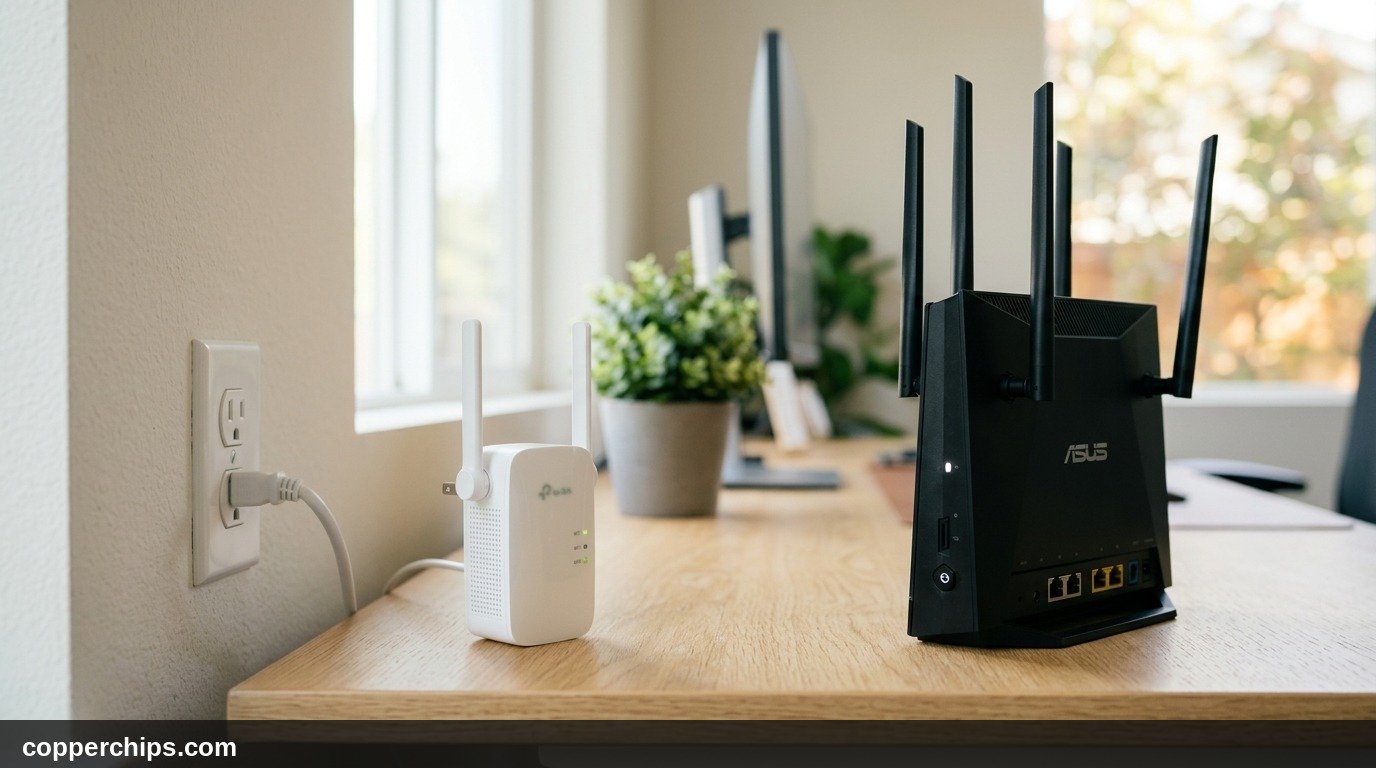
Half-duplex means a radio cannot send and receive data at the exact same millisecond on the same frequency channel. A walkie-talkie is a classic example: only one person can talk while the other listens. When you connect a phone to a basic single-band wireless range extender, the extender must complete two separate steps for every single packet of data:
- First Cycle: The extender listens to your smartphone, capturing your outgoing request packet.
- Second Cycle: The extender turns around and retransmits that exact packet to your main wireless router on the same radio frequency band.
Because the single radio must alternate between listening and talking, theoretical throughput drops by 50 percent immediately. If your main router delivers 300 Mbps in your living room, the maximum speed possible through a basic repeater in the next room is roughly 150 Mbps, even with perfect signal bars. Latency also doubles, creating noticeable lag during competitive online multiplayer games and live video conferencing.
The 4 Different Types of WiFi “Boosters”
Because retail packaging labels everything as a booster, knowing the four true hardware architectures will help you choose the right device for your specific home layout.
| Hardware Type | How It Connects | Speed Loss | Typical Cost | Best Scenario |
|---|---|---|---|---|
| Plug-in Range Extender | Wireless Wi-Fi signal | 30% to 50% | $25 to $60 | Small apartments, single patio dead zone |
| Powerline Adapter Kit | Home electrical wiring | 10% to 25% | $60 to $120 | Basements with thick drywall or concrete floors |
| MoCA Coaxial Adapter | Existing TV coax cables | Near 0% (Gigabit) | $110 to $160 | Homes with existing cable television outlets |
| Mesh Wi-Fi System | Dedicated radio backhaul | Minimal | $150 to $400 | Multi-story homes over 2,500 square feet |
1. Wireless Plug-in Range Extenders
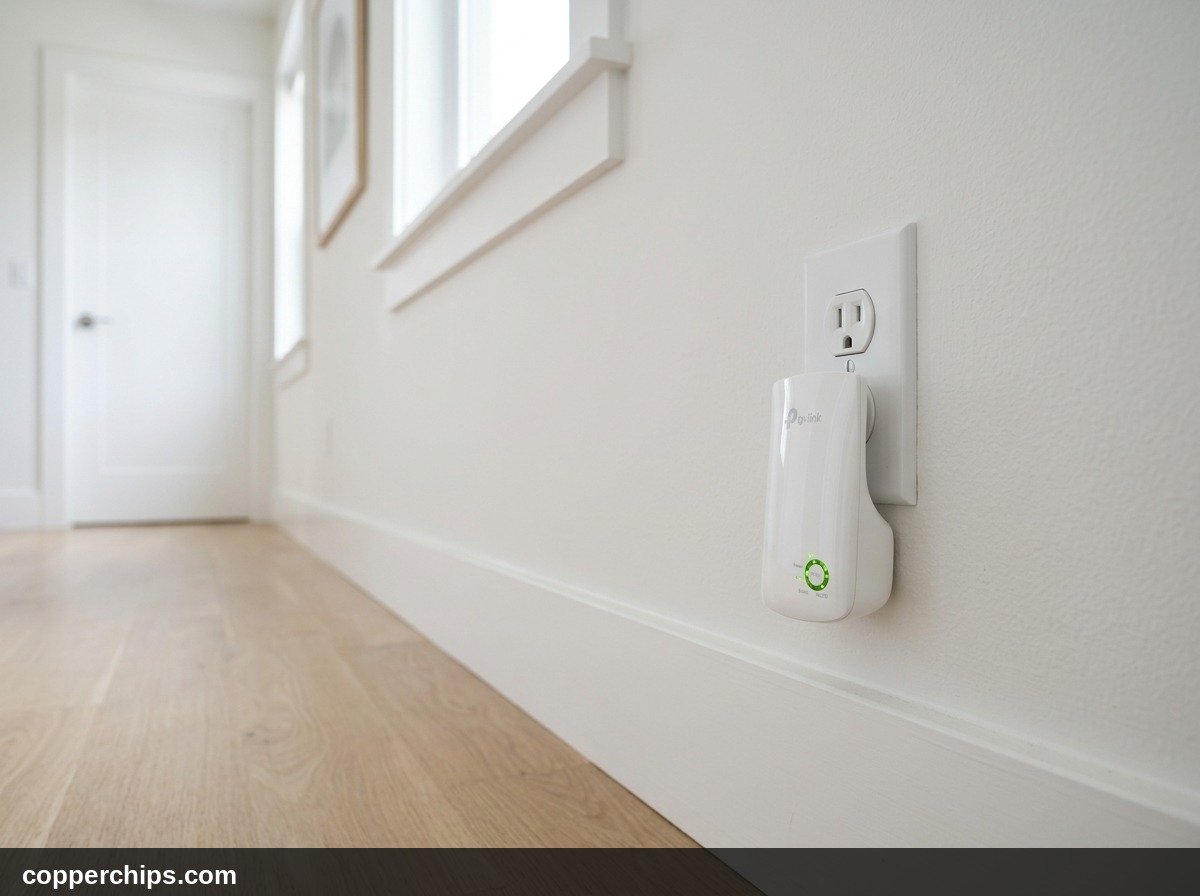
These are the ubiquitous white rectangular boxes that plug directly into an electrical wall receptacle. They contain integrated radio antennas that pick up the main router broadcast and repeat it outward. They are inexpensive and easy to set up with a single WPS button press, but they suffer from throughput halving on older models.
2. Powerline Network Extenders
Powerline kits bypass wireless signal blockage entirely by sending network data through the existing copper electrical wiring in your walls. You plug one adapter into a wall socket near your router and run an Ethernet cable into it. You plug the second adapter into a wall socket in the distant room, where it outputs either an Ethernet connection or a fresh local Wi-Fi bubble. Powerline adapters work exceptionally well across thick brick, stone, or plaster walls that completely block wireless radio frequencies.
3. MoCA (Multimedia over Coax) Adapters
If your home has black coaxial cables installed for cable television in multiple rooms, MoCA adapters offer superior stability. According to technical testing published by the FCC broadband home networking guidelines, coaxial shielding isolates data from household interference, delivering speeds up to 2.5 Gbps with under 3 milliseconds of latency. MoCA effectively turns your existing television jacks into high-speed Ethernet backhauls.
4. Whole-Home Mesh Systems
Mesh systems replace your single central router with two or three coordinated access points that blanket your house in a unified wireless fabric. Unlike basic extenders that merely echo signals, mesh nodes communicate over an encrypted, often dedicated third radio band. They handle client handoffs dynamically so your phone switches towers invisibly as you walk through your home.
The Roaming Problem: Sticky Clients and Dual SSIDs
One of the biggest practical annoyances of budget Wi-Fi extenders is the “sticky client” problem. Inexpensive extenders cannot broadcast the exact same network name (SSID) without causing IP routing loops. Instead, they force you to configure a secondary network name, usually ending in _EXT or _2GEXT.
When you walk from your living room into a back bedroom, your smartphone will stubbornly cling to the weak 1-bar signal from your main router. Phones are programmed to hold onto an active connection until the signal drops below a miserable -80 or -85 dBm threshold. Your phone refuses to switch over to the stronger extender signal until the main router connection completely severs.
You end up having to open your phone settings, disconnect manually, and tap the _EXT network. Then, when you walk back into the living room, you must repeat the routine in reverse. True mesh systems and professional extenders certified under Wi-Fi Alliance official roaming standards solve this problem by incorporating the 802.11k, 802.11v, and 802.11r fast-roaming protocols. These standards allow the access point to actively command your device to jump to the strongest node without dropping audio calls or video streams.
How to Place a WiFi Extender (The Halfway Rule)
The single most frequent mistake homeowners make is installing the extender directly inside the room where the signal is broken. An extender can only rebroadcast the signal it receives. If you plug an extender into a dead zone where the Wi-Fi signal is 5 Mbps and full of packet loss, the extender will happily rebroadcast that broken 5 Mbps signal with 100 percent signal strength bars. Your device will show full Wi-Fi bars, yet nothing will load.
- Find the halfway mark: Locate an electrical outlet approximately 50 percent of the physical distance between your main router and the dead room.
- Check signal strength at the outlet: Stand at that outlet with your smartphone. You must see at least 2 to 3 bars of stable Wi-Fi (roughly -65 to -70 dBm signal strength). If your phone struggles there, move the extender closer to the router.
- Avoid major physical obstructions: Keep the extender out in the open. Do not hide it behind metal filing cabinets, large mirrors, refrigerators, or thick furniture. Heavy metal and water absorb radio waves rapidly.
- Position antennas perpendicular: If your extender features external adjustable antennas, point one straight up vertically and rotate the other at a 45-degree angle. This orientation maximizes signal reception across both horizontal and vertical device antennas.
If your device frequently encounters bandwidth problems on specific radio channels, review our diagnostic guide on 5GHz WiFi not showing up troubleshooting guide to ensure your extender is repeating the correct high-speed band.
When Should You Buy an Extender vs. Upgrading to Mesh?
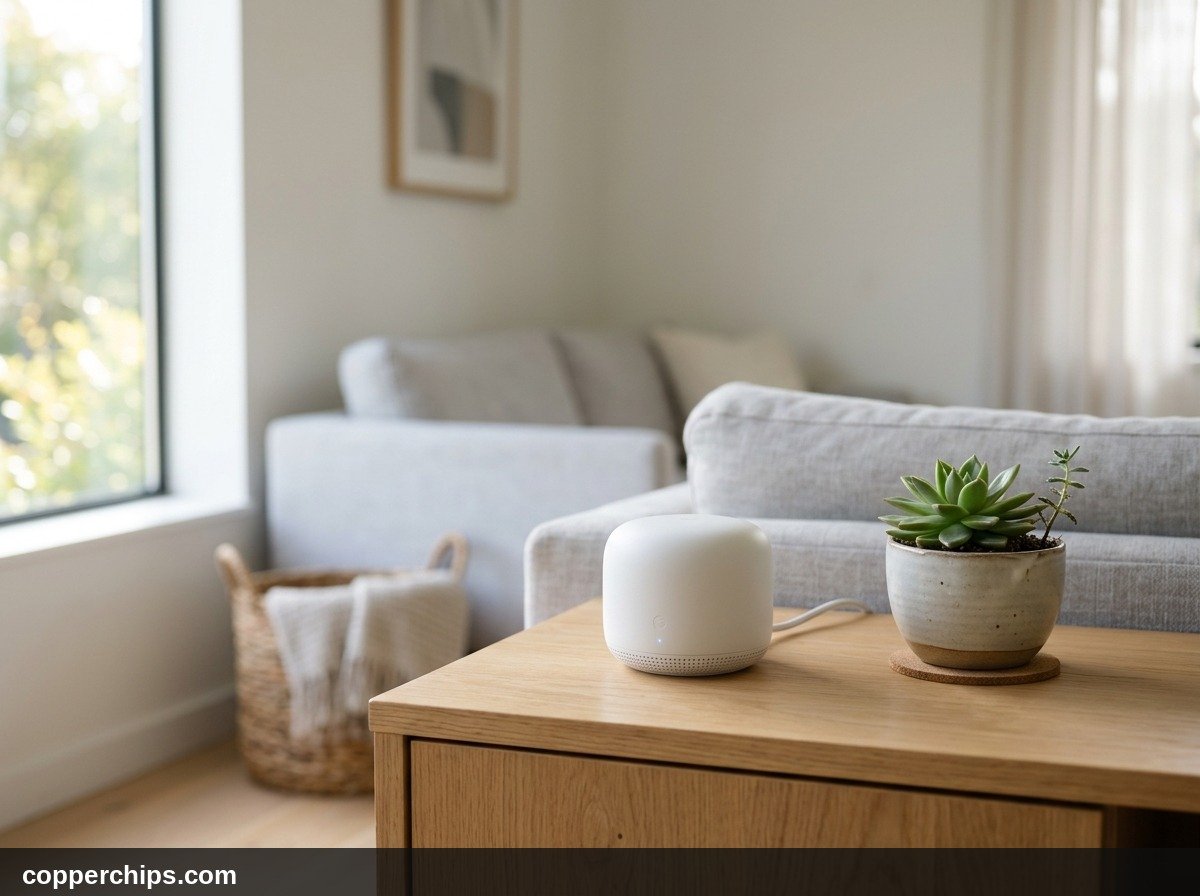
Deciding between a $35 plug-in extender and a $250 multi-node mesh system comes down to three measurable factors: your floor plan, your internet speed tier, and your household bandwidth demands.
Choose a WiFi Extender If:
- Your home is under 1,800 square feet, and you only have one localized dead zone (such as an office corner or garage workshop).
- Your internet service plan is under 200 Mbps, meaning a 50 percent throughput drop will not drastically hinder your daily browsing or streaming.
- You are renting or living in temporary housing where running Ethernet cables or investing in expensive permanent networking gear is impractical.
- You have stationary smart home devices (such as a garage door opener or outdoor security camera) that never move and do not suffer from roaming issues.
Upgrade to a Mesh System If:
- Your home spans multiple levels or exceeds 2,500 square feet with structural barriers like brick fireplaces, concrete foundations, or plaster walls.
- You subscribe to high-speed fiber or gigabit cable (500 to 1,000 Mbps) and want to utilize that bandwidth in every room.
- Your household has multiple remote workers conducting simultaneous Zoom calls who frequently walk between rooms with laptops.
- You want unified network management with parental controls, guest network isolation, and automatic security firmware patching from a single phone app.
Still Not Working? Advanced Dead Zone Fixes
If an extender still fails to provide acceptable connectivity, try these advanced optimization techniques before spending hundreds on new networking hardware:
1. Switch the Extender to Access Point (AP) Mode
Almost all modern range extenders include an RJ-45 Ethernet port on the bottom housing. If your home has an Ethernet wall port or if you can route a flat network patch cable from the router to the extender, switch the unit operation mode from “Range Extender” to “Access Point.”
In Access Point mode, the extender receives incoming internet traffic through a solid copper cable rather than relying on weak radio waves. The extender then broadcasts a fresh, full-speed Wi-Fi bubble with zero half-duplex throughput penalty.
2. Optimize Primary Router Placement
Many homeowners tuck their primary router inside a closed television cabinet, down on the floor behind a couch, or inside an enclosed utility closet. Elevating your router onto an open shelf at chest height can expand its effective broadcast radius by 30 to 40 feet, often eliminating the dead zone without buying extra hardware.
3. Change Clean Channel Assignments
If you live in a dense apartment complex or crowded suburban subdivision, neighboring routers broadcasting on identical frequencies create devastating channel interference. Log into your router administrative gateway and switch your 2.4 GHz band from automatic to static non-overlapping channels (1, 6, or 11). For the 5 GHz band, select clean UNII-2 or UNII-3 channels with minimal congestion.
For additional steps on resolving stubborn connectivity errors where devices stay paired to radios without passing traffic, follow our complete guide on fixing WiFi connected with no internet.
Frequently Asked Questions
Is a WiFi booster the same thing as an extender?
Yes, in most commercial contexts. “WiFi booster” is a broad retail marketing phrase, while “WiFi extender” is the accurate technical term for hardware that captures and rebroadcasts a wireless signal. When shopping, verify whether a product is a wireless repeater, a powerline adapter, or a mesh node.
Do WiFi extenders slow down your internet connection?
Yes. Basic single-band extenders cut maximum bandwidth by roughly 50 percent because their single radio must alternate between receiving and transmitting data on the same channel. Dual-band extenders that utilize separate bands for backhaul communication minimize this penalty significantly.
Can I use two WiFi extenders in the same house?
You can use two extenders if both connect directly back to the central router in different directions. However, never daisy-chain extenders by connecting one extender to another. Daisy-chaining cuts throughput by 75 percent or more and introduces severe packet loss and connection timeouts.
Does a WiFi extender improve internet speed from my provider?
No device can deliver speeds higher than what your internet service provider supplies to your modem. An extender simply restores the portion of your available bandwidth that was previously lost to physical distance or wall attenuation.
Will my phone switch between the router and extender automatically?
Standard budget extenders that create separate network names (such as Network_EXT) require manual switching when you walk between rooms. To achieve automatic, uninterrupted roaming under a single network name, you need hardware that supports 802.11k/v/r standards, such as a mesh system or synchronized access points.
The Bottom Line
When weighing wifi booster vs wifi extender options, remember that “booster” is marketing jargon while “extender” describes the actual hardware. If you need to eliminate a single dead zone in a small home on a tight budget, an affordable dual-band range extender installed halfway to the target room provides an easy, reliable fix.
If you live in a large multi-story house, demand full gigabit speeds, or hate manually switching network names as you move around, skip standalone repeaters entirely. Investing in a whole-home mesh Wi-Fi system or deploying a wired Ethernet access point delivers a unified, high-performance network that solves dead zones permanently. Explore our home WiFi and internet guide directory for additional router optimization strategies.
• Internal: 5GHz WiFi Not Showing Up Guide
• Internal: WiFi Connected No Internet Access Fix
• Internal: WiFi & Internet Category Directory
• External: Wi-Fi Alliance Official Certification Standards
• External: FCC Broadband Home Networking Guidelines