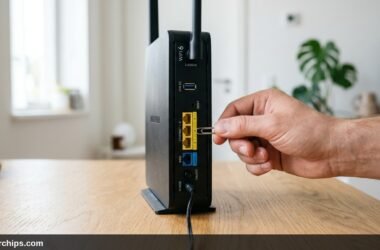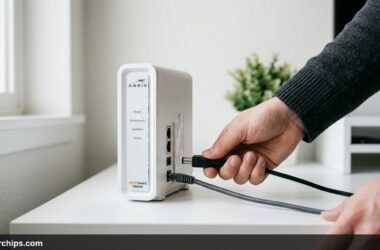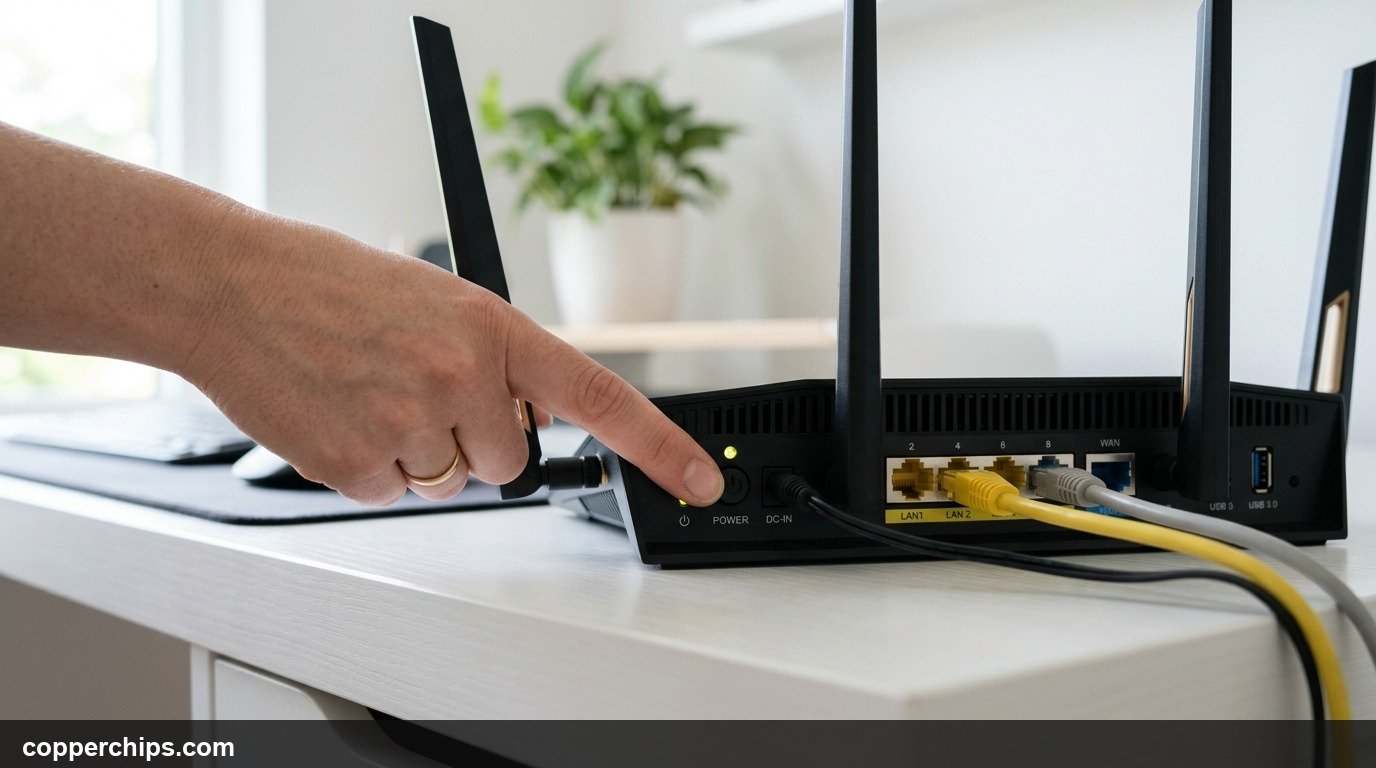
Your Wi-Fi keeps dropping during Zoom calls, web pages stall halfway through loading, and rebooting your networking box has become a daily chore. When home internet misbehaves, most people instinctively blame their Internet Service Provider (ISP). In many households, the real culprit is an aging, overheating, or dying wireless router sitting quietly on a shelf. Hardware RF amplifiers that exceed thermal limits fall outside FCC equipment authorization specifications.
To tell if a router is going bad, run a continuous local ping test to your default gateway (ping -t 192.168.1.1). If you see frequent Request timed out errors while standing next to the unit, the hardware is failing. Primary physical symptoms include burning-hot casing from thermal throttling, persistent red or amber status lights, one Wi-Fi band (usually 5GHz) vanishing completely, and random device reboots every few hours. If your router is older than four to five years, replacing it is more cost-effective than troubleshooting.
- vLifespan Limit: Consumer Wi-Fi routers operate continuously under high thermal loads and typically last between three and five years before silicon degradation begins, as detailed in NETGEAR home router lifespan guidelines.
- vLocal Ping Test: Pinging your router IP directly isolates internal hardware failure from external ISP cable line outages.
- vHardware Warning: Dying capacitors and burnt radio power amplifiers cause sudden Wi-Fi range collapse and erratic restarts that firmware updates cannot fix.
The 60-Second Diagnostic Ping Test (Is It the Router or Your ISP?)
Before replacing any hardware, you must verify whether your dropouts stem from the router itself or your incoming broadband line. You can confirm this in sixty seconds using a local ping test.
Every home router acts as your local default gateway, usually assigned the IP address 192.168.1.1 or 192.168.0.1. When you ping this address, your computer sends test packets directly to the router hardware inside your room without touching the external internet.
- On Windows, press Windows Key + R, type
cmd, and press Enter. On Mac, open Terminal via Spotlight. - Type
ping -t 192.168.1.1(on Mac, typeping 192.168.1.1) and press Enter. If your router uses a different gateway IP, substitute your actual gateway address. - Let the test run for thirty seconds, then press Ctrl + C to stop.

Interpreting Your Results:
- Healthy Router: Response times under 2ms with 0% packet loss. If websites fail to load during this test, your router is working fine and your ISP has an outage.
- Failing Router: Latency spiking above 150ms, wild ping fluctuations, or lines that read “Request timed out”. This proves the router processor is bottlenecking, crashing, or failing to route local packets.
6 Warning Signs Your Router Is Going Bad
1. Random Reboots and Dropped Connections Daily
A healthy router should stay powered on for months without manual intervention. If you find yourself power-cycling your unit every morning or afternoon just to restore connectivity, the hardware is deteriorating.
As internal power capacitors age, their ability to deliver stable electrical current drops. Any sudden spike in network traffic (like starting a 4K stream or video call) pushes power draw beyond what dying components can supply, triggering an automatic safety reboot.
2. Severe Overheating and Thermal Throttling
Excessive heat is the number one killer of consumer networking hardware. Routers run twenty-four hours a day, year-round, usually packed into small plastic enclosures with passive cooling fins.
Over years of operation, thermal paste on the central processing unit dries out and dust coats internal heatsinks. When the internal silicon hits critical temperatures (often above 85 degrees Celsius), the processor drastically throttles its clock speed to prevent fire. This thermal throttling causes sudden speed slowdowns, sluggish responsiveness, and random shutdowns.
3. Disappearing Wi-Fi Bands (5GHz Drops Out Completely)
Dual-band and tri-band routers rely on independent radio transmitter chips for 2.4GHz and 5GHz frequencies. One of the clearest physical signs of hardware failure is when the 5GHz Wi-Fi network vanishes while 2.4GHz stays visible.
The 5GHz radio operates at much higher frequencies and generates significantly more heat than the 2.4GHz chip. Consequently, the 5GHz power amplifier chip usually burns out first. If your devices can only detect your slow 2.4GHz SSID and restarting does not restore the high-speed 5GHz network, the radio hardware has died.
4. Drastic Speed Degradation and Throughput Collapse
A dying router struggles to move data even when plugged in through a physical Ethernet cable. When flash memory corrupts or packet buffers degrade, routing throughput drops severely.
To verify this, plug a laptop directly into your modem using an Ethernet cable and run a speed test on Fast.com or Speedtest.net. Then plug your laptop into one of the router LAN ports and re-test. If the modem gives you 400 Mbps but the router caps you at 35 Mbps on a wired connection, the internal switching chip or network processor is fried.
5. Unresponsive Web Admin Console and Corrupted Firmware
When you cannot access your router management dashboard, the flash storage is failing. Modern routers store their operating system on non-volatile flash memory chips.
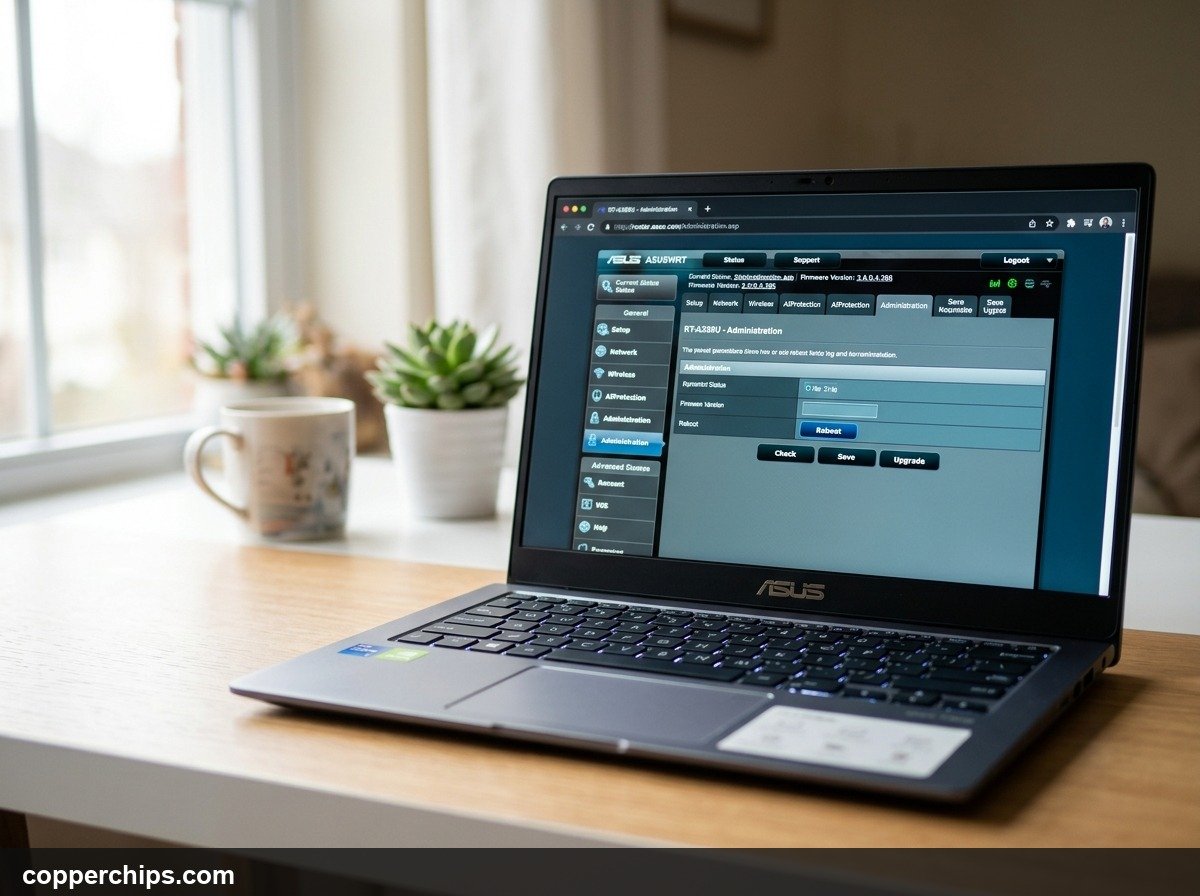
If typing 192.168.1.1 into your web browser results in an endless loading spinner, connection refused errors, or garbled admin menus even after a full factory reset, the onboard NAND flash memory has developed bad memory blocks. Corrupted firmware cannot be overwritten once flash memory sectors fail.
6. Persistent Red or Amber Error Status LEDs
Indicator lights on your router front panel communicate hardware health. Under normal operation, status lights for Power, Internet, and Wi-Fi glow solid green or blue.
If the Power light or Internet globe icon glows solid amber, flashes red continuously, or flickers erratically, consult your router manual. While an amber Internet light can occasionally indicate an ISP outage, a solid red Power LED indicates that the unit failed its internal Power-On Self-Test (POST) and cannot boot.
Repair vs. Replace: Decision Guide
| Symptom | Likely Cause | Recommended Action |
|---|---|---|
| Slow Wi-Fi in distant rooms | Poor placement, wall obstruction | Relocate router or add mesh node (Repair) |
| Random daily reboot loops | Failing power supply / capacitors | Replace router immediately |
| 5GHz network disappeared | Burnt radio power amplifier | Hardware failure, replace unit |
| Router older than 5 years | Outdated Wi-Fi 4/5, unpatched security | Upgrade to modern Wi-Fi 6 or 6E model (certified by Wi-Fi Alliance wireless standards) |
| Dropping packets on wired LAN | Damaged switch chip / CPU failure | Hardware defect, replace unit |
Frequently Asked Questions
How long do home wireless routers usually last?
The average consumer router lasts between three and five years. While a router might continue turning on past five years, outdated internal processing chips struggle to handle modern streaming demands, high device counts, and current gigabit internet speeds.
Can a bad router slow down internet speed?
Yes. If internal memory buffers corrupt, packet queues back up, or thermal throttling slows the CPU, your router can choke bandwidth down to a fraction of your contracted ISP speed, even on wired connections.
Should I replace my router or modem first?
Test the modem independently by plugging a laptop directly into the modem Ethernet port. If wired internet through the modem is fast and stable, your modem is fine and your router is the failing link. If the direct modem connection also drops, the issue lies with your ISP line or modem hardware.
Does a hot router mean it is dying?
Routers naturally feel warm during operation. However, if the plastic chassis is hot enough to cause discomfort when touched, or if the unit is located in an enclosed cabinet without ventilation, heat will rapidly degrade internal solder joints and silicon traces.
The Bottom Line
Do not waste weeks arguing with your broadband provider when your networking hardware is simply reaching the end of its operational life. Use the 60-second ping test to check your local gateway latency. If you encounter packet timeouts, burned-out radio bands, and daily random restarts, upgrading to a modern Wi-Fi 6 router will instantly eliminate your connection drops.
If you want to ensure your hardware is fully refreshed before buying new equipment, learn how to restart your router properly or check our complete guide on how to reset your modem to resolve temporary configuration glitches.