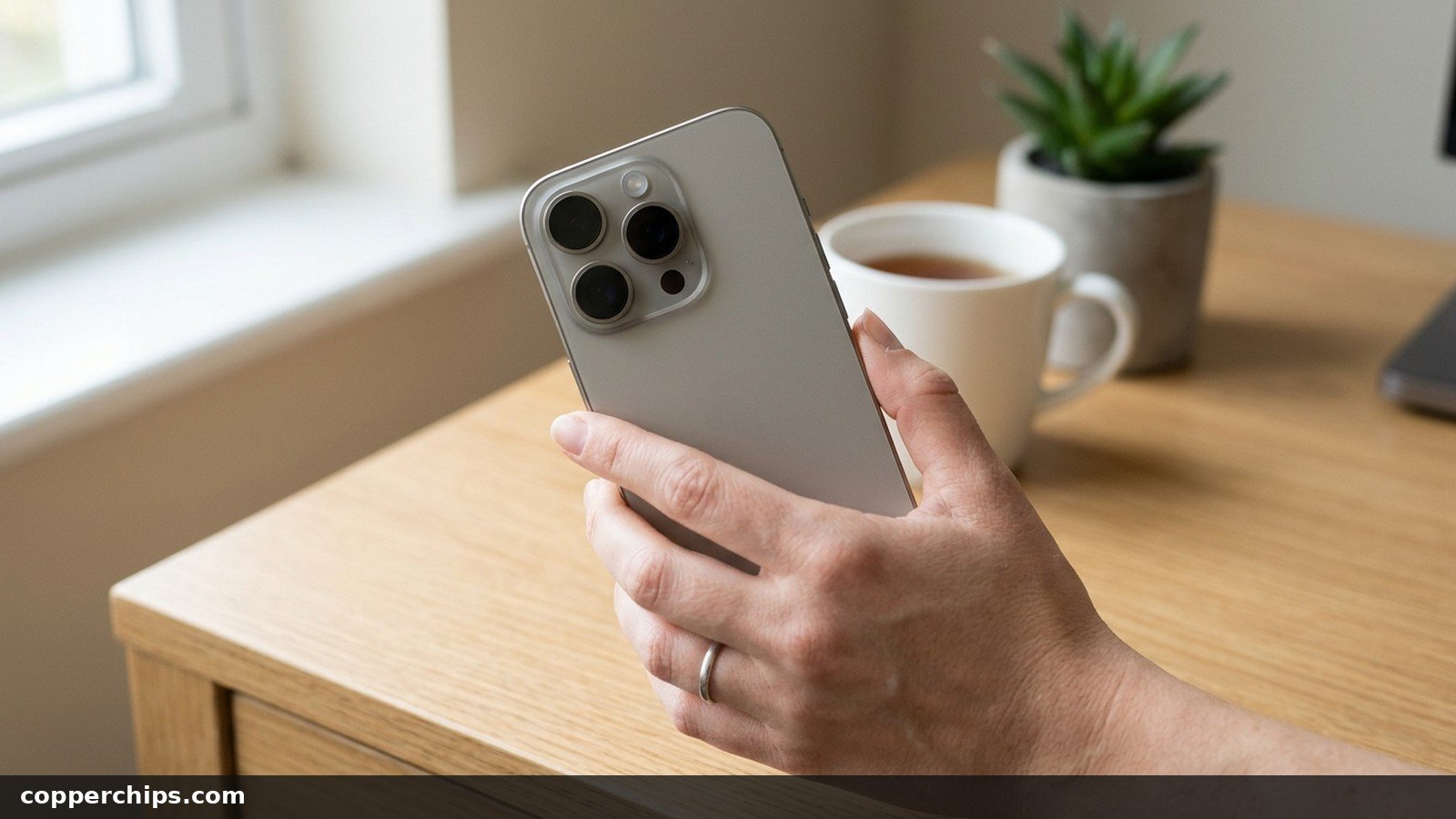
You open the Camera app, flip to the rear lens, and get nothing but a black rectangle. The selfie camera works fine, which makes it worse. If your iPhone back camera is not working, the cause is usually a stuck app, a case or magnet in the way, or a settings glitch, and most of those clear up in under five minutes.
Sometimes it really is hardware. A drop, water, or long rides on a motorcycle mount can damage the rear module, and no setting will fix that. This guide starts with a 60-second test that tells you which side of that line you are on. Then it walks through 10 fixes in order, from fastest to most drastic, and shows you when to stop and book a repair.
An iPhone back camera that shows a black screen is usually a software stall or something blocking the lens. Force close the Camera app, take off the case and any MagSafe ring or mount, then force restart the iPhone (volume up, volume down, hold the side button until the Apple logo). If the rear camera is still black, update iOS in Settings > General > Software Update and try Reset All Settings. A black rear camera plus a dead flashlight, or a buzzing or clicking sound from the lens, points to hardware damage that needs a repair.
- vMost common cause: the Camera app or iOS camera service has stalled, which a force close and force restart clear.
- vHidden cause: magnetic cases, rings and car mounts can upset the rear camera’s stabilization and focus, so test with everything removed.
- vWhen to stop: if the rear camera stays black after Reset All Settings, or the flashlight is dead too, book an Apple or authorized repair.
Why the iPhone Back Camera Stops Working
The rear camera on a modern iPhone is several cameras in one bump. Each lens has its own sensor, and the main lens has optical image stabilization (OIS) that physically moves to cancel shake. iOS switches between them for you, so a fault in one part can look like the whole back camera has died.
Software problems cause most black screens. The Camera app freezes, the camera service crashes after an update, or another app is still holding the camera. Full storage can also stop the camera from saving or launching properly.
Physical causes come next. A thick case can cover a lens, and magnets in cases, wallets and mounts can interfere with stabilization. Real damage comes from drops, liquid, and vibration. Apple’s warning about motorcycle vibrations says high-power engine vibration can degrade the camera system’s stabilization and autofocus over time.
The 60-Second Test: Software or Hardware?
Run these four checks before you change any settings. Together they tell you where the fault sits.
- Flip to the front camera. Tap the rotate button in the Camera app. If the selfie camera works, the iPhone’s camera system is alive and the problem is limited to the rear module or the way apps reach it.
- Tap each zoom level. Switch between 0.5x, 1x and 2x, 3x or 5x (the options depend on your model). If only one zoom level goes black or blurry, that single lens is the likely problem.
- Turn on the flashlight. Close the Camera app first, then tap the flashlight in Control Center. The flash LED sits in the camera bump, so a dead flashlight and a black rear camera together suggest a hardware or connector fault.
- Try another camera app. Open the camera inside FaceTime, WhatsApp or Snapchat. If the rear camera works there, the built-in Camera app or its settings are to blame.
Listen while you switch lenses, too. A buzzing, rattling or clicking sound from the camera bump, or a picture that shakes on its own, is a strong sign the stabilization hardware is damaged.
iPhone Back Camera Symptom Cheat Sheet
Match what you see to the most likely cause, then jump to the fix that fits. Save this table for the next time it happens.
| What you see | Likely cause | Try first |
|---|---|---|
| Rear camera black, front camera works | App stall or blocked lens | Force close Camera, remove case, force restart |
| Only one zoom level black or blurry | Single lens fault | Clean that lens, then book a repair |
| Picture shakes, buzzing or clicking sound | Damaged stabilization (OIS) | Remove magnets, then repair |
| Camera black and flashlight dead | Rear module or connector fault | Update iOS, then repair |
| Black only in WhatsApp or Snapchat | Camera permission off | Settings > Privacy & Security > Camera |
| Flash will not fire, phone feels hot | Heat protection | Let the iPhone cool down |
| Started right after an iOS update | Update bug | Install the next update, Reset All Settings |
How to Fix an iPhone Back Camera Not Working: 10 Fixes
Work through these in order. The early fixes take seconds, and the later ones change more settings, so there is no point jumping straight to a reset.
Fix 1: Force Close the Camera App
Close the Camera app completely and reopen it. On an iPhone with Face ID, swipe up from the bottom of the screen and pause in the middle to open the app switcher. Models with a Home button need a double-click of the Home button instead.
Swipe up on the Camera card to close it, then open Camera again. This works because a frozen app keeps its broken state until you kill it.
Fix 2: Remove the Case and Magnetic Accessories
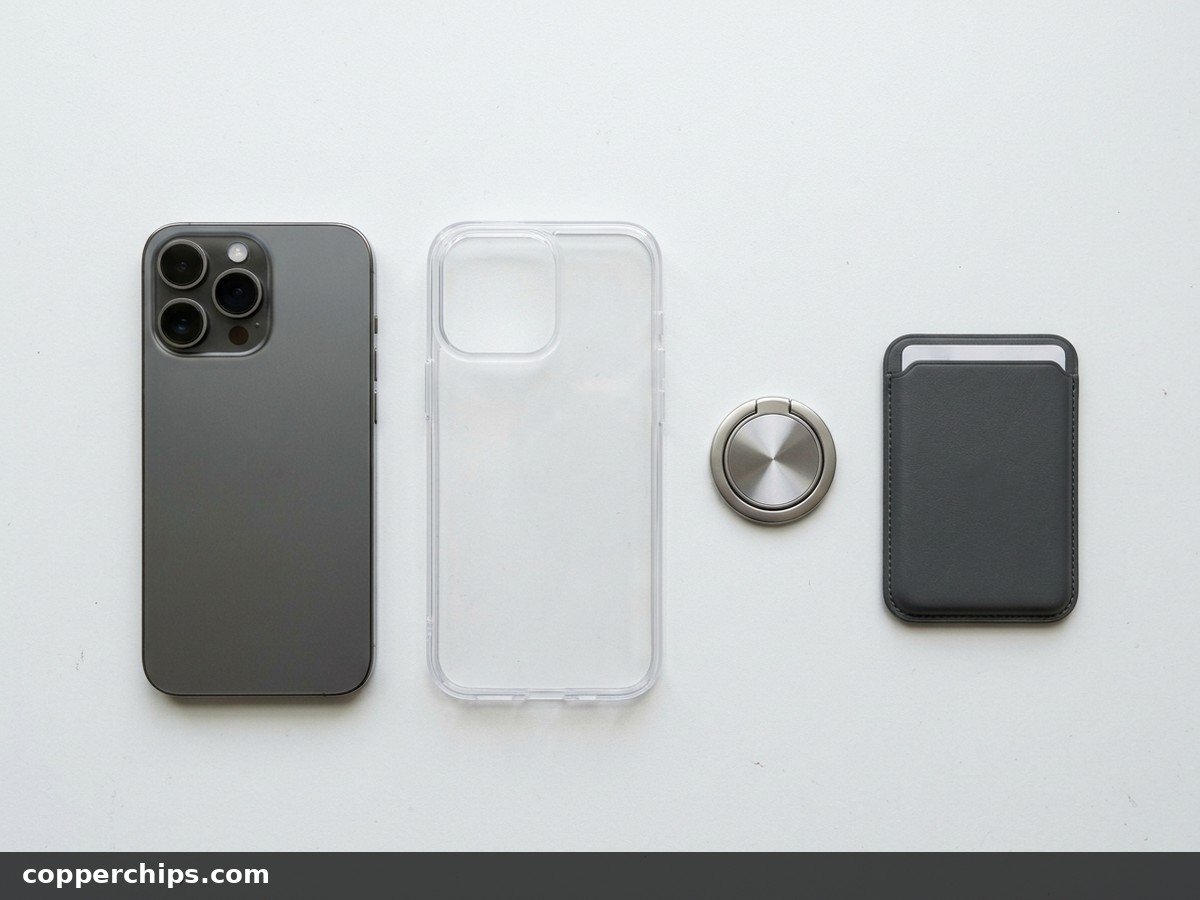
Take off the case, MagSafe wallet, ring grip, lens attachment and any car-mount plate. A thick or misaligned case can block a lens outright, and that looks exactly like a black screen.
Magnets are the sneakier problem. They can pull on the stabilization system and focus motor, which leaves you with blur, wobble or a lens that refuses to settle. Test the camera with the bare phone before you go any further.
Fix 3: Clean the Rear Lenses
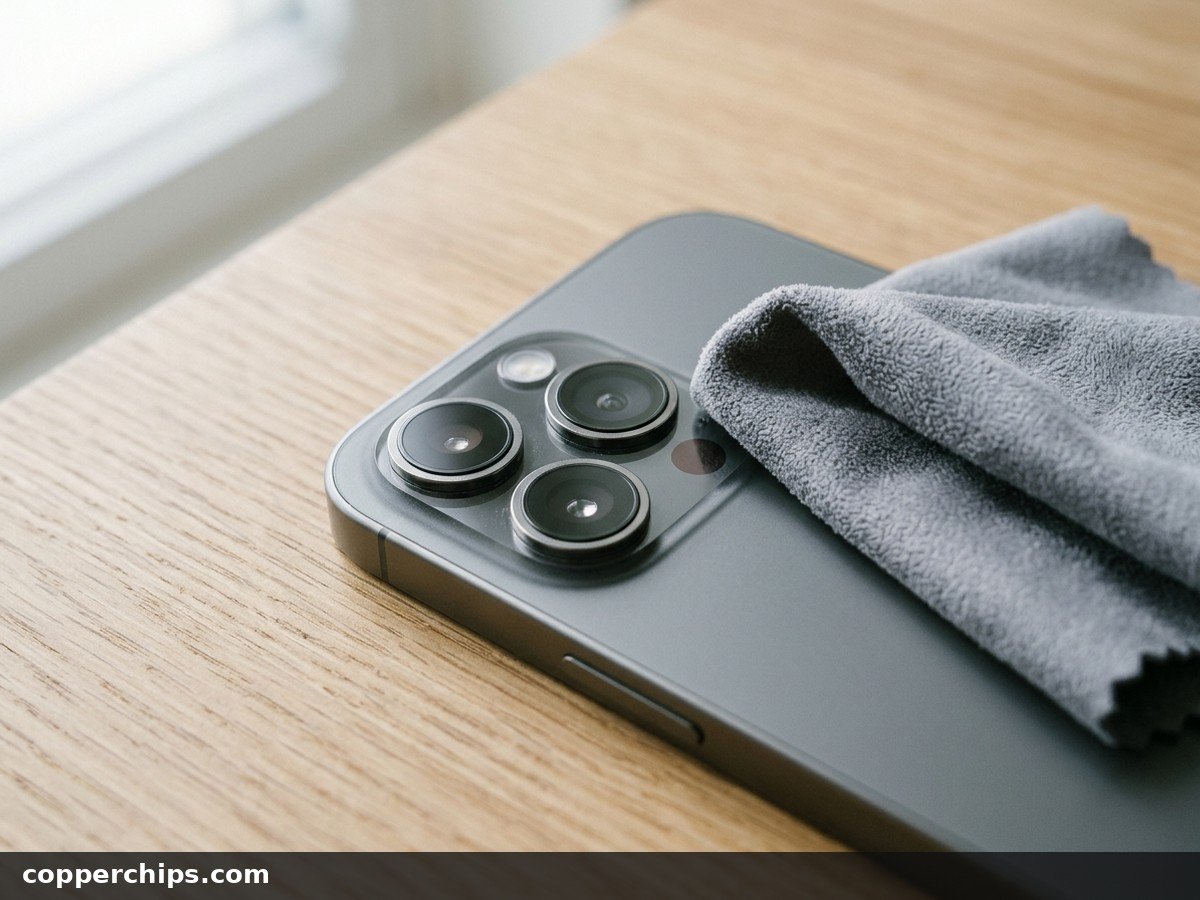
Wipe each lens on the camera bump with a dry microfiber cloth. Pocket lint, a fingerprint or dried grime can turn the picture dark or hazy, especially on the smaller ultra wide lens.
Skip sprays, alcohol and paper towels. Liquid can creep into the edges of the bump, and rough paper can scratch the lens cover. Look at the glass under a light afterwards, because a crack in the lens cover needs a repair, not a wipe.
[AFFILIATE LINK: microfiber lens cleaning cloth]Fix 4: Switch Cameras, Lenses and Modes
Flip between the front and rear camera a few times, then cycle the modes. Swipe from Photo to Video, Portrait and back. Then tap each zoom level.
Each switch forces iOS to hand the camera hardware over again, which can wake a stalled rear sensor. If one mode or one lens stays black while the others work, note which one. That detail will save time at a repair desk.
Fix 5: Force Restart the iPhone
Force restart the phone to reset the camera service. A normal restart is fine too, but a force restart clears a frozen system faster. On iPhone 8 and later models:
- Press and quickly release the volume up button.
- Press and quickly release the volume down button.
- Press and hold the side button.
- Release it when the Apple logo appears.
Your data is not touched. Apple’s force restart instructions list the same steps. Open Camera once the lock screen is back and test the rear lens.
Fix 6: Check Camera Permissions in Other Apps
Make sure the app you are using is allowed to use the camera. Go to Settings > Privacy & Security > Camera and turn on the switch next to the app.
An app without access usually shows a black box instead of an error. This fix matters when the built-in Camera app works but WhatsApp, Snapchat or Messenger does not.
Fix 7: Turn Off VoiceOver
Turn off VoiceOver in Settings > Accessibility > VoiceOver. Several users report the camera preview going black with this screen reader switched on. It is easy to enable by accident through the Accessibility Shortcut.
With VoiceOver on, you tap once to select and double-tap to activate. Double-tap the switch to turn it off, then reopen Camera.
Fix 8: Free Up Storage
Check your free space in Settings > General > iPhone Storage. When storage is nearly full, the camera may launch to a black screen or refuse to save photos and video.
Clear a few gigabytes by deleting large videos, offloading unused apps or emptying the Recently Deleted album in Photos. Then open Camera again.
Fix 9: Update iOS
Install any pending update in Settings > General > Software Update. Camera bugs that appear after one update are often fixed in the next. Plug in the charger first, since an update can take a while.
While you are in Settings, open Camera > Formats. Switching between High Efficiency and Most Compatible is a quick test if photos fail to save in one specific app.
Fix 10: Reset All Settings
Reset every system setting back to default. Go to Settings > General > Transfer or Reset iPhone > Reset > Reset All Settings and enter your passcode.
Your photos, apps and messages stay put. You will lose saved WiFi passwords, wallpaper, Face ID settings and privacy choices, so expect some setup afterwards.
Back Camera Black Only in WhatsApp, Snapchat or Messenger
When the Camera app works but one chat app shows black, the iPhone hardware is fine. The issue is between that app and iOS.
- Check the app’s switch in Settings > Privacy & Security > Camera.
- Close the app from the app switcher and reopen it.
- Update the app from the App Store, because camera bugs after an iOS update are often app-side.
- Delete and reinstall the app as a last step. Back up your chats first if the app stores them locally.
Back Camera Stopped Working After an iOS Update
Apple Community threads after several major updates describe the same pattern: the rear camera goes black while the front one keeps working. In most of those reports, a force restart or the next point release fixed it.
Start with Fix 5, then check Software Update daily for a follow-up release. If nothing arrives and Reset All Settings does not help, contact Apple support. Mention the iOS version and the date the problem began, since that points them toward a software cause.
Still Not Working? Signs of a Hardware Fault
If the rear camera is still black after all 10 fixes, the fault is very likely physical. These signs confirm it:
- The flashlight does not turn on, even with the Camera app closed.
- One lens works and another stays black at every zoom level.
- The image shakes or vibrates while the phone is still, or you hear buzzing from the bump.
- The problem started after a drop, liquid exposure or regular use on a motorcycle mount.
- The lens cover has a crack or a cloudy spot you can see.
Book a repair at an Apple Store or an Apple Authorized Service Provider. Check your warranty or AppleCare+ status first, because coverage changes the price a lot. Back up the iPhone before you hand it over.
Independent repair shops can be cheaper, but a non-genuine camera may show a parts notice in Settings. If you ride, Apple’s guidance is to avoid exposing your iPhone to high-power motorcycle engine vibration, so consider a vibration-dampening mount for the replacement.
For other phone glitches, our guide to a white spot on a mobile screen covers display faults that can look like camera problems.
Frequently Asked Questions
How do I reset my back camera on my iPhone?
There is no separate reset for the camera. Force close the Camera app, then force restart the iPhone. If that fails, use Settings > General > Transfer or Reset iPhone > Reset > Reset All Settings, which resets system settings without deleting your data.
Why is my back camera suddenly not working?
A sudden failure is usually a frozen Camera app, a new case or magnetic accessory, or a bug after an iOS update. A recent drop or water exposure changes the picture. In that case, a damaged module is more likely than a software glitch.
Why is my iPhone back camera black but the front camera works?
The front and rear cameras are separate modules, so one can fail while the other keeps working. Start with Fixes 1 to 5. If the rear stays black and the flashlight is dead too, the rear module or its connector is the likely fault.
Why are my flashlight and back camera both not working?
The flash LED sits in the rear camera area, so losing both at once often points to hardware. Rule out software with a force restart and an iOS update first. If both stay dead, book a repair.
Can a magnetic case stop the iPhone camera from working?
It can cause blur, wobble or focus hunting, because magnets can interfere with the stabilization system. Remove the case and test the bare phone. If the picture settles, switch to a case whose magnets sit away from the camera bump.
Does an iPhone have a Safe Mode for testing the camera?
No. Some guides mention Safe Mode, but iPhones do not have one. Testing the camera inside a different app, like FaceTime, is the closest equivalent.
The Bottom Line
Start with the 60-second test so you know whether you are chasing software or hardware. For a black rear camera with no other symptoms, a force close, a bare phone with no case, and a force restart fix most cases. Update iOS and Reset All Settings come next.
A dead flashlight, a buzzing lens or one zoom level that never works means a repair, and no setting will change that. Browse more iPhone troubleshooting guides for other fixes.