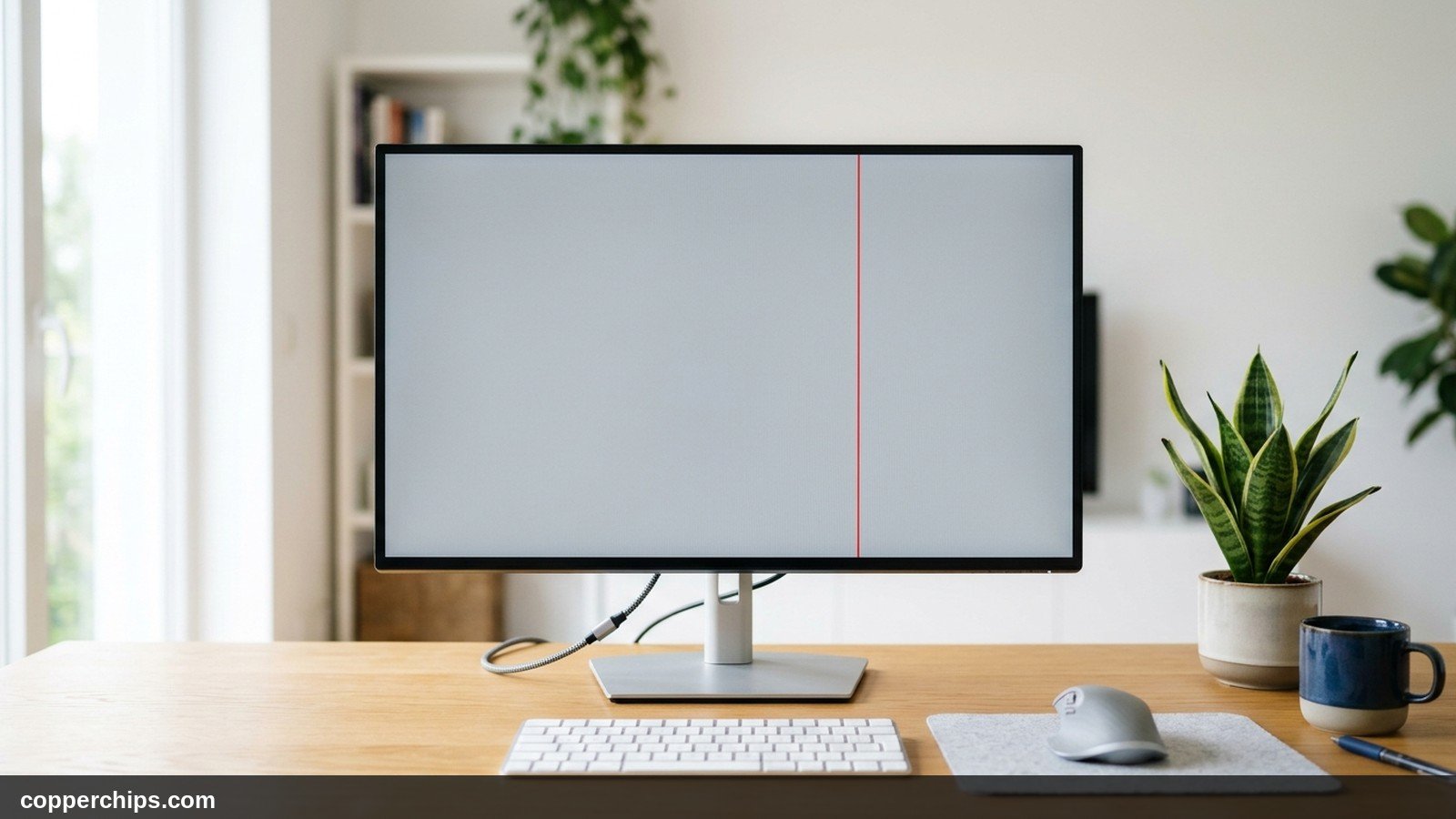
You restarted the computer, and the red line is still sitting there. Now you are wondering if the monitor is on its way out. PC screen red lines come from four places: the video cable, the graphics driver, the graphics card, or the panel itself. Only one of those is expensive.
The trick is to work out which one you have before spending money. Four quick tests split the problem cleanly, and each takes under a minute. This guide runs through those tests first, then eight fixes from fastest to most involved. You will also see the exact point where software fixes stop being worth your time.
Red lines on a PC screen come from a loose or damaged video cable, a graphics driver fault, a failing or overheating GPU, or a failed bond inside the panel. Open the monitor’s own on-screen menu first. If the line cuts across that menu, the monitor is at fault and no driver update will help. With a clean menu, reseat or swap the HDMI or DisplayPort cable, then update or clean-reinstall the graphics driver from NVIDIA, AMD or Intel. Lines that show in BIOS, or with the video cable unplugged, point to a panel repair or a warranty claim.
- vFind the side first: a line over the monitor’s own menu means the monitor; a clean menu means the cable, driver or GPU.
- vCheapest fix: reseat or swap the video cable, then clean-reinstall the graphics driver.
- vWhen to stop: a fixed hairline that shows in BIOS is usually a failed panel bond, so go straight to warranty or repair.
Why Red Lines Appear on a PC Screen
Every pixel on your monitor is three tiny sub-pixels: red, green and blue. When one row or column loses its green and blue signal, that strip shows up as red against everything else. The rest of the picture can look perfectly normal.
The color alone does not name the failed part. The pattern does.
| What you see | Most likely cause |
|---|---|
| One thin vertical line in the same spot every time | Failed column connection in the panel |
| A horizontal line from edge to edge that never moves | Failed row connection in the panel |
| Lines that flicker when you touch the cable | Loose or damaged cable or port |
| Lines plus odd colors, crashes or glitches in games | Graphics driver or GPU fault |
| Lines that shift as you move a laptop lid | Worn display cable at the hinge |
| A thick bar along one edge of a sharp desktop | Wrong resolution or scaling setting |
A permanent hairline is often a TAB failure. TAB stands for tape automated bonding, the thin strips of wiring glued to the edge of the glass. When one strip loses contact, a full row or column stops behaving.
Find the Cause of PC Screen Red Lines in Three Minutes
Run these tests in order. Each one rules out a group of causes.
Test 1: Open the monitor’s own menu
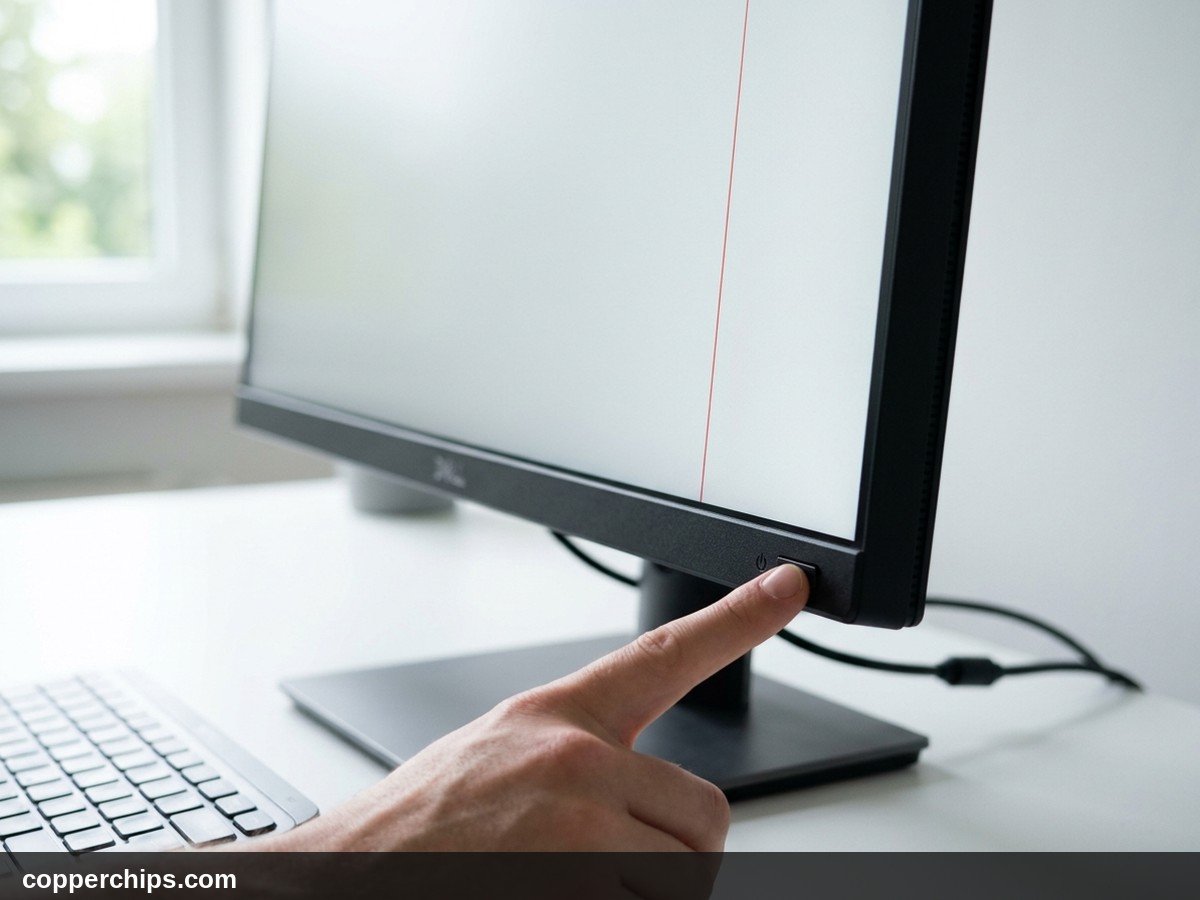
Press the buttons on the monitor’s bezel to open its on-screen menu (brightness, input and so on). The monitor draws this menu itself, without your computer. If the red line cuts straight across the menu, the fault is inside the monitor.
A clean menu with a red line behind it points the other way: the cable, the driver or the graphics card. ViewSonic’s display line troubleshooting uses this same split as its first step.
Test 2: Unplug the video cable
Leave the power cord in and pull out the HDMI or DisplayPort cable. Most monitors then show a “No signal” box or a built-in test pattern. If the red line is still there with nothing connected, the monitor is the hardware at fault.
Test 3: Take a screenshot
Press Windows + Shift + S or the Print Screen key, save the image, and open it on your phone. Lines inside the screenshot mean the computer is creating them, so suspect the driver, an app or the GPU. A clean screenshot means the problem happens later, in the cable or the screen.
Treat this one as a clue rather than proof. Some GPU faults corrupt the output after the screenshot is captured, so a clean image does not fully clear the graphics card.
Test 4: Check the BIOS screen
Restart and press the setup key as the logo appears. It is usually F2, Del or F10, and it varies by manufacturer. Windows and its graphics driver have not loaded yet at this stage.
Red lines in BIOS mean hardware: the monitor, the cable or the GPU itself. Lines that vanish in BIOS and return in Windows point to a driver or software problem.
How to Fix PC Screen Red Lines: 8 Solutions
Work through these from the top. The last ones involve opening the case.
Fix 1: Reseat or swap the video cable
Unplug the video cable at both ends and plug it back in firmly. A half-seated connector or one broken wire inside the cable can drop color data and paint red stripes.
- Shut down the PC and switch off the monitor.
- Remove the HDMI, DisplayPort or DVI cable from both the monitor and the PC.
- Look inside both connectors for bent pins or dust, then reconnect until each end clicks or sits flush.
- Try a different port on the graphics card, then a different cable if you have one.
On a desktop with a separate graphics card, check where the cable goes. It should plug into the card’s ports, which sit lower on the back of the case, not the motherboard ports near the USB sockets.
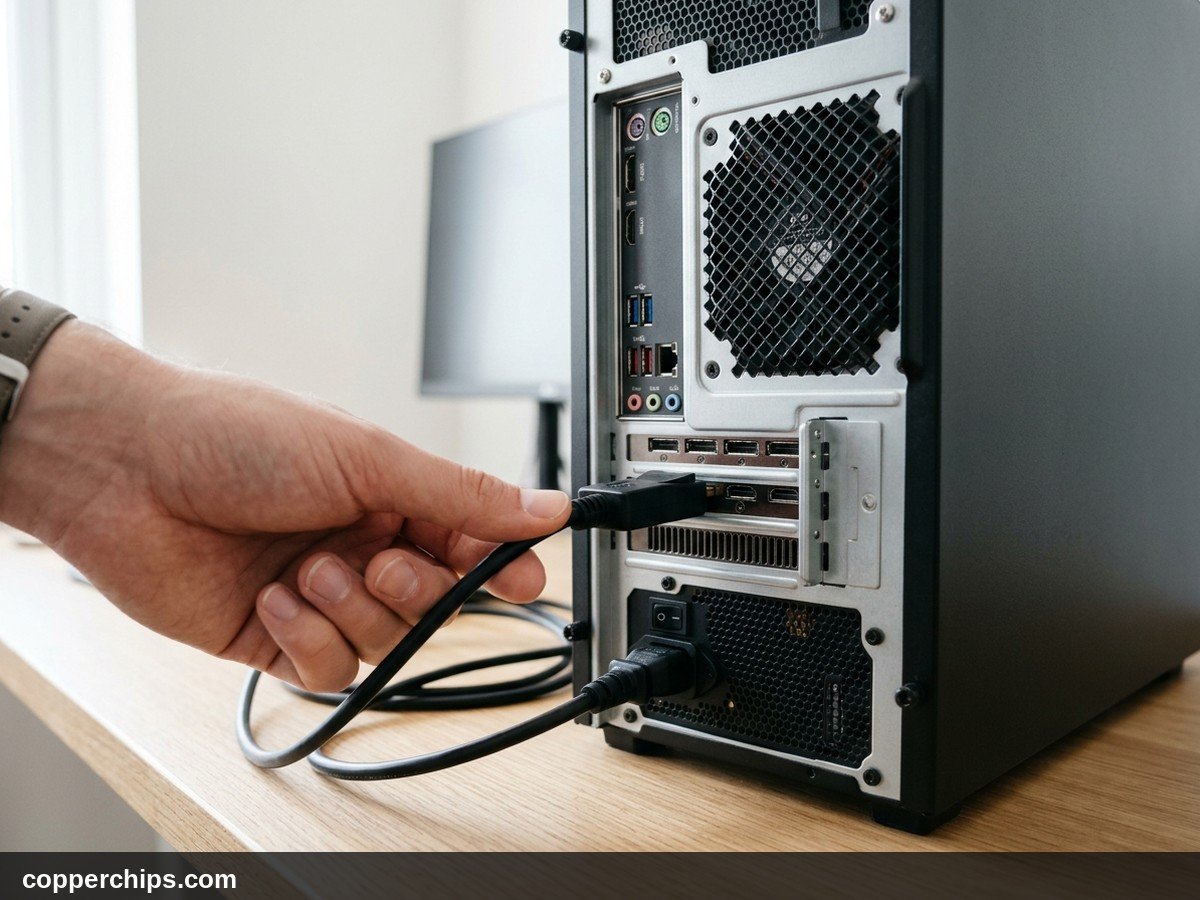
If the line flickers or moves while you wiggle the cable, you have found the cause. Replace the cable rather than taping it in place.
Fix 2: Check AMD demo mode and screen overlays
If the red line only splits videos down the middle, check your graphics software for a demo or comparison mode. Older AMD Radeon Settings releases included a video Demo Mode that splits playback with a line to compare enhanced and original images.
- Right-click the desktop and open AMD Software (or Radeon Settings on older systems).
- Open the video or graphics settings and look for Demo Mode.
- Switch it off and replay the video.
Menu names change between driver versions, so use the search icon at the top of AMD Software if the option is not where you expect. Close screen recorders and FPS counters too, since overlays can draw lines.
Fix 3: Update or roll back the graphics driver
Install the newest driver straight from your GPU maker, or roll back if the lines started after an update. A corrupted or mismatched driver can send the wrong color data to part of the screen.
To update, download the driver from NVIDIA’s official driver page, AMD’s driver download center, or Intel’s support site, then restart. These are more current than what Windows Update offers.
To roll back:
- Press Windows + R, type
devmgmt.mscand press Enter to open Device Manager. - Expand Display adapters, right-click your graphics card and choose Properties.
- Open the Driver tab and click Roll Back Driver. If it is greyed out, there is no older version saved.
Fix 4: Clean reinstall the driver
Remove the driver completely and install it fresh. A normal update writes over old files, and a broken leftover can keep the lines coming back.
- In Device Manager, right-click your graphics card under Display adapters and choose Uninstall device.
- Tick the box to remove the driver software for this device, then confirm.
- Restart. Windows loads a basic display driver.
- Install the driver you downloaded in Fix 3.
If the lines disappear while the basic driver is running, the old driver was the problem. For a deeper clean, many technicians use the free Display Driver Uninstaller tool from Safe Mode.
To reach Safe Mode in Windows 11, open Settings > System > Recovery and click Restart now next to Advanced startup. Then choose Troubleshoot > Advanced options > Startup Settings > Restart, and press 4 for Safe Mode.
Fix 5: Set the native resolution and refresh rate
Put the display back on its recommended resolution. A mode the monitor does not fully support can leave colored bars along an edge or scramble rows.
- Press Windows + I and go to System > Display.
- Under Display resolution, pick the option marked (Recommended).
- Open Advanced display and drop the refresh rate one step to test whether a high setting is to blame.
Fix 6: Turn off hardware-accelerated GPU scheduling
Switch off the scheduling feature if lines show up in some apps and not others. It changes how Windows hands work to the graphics card, and some driver versions handle it badly.
- Go to Settings > System > Display > Graphics.
- Open the default or advanced graphics settings link.
- Under Hardware-accelerated GPU scheduling, toggle the switch Off and restart.
The exact link name varies by Windows build. If the lines only appear in your browser, turn off graphics or hardware acceleration in the browser’s own system settings as well.
Fix 7: Check GPU temperature and clear the dust
Watch the GPU temperature while the lines appear. A graphics card that runs too hot can corrupt its output, especially during games, and the lines may fade once it cools.
- Press Ctrl + Shift + Esc to open Task Manager.
- Click Performance, then GPU. Dedicated cards show a GPU temperature reading.
- Compare the number under load with the maximum listed by your card’s maker.
When it runs hot, shut down and blow dust out of the card’s fans and the case vents with compressed air. Also reset any overclock to stock settings, since unstable memory clocks are a classic source of red dots and lines.
Fix 8: Test integrated graphics or reseat the GPU
Take the graphics card out of the picture to see if it is failing. This applies to desktops with a separate card and a processor that has built-in graphics.
- Move the video cable from the graphics card to the motherboard’s HDMI or DisplayPort output.
- Boot up. If the red lines are gone, the graphics card is the likely fault.
- To reseat the card, remove its power cables, release the slot latch, pull it out and press it back in until the latch clicks.
- Reconnect the power cables firmly and test again.
The motherboard ports only work if your processor has graphics built in. Many Intel chips ending in F and some AMD Ryzen models do not, so check your CPU’s spec page first.
Red Lines on a Laptop vs a Desktop Monitor
On a laptop, the screen connects to the motherboard through a thin cable that runs through the hinge. Years of opening and closing wear it down. Slowly open and close the lid while watching the screen.
If the lines appear, vanish or shift at certain angles, suspect that hinge cable. Lines that stay identical at every angle point to the panel. Plugging in an external monitor settles it: a clean external screen means the laptop’s own display path is the problem.
Desktop monitors are simpler, because you can swap the cable and the monitor separately. Connect your PC to a TV or a second monitor. Lines on both screens mean the GPU or driver; lines on one screen mean that monitor.
Some users get a stubborn line to vanish by pressing firmly on the bezel right under it. On iFixit, one Dell XPS 17 owner reported the trick still worked after about nine months. It works because pressure pushes a loose TAB strip back into contact, so treat it as a stopgap.
Still Not Working? Try This
If the line shows over the monitor menu, in BIOS, and with the cable unplugged, the panel itself has failed. Software cannot reach that fault. The usual cause is the TAB bond, and the standard fix is a new panel or display module.
Check your warranty before anything else. Search for the serial number on the maker’s support site, and attach your photo of the line over the on-screen menu. Support teams usually ask you to run the monitor’s built-in self-test, so mention you already did.
Out of warranty, compare a repair quote with the price of a new monitor. A panel swap on a budget monitor rarely makes sense.
Lines on two different monitors and in BIOS mean the graphics card is failing. A card that throws lines everywhere needs replacing or a warranty claim.
Frequently Asked Questions
Can red lines on a PC screen fix themselves?
Lines from a driver glitch can clear after a restart or driver update. A fixed hairline from a panel fault rarely goes away for good, and more lines can appear next to it over time. If a line comes and goes when you press the bezel, it is a loose connection inside the panel.
Do red lines mean my GPU is dying?
Only if the lines follow the computer. Lines that show in screenshots, appear on a second monitor and stay in BIOS point to the graphics card. A line that only lives on one screen, and covers that monitor’s own menu, means the GPU is fine.
Why is there a red outline on my screen on my PC?
A red border around the whole screen or one window is usually an app, not a fault. Screen-sharing tools such as Microsoft Teams draw a red border around whatever you are sharing. Stop sharing or close the app, and the outline goes away.
Are horizontal and vertical red lines different?
Vertical lines are a failed column and horizontal lines are a failed row. When either one stays fixed in place, the panel connection is the usual cause. Lines that move, flicker or change with the cable point to the signal instead.
Why do red lines only appear while gaming?
Heat and overclocks are the usual suspects. A GPU under heavy load runs hotter, and unstable memory clocks produce red dots and streaks. Reset the card to stock speeds, clean the fans, and check the temperature in Task Manager.
Is it worth repairing a monitor with a red line?
Under warranty, always claim it. Out of warranty, a budget monitor is usually cheaper to replace than repair. Laptop screens and premium monitors are the exception, so get a quote first.
The Bottom Line
Start with the monitor’s own menu and an unplugged-cable test. Those two checks tell you, in under a minute, whether to work on the PC or the screen. On the PC side, the cable and a clean driver reinstall fix most cases.
A fixed hairline that shows in BIOS is a panel fault, so skip the software fixes and go to warranty or repair. If your screen has a yellow cast rather than lines, see our guide on fixing a yellow tint display. For more hardware fixes, browse the Copper Chips device fixes hub.