

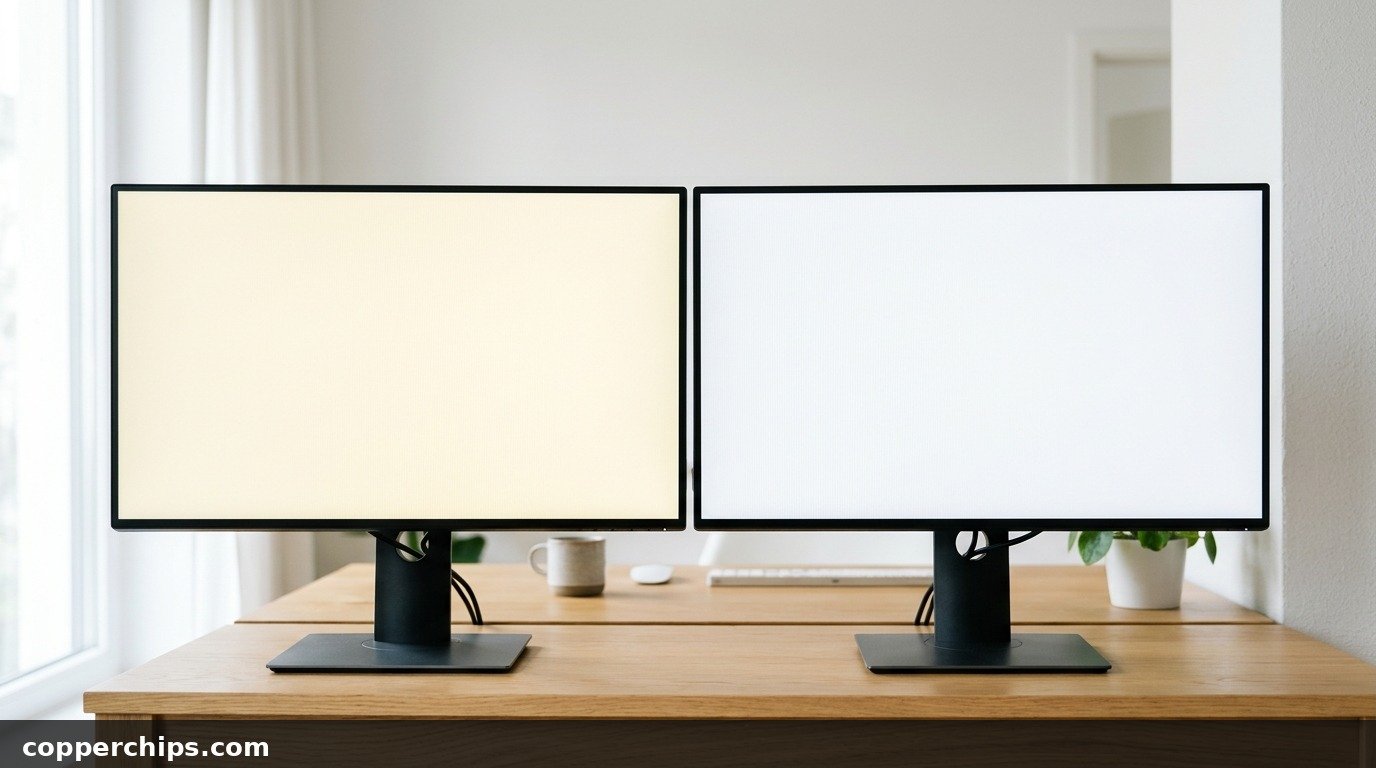
White windows look like old paper, photos have a sepia cast, and the cursor you swear used to be white now looks cream. A yellow tint display is one of those problems that creeps up slowly, so most people only notice it when they put a second screen or a phone next to it.
The good news: in most cases the yellow comes from a setting, not a dying panel. Blue light filters, monitor picture modes and color profiles all warm the image on purpose. This guide walks through every fix in order, from the 10-second toggle to the cable test that catches a missing blue signal. It covers Windows 10 and 11, Mac, iPhone and Android, plus a quick way to tell software from hardware.
A yellow tint on a display is usually a blue light filter left on. On Windows, open Settings > System > Display and turn off Night light. Mac users can switch it off in System Settings > Displays > Night Shift. On iPhone, check Night Shift and True Tone in Settings > Display & Brightness. If that changes nothing, set the monitor’s own menu to Standard or sRGB mode, reset the color profile, and reseat the video cable. A yellow tint that also shows on the monitor’s own on-screen menu points to hardware.
- vMost common cause: Night light, Night Shift, Eye comfort shield or a monitor “Low Blue Light” mode is switched on or scheduled.
- vFastest test: Open the monitor’s own button menu. If the menu itself looks yellow, the problem is in the monitor or cable, not Windows.
- vWhen to give up on software: A tint that stays on a second computer, in the BIOS screen and after a picture reset is a panel or backlight fault covered by warranty.
Why Your Screen Has a Yellow Tint
White on a screen is red, green and blue light mixed at full strength. Cut the blue and white turns yellow. Almost every cause on this list reduces blue, either on purpose or by accident.
- Blue light filters. Night light on Windows, Night Shift on Apple devices and Eye comfort shield on Samsung phones all lower blue output. A schedule can switch them on at sunset without you touching anything.
- Monitor picture modes. Modes called Reading, Eye Saver, Low Blue Light, ComfortView or a “Warm” color temperature tint everything amber.
- Color profiles and GPU settings. A wrong ICC profile, a game’s color preset or a graphics driver setting can shift the white point.
- A weak blue signal. A loose HDMI or DisplayPort plug, or a bent pin on an older VGA cable, can drop the blue channel entirely.
- Aging hardware. Old backlights warm up over the years, and cheap screen protectors and some panels yellow with heat and sunlight.
Work through the fixes below in order. The first three solve the problem for most people in under two minutes.
How to Fix a Yellow Tint Display: 9 Solutions
Fix 1: Turn Off Night Light, Night Shift or Eye Comfort
Switch off the built-in blue light filter first. It is the cause in the large majority of cases, especially when the tint appeared “suddenly” in the evening.
Windows 10 and 11:
- Open Start > Settings > System > Display.
- Turn off Night light.
- Open the Night light page itself and turn off Schedule night light, or it will come back at sunset.
Microsoft’s Windows display brightness and color guide also shows the quick toggle in the taskbar’s Quick Settings panel. If the Night light switch is greyed out, your display driver needs an update (Fix 7).
Mac: open System Settings > Displays > Night Shift and set Schedule to Off. Apple’s Night Shift guide for Mac explains the sunset schedule. On MacBooks and Apple displays, also try turning off True Tone in the Displays pane, since it warms the screen in yellow indoor light.
iPhone and iPad: go to Settings > Display & Brightness. Tap Night Shift and turn off Scheduled, then turn off True Tone to compare.
Android: on Samsung Galaxy phones, open Settings > Display and turn off Eye comfort shield. Pixel and most other phones keep Night Light under Settings > Display. Menu names vary a little by brand and Android version.
The screen should snap back to neutral white within a second. If it does, you are done.
Fix 2: Reset the Monitor’s Picture Mode
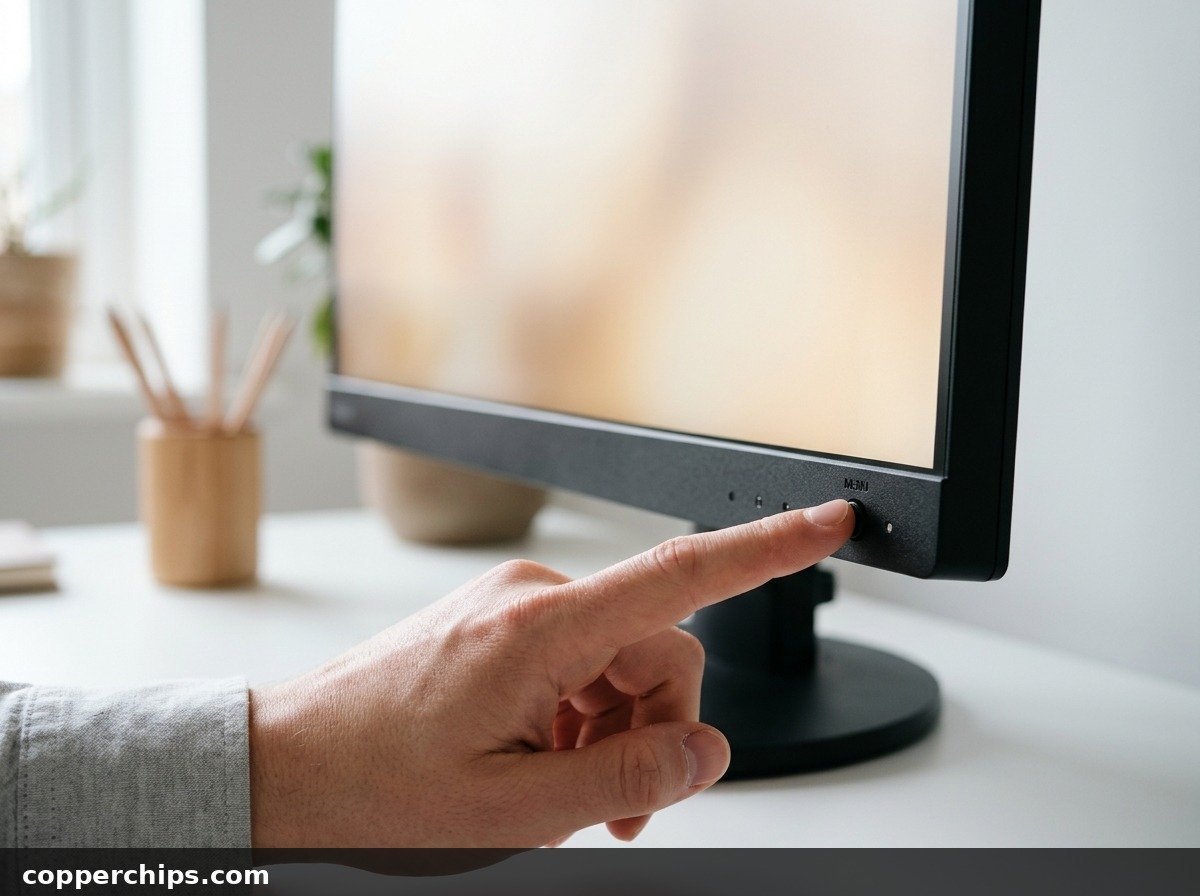
Use the physical buttons on the monitor to check its picture settings. Windows cannot see or change these, so a monitor stuck in a warm mode stays yellow no matter what you do on the PC.
- Press the menu button (often on the bottom edge or the back, near the power button).
- Find Picture, Color or Image settings.
- Set the preset to Standard, sRGB or Custom, not Reading, Movie, Eye Saver or Low Blue Light.
- Change Color Temperature to Normal or 6500K, not Warm.
- If you are unsure what was changed, use Factory Reset or Reset All Settings in the same menu.
This works because the monitor applies its own color processing after the computer sends the image. A “Warm” setting there overrides everything upstream.
Fix 3: Remove Third-Party Blue Light Apps
Close or uninstall any app that adjusts screen warmth. f.lux and Iris are the usual suspects, and they run quietly in the system tray.
Laptop and monitor makers also ship their own versions. Look for Eye Care mode in Lenovo Vantage, Splendid or Eye Care in ASUS software, ComfortView in Dell Display Manager, and similar options in HP’s display tools. Turn the feature off in the app, then restart to confirm it does not reapply at login.
Fix 4: Reset the Color Profile
Put Windows back on the default color profile for your display. A profile installed by a printer, a photo app or an old monitor driver can bend the white point toward yellow.
- Press Start, type color management and open it.
- Pick your monitor in the Device list and tick Use my settings for this device.
- Remove any extra profiles, or go to the Advanced tab and set the Device profile to System default.
- Click Close and check the screen.
On Windows 11, also open Settings > System > Display > Color profile. Supported displays have an Automatically manage color for apps switch there. Toggle it off and on to see which looks correct.
If you use HDR, turn it off under Settings > System > Display > Use HDR as a test. Normal desktop content in HDR mode can look dull or off-color on some monitors.
Mac: open System Settings > Displays and set Color profile back to the one named after your display (for example “Color LCD” on a MacBook).
Fix 5: Reset Graphics Card Color Settings
Open your graphics control panel and return color to defaults. Gamers often tweak these for a single game and forget they apply to the whole desktop.
- NVIDIA: right-click the desktop, open NVIDIA Control Panel, then Display > Adjust desktop color settings. Choose “Other applications control color settings” or click Restore Defaults.
- AMD: open AMD Software: Adrenalin Edition, go to Gaming > Display and turn off Custom Color, or reset its sliders.
- Intel: open Intel Graphics Command Center, select Display > Color and click Restore original defaults.
These settings sit between Windows and the cable, so they can tint the screen even with Night light off.
Fix 6: Reseat or Replace the Video Cable
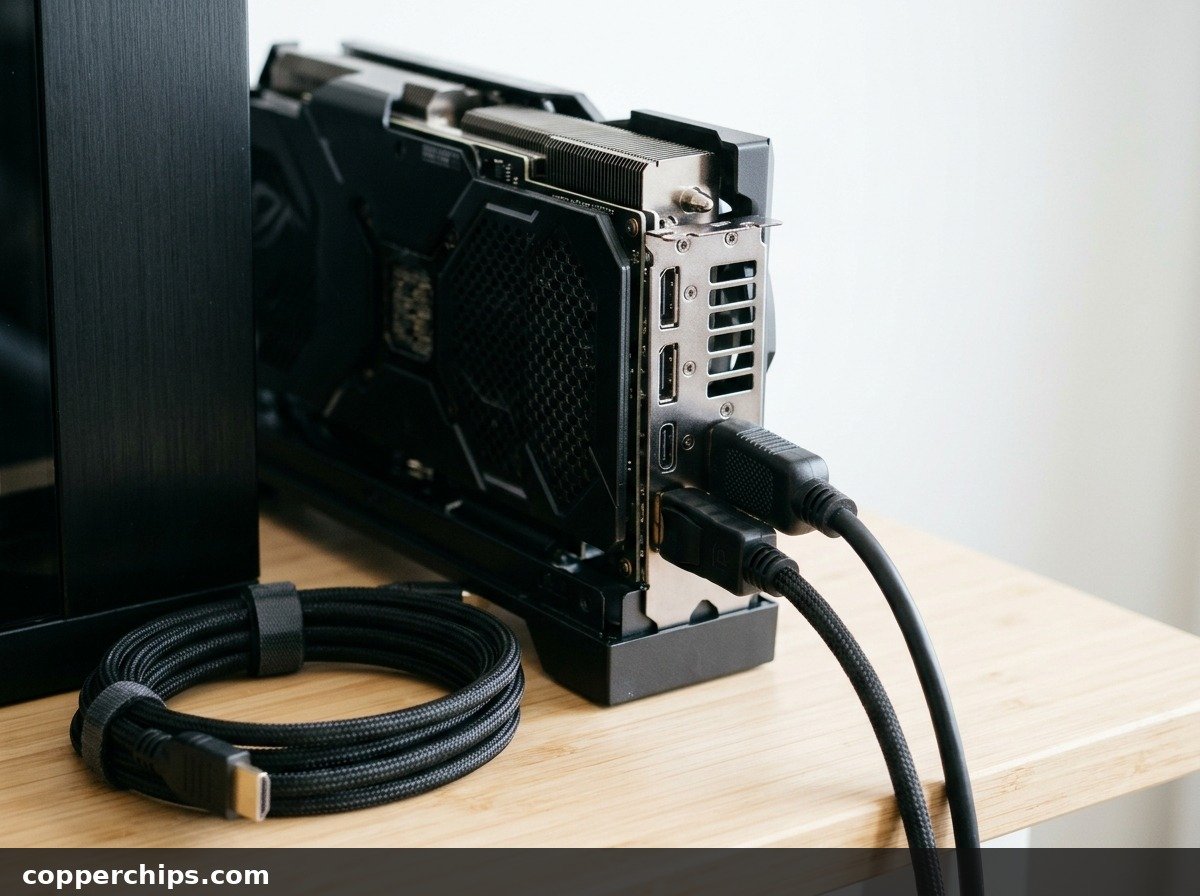
Unplug the video cable at both ends and plug it back in firmly. This is the fix most guides skip, and it is the only one on this list that catches a lost blue channel.
When blue drops out, white turns yellow and anything blue turns black or dark grey. Here is the test:
- Open a solid blue image full screen (search for “blue screen test” in your browser).
- If the screen shows black or a dull grey instead of bright blue, the blue signal is not arriving.
- Reseat the cable, then try a different cable or a different port on the graphics card.
Old VGA cables are the worst offenders. A single bent pin in the plug can kill one color. HDMI and DisplayPort rarely lose just one color, but a half-seated plug or a cheap adapter can still cause odd tints.
Fix 7: Update or Reinstall the Display Driver
Install the latest driver for your graphics hardware. A broken driver can lock the color pipeline or hide the Night light switch.
- Right-click Start and open Device Manager.
- Expand Display adapters, right-click your graphics card and choose Update driver.
- For a cleaner fix, download the current driver from NVIDIA, AMD or Intel directly and install it.
If the tint started right after a driver update, choose Properties > Driver > Roll Back Driver instead. Restart once either way.
Fix 8: Calibrate the Display
Run the built-in Windows calibration tool to correct a slight warm cast. This helps when the screen is close to right but whites still lean cream.
- Press Start, type dccw and press Enter to open Display Color Calibration.
- Follow the gamma, brightness and contrast steps.
- At the color balance step, nudge the Blue slider up slightly (or Red and Green down) until the grey bars look neutral.
- Save the new calibration.
You can also do this directly in the monitor menu: set Color Temperature to User or Custom and raise Blue a few steps. On a Mac, hold Option while clicking the Color profile menu in Displays settings and choose Customize to create a calibrated profile.
Fix 9: Replace a Yellowed Screen Protector
Peel off any screen protector and compare. Cheap plastic and some glass protectors yellow with age, heat and sunlight. Phones and tablets that sit on car dashboards or windowsills are the usual victims.
If the screen looks white again without the protector, buy a fresh one from a brand that states anti-yellowing on the box.
Still Not Working? Try This
Now separate software from hardware. Connect the monitor to a different computer, a laptop or a game console. If the yellow tint follows the monitor, the computer is fine.
On a laptop, restart and open the BIOS or UEFI setup screen (usually F2, F10, Del or Esc at power-on). Windows settings do not exist at that stage. A yellow tint there means the panel, the backlight or the internal display cable is at fault.
Hardware causes look like this:
- Uneven yellow patches or edges. Often heat damage or a failing backlight on one side.
- Warmer color every year. Older CCFL-backlit monitors from before roughly 2012 yellow and dim as their lamps age.
- Yellow only in one area of a phone screen. Can follow a drop, pressure on the screen or a swelling battery. Stop using a phone that shows a bulging case.
A new monitor with a clear yellow tint out of the box, after a factory reset, is worth returning. Some panels run slightly warm by design, but an obvious cast on plain white is a quality control issue. For other screen problems, browse our device fixes and repair guides.
Frequently Asked Questions
Why did my screen suddenly turn yellow?
A scheduled blue light filter is the usual reason. Night light on Windows and Night Shift on Apple devices switch on automatically at sunset when scheduled. Turn off the schedule as well as the filter, or it will return the next evening.
How do I fix a yellow tint on my Android phone screen?
Open Settings > Display and turn off Eye comfort shield (Samsung) or Night Light (Pixel and most others). On Samsung, also check Screen mode: choose Vivid and move the white balance slider toward Cool. Remove the screen protector to rule it out.
How do I get the yellow tint off my iPhone screen?
Go to Settings > Display & Brightness and turn off Night Shift and True Tone. If it is still warm, check Settings > Accessibility > Display & Text Size > Color Filters and make sure Color Tint is off.
Is a yellow tint on a new monitor normal?
A slight warm look can be normal, especially if you are used to a cool laptop screen. Set the monitor to Standard or sRGB with a 6500K or Normal color temperature first. An obvious yellow cast after that is a defect worth returning.
Does a yellow tint mean my monitor is dying?
Not usually. Most yellow tints are settings. A tint that shows in the monitor’s own menu, on every connected device and after a factory reset does point to an aging backlight or panel.
Can a bad HDMI cable make my screen yellow?
It can, though VGA is far more likely to lose a single color. Run the solid blue screen test from Fix 6. If blue shows as black or dark grey, try a new cable and a different port.
The Bottom Line
Start with the blue light filter. Turning off Night light, Night Shift or Eye comfort shield (and its schedule) fixes a yellow tint display for most people in seconds. Next, reset the monitor’s picture mode with its own buttons, because Windows has no control over it.
If the monitor’s menu looks yellow too, focus on the cable and the hardware rather than software. A tint that survives a different computer and a factory reset is a warranty claim, not a settings problem. For more Windows and Mac help, see our computer troubleshooting guides.
