

Your teacher, editor or style guide wants the paper double spaced, and the Word ribbon has a dozen spacing buttons. You pick one, and the gaps still look uneven. That is the usual problem with double spacing in Word, and it is easy to fix.
This guide shows how to double space in Word on Windows, Mac and the web, using the shortcut, the ribbon and the whole-document setting. It also covers why double spacing sometimes looks too big or too small, and how to make it your default.
To double space in Word, select your text and press Ctrl+2 on Windows or Command+2 on a Mac. You can also go to Home > Line and Paragraph Spacing and choose 2.0. To double space a whole document at once, go to Design > Paragraph Spacing > Double. If the lines still look wrong, open Line Spacing Options, set Before and After to 0 pt, and make sure Line spacing says Double, not Exactly.
- vFastest method: Select text and press Ctrl+2 (Windows) or Command+2 (Mac).
- vWhole document: Design > Paragraph Spacing > Double changes every paragraph at once.
- vIf it looks off: Extra Before/After spacing or an “Exactly” line setting is usually the cause.
What Double Spacing Means in Word
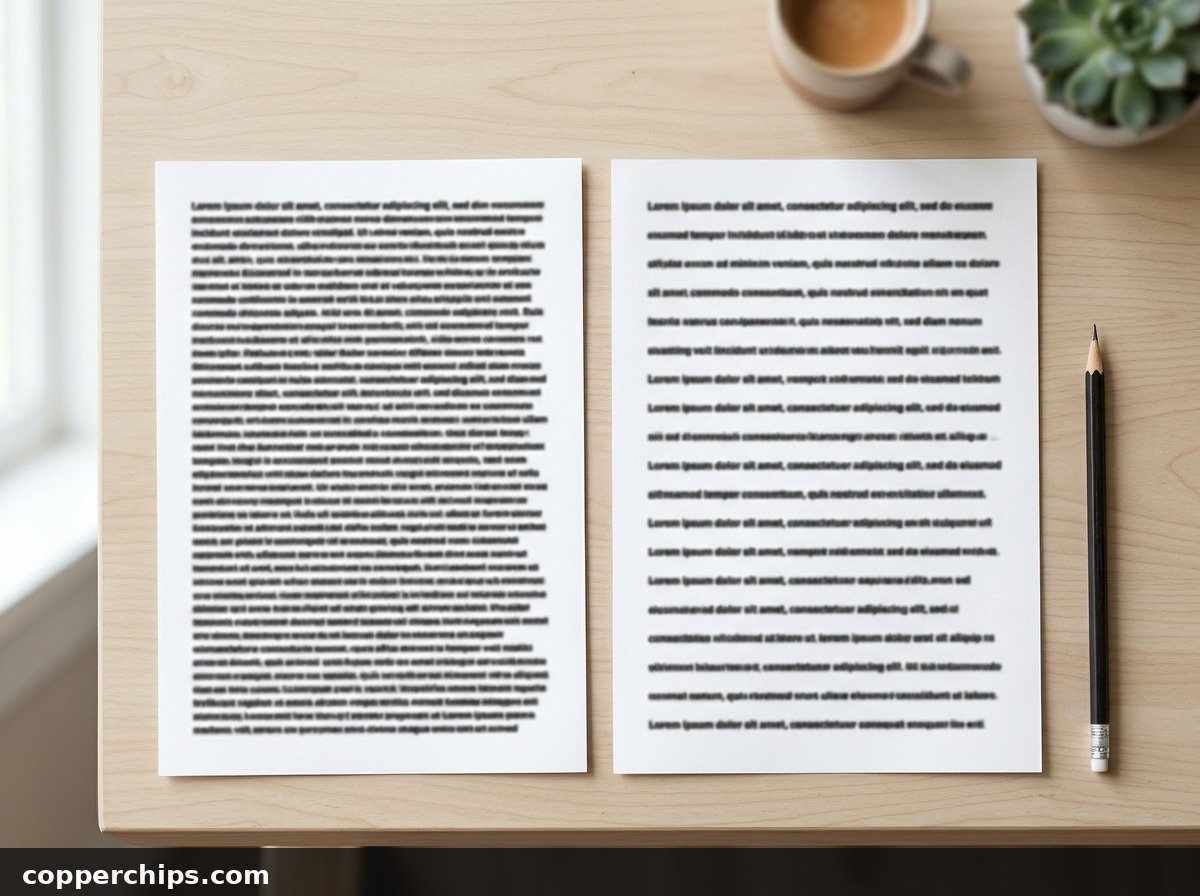
Double spacing sets the line spacing to 2.0. Each line takes up twice the height of single-spaced text, which leaves a full blank line’s worth of room between lines.
That is different from paragraph spacing. Word also adds space Before and After each paragraph, measured in points. Those extra points stack on top of double spacing, which is why some documents look “more than double”.
Some people also say “double space” when they mean two spaces after a period. That is a typing habit, not a line setting. We cover it in the FAQ below.
| Method | Where | Best For |
|---|---|---|
| Ctrl+2 / Command+2 | Keyboard | Selected paragraphs, fastest |
| Line and Paragraph Spacing > 2.0 | Home tab | Part of a document |
| Paragraph Spacing > Double | Design tab | Whole document in one click |
| Paragraph dialog > Set As Default | Home tab dialog | Every new document |
| Line Spacing > 2.0 | Word for the web | Browser version of Word |
How to Double Space in Word: 6 Methods
Method 1: Use the Keyboard Shortcut
Select the text and press Ctrl+2 on Windows. On a Mac, press Command+2. Microsoft lists both in its Word keyboard shortcuts reference.
- Click inside a paragraph, or select several paragraphs.
- For the whole document, select everything with Ctrl+A first.
- Press Ctrl+2 (Windows) or Command+2 (Mac).
The shortcut changes the line spacing setting directly, so it works in almost any template. Use Ctrl+1 to go back to single spacing, or Ctrl+5 for 1.5 lines.
Method 2: Home > Line and Paragraph Spacing
Use the spacing button on the Home tab for part of a document. It is the icon with up and down arrows beside some lines, in the Paragraph group.
- Select the paragraphs you want to change.
- Go to Home > Line and Paragraph Spacing.
- Choose 2.0.
The selected text jumps to double spacing right away. Anything you did not select keeps its old spacing.

Method 3: Double Space the Whole Document from the Design Tab
Go to Design > Paragraph Spacing and choose Double. This is the method Microsoft’s double spacing guide recommends for a whole document.
It changes the spacing in the document’s style set, so every paragraph using that style updates together. That includes text you type later, which saves you from reselecting everything.
To undo it, go back to Design > Paragraph Spacing and pick the option under Style Set. It is usually called Default.
Method 4: Set Double Spacing as Your Default
Change the setting in the Paragraph dialog and save it as the default. Do this if every essay or report you write needs double spacing.
- On the Home tab, click the small arrow in the corner of the Paragraph group.
- Under Spacing, set Line spacing to Double.
- Set Before and After to 0 pt for clean, even gaps.
- Click Set As Default, then choose All documents based on the Normal template.
New blank documents now open double spaced. Existing documents keep their own settings until you change them.
Method 5: Double Space in Word for Mac
The Mac version uses the same menus with slightly different steps. Command+2 is the quickest route, but the ribbon works too.
- Select the paragraphs you want to change.
- Go to Home > Line and Paragraph Spacing.
- Choose 2.0, or select Line Spacing Options for finer control.
For the whole document, Word for Mac also has Design > Paragraph Spacing > Double. Microsoft’s guide to changing line spacing in Word has the same steps for each platform.
Method 6: Double Space in Word for the Web
The browser version keeps it simple. There is no Design tab, so you work from Home.
- Select the paragraphs, or press Ctrl+A to select everything.
- Go to Home > Line Spacing.
- Choose 2.0, or open Line Spacing Options to adjust Before and After.
Changes save automatically to OneDrive, so they appear when you open the file in desktop Word later.
Word’s Line Spacing Options Explained
Open Line Spacing Options and you will see six choices in the Line spacing box. Knowing what each one does saves a lot of guesswork.
| Option | What It Does | When to Use It |
|---|---|---|
| Single | Line height matches the font size | Letters, forms, dense reports |
| 1.5 lines | One and a half times single | Easier reading drafts |
| Double | Twice single spacing | Essays, manuscripts, editing copies |
| At least | Minimum height, grows for large text | Mixed font sizes |
| Exactly | Fixed height in points | Strict layouts only |
| Multiple | Any multiple you type, like 1.15 | Custom style guides |
For school and most office work, stick with Single, 1.5 lines or Double. They scale with your font size, so headings and body text stay in proportion.
Multiple is useful when a style guide asks for something unusual, such as 1.15. Type the number in the At box next to it.
How to Check the Spacing You Have
Not sure what a paragraph is set to? Click inside it and open Line Spacing Options. The dialog shows the current Line spacing, Before and After values.
On Windows you can also press Shift+F1 to open the Reveal Formatting pane. It lists the spacing for whatever your cursor is on, which helps when two paragraphs look different.
Comparing two paragraphs this way usually exposes the problem in seconds. One of them often has hidden After spacing or a different style.
Double Spacing and Page Count
Switching from single to double spacing roughly doubles the number of pages. A 5-page single-spaced draft will land somewhere near 10 pages.
Font, size and margins all change the result, so check the requirements together. Many assignments ask for 12 pt text, double spacing and 1-inch margins.
If you are short of a page count, resist stretching the spacing to 2.1 or 2.5. Teachers and editors spot it quickly, and it can count against you.
Still Not Working? Try This
Sometimes you set double spacing and the gaps still look wrong. These are the usual reasons, from most to least common.
Extra Space Between Paragraphs
The Normal style in recent Word versions adds 8 pt after each paragraph. On top of double spacing, that makes paragraph breaks look huge.
Open Line Spacing Options and set Before and After to 0 pt. You can also tick “Don’t add space between paragraphs of the same style” in the same dialog.
Line Spacing Set to Exactly
If Line spacing says Exactly with a number in points, Word ignores font size. Large text can get clipped, and the lines will not look double.
Change the Line spacing box to Double. Avoid At least and Exactly unless a style guide asks for a fixed point value.
Some Text Will Not Change
Text boxes, tables, headers, footers and footnotes keep their own spacing. Click inside each one and apply Ctrl+2 separately.
Pasted text can also bring its own formatting. Select it, press Ctrl+Space to clear character formatting, then apply double spacing again.
The Shortcut Does Nothing
Some keyboard layouts, add-ins or laptop Fn settings can intercept Ctrl+2. Use the ribbon method instead, or check your keyboard settings if other Word shortcuts also fail.
If Word itself is misbehaving on a laptop, our device fixes guides cover common keyboard and driver problems.
Frequently Asked Questions
Is 2.0 line spacing the same as double spacing?
Yes. In Word, 2.0 in the Line and Paragraph Spacing menu and Double in the Paragraph dialog are the same setting. Both make each line twice the height of single spacing.
How do I double space an essay for MLA or APA?
Select the whole document with Ctrl+A and press Ctrl+2. Then open Line Spacing Options and set Before and After to 0 pt, since these style guides expect even spacing throughout.
How do I remove double spacing in Word?
Select the text and press Ctrl+1 for single spacing, or choose 1.0 from Home > Line and Paragraph Spacing. For a whole document styled with the Design tab, pick Default under Design > Paragraph Spacing.
How do I add two spaces after a period?
That is a typing style, not line spacing. Use Find and Replace: search for a period followed by one space and replace it with a period and two spaces. Most modern style guides use one space.
Can I double space only part of a document?
Yes. Select just the paragraphs you want and press Ctrl+2, or choose 2.0 from Home > Line and Paragraph Spacing. Everything outside the selection keeps its current spacing.
Should the references page be double spaced too?
In APA style, yes. APA asks for double spacing throughout the paper, including the title page, the text and the reference list. Select everything with Ctrl+A before you apply it so nothing gets missed.
Why does my double spacing look bigger than it should?
Your paragraphs probably have extra space Before or After. Set both to 0 pt in Line Spacing Options and the gaps will even out.
The Bottom Line
For most people, Ctrl+2 (or Command+2 on a Mac) is all it takes. Use Design > Paragraph Spacing > Double when the whole document needs it. If you write double-spaced papers often, set it as your default.
When the spacing looks off, check Before, After and Exactly first. More guides like this live in our office and productivity guides.
