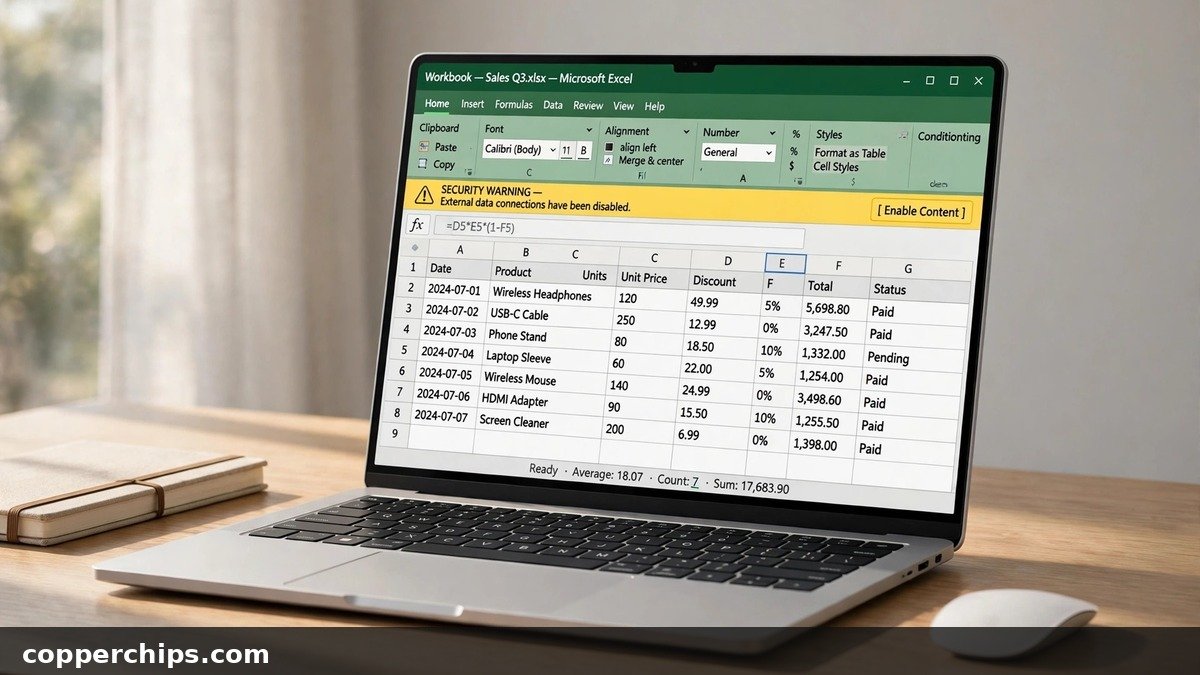
You opened a workbook, clicked a button that should run a macro, and nothing happened. A yellow bar may have flashed at the top of the sheet, or a red one told you Microsoft blocked the file and offered no button at all.
Here is how to enable macros in Excel the right way for each situation: a file you trust today, a file you downloaded or got by email, a folder of workbooks you use every week, and Excel on a Mac. Each method keeps the rest of your computer protected, so you are not switching on every macro from every file you ever open.
To enable macros in Excel for one workbook, open it and click Enable Content on the yellow Security Warning bar. If you see a red Security Risk bar instead, the file came from the internet: close it, right-click the file in File Explorer, choose Properties, tick Unblock on the General tab, and reopen it. To change the setting for every workbook, go to File > Options > Trust Center > Trust Center Settings > Macro Settings. If those options are greyed out, your IT department controls them.
- vYellow bar vs. red bar: Yellow means click Enable Content. Red means the file is marked as downloaded and needs Unblock first.
- vSafest long-term fix: Put workbooks you run often in a Trusted Location instead of enabling all macros globally.
- vGreyed-out settings: A work or school PC can lock macro settings. Only your IT admin can change them.
Why Excel Turns Macros Off by Default
A macro is a small program, usually written in VBA, that runs inside a workbook. That power is exactly why attackers love it. A macro can download files, change settings, or install malware the moment someone clicks Enable.
The numbers explain Microsoft’s caution. Before Office started blocking internet macros, Netskope found that 31% of all malware downloads it blocked were malicious Office files. After the block rolled out in 2022, Proofpoint measured a roughly 66% drop in attackers using macro-enabled attachments.
So Excel now treats macros in two tiers. Files from your own computer get a polite yellow warning. Files that came from the internet, including email attachments, get a red banner and no Enable button. Microsoft’s guide to blocked internet macros lists which Office versions and update channels got the change.
Excel Macro Warning Cheat Sheet
Match what you see at the top of the workbook to the fix that works for it.
| What you see | What it means | What to do |
|---|---|---|
| Yellow bar: Security Warning, Macros have been disabled | Local file, default setting | Click Enable Content |
| Red bar: Security Risk, Microsoft has blocked macros | File came from the internet or email | File Explorer > Properties > Unblock |
| No bar, macros silently do nothing | Disable VBA macros without notification is on | Trust Center > Macro Settings |
| Macro settings greyed out | Group Policy from your workplace | Ask your IT admin |
| No macros listed after saving | Saved as .xlsx, which strips VBA | Save as .xlsm (Macro-Enabled Workbook) |
How to Enable Macros in Excel: 6 Methods
Start with Method 1. Move down the list only if the earlier method does not fit your situation.
Method 1: Click Enable Content on the Yellow Bar
Open the workbook and click Enable Content on the yellow Security Warning bar under the ribbon. That is all most people need.
- Open the .xlsm or .xlsb file.
- Look for the bar that reads Security Warning: Macros have been disabled.
- Click Enable Content.
Clicking it makes the file a trusted document. Excel remembers that, so the bar will not come back next time you open the same file from the same place. Rename or move the file and Excel may ask again.
Method 2: Unblock a File Microsoft Blocked
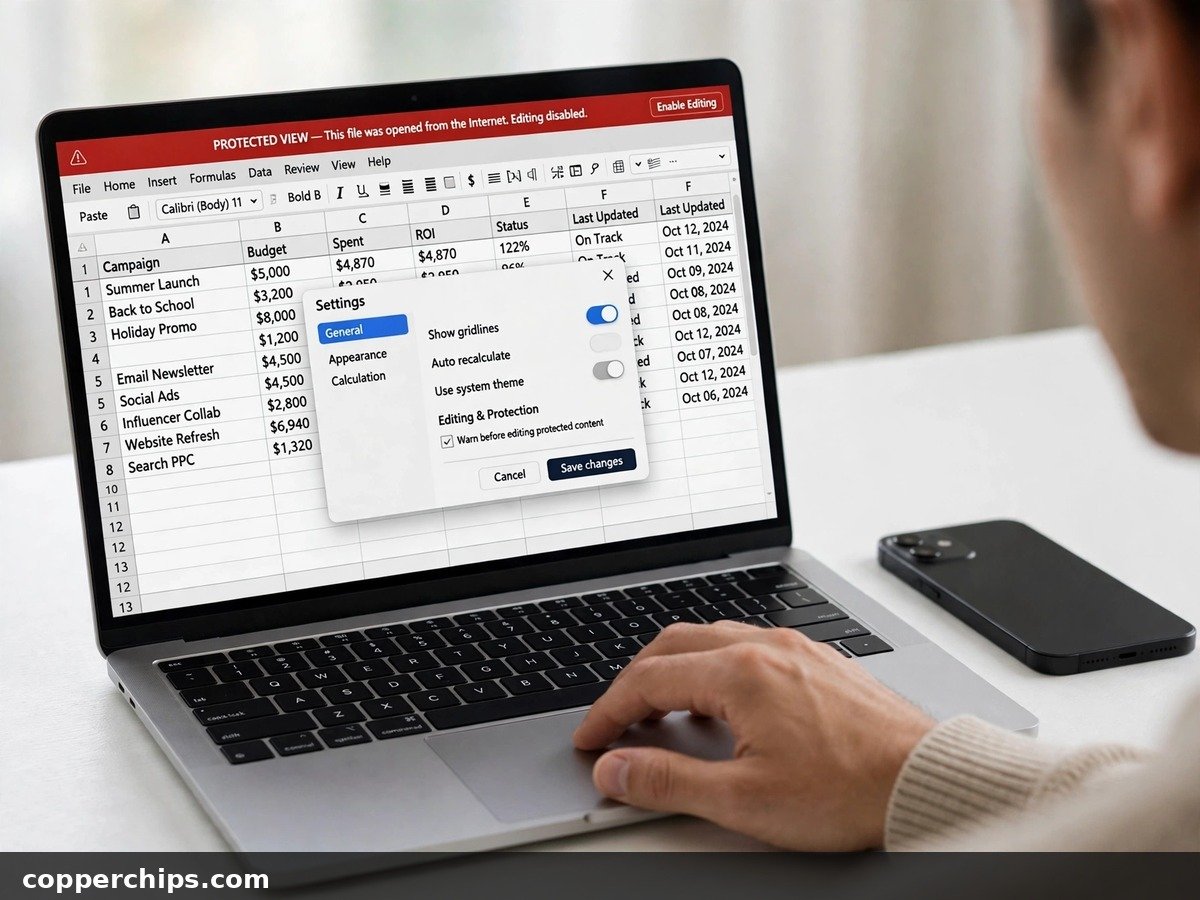
Remove the downloaded-file mark in File Explorer when you see the red Security Risk banner. That banner has no Enable Content button on purpose, so clicking around inside Excel will not help.
- Close the workbook in Excel.
- Open File Explorer and find the file (often in Downloads).
- Right-click it and choose Properties.
- On the General tab, tick Unblock at the bottom, near Security.
- Click Apply, then OK, and reopen the file.
Windows tags every downloaded file with a hidden “Mark of the Web.” Unblock removes that tag, so Excel treats the file like one you created yourself. You should now see the normal yellow bar, or the macros simply run.
No Unblock checkbox in Properties? The file may sit on a network drive or in a synced folder. Copy it to your Desktop first, then check Properties again.
Method 3: Run Macros for This Session Only
Use Backstage view when you want macros on just this once. Nothing gets remembered, which is handy for a file you are testing.
- With the yellow bar showing, click File, then Info.
- Click Enable Content in the Security Warning area.
- Choose Advanced Options.
- Select Enable content for this session and click OK.
The macros run until you close the workbook. Next time you open it, Excel asks again.
Method 4: Change Macro Settings in the Trust Center
Open the Trust Center to change how Excel handles every workbook. The path is the same in Excel for Microsoft 365, 2021, 2019 and 2016 on Windows 10 and 11.
- Click File > Options.
- Select Trust Center, then Trust Center Settings.
- Click Macro Settings on the left.
- Pick an option and click OK.
You will see four choices. Excel names them for VBA macros specifically:
- Disable VBA macros without notification: Everything off, no bar. This is why some macros silently fail.
- Disable VBA macros with notification: The default. Shows the yellow bar so you can decide per file.
- Disable VBA macros except digitally signed macros: Runs only macros signed by a publisher you trust.
- Enable VBA macros (not recommended, potentially dangerous code can run): Every macro in every file runs without asking.
Leave it on the default unless you have a reason not to. Changes here apply only to Excel, not to Word or PowerPoint. The Microsoft 365 macro settings guide explains each option in full.
Two extra boxes sit below the main list. Enable Excel 4.0 macros when VBA macros are enabled covers very old XLM macros; leave it off unless an old workbook needs it. Trust access to the VBA project object model is off by default and only matters for add-ins that write VBA code.
Method 5: Add a Trusted Location
Make a folder that Excel always trusts if you run the same macro workbooks every week. This is the safest way to stop the warnings for good.
- Go to File > Options > Trust Center > Trust Center Settings.
- Click Trusted Locations, then Add new location.
- Click Browse, pick a folder such as Documents\Macros, and click OK.
- Tick Subfolders of this location are also trusted if you need it.
- Click OK on each window.
Any workbook saved in that folder now opens with macros on and no prompt. Keep the folder for files you made or fully trust. Never point it at Downloads.
Method 6: Enable Macros in Excel on Mac
Mac uses the Excel menu, not File > Options. Many guides copy the Windows steps here, and they do not exist on a Mac.
- Open Excel and click Excel in the menu bar at the top left.
- Choose Settings (called Preferences on older versions).
- Click Security (shown as Security & Privacy in some builds).
- Choose Disable all macros with notification to get a prompt per file, or Enable all macros if you accept the risk.
With notification on, Excel for Mac asks when you open a macro workbook. Click Enable Macros in that dialog. Mac versions do not use the Windows Mark of the Web block, so there is no Unblock step.
How to Show the Developer Tab for Macros
The Developer tab gives you one-click access to Macro Security, the Macros list and the VBA editor. It is hidden by default.
- Right-click any ribbon tab and choose Customize the Ribbon.
- In the right-hand list, tick Developer.
- Click OK.
Now Developer > Macro Security jumps straight to the Trust Center. Press Alt + F11 to open the VBA editor, or Alt + F8 to see and run the macros in the open workbook.
Excel Macros Still Not Working? Try This
Macros enabled but still dead? Work through these in order.
- Check the file type. A plain .xlsx file cannot hold macros. If you saved a macro workbook as .xlsx, the code is gone. Save new work as Excel Macro-Enabled Workbook (*.xlsm).
- Check you are not in Excel for the web. The browser version opens .xlsm files but cannot run VBA. Click Editing > Open in Desktop App.
- Look for Protected View. A separate yellow bar saying the file is in Protected View must be cleared with Enable Editing before macros can run.
- Check antivirus. Some security suites strip or quarantine macro files. Look at the antivirus history for the file name.
- Greyed-out Trust Center. On a work or school PC, Group Policy decides. Send your IT team the file name and ask them to sign it or add a trusted location.
If a trusted file used to work and suddenly does not, clear the trusted documents list. Go to Trust Center > Trusted Documents and click Clear, then reopen the file and click Enable Content again. Excel cannot remove a single trusted document, so this resets all of them.
The UK government’s NCSC macro security guidance is worth a read if you manage macro settings for a team.
Frequently Asked Questions
Why is macro disabled in Excel?
Excel disables macros by default because they can run harmful code. Files from your own computer get a yellow warning you can clear with Enable Content. Anything from the internet or email are blocked outright until you unblock them in File Explorer.
How do I unblock macros in Excel?
Close the file, right-click it in File Explorer and choose Properties. Tick Unblock on the General tab, click OK, and reopen the workbook. For files you use often, a Trusted Location saves you repeating this.
How do I know if macros are enabled in Excel?
Open File > Options > Trust Center > Trust Center Settings > Macro Settings and see which option is selected. For a single file, no yellow or red bar plus working macro buttons means macros are running. Press Alt + F8 to see the macros the workbook contains.
Is it safe to enable all macros in Excel?
Not really. Enable VBA macros lets every file run code without asking, including email attachments. A Trusted Location gives you the same convenience for your own files without that risk.
Can I enable macros in Excel Online?
No. Excel for the web cannot run VBA macros. Open the workbook in the desktop app, or use Office Scripts if your account supports them.
The Bottom Line
Read the color of the bar first. Yellow means click Enable Content and you are done. A red bar means the file came from the internet, so unblock it in File Explorer before Excel will let it run.
For workbooks you open every week, set up a Trusted Location and leave the global setting on the default. You get macros without prompts and still stay protected from a bad attachment. More Office fixes, including how to double space in Word, live in our Office and productivity guides.