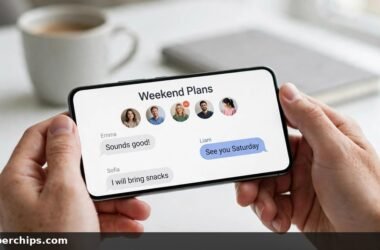
Americans swapped nearly 2.2 trillion texts in 2024, according to CTIA’s annual wireless industry survey. A lot of those were birthday wishes sent at 11:58 p.m., or reminders that arrived an hour too late because someone forgot. Knowing how to schedule a text fixes both problems, and every major phone can do it without a paid app.
The catch is that each platform hides the option in a different place. iPhone’s Send Later only works in blue-bubble iMessage chats, Google Messages tucks it behind a long press, and Samsung puts it under a plus icon. Below you’ll find the exact steps for each one, how to edit or cancel a scheduled message, and what to do when the option simply isn’t there.
On iPhone (iOS 18 or later), open an iMessage chat, tap the + button, choose Send Later, pick a time up to 14 days out, then type and send. Texting an Android phone from an iPhone? Use a Time of Day automation in the Shortcuts app instead, because Send Later doesn’t work with SMS or RCS. In Google Messages, type your text, touch and hold Send, and pick a date and time. Samsung Messages users tap the + icon, then Schedule message, and can book up to a year ahead.
- viPhone limit: Send Later handles iMessage only, up to 14 days ahead, and delivers even if your phone is off.
- vAndroid route: Google Messages and Samsung Messages both have a built-in schedule button, no extra app needed.
- vMissing option: A green-bubble chat or an outdated OS is almost always why the schedule button won’t appear.
Which Scheduling Method Should You Use?
Pick the method by two things: your phone and the recipient’s phone. This table covers every common pairing.
| Your phone | Sending to | Best method | How far ahead |
|---|---|---|---|
| iPhone (iOS 18+) | iPhone (blue bubble) | Send Later in Messages | Up to 14 days |
| iPhone | Android (green bubble) | Shortcuts automation | Any date you set |
| Android (Google Messages) | Anyone | Schedule send | Pick any date and time |
| Samsung Galaxy | Anyone | Schedule message | Up to 1 year |
How to Schedule a Text on iPhone With Send Later
Apple added Send Later to the Messages app in iOS 18, released in September 2024. If your iPhone runs iOS 18 or newer, the feature is already there.
Requirements and limits
- The chat must be iMessage (blue bubbles). Send Later doesn’t work with SMS or RCS texts.
- You can schedule up to 14 days into the future.
- The recipient won’t know the message was scheduled.
- You need to be online to edit, reschedule, or delete a scheduled message.
Here’s the part most guides skip. Per Apple’s Send Later support guide, scheduled messages are encrypted and held on Apple’s servers until they go out. That means your text still sends on time even if your iPhone is switched off or dead.
Step by step: schedule an iMessage
- Open Messages and go to the iMessage conversation (or start a new one).
- Tap the + button to the left of the text field.
- Choose Send Later. You may need to tap More to find it.
- A blue time bubble appears. Tap it to set the date and time.
- Type your message and tap the send arrow.
You’ll see the message sitting at the bottom of the thread with a dashed outline. That outline is your confirmation it’s queued.
How to edit, send now, or cancel
Tap Edit above the scheduled message. From there you can send it immediately, change the time, or delete it. To change the wording, touch and hold the message itself and pick Edit.
How to Schedule a Text on iPhone to an Android User
This is the question people ask most, and the honest answer is that Messages can’t do it alone. Green-bubble chats use SMS or RCS, and Send Later ignores both. The workaround is a personal automation in the Shortcuts app, which comes preinstalled on iOS 13 and later.
Step by step: create a Time of Day automation
- Open Shortcuts and tap the Automation tab at the bottom.
- Tap + (or New Automation), then choose Time of Day.
- Set the time, then set Repeat to Daily, Weekly, or Monthly.
- Select Run Immediately so it fires without asking you first. Older iOS versions show an Ask Before Running toggle instead; switch that off.
- Tap Next, then New Blank Automation.
- Search for the Send Message action and add it.
- Tap Message to type your text and Recipients to pick the contact.
- Finish with Done in the top corner.
Unlike Send Later, this runs on your phone. Your iPhone must be on and connected at the scheduled time, or the text won’t go out.
Delete one-off automations after they send
Shortcuts has no “run once” option, so a one-time birthday text will repeat next week or next month. After it sends, go back to the Automation tab, swipe left on the automation, and tap Delete.
Testing takes a minute. Set the automation for two minutes from now with your own number as the recipient. If the text lands in your own thread, the real one will work, so change the time and contact and you’re set.
How to Schedule a Text on Android (Google Messages)
Google Messages has had a schedule button for years. It works on Android 7.0 and up, and it handles SMS, MMS, and RCS chats alike.
Step by step: use schedule send
- Open Google Messages and start or open a conversation.
- Type your message.
- Touch and hold the Send button.
- Choose one of the suggested times, or tap Pick date and time.
- Set the date and time, tap Save, then tap the send button.
A small clock icon appears next to the queued message. If your phone has no Wi-Fi or data at the scheduled time, Google’s Messages scheduling help page says it sends once you reconnect.
Update, send now, or delete
Tap the clock icon beside the scheduled text. You’ll get options to update the message, send it now, or delete it.
How to Schedule a Text on Samsung Galaxy Phones
Many Galaxy phones ship with Samsung Messages as the default app, and it has its own scheduler. The steps are short.
- Open Samsung Messages and pick a conversation.
- Tap the + icon next to the text field.
- Choose Schedule message.
- Set the date and time, then tap Done.
- Type your text and tap Send.
The big advantage is range. According to Samsung’s official Messages support page, you can schedule up to a year from today. Galaxy owners who switched to Google Messages should follow the Google steps above instead.
How to Schedule Recurring Texts
Need the same reminder every Monday? On iPhone, the Shortcuts method above already repeats Daily, Weekly, or Monthly, so a recurring text is just an automation you never delete.
Android is weaker here. Neither Google Messages nor Samsung Messages offers a repeat option in its scheduler, so recurring texts on Android mean scheduling each one by hand or using a third-party app.
Why Can’t I Find Send Later or Schedule a Text?
Send Later is missing on iPhone
Check three things in this order. First, confirm you’re on iOS 18 or later in Settings > General > About. Next, look at the bubble color: green means SMS or RCS, and Send Later won’t show. Finally, tap More in the + menu, since Send Later sometimes sits below the first row of apps.
The scheduled message didn’t send
For iMessage, Apple still sends it on time, but it shows as delivered only once the recipient’s phone is back online. For Shortcuts, your iPhone was probably off, locked out of data, or the automation was set to ask first. On Android, the text waits until your phone reconnects.
Shortcuts keeps asking for confirmation
Open the automation and change it to Run Immediately. Also turn off Notify When Run if you don’t want a banner every time.
The text sent at the wrong time
Scheduled texts follow your phone’s time zone, not the recipient’s. Traveling or texting someone in another state? Do the math for their clock before you set the time.
If none of these fit, and you’re texting an iPhone user whose messages never arrive, the problem might be a block rather than the scheduler. Our guide on how to tell if you’re blocked on iMessage walks through the signs.
Native Scheduling vs. Third-Party Apps
For personal texts, the built-in tools are enough. They’re free, they don’t need access to your contacts beyond what the phone already has, and they use your real number.
Third-party schedulers make sense for businesses sending the same message to many customers. Those services usually charge a monthly fee, and a standard SMS caps out at 160 characters before it splits. Before signing up, check whether the service sends from your own number or a shared short code, since texts from an unknown number often get ignored. WhatsApp, for what it’s worth, has no built-in schedule button for regular chats.
Still Not Working? Try This
Restart the phone and update the Messages app (Google Messages updates through the Play Store). On iPhone, toggle iMessage off and on in Settings > Apps > Messages, then try Send Later again.
For group texts, consider whether the group itself is the issue. Mixed iPhone and Android groups fall back to SMS or RCS, which blocks Send Later. Trimming the group, as explained in our guide to removing someone from a group text, won’t change the bubble color unless every remaining member uses iMessage.
If scheduled texts still fail on a fully updated phone, contact your carrier. SMS delivery problems on their side will affect scheduled and normal texts the same way.
Frequently Asked Questions
Can you schedule a text on an iPhone?
Yes. On iOS 18 and later, tap + in an iMessage chat, choose Send Later, and set a time up to 14 days ahead. For SMS or RCS chats, use a Shortcuts automation.
Can you schedule a text on iPhone to someone who doesn’t have an iPhone?
Not with Send Later, since it only works with iMessage. Create a Time of Day automation in Shortcuts with the Send Message action instead. Your iPhone has to be on when it runs.
Why can’t I schedule a message on my iPhone?
Usually the chat is green-bubble SMS or RCS, or the iPhone is on iOS 17 or older. Update to iOS 18, confirm iMessage is on, and check the More list in the + menu.
How far in advance can I schedule a text?
iPhone Send Later allows 14 days. Samsung Messages allows up to a year. Google Messages lets you pick a date and time, and Shortcuts has no limit because it runs on a timer you set.
Do scheduled iMessages send if my iPhone is off?
Yes. Apple stores them encrypted on its servers until they send, so your phone can be off or offline. Shortcuts automations are different and need the phone on.
The Bottom Line
Start with your phone’s built-in option. iPhone users texting other iPhones should use Send Later, and anyone on Android can long-press Send or use Samsung’s + menu. The only real workaround is iPhone to Android, where a Shortcuts automation does the job as long as your phone stays on.
Set one up for yourself first as a test. Two minutes of checking beats a birthday text that never arrives.