Bluetooth won’t turn on. The toggle is greyed out, the option is missing, or you can’t find it at all. The exact steps to enable Bluetooth depend on your device and operating system, and they’re different enough between Android, iPhone, Windows, and Mac that a generic guide won’t cut it.
This guide covers every platform with exact navigation paths. Find your device below and follow the steps.
On Android: Settings > Connected devices > Bluetooth toggle ON. On iPhone: Settings > Bluetooth > toggle ON. On Windows 11: Settings > Bluetooth & devices > Bluetooth ON. On Mac: System Settings > Bluetooth > Turn On. If the toggle is greyed out, toggle Airplane Mode on then off – this resets the radio stack without rebooting.
- ✓Every platform is different: Android, iPhone, Windows 10, Windows 11, Mac, and smart TVs all have different paths to the Bluetooth toggle.
- ✓Quickest method: Pull down the notification shade (Android) or Control Center (iPhone) and tap the Bluetooth icon directly.
- ✓Greyed out toggle fix: Toggle Airplane Mode on for 5 seconds then off. This resets the radio stack and un-greys Bluetooth on most devices without a reboot.
How to Enable Bluetooth by Device
Android (All Versions)
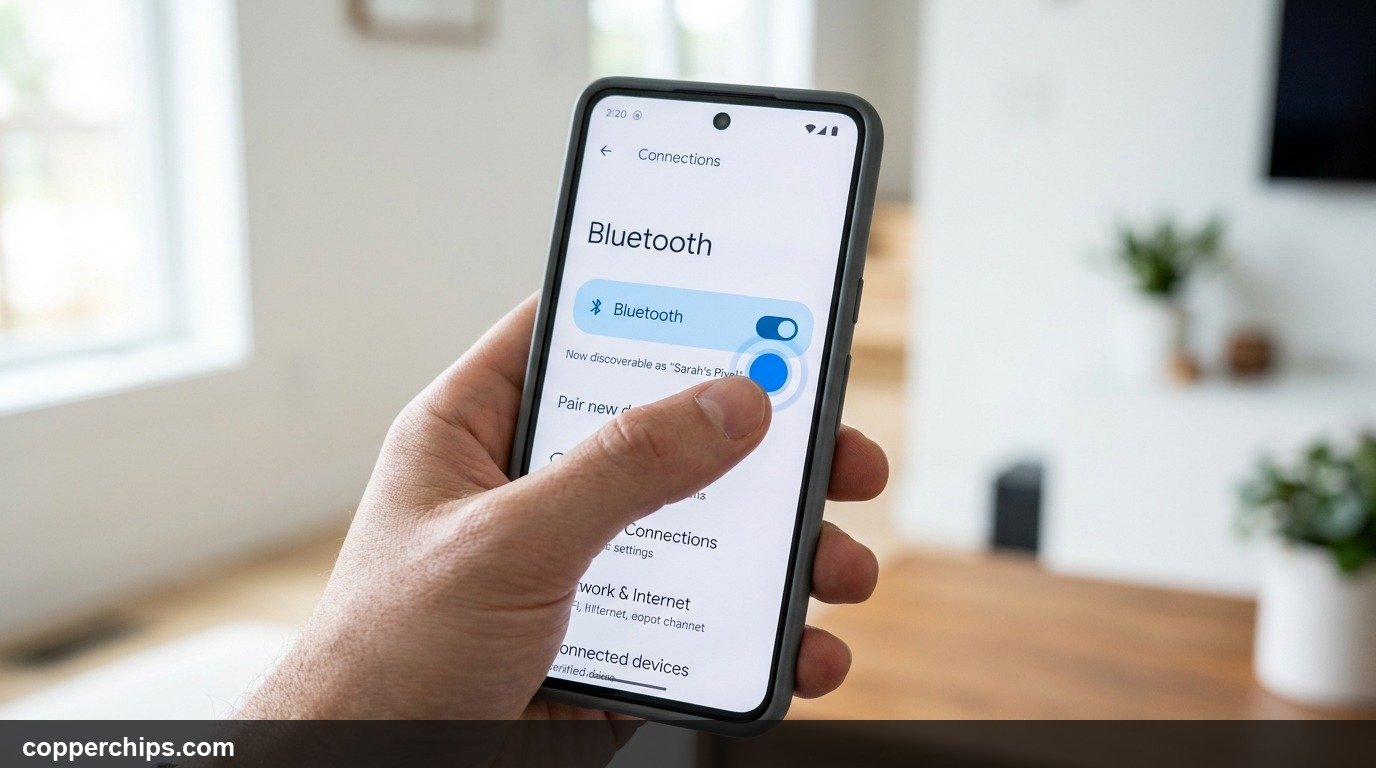
Quickest way: Swipe down from the top of the screen to open the notification shade, then tap the Bluetooth icon. It turns blue when active.
Via Settings:
- Open Settings.
- Tap Connected devices (Samsung) or Connections (other Android).
- Tap Bluetooth and toggle it ON.
On Samsung One UI: Settings > Connections > Bluetooth > toggle ON.
On stock Android (Pixel): Settings > Connected devices > Connection preferences > Bluetooth > toggle ON.
iPhone (iOS 17 and Earlier)
Follow the Apple official Bluetooth connection guide for iOS devices:
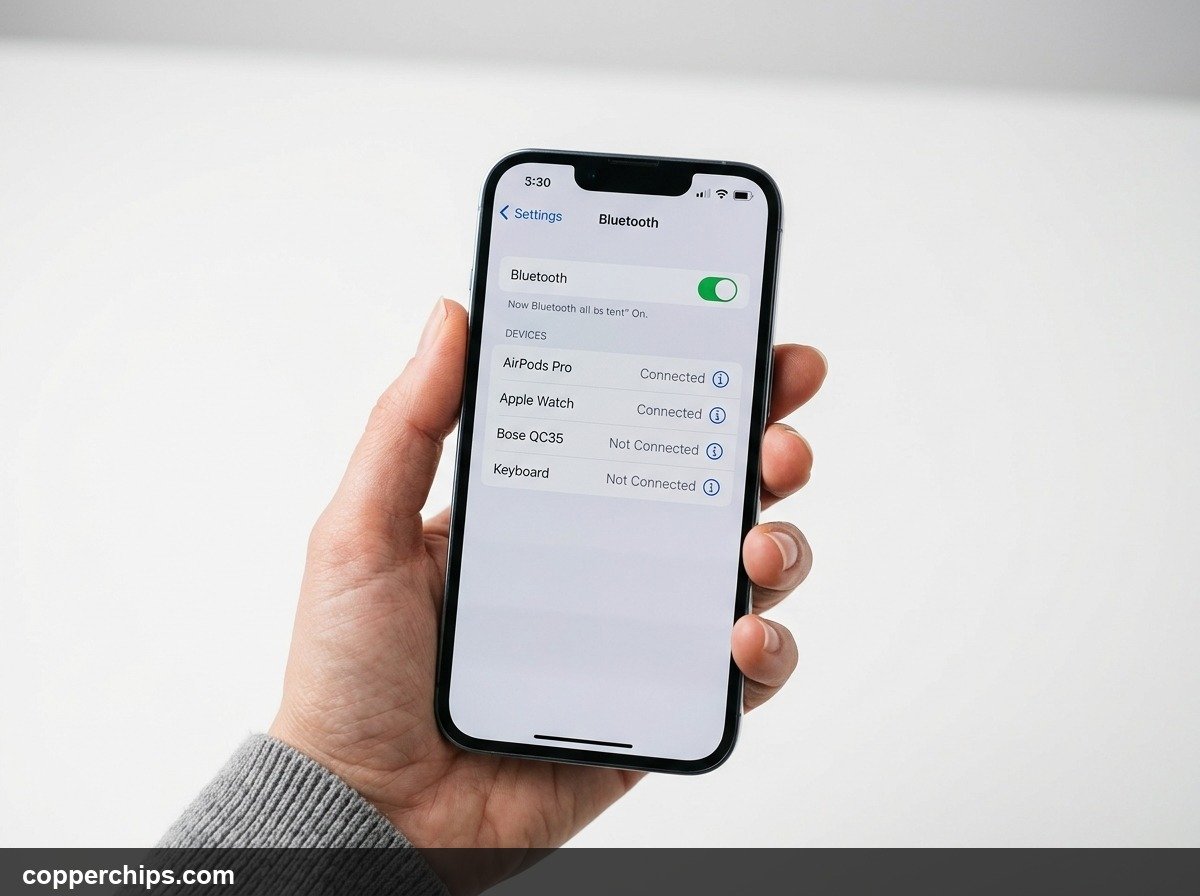
Quickest way: Swipe down from the top-right corner to open Control Center, then tap the Bluetooth icon (it looks like a stylised B). Blue means on.
Via Settings:
- Open Settings.
- Tap Bluetooth.
- Toggle Bluetooth ON. The toggle turns green.
Windows 11
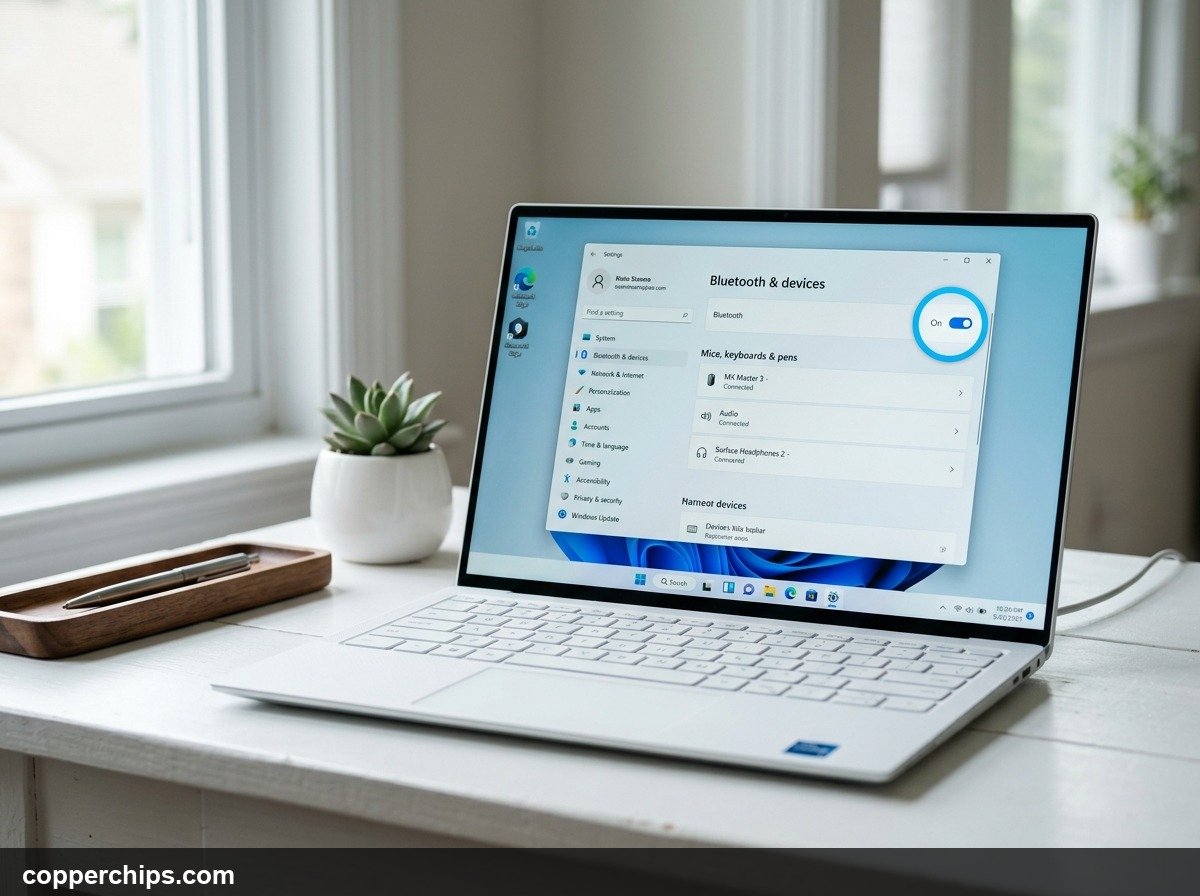
- Click the Start button and open Settings (gear icon).
- Click Bluetooth & devices in the left sidebar.
- Toggle Bluetooth to On. The toggle turns blue.
For additional details, see the Google Android Bluetooth setup documentation.
Faster shortcut: Click the network/WiFi/sound cluster in the system tray (bottom-right corner). Click the Bluetooth tile. If it highlights, Bluetooth is on.
Windows 10
- Open Settings (Start > gear icon).
- Click Devices.
- Click Bluetooth & other devices in the left menu.
- Toggle Bluetooth to On.
If the toggle is missing entirely, your PC may not have a Bluetooth adapter. Check Device Manager (Win + X > Device Manager) and look for a Bluetooth section. If it is absent, you need a USB Bluetooth dongle.
macOS (Sonoma / Ventura)
- Click the Apple menu (top-left corner).
- Open System Settings.
- Click Bluetooth in the left sidebar.
- Click Turn On.
Shortcut: If you have the Bluetooth icon in your menu bar, click it and select “Connect” or toggle from there. To add it: System Settings > Control Centre > Bluetooth > Show in Menu Bar.
Samsung Smart TV
- Press the Home button on your remote.
- Go to Settings (gear icon).
- Select Sound > Sound Output > Bluetooth Speaker List.
- The TV enables Bluetooth automatically when you open this menu.
Alternatively: Settings > General > Bluetooth (on older models).
Amazon Fire TV / Fire Stick
- Go to Settings from the Fire TV home screen.
- Select Controllers & Bluetooth Devices.
- Choose Other Bluetooth Devices > Add Bluetooth Devices.
- Fire TV enables Bluetooth and starts scanning automatically.
Bluetooth Toggle Greyed Out or Missing? Try These Fixes
Fix 1: Airplane Mode Toggle
Turn Airplane Mode on, wait 5 seconds, turn it off. This resets the entire radio stack (WiFi, Bluetooth, cellular) and clears firmware hangs that grey out the Bluetooth toggle. Works on Android and iPhone.
Fix 2: Restart the Device
A full power-off restart (not just sleep) clears Bluetooth driver state. Hold the power button, select Restart or Power Off and back on. On Windows, use Start > Power > Restart – not Shut Down, which on Windows 10/11 uses fast startup and does not fully clear RAM.
Fix 3: Reinstall Bluetooth Driver (Windows Only)
- Press Win + X and open Device Manager.
- Expand the Bluetooth section.
- Right-click your Bluetooth adapter and select Uninstall device.
- Restart your PC. Windows reinstalls the driver automatically on boot.
If no Bluetooth section appears in Device Manager at all, your PC does not have a built-in Bluetooth adapter. A USB Bluetooth 5.0 dongle (around \-15) adds Bluetooth to any desktop or laptop. Check the Microsoft Bluetooth troubleshooting page for driver-specific issues.
Fix 4: Check Bluetooth Support Service (Windows)
- Press Win + R, type
services.mscand press Enter. - Scroll to Bluetooth Support Service.
- Right-click it and select Start. If it shows Running, select Restart.
- Double-click it, set Startup Type to Automatic, click OK.
Frequently Asked Questions
Why is my Bluetooth toggle greyed out?
A greyed-out Bluetooth toggle usually means the Bluetooth radio firmware has frozen. Try toggling Airplane Mode on and off first – this resets the radio stack without rebooting. If that does not work, restart the device fully. On Windows, it can also mean the Bluetooth Support Service is stopped.
Does enabling Bluetooth drain the battery?
Modern Bluetooth Low Energy (BLE) draws less than 1% of battery per hour when idle with no active connections. Active streaming to headphones uses more – typically 3-5% per hour on smartphones. Leaving Bluetooth on permanently has negligible battery impact on any device made after 2018.
Can I enable Bluetooth without going into Settings?
Yes. On Android, swipe down the notification shade and tap the Bluetooth tile. On iPhone, open Control Center (swipe from top-right) and tap the Bluetooth icon. On Windows 11, click the system tray network cluster and tap the Bluetooth tile. On Mac, click the Bluetooth menu bar icon if it is visible.
Why does my Bluetooth keep turning off by itself?
Most phones have a battery saver mode that disables Bluetooth automatically. Check Settings > Battery and look for power saving or adaptive battery options. On Android, also check Settings > Connected devices > Bluetooth and look for a “turn off Bluetooth automatically” timer – disable it.
How do I enable Bluetooth on a PC that does not have it?
You need a USB Bluetooth adapter. Plug it in, let Windows install the driver, and a Bluetooth section will appear in Settings and Device Manager. Look for a USB Bluetooth 5.0 adapter – they are widely available for under \ and work on any USB-A or USB-C port.
The Bottom Line
Enabling Bluetooth takes under 10 seconds on any device once you know the right path. The notification shade or Control Center quick tile is the fastest method for phones. On PC, the Windows 11 Settings sidebar and Mac System Settings are the most reliable routes.
If the toggle is greyed out, try Airplane Mode first – it solves it 80% of the time without a restart. For persistent Windows issues, the Bluetooth Support Service check and driver reinstall are the next steps.
Once Bluetooth is on, visit our Bluetooth troubleshooting guides if you have pairing issues, or the Device Fixes hub for other connectivity problems.