You turn on your television, switch over to your streaming input, and prepare to relax with your favorite show, but instead of the Fire TV home menu, you are greeted by an unresponsive, pitch-black display. Sometimes you might hear audio playing in the background or catch a brief glimpse of the white Amazon logo before the screen goes dark again. A Firestick black screen is one of the most common frustrations for streaming users, but it rarely means your device is permanently dead.
A Firestick black screen usually comes from power starvation caused by plugging the USB cable into a low-amp TV service port, an HDCP digital handshake failure between the HDMI port and the stick, or a display resolution mismatch. To fix it immediately: unplug both the TV and Firestick from power for 60 seconds, connect the Firestick directly to an AC wall outlet using its official 5V/1A power brick, and press and hold Rewind plus Up on your remote for 10 seconds to force the device to cycle through display resolutions until your picture returns.
- ✓Power Starvation: Powering a Fire TV Stick through a television USB port (0.5A) causes bootlooping and black screen drops under graphic load.
- ✓Resolution Mismatch: If the stick is set to an unsupported resolution (e.g., 4K 60Hz on a 1080p port), using the remote shortcut cycles resolutions blindly until video syncs.
- ✓HDCP Handshake Drops: Cheap HDMI splitters, third-party extenders, and dirty HDMI pins interrupt digital content protection signals.
Why Your Firestick Screen Goes Black
A black screen occurs when communication breaks down between the streaming software, the HDMI hardware bus, or the power management controller. Rather than a fatal hardware blowout, most black-screen events stem from three specific technical bottlenecks.
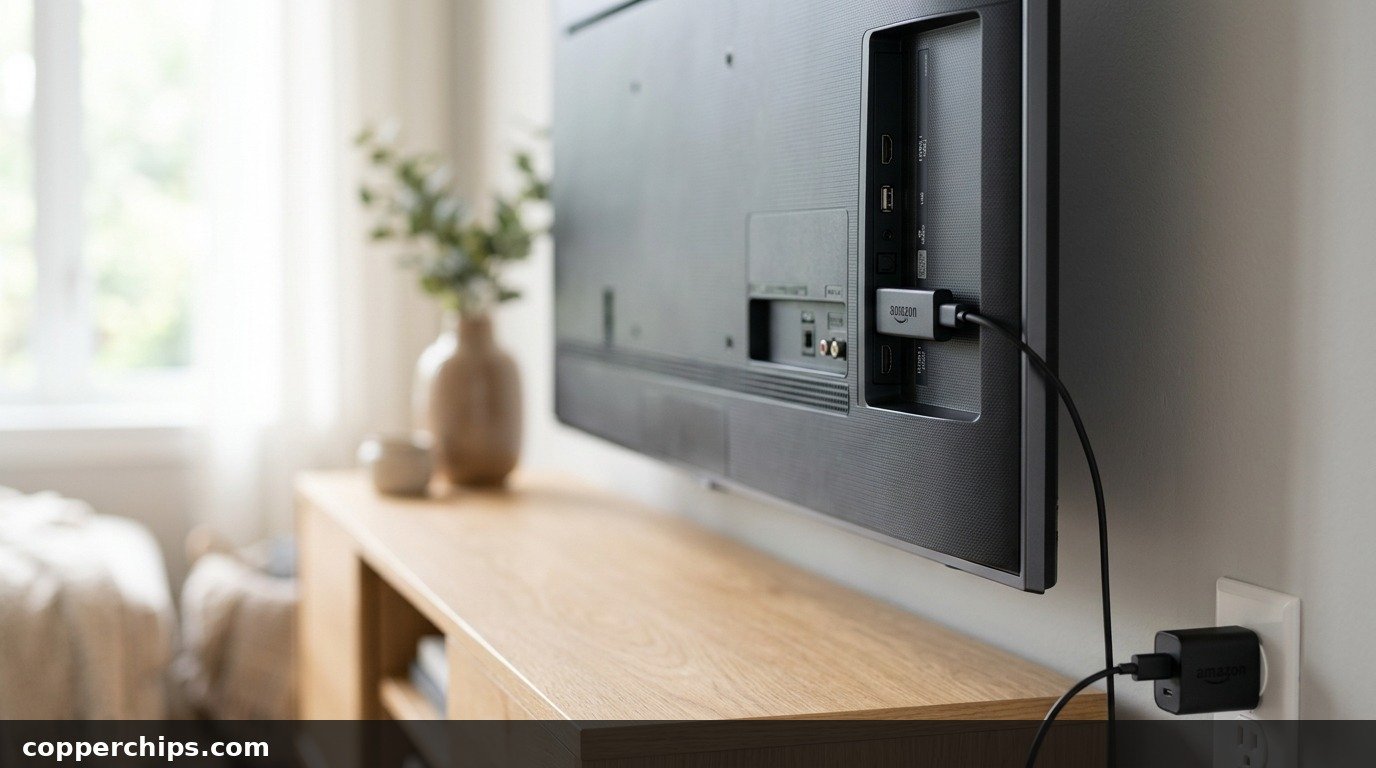
First is insufficient amperage. Many television owners plug the Firestick micro-USB power cord directly into an empty USB port on the back of the television to keep cables tidy. However, standard television USB ports are engineered strictly for low-power accessories or service firmware updates, outputting a meager 0.5 amps (2.5 watts). The Firestick hardware platform requires a continuous 1.0 amp to 1.8 amps to drive its quad-core processor, Wi-Fi antenna, and graphic rendering engine. When the stick boots up, it may display the initial Amazon logo, but as soon as the operating system spins up high-definition user interface assets, the voltage sags, causing an instant video brownout.
Second is High-bandwidth Digital Content Protection (HDCP) handshake failure. As outlined in standard consumer display architecture, modern HDMI ports utilize encrypted cryptographic keys to authenticate copyright-protected video streams. If your television firmware fails to exchange HDCP keys with the Firestick within milliseconds, the video pipeline shuts off while audio continues, producing a black screen with sound.
Third is thermal throttling and resolution locking. If your streaming stick is wedged tightly against the rear heat exhaust of a thin TV panel without airflow, internal sensors force an emergency video shutdown. Similarly, if your stick was previously plugged into a 4K HDR television and later moved to a standard 1080p bedroom display, it may keep broadcasting an incompatible video frequency that your television panel cannot decode.
How to Fix Firestick Black Screen: 7 Proven Solutions
Work through these practical troubleshooting steps in order, starting with simple power fixes and moving toward remote diagnostic resets.
Fix 1: Perform a Full 60-Second Hardware Power Cycle
A simple remote restart is impossible on a black screen, but a true hardware cold reboot discharges residual charge from video-processing capacitors. Modern smart televisions and streaming media sticks retain cached memory in system RAM even when you turn them off with a remote.
- Unplug the Fire TV Stick power adapter directly from the wall outlet.
- Unplug your television power cable from the wall outlet.
- While both devices are unplugged, press and hold the physical Power button on your television set (not the remote) for 30 seconds to fully drain residual board capacitance.
- Leave both devices completely disconnected from power for a full 60 seconds.
- Plug the television power cord back in and power it on first.
- Once the TV display is fully lit, reconnect the Firestick power adapter to the wall and select the matching HDMI input.
This forced reboot clears temporary operating system lockups and re-initiates the HDMI communication protocol from scratch.
Fix 2: Connect Power Directly to an AC Wall Outlet
Powering your Firestick through a TV USB port is the single biggest cause of black-screen drops and reboot loops. If you are using your TV USB port for power, move the cable to the official AC wall plug immediately.
- Check the small power brick that shipped in your Firestick packaging. Confirm it is rated for 5V at 1.0A (5W) or higher (such as a 9W adapter for 4K Max models).
- Plug the power brick into a reliable wall outlet or a switched surge protector.
- Ensure the micro-USB cable is seated firmly all the way into the side port of the Firestick. A partially loose cable connector will transmit baseline voltage but choke under streaming load.
- Avoid multi-port USB charging strips that share power across tablets and phones, as these strips dynamically lower output wattage when additional devices charge.
Clean, uninterrupted power ensures the streaming stick won’t suffer brownout crashes during high-definition video playback.
Fix 3: Use the Remote Shortcut to Cycle Screen Resolutions
If your Fire TV Stick is locked into a display resolution your television panel doesn’t support, you can cycle through resolutions blindly using a secret remote key combination. This is especially helpful when you hear audio or menu clicks but the screen stays completely black.
- Ensure your television is powered on and tuned to the correct HDMI input port.
- Point your Fire TV remote directly at your television.
- Press and hold the Rewind button and the Up directional ring button at the same time.
- Hold both buttons down continuously for 10 full seconds, then release them.
- Your Firestick will now begin cycling through display resolutions one by one (including 4K 60Hz, 4K 30Hz, 1080p 60Hz, 1080p 50Hz, 720p).
- Each resolution displays on screen for 10 seconds. When your screen flickers back to life and you see a visible prompt asking to confirm the resolution, immediately press Select (the center round button) on your remote.
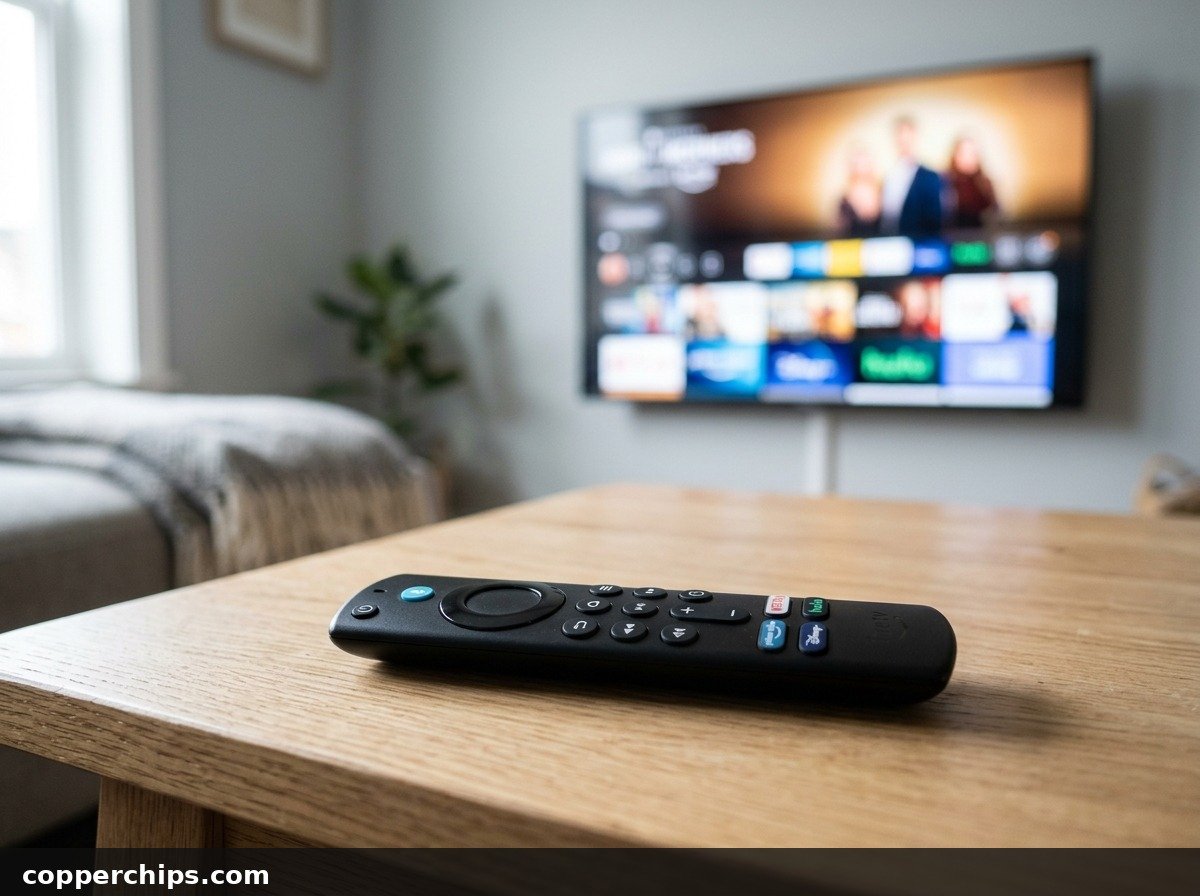
This shortcut eliminates the need to navigate invisible menus when an incompatible video mode prevents picture output.
Fix 4: Switch to a Different HDMI Port and Bypass Extenders
Physical HDMI port degradation, dust buildup, or a faulty HDMI extender cable can sever video signals while leaving power intact. Television HDMI ports expand and contract with heat over years of use, leading to loose physical tolerances.
- Remove the Firestick from its current HDMI port.
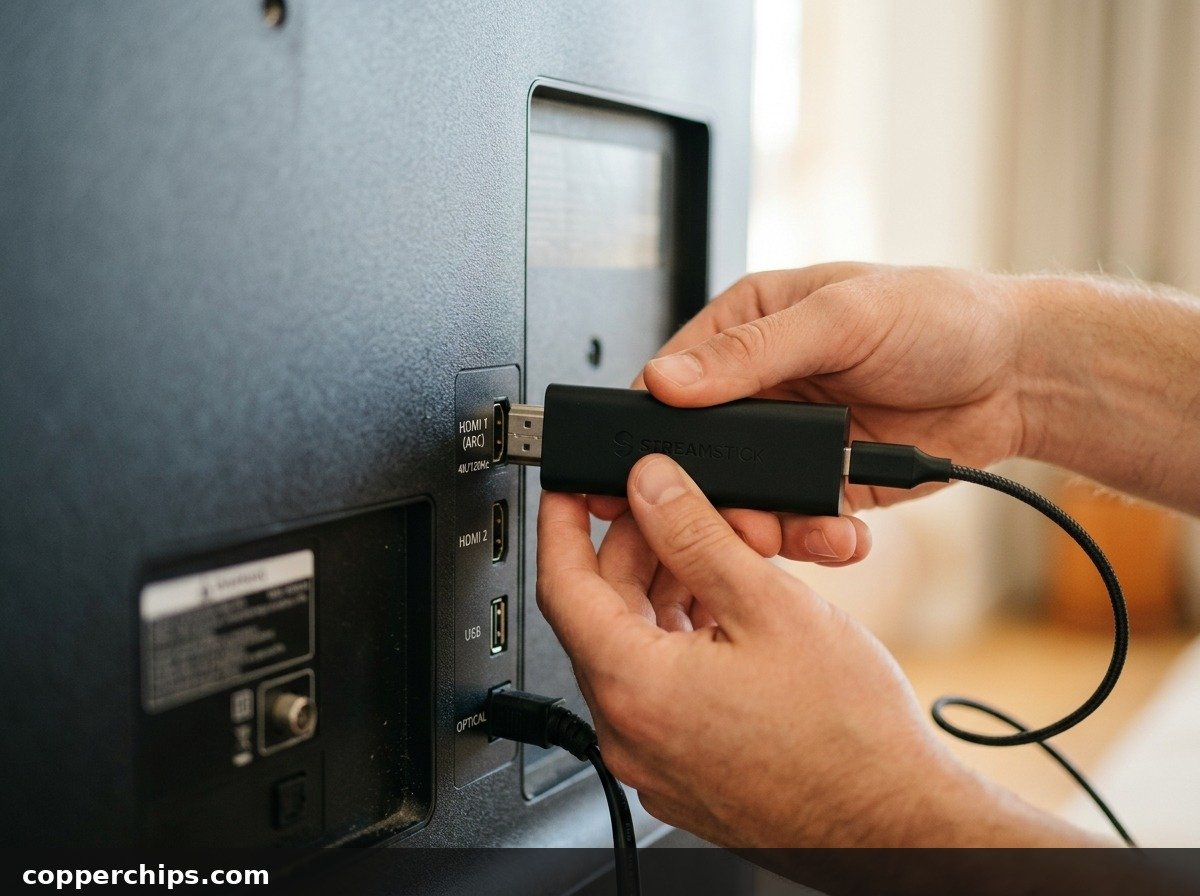
- If you are using the small flexible HDMI extender dongle included in the box, disconnect it and plug the Firestick directly into the television HDMI port. Extender dongles frequently suffer from internal micro-tears in their copper conductors.
- Insert the Firestick firmly into a different HDMI input (for example, move from HDMI 1 to HDMI 2 or HDMI 3). Look specifically for ports marked HDMI HDCP 2.2 or HDMI 4K 60Hz on modern displays.
- Use your television remote to change the active input source to match the new port number.
- Inspect the gold pins on the Firestick HDMI connector. If you see dust or lint, blow it clean with a burst of compressed air.
For official diagnostic guidance on display connection issues, review the Google streaming video output and black screen diagnostic documentation, which details identical HDMI interface standards across connected media streamers.
Fix 5: Disconnect Other HDMI Devices to Clear HDCP Handshake Conflicts
Secondary devices connected to adjacent HDMI ports can corrupt the television digital rights management bus. Soundbars, game consoles, Blu-ray players, and cable boxes communicate over shared Consumer Electronics Control (CEC) lines.
- Disconnect all other HDMI cables plugged into your television set, leaving only the Firestick connected.
- Unplug any optical audio cables or external soundbars temporarily.
- Turn the television off and back on using the remote.
- If the Firestick picture returns immediately, one of your secondary devices was holding the HDCP bus in an unauthenticated loop.
- Reconnect your other peripherals one at a time to identify which device triggers the conflict. On your television menu, toggling HDMI-CEC (branded as Anynet+, Bravia Sync, or SimpLink) off and on often permanently resolves device priority clashes.
Similar HDMI display handshakes are standard across all modern entertainment platforms; refer to Apple official video display and HDMI connection guidelines for related digital signal synchronization practices.
Fix 6: Check for Overheating and Improve Chassis Ventilation
Streaming media sticks packed behind tight wall mounts can reach internal temperatures exceeding 70 degrees Celsius (158 degrees Fahrenheit). When the system-on-chip overheats, thermal protection safeguards trigger an immediate display blackout to protect delicate flash storage from permanent corruption.
- Reach behind your TV and touch the plastic casing of the Firestick. If the device feels hot to the touch, thermal shutdown is likely active.
- Unplug the stick from both power and HDMI. Allow it to sit on an open counter in room temperature air for 15 to 20 minutes.
- When reinstalling, use the flexible HDMI extender dongle to angle the stick away from the hot back panel of the television. This creates a natural convective airflow gap.
- Ensure your television is not placed directly above an active fireplace or inside an unventilated entertainment cabinet.
If you are experiencing broader home media connectivity issues, our guide on how to connect your smart TV to Wi-Fi covers network setup and placement considerations.
Fix 7: Perform a Blind Factory Reset via Remote Combination
If a corrupted software update or damaged system cache has rendered the operating system unbootable, a blind factory reset restores factory firmware. Use this step only after testing other fixes, as a factory reset erases all installed apps and account login information.
- Confirm that your Fire TV remote is paired with the stick. If you press volume buttons and your TV responds, pairing is active.
- Press and hold the Back button and the Right directional navigation button at the exact same time.
- Keep both buttons held down firmly for 10 to 15 continuous seconds.
- On screen, a reset confirmation dialog will attempt to load. Even if your screen remains black, releasing the buttons will allow the automated 20-second timeout to begin the reset sequence.
- Leave the device untouched for 10 minutes. The Firestick will reboot several times in the background, rewrite its system partition, and return to the primary language setup screen.
If you frequently stream content from other devices to your screen, check our walkthrough to troubleshoot screen mirroring glitches across smart displays.
Still Not Working? Try This
If you have tested the wall adapter, cycled resolutions, and cleared HDMI ports without restoring video, follow these deeper diagnostic steps:
- Test on a Different Television or Computer Monitor: Plug the Firestick into a secondary television in another room or a desktop computer monitor with an HDMI input. If the stick powers on and displays video on the second screen, your primary TV has an incompatible HDCP chip, an outdated mainboard firmware version, or a blown HDMI port capacitor.
- Inspect TV Mainboard Firmware: Navigate to your television native settings menu (using the original television manufacturer remote) and check for available system updates. Many older Samsung, LG, and Vizio televisions require firmware patches to support updated Fire TV HDMI handshake timing.
- Check Regulatory and Consumer Electronics Standards: Modern digital devices adhere to strict consumer frequency and interference guidelines established under FCC home network and device connectivity standards. If power spikes damaged internal voltage regulators, the stick must be serviced.
- Hardware Component Failure: Streaming media sticks experience high thermal stress. If the device remains unresponsive on multiple televisions with verified power adapters, the internal eMMC flash memory has reached end-of-life or suffered an unrecoverable electrical surge. At that stage, replacing the streaming stick is the most economical solution.
Browse our complete Device Fixes troubleshooting hub for additional gadget repairs and hardware guides.
Frequently Asked Questions
Why does my Firestick turn on then go black?
When a Firestick displays the initial Amazon logo and then goes black, the device is suffering from power starvation.
What causes a Firestick black screen with sound?
Hearing audio while the screen remains black is a classic indicator of an HDCP handshake failure or an unsupported screen resolution. The audio and video data streams travel across separate digital channels inside the HDMI bus. If your television cannot verify the copyright protection handshake, it mutes the video signal while permitting audio to pass through.
Can a bad HDMI port cause a black screen on Fire TV?
Yes. Over time, HDMI ports on televisions can develop bent internal pins, accumulated dust, or degraded solder joints caused by cable strain and heat cycles. Moving the streaming stick to an alternative HDMI input or bypassing third-party HDMI switchers and extension dongles will isolate whether the port is defective.
How do I reset my Firestick if the screen is completely black?
You can execute a hardware reset without looking at the screen by pressing and holding the Back button and the Right directional button on your Fire TV remote simultaneously for 10 to 15 seconds. This command triggers the automated recovery script, which wipes corrupted temporary cache files and returns the device to factory default settings.
The Bottom Line
A black screen on your Fire TV Stick is rarely a sign of fatal hardware death. In nine out of ten cases, the problem comes down to power starvation from using a television USB port, an unresolved HDCP handshake loop, or an unsupported display resolution. Start by connecting your Firestick directly to a wall outlet with its official 5V/1A adapter, disconnect third-party extenders, and use the Rewind plus Up remote shortcut to cycle screen resolutions. These simple physical steps will get your streaming picture back up and running in minutes.