

You pull out your Bluetooth headphones, turn them on, and nothing happens. Your phone or laptop just refuses to find them. Before you start questioning whether the headphones are broken, check the basics first: Bluetooth might simply be off on your device.
This guide covers how to enable Bluetooth on every major platform: Android 14, iPhone iOS 17, Windows 11, Windows 10, macOS Sonoma, Samsung Smart TV, and Amazon Fire TV Stick. Each section has exact menu paths so you’re not guessing.
To enable (iOS 17): Settings > Bluetooth; then toggle Bluetooth on. On Android 14: Settings > Connected devices > Connection preferences > Bluetooth. On iPhone iOS 17: Settings > Bluetooth and Windows 11: Settings > Bluetooth & devices. On macOS Sonoma: System Settings > Bluetooth. If the toggle is missing or greyed out, your device may lack Bluetooth hardware or the driver needs reinstalling.
- ✓Every platform is different: The exact path to Bluetooth varies across Android, iPhone, Windows, macOS, and smart TVs.
- ✓Quick shortcut: On phones, swipe down to the Quick Settings panel and tap the Bluetooth icon. It’s the fastest way.
- ✓Toggle grayed out on Windows: Reinstall the Bluetooth driver from Device Manager. This fixes the issue in most cases.
- ✓Still not connecting: Toggle Airplane Mode on then off. This resets all wireless radios, including Bluetooth, in about 10 seconds.
How to Enable Bluetooth: Step-by-Step for Every Device
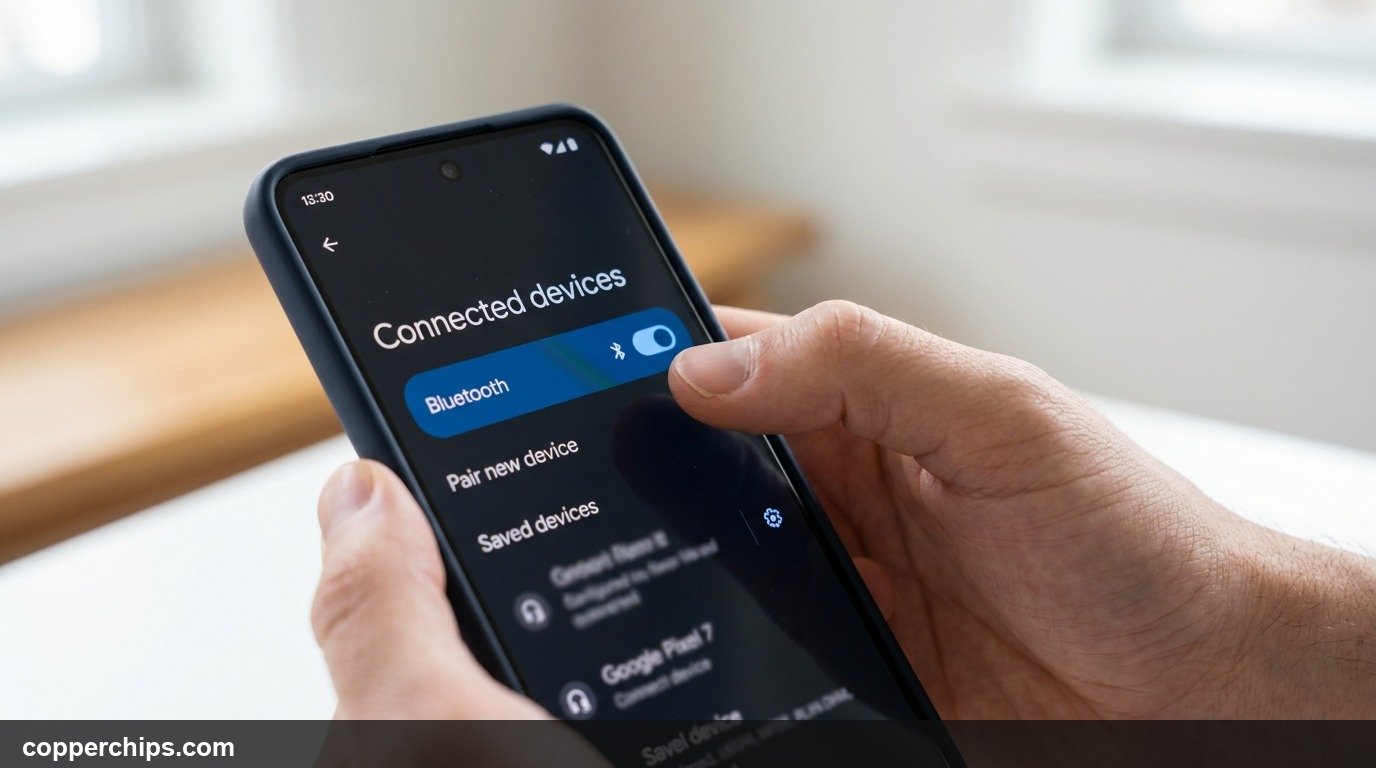
Android 14 (Google Pixel, Samsung Galaxy, and most Android phones)
Samsung One UI and stock Android 14 follow slightly different paths. Here’s both.
Via Settings (works on all Android 14 phones):
- Open the Settings app.
- Tap Connected devices.
- Tap Connection preferences.
- Tap Bluetooth.
- Toggle the switch to On (it turns blue).
Via Quick Settings (fastest method):
- Swipe down from the top of the screen twice to expand Quick Settings.
- Tap the Bluetooth icon. It highlights blue when active.
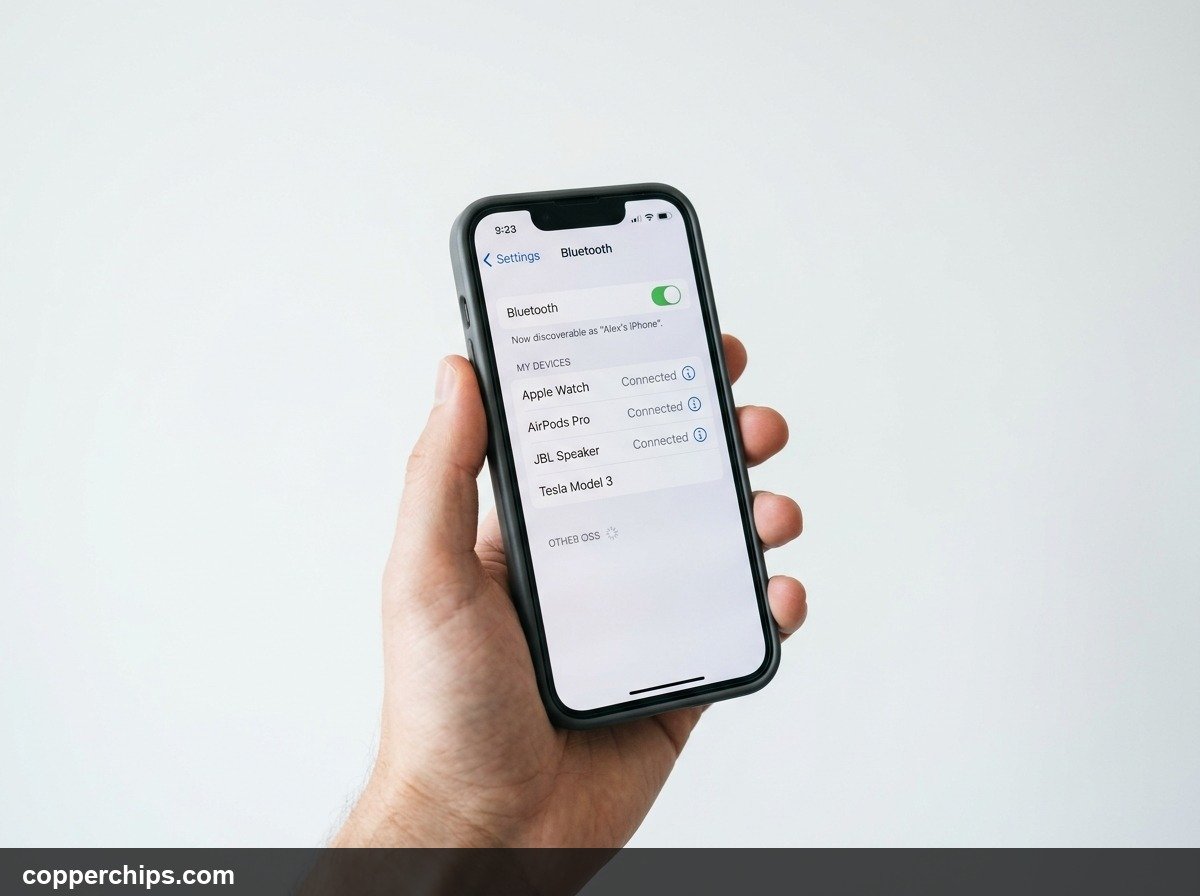
iPhone (iOS 17)
Apple keeps this straightforward on iOS 17.
- Open Settings.
- Tap Bluetooth (it appears near the top of the list).
- Toggle the switch to On (it turns green).
Your iPhone will immediately start scanning for nearby devices. You’ll see them listed under “Other Devices” within a few seconds.
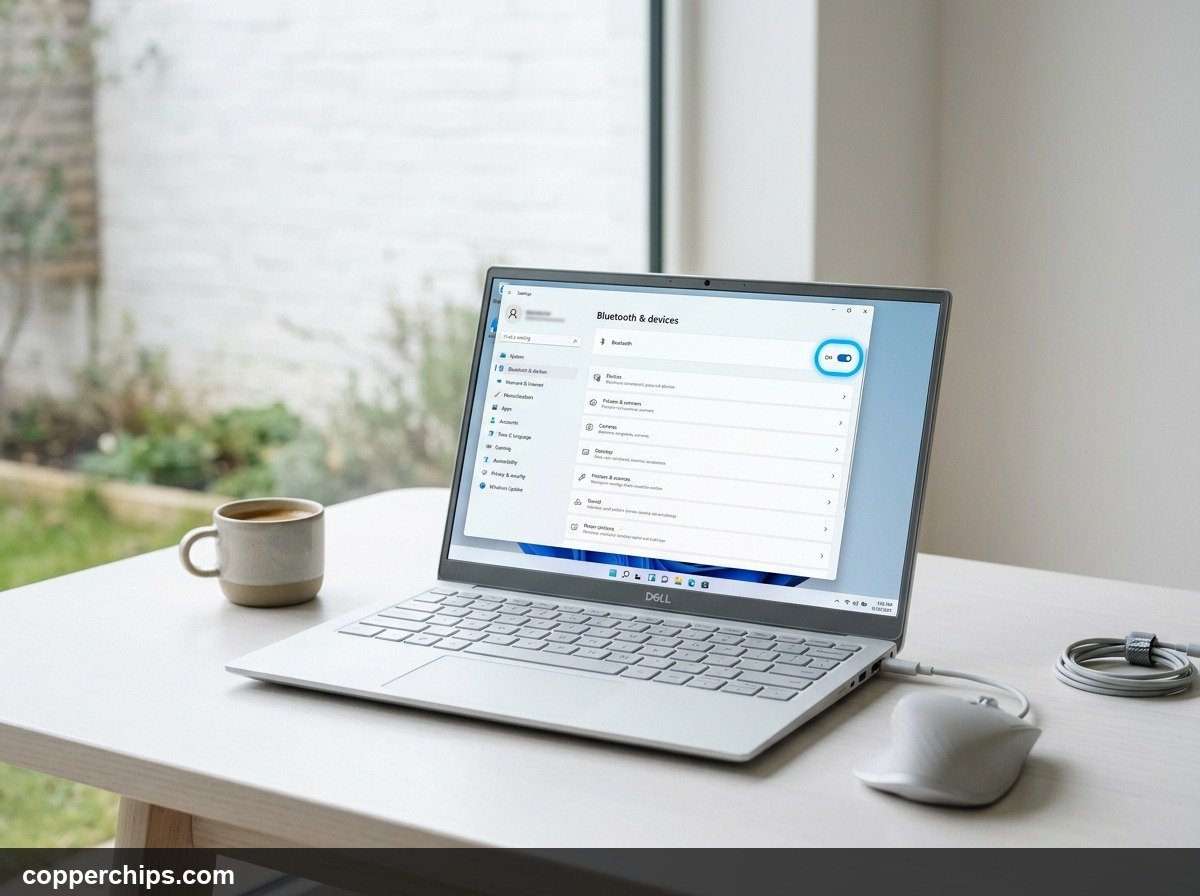
Windows 11
Windows 11 puts Bluetooth right at the top of its Settings panel.
- Press Windows + I to open Settings.
- Click Bluetooth & devices in the left sidebar.
- Toggle Bluetooth to On.
If the toggle is missing entirely, Windows does not detect a Bluetooth adapter. See the “Still Not Working?” section for the driver fix.
Windows 10
The path is slightly different from Windows 11.
- Click the Start button, then open Settings (the gear icon).
- Go to Devices.
- Click Bluetooth & other devices in the left menu.
- Toggle Bluetooth to On at the top of the page.
You can also click the Bluetooth icon in the system tray (bottom-right corner) and select Open Settings from there.
macOS Sonoma (and Ventura)
Apple rebranded System Preferences as System Settings starting with Ventura. Both work the same way.
- Click the Apple menu (top-left corner).
- Select System Settings.
- Click Bluetooth in the left sidebar.
- Click the toggle to turn Bluetooth On.
You can also click the Bluetooth icon in the menu bar and select Turn Bluetooth On if the icon is visible.
Samsung Smart TV
Not all Samsung TVs have built-in Bluetooth. Check the sticker on the back of your TV or your model’s spec sheet before spending time in Settings.
- Press the Home button on your remote.
- Go to Settings (the gear icon).
- Select Sound.
- Choose Sound Output.
- If Bluetooth Speaker List appears, your TV has Bluetooth. Select it to start pairing.
Alternatively, on newer Samsung TVs (2020 and later): Settings > General > External Device Manager > Bluetooth device list.
Amazon Fire TV Stick
- From the Fire TV home screen, go to Settings.
- Select Controllers & Bluetooth Devices.
- Choose Other Bluetooth Devices.
- Select Add Bluetooth Devices.
- Put your accessory in pairing mode. Fire TV will scan and display it.
Fire TV Stick does not have a simple on/off Bluetooth toggle. Bluetooth activates automatically when you enter the pairing screen.
Still Not Working? Try This
If you followed the steps above and Bluetooth still won’t turn on or the toggle is missing, here are the next steps.
Fix the Missing Bluetooth Toggle on Windows (Driver Reinstall)
A missing or grayed-out Bluetooth toggle on Windows almost always means the driver crashed or was removed by a Windows Update.
- Right-click the Start button and select Device Manager.
- Expand the Bluetooth section. If it’s not there, click View > Show hidden devices.
- Right-click your Bluetooth adapter (usually named something like “Intel Wireless Bluetooth” or “Realtek Bluetooth Adapter”).
- Select Uninstall device. Check the box to delete the driver software if prompted.
- Restart your PC. Windows will automatically reinstall the driver on reboot.
The Airplane Mode Toggle Reset Trick (All Devices)
This works surprisingly often when Bluetooth turns on but won’t connect or scan.
- Enable Airplane Mode on your device.
- Wait 10 seconds.
- Disable Airplane Mode.
- Go back to Settings and turn Bluetooth on manually (Airplane Mode turns it off).
This resets all wireless radios simultaneously. It clears stuck connection states that a simple Bluetooth toggle-off won’t fix.
When the Hardware Is the Problem
If none of the above works, the Bluetooth radio itself may be faulty. On laptops, this can happen after a firmware update or physical damage. On phones, it’s rare but possible after a drop.
Check your device manufacturer’s support page to see if a firmware update addresses the issue. For Windows laptops, visit the manufacturer’s driver download page (not Windows Update) and install the latest Bluetooth adapter firmware directly. For device-level hardware fixes, the options narrow down quickly.
If a hardware issue is confirmed, a USB Bluetooth 5.0 dongle is the most practical workaround for desktops and laptops.
[AFFILIATE LINK: USB Bluetooth 5.0 adapter/dongle]Frequently Asked Questions
Why is my Bluetooth toggle missing on Windows 11?
The toggle disappears when Windows can’t detect a Bluetooth adapter. This usually means the driver crashed or got removed during a Windows Update. Open Device Manager, uninstall the Bluetooth adapter entry, and restart your PC. Windows reinstalls the driver automatically. If the adapter doesn’t appear even under hidden devices, your PC may not have Bluetooth hardware built in.
Does turning Bluetooth on in the iPhone Control Center really turn it off?
No. On iOS 17, tapping the Bluetooth icon in Control Center disconnects current devices but leaves Bluetooth running in the background for handoff and AirDrop. To fully disable it, go to Settings > Bluetooth and toggle it off there.
Why can’t my TV find my Bluetooth speaker after enabling Bluetooth?
Your speaker needs to be in pairing mode at the same time your TV is scanning. Put the speaker in pairing mode first (usually a long-press on the power or Bluetooth button until the LED flashes). Then start the scan on your TV. Some TVs also limit scanning to 30-60 seconds, so timing matters.
Does Airplane Mode turn off Bluetooth?
On most devices, yes. Enabling Airplane Mode disables Bluetooth along with WiFi and cellular. On some Android phones and iPhones, you can manually re-enable Bluetooth while Airplane Mode is still on. The device remembers this preference and keeps Bluetooth on in future Airplane Mode sessions.
My Android phone says Bluetooth is on, but no devices show up. What’s wrong?
The other device needs to be in discoverable (pairing) mode for your phone to see it. Simply having Bluetooth on is not enough. Check that your headphones, speaker, or accessory has its pairing light flashing. Also check that the accessory isn’t already connected to a different phone, as most Bluetooth devices can only pair with one device at a time.
The Bottom Line
Enabling Bluetooth takes under 30 seconds on most devices once you know the right path. On Android 14, it’s Settings > Connected devices > Connection preferences > Bluetooth. On iPhone, it’s Settings > Bluetooth. Windows 11 and 10 both land in Settings, just under slightly different menu names.
If the toggle is missing on Windows, do the driver reinstall from Device Manager before assuming hardware failure. The Airplane Mode toggle trick is worth trying on any device where Bluetooth turns on but refuses to connect.
For more help with wireless connectivity issues, browse the Bluetooth troubleshooting guides on Copper Chips. And if you’re dealing with hardware-level problems on your device, the device fixes hub has platform-specific walkthroughs.
