Your router has been running for weeks without a restart. Speeds are slipping, devices keep dropping, and some things that used to work just don’t anymore. A restart fixes most of this in under two minutes, and there are three ways to do it.
This guide covers all three: the quick unplug method, the admin panel reboot, and how to schedule your router to restart itself automatically every night so you never have to think about it again.
To restart your router, unplug the power adapter from the back, wait 30 seconds, then plug it back in. Allow 1-2 minutes for it to fully reconnect. For a scheduled auto-reboot, log into your router admin panel (usually 192.168.0.1) and look for Reboot Schedule under Administration or Advanced settings.
- ✓Why it works: A router restart flushes its RAM, clears its routing table, renews DHCP leases, and resets its NAT table – fixing most slowdowns and drop issues.
- ✓Fastest method: Unplug power, wait 30 seconds, replug. No login required, works on every router brand.
- ✓Best long-term fix: Set a scheduled nightly reboot at 3am so it happens automatically without disrupting anyone.
Why Restarting Your Router Actually Helps
A router is a small computer that runs 24/7. Over days and weeks, its RAM fills up with stale connection data, its routing table accumulates dead entries, and its NAT table logs connections that ended hours ago. None of this clears itself automatically.
A restart wipes all of that. DHCP leases renew, your ISP connection refreshes, and the router picks up any firmware updates waiting to apply. Most speed and reliability problems that creep in gradually clear up immediately after a reboot.
How to Restart Your Router: 3 Methods
Method 1: Unplug and Replug (Works on Every Router)
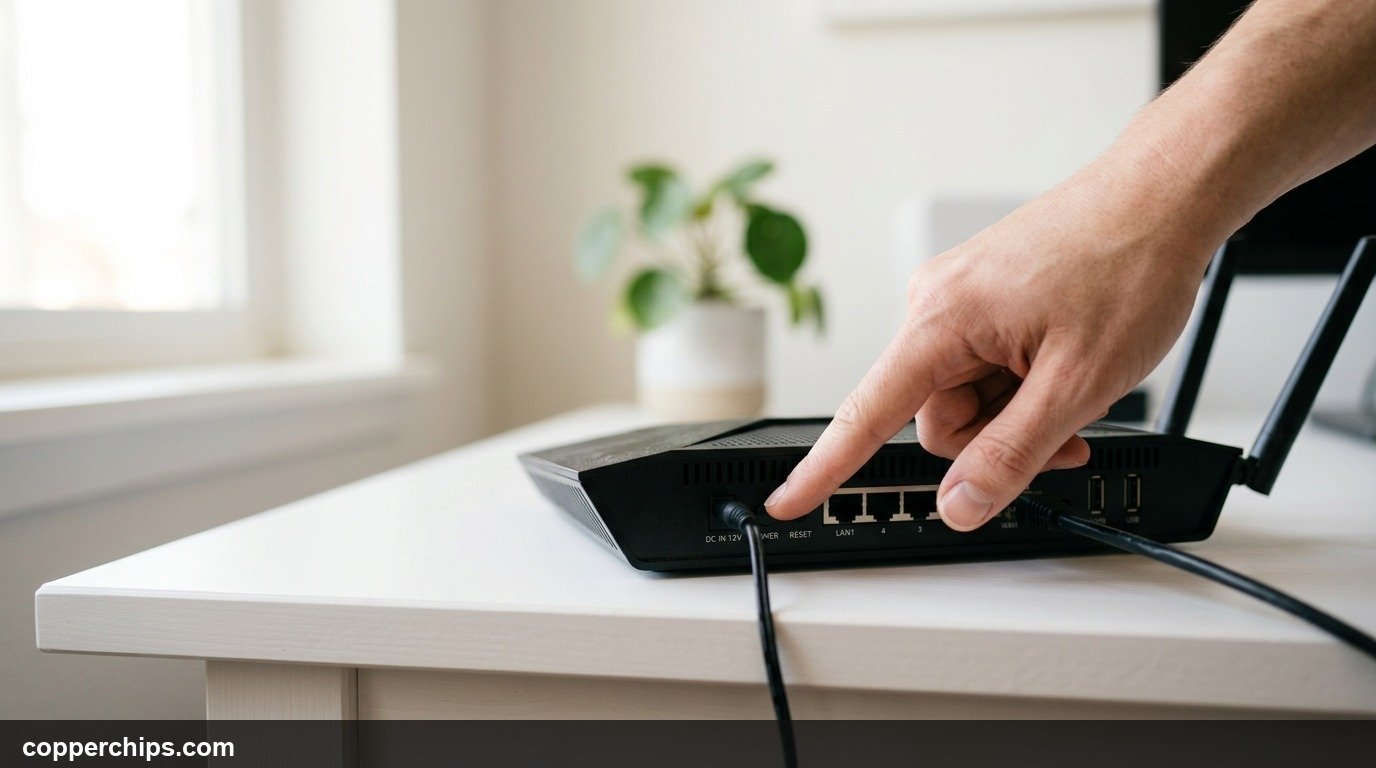
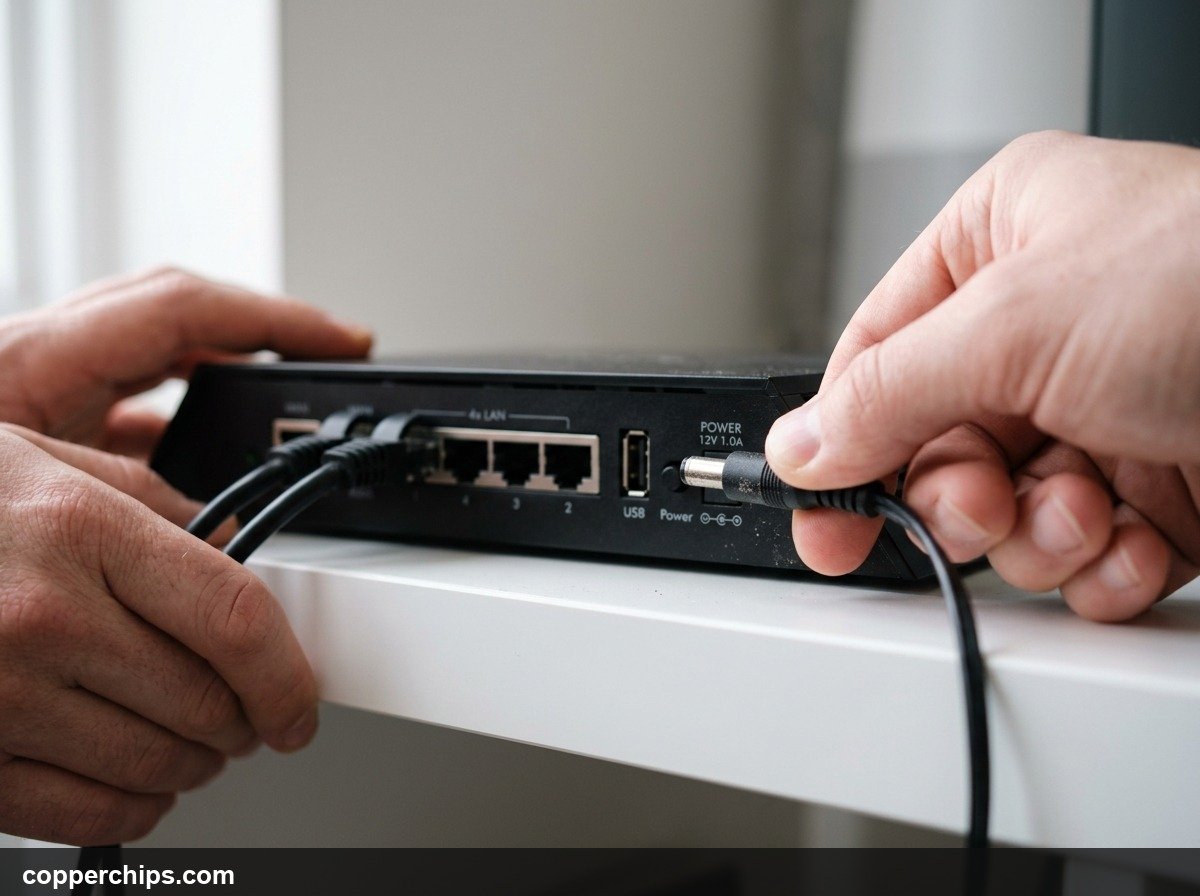
Unplug the power adapter from the back of your router. Not the ethernet cables. Just the power cable going to the wall or power brick.
- Find the power cable on the back of your router and unplug it.
- Wait 30 seconds. This fully drains the capacitors and clears RAM.
- Plug the power cable back in.
- Wait 1-2 minutes for the router to fully boot and reconnect to your modem.
The WiFi light and internet light will go solid when it is ready. If you have a separate modem, restart that first, wait for it to fully connect, then restart the router.
Method 2: Reboot via Router Admin Panel
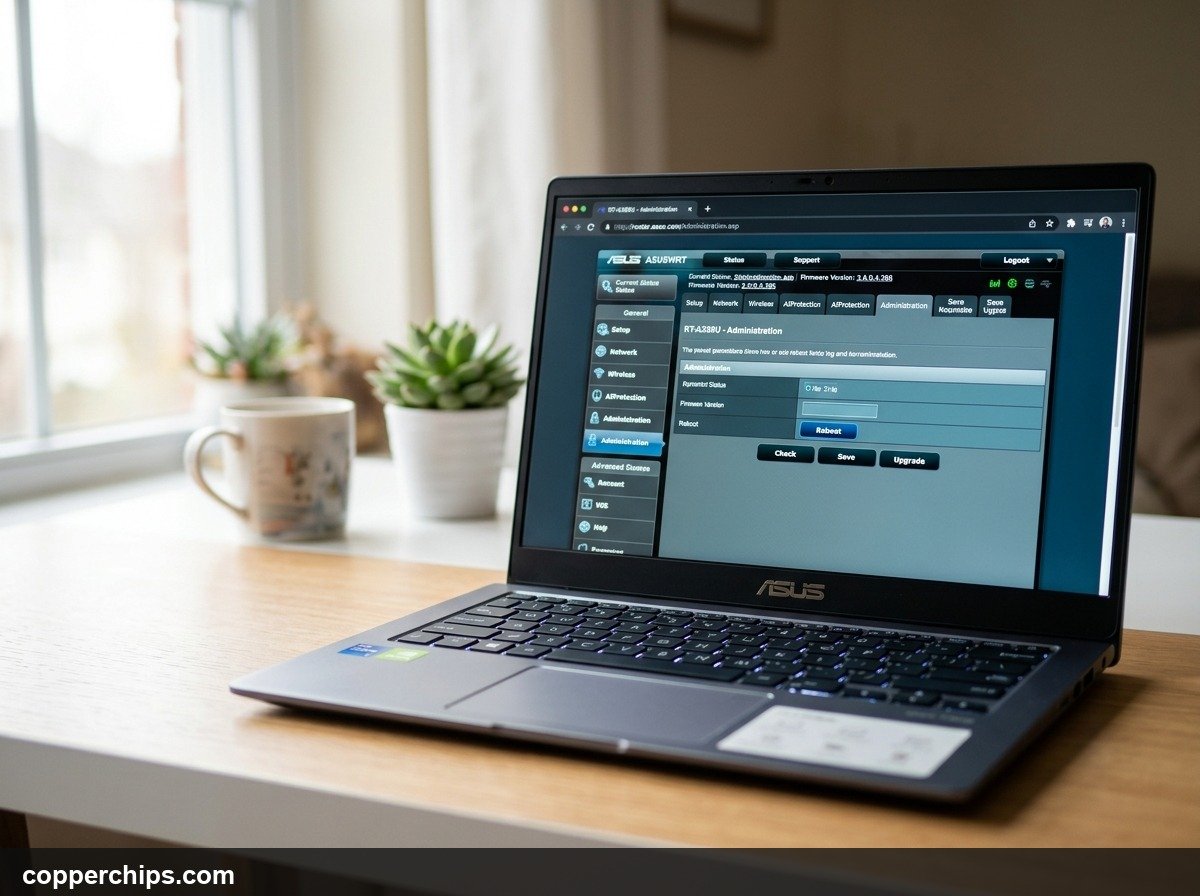
Open your browser and navigate to your router’s admin panel. This is useful when the router is mounted or difficult to reach physically.
- Open any browser on a device connected to your WiFi network.
- Type your router’s admin address into the URL bar:
- ASUS:
router.asus.comor192.168.1.1 - TP-Link:
tplinkwifi.netor192.168.0.1 - Netgear:
routerlogin.netor192.168.1.1 - Linksys:
linksyssmartwifi.comor192.168.1.1 - Eero: Use the Eero app on your phone (no browser admin panel)
- ASUS:
- Log in with your admin credentials. If you never changed them, they are on the label on the bottom of the router.
- Find the reboot option:
- ASUS: Administration > Reboot button
- TP-Link: System Tools > Reboot
- Netgear: Advanced > Reboot
- Linksys: Troubleshooting > Diagnostics > Reboot
- Click Reboot and confirm. The router will restart, taking 1-2 minutes to come back.
Method 3: Schedule an Automatic Nightly Reboot
Set your router to reboot itself every night at 3am so you never have to think about it. This is available on most consumer routers.
- Log into your router admin panel using the steps above.
- Find the reboot schedule option:
- ASUS: Administration > check “Enable Scheduled Reboot” > set time
- TP-Link: System Tools > Time Settings, then System Tools > Reboot (some models)
- Netgear: Advanced > Administration > Schedule (Nighthawk models)
- Set the time to 3am or another low-traffic hour.
- Save the setting. The router will now restart automatically at that time every day.
Still Not Working After a Restart?
If speeds are still slow or devices still drop after a restart, the problem is probably not the router.
Check if only one device is affected. If other devices connect fine, the issue is with that specific device, not the router. Forget the WiFi network on that device and reconnect from scratch.
If all devices have the same problem, restart your modem too. Unplug it, wait 30 seconds, plug it back in, and wait for its internet light to go solid before checking again. See our modem reset guide for detailed steps.
If the problem keeps coming back within hours of a restart, your router may be overheating or failing. Check that its vents are not blocked, that it is not in an enclosed cabinet, and that it has room for airflow. A router that runs hot develops exactly these symptoms.
Frequently Asked Questions
How long does it take a router to restart?
Most consumer routers take 60-90 seconds to fully restart. High-end mesh routers like Eero, Orbi, or Google Nest can take up to 3 minutes. Wait until the WiFi indicator light goes solid before testing your connection.
Will restarting my router disconnect all devices?
Yes, briefly. All devices lose WiFi during the restart. They reconnect automatically once the router comes back up, usually within 1-2 minutes. You do not need to re-enter your WiFi password.
How often should I restart my router?
Once a week is a good baseline for most home setups. Setting a scheduled nightly reboot at 3am is even better – it keeps the router fresh without any disruption since nobody is using it at that hour.
Does restarting the router change my WiFi password?
No. A restart only clears temporary memory. Your WiFi name, password, and all saved settings stay exactly as they were. A factory reset would erase your settings, but a normal restart does not.
What is the difference between restarting and resetting a router?
Restarting (rebooting) turns the router off and on – no settings change. Resetting (factory reset via the pinhole button) wipes all settings and returns the router to its out-of-box state. Always restart first. Only factory reset if restarting does not solve the problem.
The Bottom Line
A monthly restart keeps your router running cleanly. For most people, setting a scheduled 3am auto-reboot is the easiest long-term solution – the router handles it automatically and nobody notices.
If a restart does not solve your problem, the issue is likely your modem or your ISP connection. Check the Routers & Modems troubleshooting guides for deeper diagnostics.
If your router is more than 4-5 years old and restarting it weekly, it may be time to replace it. A modern Wi-Fi 6 router delivers significantly better range and reliability than older models. [AFFILIATE LINK: Wi-Fi 6 router compatible with most ISPs]