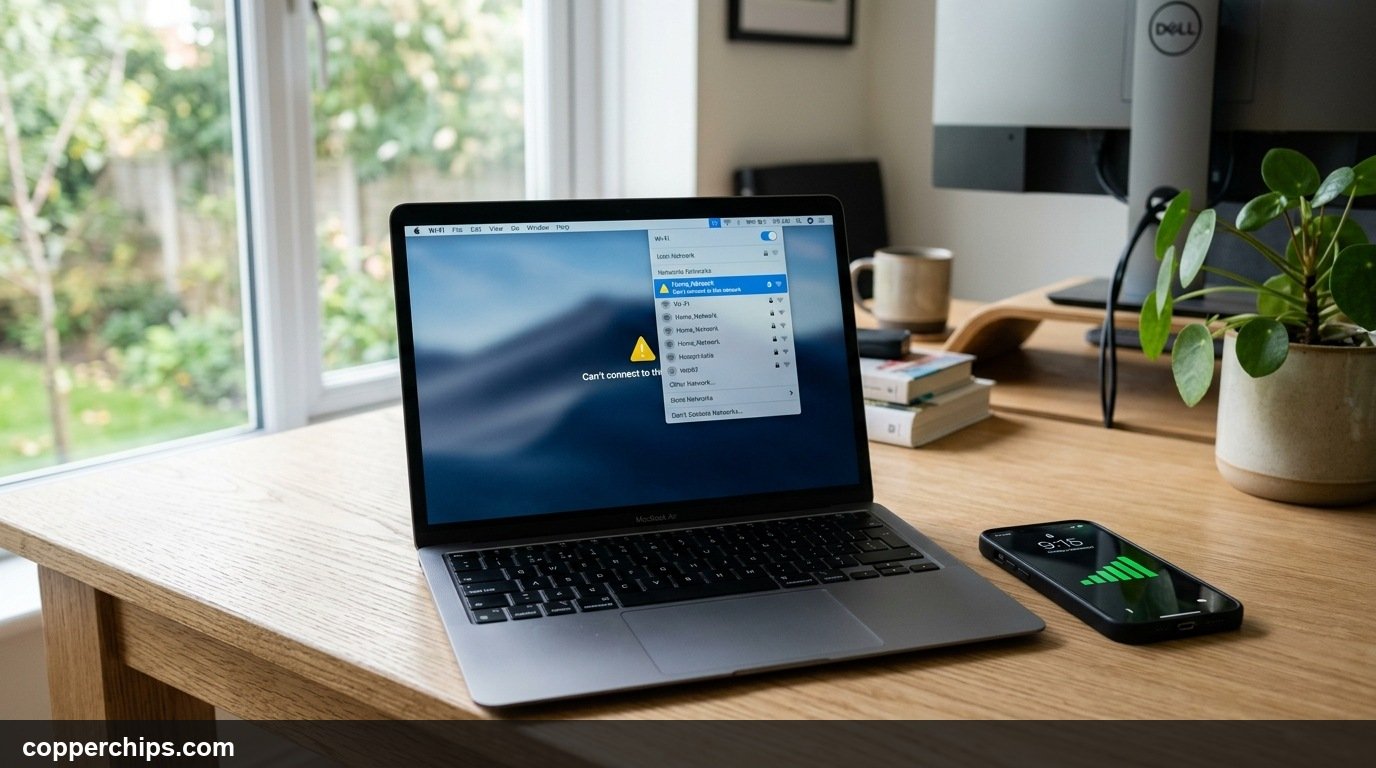
You open your laptop to join a meeting or finish work, and the Wi-Fi icon displays a globe or a yellow warning triangle. When you wonder why is my laptop not connecting to wifi while your phone and tablet stream without a hitch, the problem is almost never your internet service provider. Local operating system network stacks, outdated wireless NIC drivers, or corrupted IP allocation tables on your computer are usually to blame.
Laptops encounter unique wireless hurdles that stationary devices avoid. Moving between networks, waking from deep sleep states, and aggressive battery saver profiles can stall internal wireless adapters. This guide steps through nine diagnostic solutions to reconnect your Windows or Mac laptop to your network.
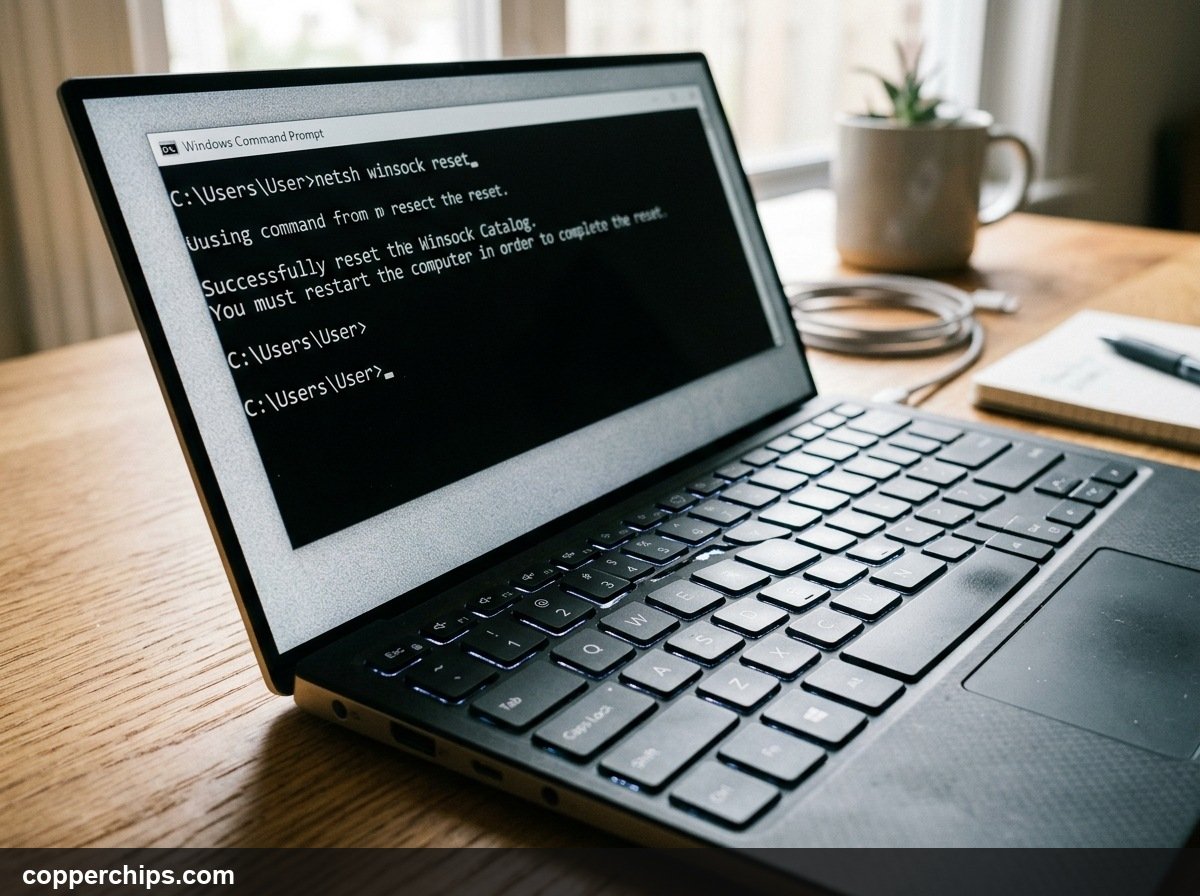
Run a complete network stack reset via Command Prompt. Open CMD as Administrator and run netsh winsock reset followed by netsh int ip reset (prescribed in Microsoft official Windows Wi-Fi troubleshooting documentation). Restart your laptop. If your laptop still fails to authenticate, open Device Manager, expand Network adapters, right-click your Wi-Fi card (such as Intel Wi-Fi 6E or Realtek, following Intel Wireless adapter clean driver installation guide), and select Uninstall device. Reboot to force Windows to rebuild the wireless driver layer.
- vIsolate the Problem: If your phone connects to the same Wi-Fi network, troubleshoot the laptop exclusively.
- vWinsock Corruption: Broken socket catalogs prevent Windows applications from communicating with the physical antenna.
- vPower Management Glitch: Windows sleep modes frequently turn off wireless cards and fail to wake them.
Why Your Laptop Drops or Refuses Wi-Fi Connections
Laptops maintain aggressive power management routines designed to stretch battery life. When you close the lid or step away, the operating system cuts power to the PCIe or M.2 Wi-Fi module. Upon wake, an unhandled driver timeout can leave the wireless card stuck in a powered-off sleep state.
Operating system updates also frequently replace vendor-optimized wireless drivers with generic Microsoft generic builds. These generic drivers often lack proprietary roaming sensitivity routines, causing connection timeouts when communicating with modern Wi-Fi 6 mesh routers.
Finally, IP lease conflicts can freeze network traffic. If your router assigns your laptop an IP address that another household device claimed while your laptop slept, your computer will display “Can’t connect to this network” or “No Internet, Secured.”
How to Fix a Laptop That Won’t Connect to Wi-Fi: 9 Solutions
Fix 1: The 30-Second Winsock and TCP/IP Stack Flush
Reset the low-level Windows networking sockets using elevated terminal commands. Winsock defines how Windows network software accesses network services, and resetting it clears stale routing tables.
- Press the Windows Key, type cmd, right-click Command Prompt, and select Run as administrator.
- Type
netsh winsock resetand press Enter. - Type
netsh int ip resetand press Enter. - Type
ipconfig /flushdnsand press Enter. - Restart your laptop.
This sequence wipes corrupted socket entries and clears outdated DNS resolution records. Once Windows reboots, it rebuilds a clean network communication layer.
Fix 2: Forget and Re-Join the Wi-Fi Network
Purge stored encryption keys and connection profiles from your laptop registry. When routers update firmware or rotate WPA security handshakes, stored profile data can mismatch.
- Click the Wi-Fi icon in your Windows taskbar (or open Settings > Network & internet > Wi-Fi).
- Click Manage known networks.
- Find your home network name and click Forget.
- Toggle Wi-Fi off, wait 10 seconds, and toggle it back on.
- Select your network from the available list, enter your Wi-Fi password carefully, and click Connect.
Re-authenticating forces the router and laptop to exchange a brand-new WPA2 or WPA3 four-way handshake.
Fix 3: Release and Renew IP Address via Command Prompt
Request a fresh dynamic IP lease from your router DHCP server. Laptops often hold onto stale IP addresses that expired while the machine was asleep or out of the house.
- Open Command Prompt as administrator.
- Type
ipconfig /releaseand press Enter. (Your active connection will drop temporarily). - Type
ipconfig /renewand press Enter. - Wait 10 to 15 seconds while the router assigns a clean IPv4 address.
If your router had assigned an IP address collision, this command assigns an unused address block automatically.
Fix 4: Reinstall the Wireless Network Adapter Driver
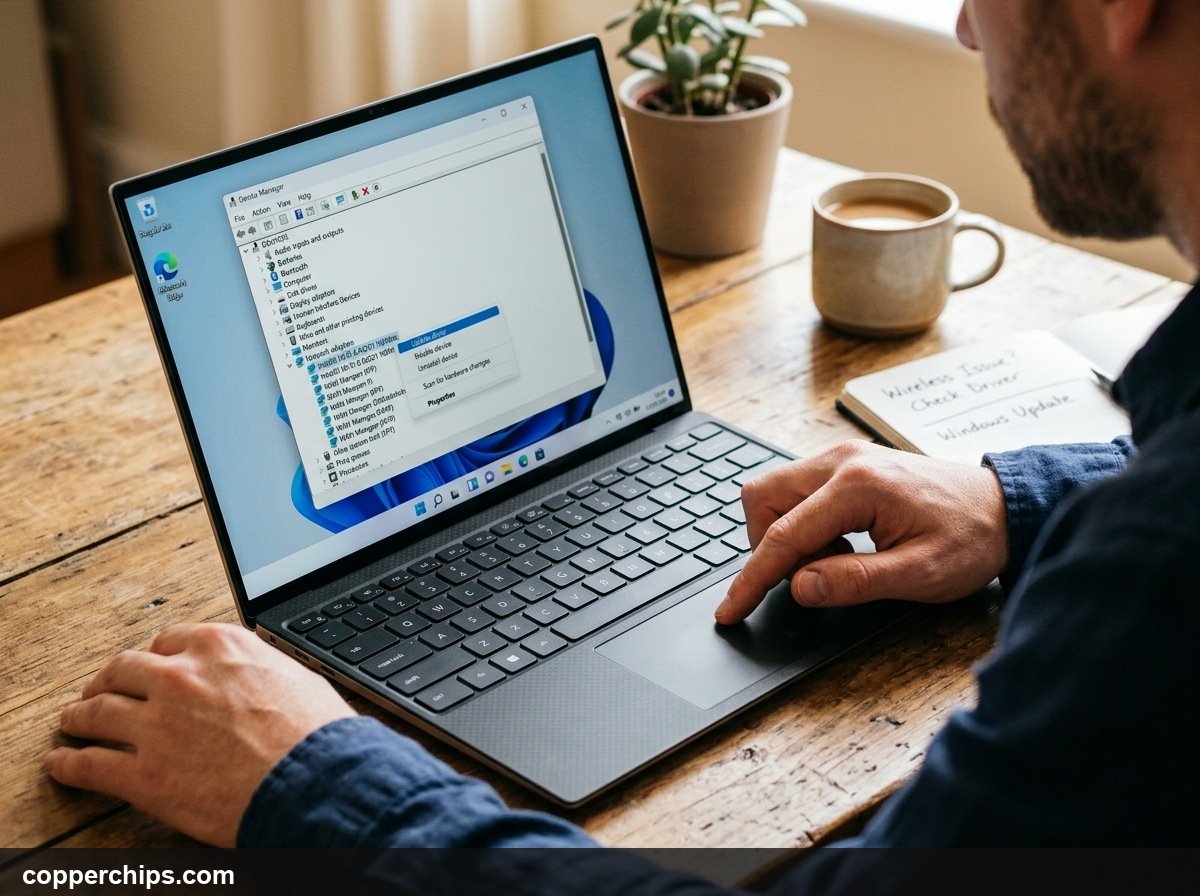
Remove corrupted wireless hardware drivers through Windows Device Manager. Driver binaries can degrade after cumulative system updates or abrupt hard reboots.
- Right-click the Start button and select Device Manager.
- Expand the Network adapters branch.
- Locate your wireless card (common names include Intel Wi-Fi 6 AX200, Realtek RTL8821CE, or Qualcomm Atheros).
- Right-click the wireless adapter and choose Uninstall device.
- Leave the “Attempt to remove the driver for this device” box unchecked, and click Uninstall.
- Restart your laptop.
During restart, Windows detects the unassigned wireless hardware and reinstalls a fresh driver instance from the local driver store.
Fix 5: Disable Wi-Fi Power Saving Sleep States
Stop Windows from powering down your wireless card to conserve battery. This setting is the primary culprit when laptops disconnect from Wi-Fi immediately after waking from sleep.
- Open Device Manager and expand Network adapters.
- Right-click your wireless card and select Properties.
- Click the Power Management tab at the top. (If this tab is missing on your model, your system uses modern standby).
- Uncheck Allow the computer to turn off this device to save power.
- Click OK to save changes.
Disabling this function ensures uninterrupted power delivery to the internal wireless antenna even on low battery levels.
Fix 6: Check Physical Wi-Fi Switches and Airplane Mode
Verify that hardware-level radio cutoffs have not engaged accidentally. Many business laptops feature physical slide switches or keyboard shortcuts that cut power to all wireless transmitters.
- Keyboard Function Keys: Look at keys F1 through F12 for a radio tower or airplane symbol. Press Fn + [Key] to toggle the hardware state.
- Physical Chassis Switch: Inspect the left, right, and front edges of older Lenovo ThinkPad, Dell Latitude, and HP ProBook laptops for an antenna slider switch.
- Action Center: Click the network icon on the taskbar, toggle Airplane mode on for 5 seconds, and toggle it off.
Fix 7: Split 2.4GHz and 5GHz Network Bands on Your Router
Bypass band-steering confusion by connecting directly to a dedicated frequency. Modern routers merge 2.4GHz and 5GHz into a single network name, which can cause older laptop chips to drop connections.
- Log into your router admin panel using a browser (typically
192.168.1.1or192.168.0.1). - Navigate to Wireless Settings.
- Disable Smart Connect or Band Steering.
- Name the 2.4GHz network (for example, “Home_2.4G”) and the 5GHz network (“Home_5G”).
- Connect your laptop to the 5GHz band for speed or 2.4GHz for distance through walls.
Fix 8: Perform a Windows Network Reset
Reinstall all network adapters and restore factory networking components. If specific VPN software or virtual network switches broke your network routing, this nuclear option fixes it.
- Open Settings and click Network & internet.
- Scroll to the bottom and click Advanced network settings.
- Click Network reset.
- Click Reset now and confirm with Yes.
- Allow your laptop to reboot automatically after five minutes.
This process removes third-party VPN virtual adapters and restores factory default settings across your entire operating system.
Fix 9: Clear macOS Wi-Fi (see Apple official Mac Wi-Fi connection troubleshooting guide) Configuration Plist Files (MacBooks)
Purge corrupt network preference files on Apple macOS. Corrupted configuration plists can lock Apple silicon and Intel MacBooks into endless authentication loops.
- Turn off Wi-Fi on your Mac.
- Open Finder, click Go in the top menu bar, and select Go to Folder…
- Paste
/Library/Preferences/SystemConfiguration/and press Return. - Locate and delete these files (drag them to Trash):
com.apple.airport.preferences.plistcom.apple.network.identification.plistNetworkInterfaces.plistpreferences.plist
- Restart your Mac and turn Wi-Fi back on.
macOS automatically generates clean, uncorrupted configuration plists upon reboot.
Still Not Working? Try This
If your laptop fails to detect any wireless networks anywhere (including your phone mobile hotspot), test your internal hardware. An internal antenna cable may have detached from the M.2 Wi-Fi card after an accidental drop. Alternatively, the internal wireless module itself may have suffered electrostatic discharge failure.
Instead of paying for expensive motherboard repairs, you can plug in an inexpensive miniature USB Wi-Fi adapter. These thumb-sized dongles feature independent internal antennas and bypass faulty internal wireless cards entirely.
[AFFILIATE LINK: Dual-Band USB 3.0 Wi-Fi 6 Adapter Dongle]Frequently Asked Questions
Why does my laptop say Can’t connect to this network?
This error indicates that your laptop can see the router beacon, but the connection handshake timed out. The most common causes are corrupted IP routing tables, an incorrect Wi-Fi password stored in memory, or wireless driver desynchronization.
Why does my phone connect to Wi-Fi but my laptop won’t?
Smartphones use newer mobile modems with different roaming logic and frequency bands. If your phone connects successfully, your router and internet connection are fully functional. The issue is confined to your laptop wireless adapter or operating system network stack.
Will resetting my network settings delete my files?
No. A network reset only reinstalls network adapter drivers and clears saved Wi-Fi passwords and VPN profiles. Your personal documents, downloads, desktop files, and browser bookmarks remain completely safe.
Why does my laptop Wi-Fi keep disconnecting randomly?
Intermittent disconnections usually stem from Windows power management turning off the wireless card to save power, or aggressive band-steering switching between 2.4GHz and 5GHz frequencies. Disabling power saver on the adapter in Device Manager typically stabilizes the connection.
The Bottom Line
Diagnosing a laptop that refuses to connect to Wi-Fi takes only a few targeted steps. Begin with the 30-second Winsock and TCP/IP stack reset in Command Prompt, then forget and re-join your network to establish fresh encryption keys.
For more home network diagnostics, read our guide on fixing Wi-Fi connected but no internet access or learn how to restart your router properly.