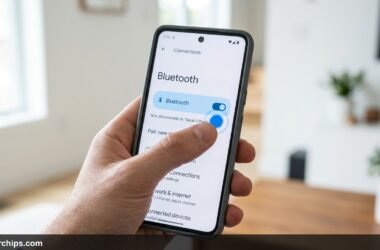
Few tech glitches feel as irritating as seeing your wireless headphones report a successful connection while your phone or laptop remains completely silent. You tap play, the playback slider advances, yet not a single decibel reaches your ears. The operating system insists everything works, but your audio remains trapped inside the host device.
When your device shows Bluetooth connected but no sound plays, the root cause is almost always an audio routing mismatch rather than a broken radio link. Your operating system has paired the device under a hands-free telephony profile rather than media streaming, or the system audio output remains pegged to your internal speakers. Tap the sound icon on your taskbar or swipe down to your media control center, manually select your Bluetooth device as the active playback output, and disable Bluetooth absolute volume in your developer or sound control settings.
- vPrimary Cause: The host system maintained the radio handshake but routed audio output to internal speakers or an inactive protocol.
- vFastest Fix: Open Windows Sound Settings or mobile Media Output and manually switch playback to the Bluetooth headset.
- vEscalation Step: Delete the device pairing profile, restart the Bluetooth audio service, and pair from a fresh discovery state.
Why Does Bluetooth Show Connected But No Sound Plays?
Bluetooth connections establish multiple independent communication channels between two devices. A keyboard needs an input channel. A mouse sends pointer coordinates. Wireless earbuds require both a control channel and a high-bandwidth audio streaming channel.
According to the Bluetooth SIG Advanced Audio Distribution Profile documentation, standard wireless stereo playback relies on the A2DP profile. When you connect a headset, your device also establishes a Hands-Free Profile (HFP) or Headset Profile (HSP) for phone calls. If your phone or computer assigns the connection purely as an input or voice device, music and video audio will not route to the speakers.
Software conflicts cause another large percentage of silent connections. Operating systems frequently keep audio mapped to built-in laptop speakers even after recognizing an external speaker. In other cases, volume synchronization bugs peg the hardware output to zero decibels despite your on-screen slider showing 80 percent.
How to Fix Bluetooth Connected But No Sound: 8 Solutions
Work through these fixes starting with the quickest routing checks. Most users resolve the issue within the first three steps without resetting their operating system.
Fix 1: Switch Your Default Audio Playback Device
The most common culprit on Windows and Mac computers is an unassigned default playback device. Your computer happily pairs with the headphones, but Windows leaves your Realtek internal speakers as the active audio sink.
Here is how to set the default output on Windows 11 and Windows 10:
- Click the Sound icon in your Windows taskbar system tray near the clock.
- Click the Select a sound output arrow icon located next to the main volume slider.
- Select your connected Bluetooth headphones or speaker from the list.
- If the device does not appear, open Settings, navigate to System > Sound, and review the Microsoft official Windows audio troubleshooting guide.
- Scroll down to More sound settings to open the classic Sound Control Panel.
- Right-click your Bluetooth headset in the Playback tab and click Set as Default Device and Set as Default Communication Device.
On macOS, click the Control Center icon in the top menu bar, click Sound, and select your Bluetooth headphones under Output. If you use an iPhone or iPad, swipe down to open the Control Center, tap the small triangular AirPlay audio icon in the top-right corner of the music widget, and verify the checkmark sits next to your Bluetooth device, as outlined in Apple official audio device output documentation.
Fix 2: Inspect Hardware Volume and Disable Absolute Volume
Independent volume controls frequently fool users into thinking audio has failed. Many Bluetooth speakers and headphones retain their own internal hardware volume level separate from your computer or phone slider.
Turn the physical volume dial or press the volume-up button directly on your headphones. You may hear an internal beep confirming the hardware volume was resting at zero.
On Android phones, a known software bug known as Absolute Volume can lock your media stream at inaudible levels. You can disable this setting through Android Developer Options:
- Open Settings and tap About Phone.
- Tap Build Number seven consecutive times until you see the prompt confirming Developer Mode is active.
- Return to the main Settings menu and tap System > Developer options.
- Scroll down to the Networking category.
- Locate Disable absolute volume and toggle the switch to ON.
- Restart your phone and test audio playback.
Fix 3: Disconnect and Re-Select Audio Profile in Settings
Modern operating systems let you selectively enable or disable specific Bluetooth profiles for each paired device. If the Media Audio profile toggled off accidentally, your phone will handle calls through the headphones but refuse to send music or podcast sound.
Check your audio profile on Android with these steps:
- Open Settings and tap Connected devices.
- Tap the gear icon next to your connected Bluetooth device name.
- Examine the toggle switches under the Use For section.
- Verify that Media audio is switched ON.
- If the switch is already on, toggle Media audio off for five seconds, then toggle it back on.
On Windows, open Settings > Bluetooth & devices > Devices. Under the Audio header, confirm your device displays Connected music, voice rather than merely Connected voice. If it only displays voice, disconnect the device and reconnect it while closing any active VoIP apps like Zoom or Teams.
Fix 4: Restart the Windows Bluetooth Audio Gateway Service
Windows relies on dedicated background system services to broker digital audio streams across the Bluetooth adapter. If these services hang during system sleep or resume cycles, audio data halts even though the device stays paired.
Restart these background audio services manually:
- Press the Windows Key + R to open the Run dialog box.
- Type
services.mscand press Enter. - Scroll down the alphabetized list to locate Bluetooth Audio Gateway Service.
- Right-click the service and click Restart. If the service stopped, click Start.
- Right-click Bluetooth Support Service and select Restart.
- Double-click both services, set their Startup type to Automatic, and click Apply.
- Restart your media player app and test playback.
Restarting these services purges stalled audio buffers without forcing a full computer reboot. This solution works particularly well when audio cuts out after your laptop wakes from sleep mode.
Fix 5: Unpair, Forget Device, and Perform a Fresh Connection
Bluetooth pairing profiles cache encryption keys, supported audio codecs, and buffer parameters. Over time, firmware updates or multiple host handoffs corrupt this cached handshake data. A full unpair forces both ends to renegotiate supported codecs from scratch.
Follow this sequence to ensure a clean slate:
- Open the Bluetooth settings on your phone, tablet, or PC.
- Locate your audio device and tap Forget This Device or Remove Device.
- Turn off Bluetooth on your host device for ten seconds.
- Place your headphones or speaker into active pairing mode. Most units require holding the power or pairing button for five to seven seconds until an LED flashes rapidly.
- Turn Bluetooth back on, scan for new devices, and select your headset.
If you recently set up a new phone or laptop, reviewing our guide on how to enable Bluetooth on any device covers exact operating system pairing paths across all current platforms. Pairing fresh eliminates legacy codec conflicts that accumulate across major OS updates.
Fix 6: Clear Bluetooth Cache and Network Settings (Mobile)
Smartphones store temporary connection tables for every Bluetooth accessory you have ever paired. When this internal cache exceeds memory allocations, routing tables fail to bind the audio stream to newly active connections.
Clear the system Bluetooth cache on Android:
- Open Settings and tap Apps (or Apps & Notifications).
- Tap See all apps, then tap the three dots in the top-right corner and choose Show system apps.
- Scroll down and select Bluetooth from the list.
- Tap Storage & cache.
- Tap Clear Cache, then tap Clear Storage (or Clear Data).
- Restart your phone.
On Apple devices, iOS does not expose a standalone Bluetooth cache button. You can achieve the same reset by opening Settings > General > Transfer or Reset iPhone > Reset > Reset Network Settings. This action flushes all temporary Bluetooth and Wi-Fi pairing caches, restoring default wireless stack behavior.
Vehicle audio systems encounter this issue regularly. If you struggle with automotive audio routing specifically, our breakdown on why your phone will not connect to your car addresses car stereo handshakes and Apple CarPlay wireless sync bugs.
Fix 7: Reinstall Host Bluetooth and Audio Drivers (PC)
Corrupted driver files cause persistent audio silence on desktop and laptop computers. Windows Update frequently installs generic audio drivers that fail to negotiate proprietary codecs like aptX or AAC with third-party headphones.
Cleanly reinstall your Bluetooth driver using Device Manager:
- Right-click the Windows Start button and select Device Manager.
- Expand the Bluetooth category.
- Right-click your primary Bluetooth adapter (such as Intel Wireless Bluetooth or Realtek Bluetooth Adapter) and choose Uninstall device.
- Leave the checkbox to delete driver software unchecked, and click Uninstall.
- Expand the Sound, video and game controllers category.
- Right-click your Bluetooth headset entry and select Uninstall device.
- Click Action on the top menu bar of Device Manager and select Scan for hardware changes.
- Windows will automatically reinstall clean base drivers for your adapter and headset.
After scanning for changes, restart your PC. Visit your laptop manufacturer support portal (such as Dell, Lenovo, or HP) to download the latest OEM Bluetooth package if the default Windows driver remains silent.
Fix 8: Perform a Hardware Factory Reset on Your Audio Device
When the host operating system checks out cleanly, the issue sits inside the internal microprocessor of your headphones or speaker. Micro-controllers inside modern wireless earbuds crash when alternating between multiple paired devices like a tablet, phone, and television.
A hardware reset clears the internal memory of the headphones, resets volume offsets to factory unity, and erases stored multi-point connection links.
Standard reset procedures by brand include:
- Apple AirPods: Place both AirPods in the case, open the lid, and hold the setup button on the back of the case for 15 seconds until the status light flashes amber, then white. If one earbud refuses to output sound or charge, consult our guide on why only one AirPod is charging.
- Sony Headphones (WH-1000XM4 / XM5): Connect the headphones to a USB power source, then press and hold both the Power and Custom buttons simultaneously for more than seven seconds until the blue indicator light flashes four times.
- Bose QuietComfort: Connect the charging case to power, place the earbuds inside, and hold the Bluetooth button on the case for 30 seconds until the LEDs blink.
- JBL / Anker Speakers: Power on the speaker, then press and hold the Volume Up and Play/Pause buttons together for five to ten seconds until the unit shuts down automatically.
Still Not Working? Try This
If your device reports connected status and remains completely silent after trying all eight fixes, you must isolate whether the failure sits on the sending or receiving end.
Pair your Bluetooth headphones with a completely different device, such as a friend’s phone or a secondary tablet. If sound plays immediately on the second device, your headphones are fully functional. The problem lies inside your primary computer or phone operating system.
Check for active multi-point pairing conflicts. Premium modern headphones support dual-device connectivity. If your headphones stay paired to a nearby tablet playing a paused video or muted ad, the headphones will lock their audio channel to that secondary device and block audio from your phone.
Disable Bluetooth on all other phones, tablets, and smart TVs in your household. This prevents aggressive background handshakes from hijacking the audio stream before your primary device sends music packets.
Finally, inspect physical headphone hardware. If you use wired-to-wireless hybrid headphones with a 3.5mm auxiliary port, a dirty or stuck detection switch inside the headphone jack can trick the unit into thinking a physical cable is plugged in. Insert and remove a clean 3.5mm plug three times to unstick the internal physical switch.
Frequently Asked Questions
Why does Bluetooth say connected for calls but not audio?
This happens when your device establishes the Hands-Free Profile (HFP) for telephone conversations but fails to start the Advanced Audio Distribution Profile (A2DP) for stereo music. On Android, open your Bluetooth device settings and ensure the Media Audio toggle is active. On Windows, verify your headphones are configured as the Default Playback Device rather than only the Default Communication Device.
Why are my Bluetooth headphones silent on Windows but working on my phone?
Windows does not automatically switch default sound playback outputs when a new Bluetooth peripheral joins an active session. Click the speaker icon in your system tray, open the sound output switcher, and manually select your headphones. You should also check Device Manager to verify your PC Bluetooth adapter drivers are fully updated.
Can Bluetooth interference cause complete silence?
Severe wireless interference typically causes stuttering, clicking, or rapid dropouts rather than continuous, clean silence. If your audio drops completely while the connection icon stays solid, the issue is software routing or volume synchronization. Complete silence caused by radio interference will drop the entire Bluetooth connection within ten seconds.
Why does sound come out of my phone speakers when Bluetooth is connected?
Your smartphone operating system has not assigned the active media output routing to your wireless device. Swipe down to open your notification shade or Control Center, tap the Media Output or AirPlay button, and select your Bluetooth headphones directly from the audio device list.
Does restarting Bluetooth delete my paired devices?
Toggling your Bluetooth radio off and on or restarting background Bluetooth system services will not delete your saved pairings. Choosing Forget Device or running a full Network Settings Reset will clear your saved Bluetooth accessories, requiring you to pair them again.
The Bottom Line
A Bluetooth connection showing connected status without audio almost never means your hardware is broken. In over 90 percent of cases, the operating system has misdirected audio to an internal speaker, hung a background audio gateway service, or suppressed volume through an absolute volume synchronization bug.
Begin by verifying your active playback output in sound settings. If that fails to direct audio to your ears, unpair the device completely and perform a fresh handshake. If you are configuring wireless accessories across other household gear, check our companion guides on how to enable Bluetooth on any device and automotive pairing to keep all your wireless gear running reliably.