You pay for a high-speed fiber or gigabit cable broadband connection, purchase a modern dual-band wireless router, and sit down to stream or game on your laptop. But when you open your available network list, only the crowded, sluggish 2.4 GHz frequency appears. Your dedicated high-speed network is nowhere to be found. When your 5GHz WiFi not showing up on your PC, smartphone, or television, you are cut off from the fastest wireless speeds your internet provider delivers.
A missing 5GHz Wi-Fi network is most frequently caused by the router broadcasting on a DFS (Dynamic Frequency Selection) radar channel (channels 52 to 144) that your client device cannot legally or physically detect, or by unified SSID band steering combining both 2.4GHz and 5GHz into a single hidden name. To fix it immediately: log into your router admin console (192.168.1.1), change the 5GHz channel manually to a standard non-DFS channel (such as channel 36, 40, 44, or 149), separate your network names into distinct 2.4GHz and 5GHz SSIDs, and verify that your device network adapter supports 802.11a/ac/ax protocols.
- ✓DFS Channel Lockout: Routers configured to Auto Channel frequently select radar-shared DFS frequencies (52 to 144) that many phones, TVs, and PCs cannot receive.
- ✓Band Steering Confusion: When a router merges 2.4GHz and 5GHz under one unified network name, the dedicated 5GHz label disappears from your device list.
- ✓Adapter Mode Limits: Legacy wireless chipsets limited to 802.11b/g/n lack the physical 5GHz radio hardware required to detect high-frequency signals.
Why Your 5GHz WiFi Network Disappears
Wireless networking operates across distinct radio frequency spectrums regulated by telecommunications standards. While 2.4 GHz signals travel long distances and easily penetrate drywall, they offer restricted bandwidth and suffer from heavy household interference. In contrast, 5 GHz Wi-Fi provides wide, high-speed channels designed for 4K streaming and gigabit downloads. When this network suddenly vanishes, specific technical conditions are behind the blackout.
The primary culprit is Dynamic Frequency Selection (DFS). According to spectrum rules defined by official telecommunications authorities, portions of the 5 GHz band (specifically channels 52 through 144) are shared with weather radar, military installations, and commercial aviation radar systems. When a home router operating on Auto mode hops onto a DFS channel to escape neighborhood congestion, any connected device lacking certified DFS radar-detection firmware simply ignores the broadcast. To that client laptop or phone, the network does not exist.
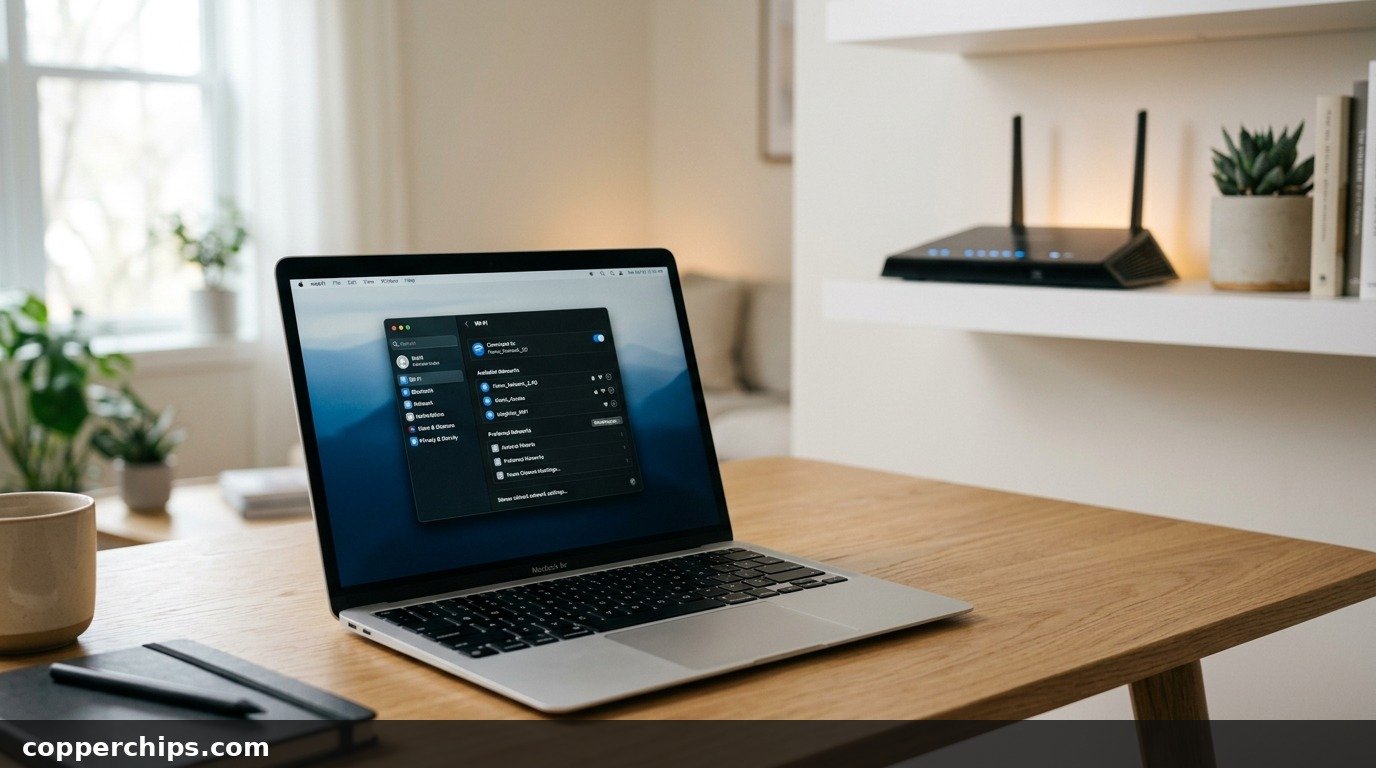
The second widespread reason is modern mesh band steering. Internet service providers and router manufacturers increasingly deploy unified SSIDs out of the box. Instead of seeing separate network names like “SmithHome_2.4G” and “SmithHome_5G”, your router broadcasts a single network called “SmithHome”. The router firmware attempts to steer modern devices onto 5 GHz automatically while shunting smart plugs to 2.4 GHz. If you are looking for a separate 5 GHz SSID in your network menu, you will never see it because the router has masked it behind a single unified broadcast.
Third, client hardware and driver settings can block 5 GHz reception. In Windows Device Manager, wireless network cards contain selectable operational modes. If an operating system update or power-saving profile forces the adapter into 802.11b/g/n mode, the physical 5 GHz receiver radio shuts down. Additionally, if the router broadcasts at an ultra-wide 160 MHz channel width that an older 80 MHz client card cannot parse, the broadcast will fail to populate.
How to Fix 5GHz WiFi Missing: 7 Proven Solutions
Follow these troubleshooting steps sequentially, starting with confirming client hardware compatibility before logging into your router admin panel to adjust channel and band steering settings.
Fix 1: Verify That Your Device Hardware Supports 5GHz Wi-Fi
Before modifying router configurations, confirm that your computer or device actually contains a dual-band Wi-Fi radio. Single-band budget laptops, older streaming boxes, and inexpensive smart home hardware are physically manufactured with only a 2.4 GHz transceiver.
- On Windows 10 or 11: Right-click the Start button and select Terminal or Command Prompt.
- Type the diagnostic command:
netsh wlan show driversand press Enter. - Look for the line labeled Radio types supported.
- If the output displays 802.11a, 802.11ac, or 802.11ax, your computer hardware fully supports 5 GHz Wi-Fi.
- If the output only lists 802.11b, 802.11g, and 802.11n, your internal network card is a single-band 2.4 GHz card and cannot see 5 GHz signals without an external USB Wi-Fi dongle.
- On Mac: Hold the Option key and click the Wi-Fi icon in your top menu bar, then click System Information > Network > Wi-Fi. Review the Supported PHY Modes section for 802.11ac or 802.11ax.
Confirming your hardware capabilities prevents wasting hours tweaking software settings on a device that lacks physical 5 GHz radio reception.
Fix 2: Switch Router 5GHz Channel Away from DFS Frequencies
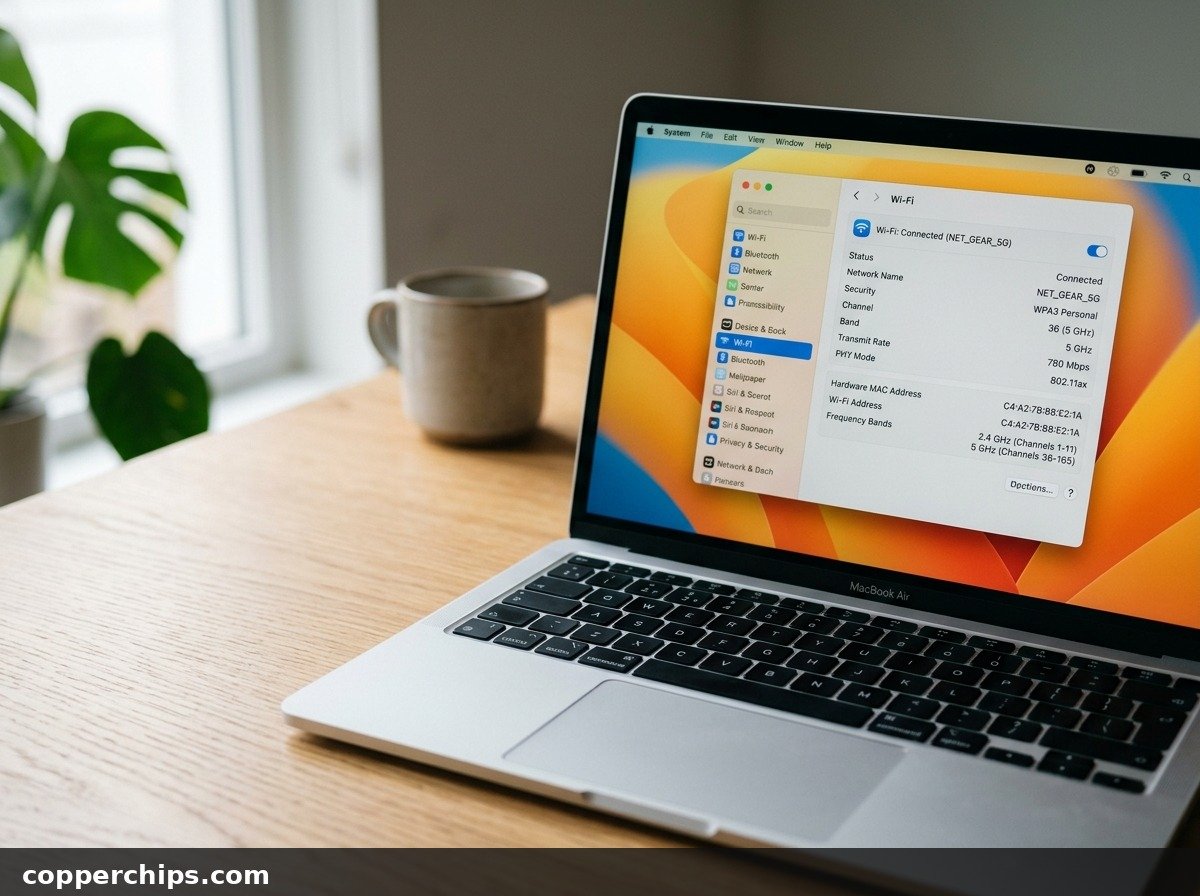
Changing your router 5GHz radio channel from Auto to a fixed, non-DFS channel is the most reliable fix for missing networks. When routers automatically assign channels, they frequently pick frequencies that standard consumer devices cannot scan.
- Open a web browser on a device connected to your network (or connect via Ethernet cable).
- Type your router gateway IP address into the URL bar (commonly
192.168.1.1,192.168.0.1, or10.0.0.1) and log in with your administrative credentials. - Navigate to the Wireless or Wi-Fi Settings tab and select the 5 GHz Radio section.
- Locate the Channel setting, which is almost always set to Auto by default.
- Change the channel manually to a standard lower band channel: 36, 40, 44, or 48. Alternatively, you can select an upper non-DFS channel: 149, 153, 157, or 161.
- Avoid all channels between 52 and 144 (the DFS radar zone).
- Click Apply or Save. Your router will reboot its wireless radio. Check your device network list after 30 seconds.
As documented in official spectrum guidance from FCC consumer network frequency guidelines, standardizing your channel selection eliminates radar sensing conflicts across home wireless networks.
Fix 3: Separate Unified SSIDs to Disable Aggressive Band Steering
If your router uses Smart Connect or Band Steering, your 5GHz network is not missing; it is simply hidden behind your 2.4GHz network name. Separating the frequency bands gives you direct manual control over which connection your devices use.
- Log into your router admin panel and open Wireless Settings.
- Look for a feature labeled Smart Connect, Band Steering, or Whole Home Wi-Fi.
- Toggle this setting to Disabled or Off.
- Once disabled, two distinct network fields will appear: one for 2.4 GHz and one for 5 GHz.
- Rename your networks clearly so you can differentiate them. For example, set the 2.4 GHz SSID to
HomeNetwork_2.4Gand the 5 GHz SSID toHomeNetwork_5G. - Assign the exact same password to both networks to prevent authentication confusion.
- Save your settings and allow the router to reboot. Open your device Wi-Fi menu and connect directly to the newly visible
_5Gnetwork.
Separating SSIDs prevents client devices from getting trapped on slower 2.4 GHz frequencies during everyday browsing.
Fix 4: Force 5GHz Preferred Band in Windows Device Manager
Windows network adapter drivers often default to dual-band auto selection, which can stubbornly prioritize 2.4GHz signals over 5GHz. You can explicitly configure your wireless adapter hardware properties to prefer 5 GHz.
- Right-click the Start menu and open Device Manager.
- Expand the Network adapters branch.
- Locate your internal Wi-Fi adapter (such as Intel Wi-Fi 6 AX200, Realtek Wireless, or Qualcomm Atheros).
- Right-click your adapter and select Properties, then open the Advanced tab.
- In the Property list, select Preferred Band (or Band Preference).
- In the Value dropdown menu on the right, change the setting from “1. No Preference” to “3. Prefer 5GHz band”.
- Next, scroll down the Property list and locate Wireless Mode (or 802.11a/b/g/n/ac/ax Wireless Mode). Ensure this is set to Dual Band or the highest protocol standard supported.
- Click OK. Your network adapter will restart automatically.
For official configuration instructions, review the Microsoft official wireless network adapter troubleshooting documentation.
Fix 5: Reduce Router Channel Width from 160MHz to 80MHz
Ultra-wide 160MHz channel widths can prevent older 802.11ac dual-band devices from discovering the network. While 160 MHz enables theoretical maximum speeds on the newest Wi-Fi 6 hardware, it spans across multiple channel blocks that older devices cannot parse.
- Access your router wireless configuration panel.
- Open the 5 GHz Advanced Wireless Settings.
- Find the setting labeled Channel Width or Channel Bandwidth.
- If the setting is set to 160 MHz or Auto (20/40/80/160 MHz), change it to 80 MHz (or 20/40/80 MHz).
- Save changes and reboot your router.
An 80 MHz channel width provides full gigabit-tier streaming capabilities while maintaining universal backward compatibility across all modern dual-band consumer electronics as specified by the Wi-Fi Alliance dual-band standards documentation.
Fix 6: Update Wireless Network Adapter Drivers
Corrupted, generic, or outdated network drivers frequently fail to register 5GHz broadcast beacons. Relying on stock operating system drivers can leave dual-band functionality dormant.
- Open Device Manager and expand Network adapters.
- Right-click your Wi-Fi card and select Update driver.
- Select Search automatically for drivers.
- If Windows reports that the best driver is already installed, visit your laptop manufacturer support website (e.g. Dell, Lenovo, HP, ASUS) or Intel Driver Support Assistant.
- Download the newest dedicated wireless driver package matching your exact network card model.
- Install the executable package, restart your computer, and test your available network list.
If your laptop repeatedly fails to detect available networks, consult our guide on why your laptop is not connecting to Wi-Fi for additional driver and adapter reset steps.
Fix 7: Verify 5GHz Radio Power and Unhide SSID
Many routers have physical or administrative toggles that turn off the 5GHz radio entirely or suppress SSID broadcasting. If the 5 GHz radio is disabled, no device in your home will be able to see or connect to it.
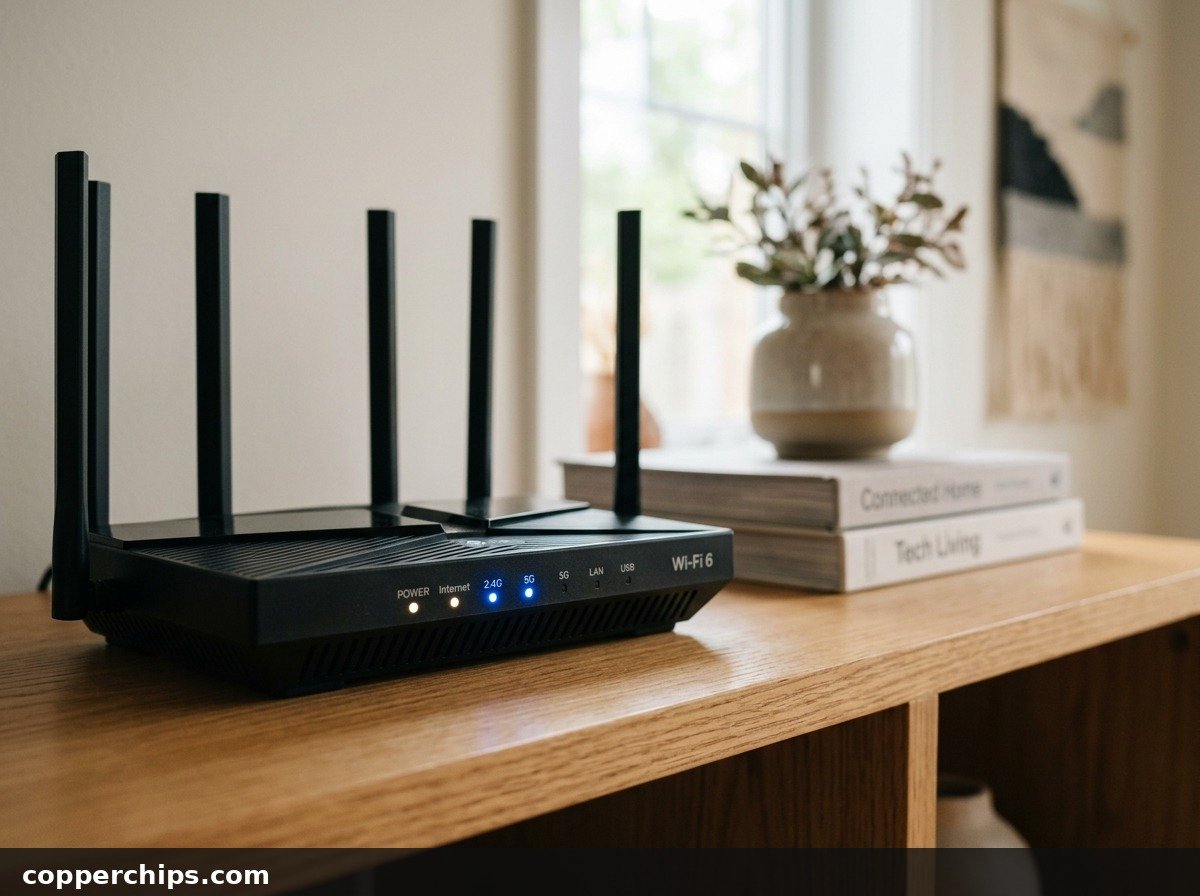
- Look at the physical front panel of your router chassis. Most dual-band routers feature separate status LEDs for 2.4G and 5G.
- If the 5G light is unlit, the radio is turned off in software or via a physical hardware button.
- Log into the router web interface and open the 5 GHz wireless tab.
- Confirm that the checkbox labeled Enable Wireless Radio (or Enable 5GHz) is checked.
- Check the setting labeled Hide SSID or Broadcast SSID. Ensure that Broadcast SSID is enabled (or Hide SSID is disabled). If hidden, the network exists but will never appear in scanning lists.
- If you recently altered settings and caused a lockout, follow our guide on how to restart your router cleanly to restore factory radio defaults.
Still Not Working? Try This
If your router 5GHz radio is confirmed active and operating on Channel 36 at 80MHz width, but your computer still cannot detect the signal, explore these deeper hardware solutions:
- Eliminate USB 3.0 Radio Frequency Interference: Unshielded USB 3.0 external hard drives, flash drives, and docking stations emit broad electrical noise in the 2.4 GHz to 5 GHz frequency range. If you have an external drive plugged directly next to your computer Wi-Fi card or router antenna, disconnect it temporarily. Moving unshielded USB cables just six inches away frequently restores missing wireless beacons.
- Check Physical Range and Obstacles: 5 GHz radio waves have a significantly shorter wavelength than 2.4 GHz signals. Solid brick walls, metal studs, and dense plaster absorb 5 GHz signals rapidly. Move your device into the same room as the router to test whether distance is dropping signal strength below detection thresholds. If your connection drops frequently once linked, review our diagnostic steps for Wi-Fi connected but no internet access.
- Install a Dual-Band USB Wi-Fi Dongle: If your computer motherboard contains an obsolete single-band wireless card, you do not need to replace your entire computer. An inexpensive dual-band USB 3.0 Wi-Fi 6 dongle plugs into any standard USB port and instantly adds full 5 GHz reception for under twenty dollars.
Visit our complete WiFi and Internet troubleshooting hub for additional home network diagnostic walkthroughs.
Frequently Asked Questions
Why is 5GHz Wi-Fi showing on my phone but not my PC?
If your smartphone detects the 5GHz network but your PC cannot, the problem lies within your PC network adapter rather than your router. Your computer network card may be a single-band 2.4GHz card, its drivers may be outdated, or the router is broadcasting on a DFS radar channel that your phone supports but your PC card does not.
Are all modern Wi-Fi routers dual-band?
Nearly all home wireless routers manufactured over the past eight years are dual-band, broadcasting both 2.4GHz and 5GHz signals simultaneously. However, some entry-level ISP modems and portable travel hotspots operate exclusively on 2.4GHz to reduce manufacturing costs and maximize transmission distance.
Why did my 5GHz network suddenly disappear?
A 5GHz network that disappears without warning has usually hopped onto a DFS radar channel automatically after detecting brief local interference, or your router installed a firmware update that re-enabled band steering and merged both frequencies into a single network name. Changing your router 5GHz channel to Channel 36 restores visibility.
Does 5GHz Wi-Fi have shorter range than 2.4GHz?
Yes. Because 5GHz operates at a higher frequency, its electromagnetic waves attenuate much faster when passing through solid materials like wood, brick, and concrete. While 2.4GHz can transmit up to 150 feet indoors, 5GHz maintains optimal signal integrity within approximately 50 feet of the router.
The Bottom Line
A missing 5GHz Wi-Fi network is almost never a fatal hardware defect. In the vast majority of cases, the issue is caused by a router broadcasting on an incompatible DFS radar channel, unified band steering masking your network name, or a client device operating with outdated adapter drivers. Start by confirming your device supports 802.11ac protocols, log into your router to lock the 5GHz frequency to Channel 36, and separate your network names. Taking those targeted steps will immediately bring your high-speed 5GHz wireless connection back online.