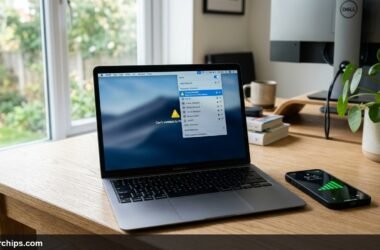
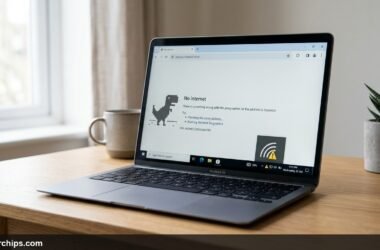
You glance down at your taskbar or smartphone status tray and see solid Wi-Fi signal bars. You click a website link or launch a video stream, only to see an error banner announcing “Connected, no internet.” Realizing you have wifi but no internet access is among the most deceptive and annoying networking dilemmas modern computer users face.
This confusing status occurs because your computer successfully connects to your local wireless access point, but the access point cannot reach the wider public internet. Resolving the problem requires identifying whether the blockage stems from local IP address conflicts, misconfigured DNS servers, corrupt network drivers, or an upstream service disruption from your provider. The troubleshooting sequence below will get you back online quickly.
When your device displays Wi-Fi connected without internet access, your local wireless radio link is functioning, but the router cannot route traffic out through the wide area network. First, check a second device like your phone to isolate whether the issue is device-specific or network-wide. Next, perform a sequential power cycle by unplugging both modem and router from wall power for sixty seconds, booting the modem first until all lights turn solid green, then powering the router. If only one computer is affected, flush DNS cache and reset your IP stack by running Command Prompt as administrator and entering netsh winsock reset followed by ipconfig /flushdns, then reboot.
- ✓LAN vs. WAN Separation: Full Wi-Fi signal bars only verify communication between your device and router (LAN), not connection to your service provider (WAN).
- ✓Isolate the Scope: If multiple devices lose connectivity simultaneously, the problem lies with your modem, router, or internet provider rather than your laptop.
- ✓DNS and IP Conflicts: Over half of single-device drops resolve immediately by renewing DHCP IP addresses or switching to public DNS servers like Cloudflare or Google.
Local LAN vs. WAN Gateway: Why Your Device Shows Connected
To understand why this error happens, you must picture your home network as two completely independent stages. The first stage is your Local Area Network (LAN), which connects your laptop, smartphone, smart TV, and tablets to your wireless router using 2.4 GHz or 5 GHz radio waves.
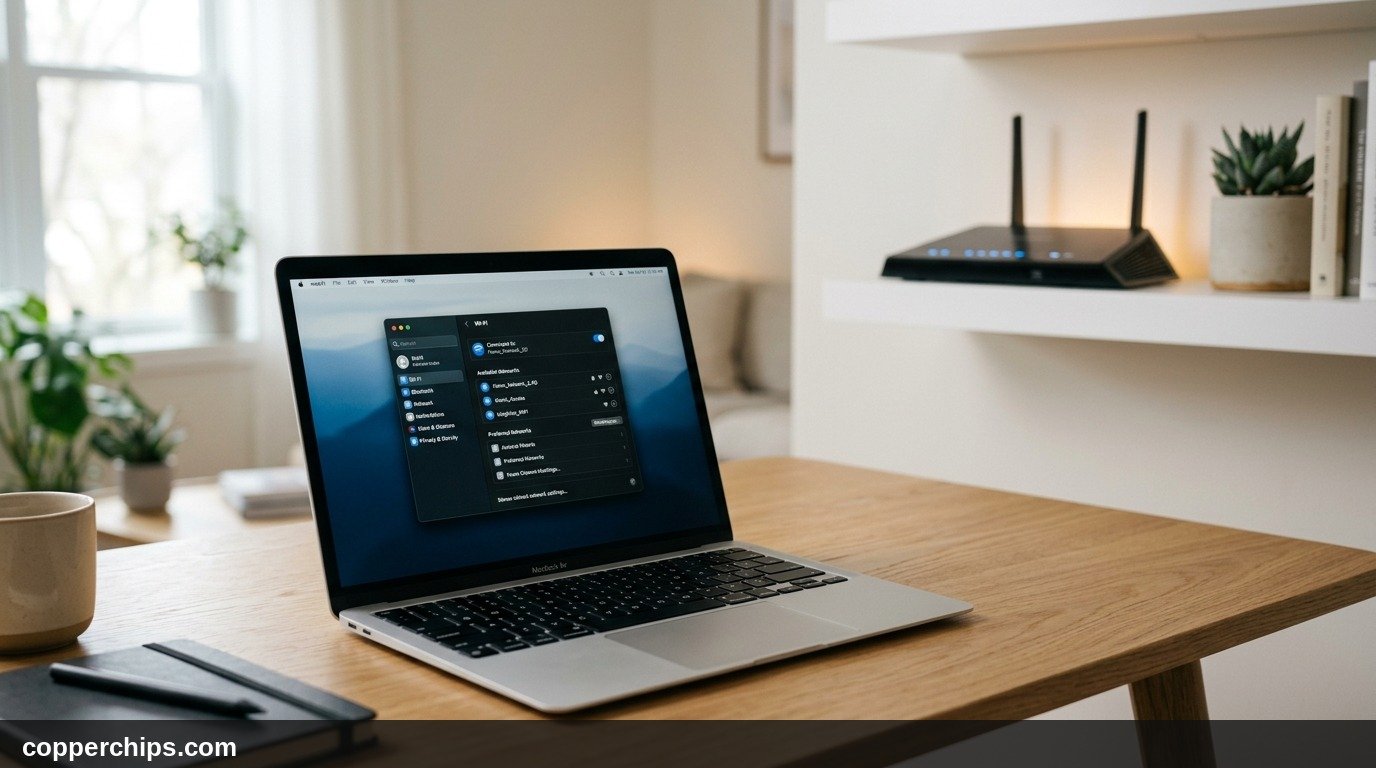
When your operating system displays full Wi-Fi signal bars, it only means the radio link between your laptop Wi-Fi card and your router antennas is strong. Your device successfully received a local private IP address (such as 192.168.1.45) from the router internal DHCP server.
The second stage is the Wide Area Network (WAN). This is the physical fiber-optic, coaxial, or copper cable running from your modem out to your internet service provider exchange. If your modem loses signal, if your ISP experiences an area outage, or if your router DNS table corrupts, the WAN gateway drops. Your devices remain connected to the router locally, but all outgoing requests bounce back unanswered.
The Diagnostic Triage: Single Device or Entire Network?
Before modifying network configuration files or resetting hardware, you must determine whether the issue is isolated to a single client or widespread across your home.
Grab your smartphone, turn off Cellular Data in your settings tray, and verify you are connected to the home Wi-Fi network. Open any website in your mobile browser. If the page loads instantly on your phone while your laptop remains stranded, your router, modem, and ISP are operating properly. The failure exists solely within your laptop network stack, wireless drivers, or local DNS cache.
Conversely, if your phone, tablet, and smart TV all display connection warnings or fail to refresh content, your client devices are healthy. The failure resides directly within your router routing table, modem synchronization, or ISP broadband feed. Testing this takes twenty seconds and prevents hours of misdirected troubleshooting.
How to Fix Connected to WiFi But No Internet: 7 Solutions
Work through these solutions sequentially from simplest to most advanced. Most homeowners resolve the issue within the first three steps.
Fix 1: The Sequential Modem and Router Power Cycle
Perform a strict sequential restart of both your modem and router to clear stale IP bindings and reset the hardware handshake between your gateway and your provider.
- Unplug the power cables from both your standalone modem and your wireless router directly from the wall socket.
- Wait sixty full seconds. This allows internal circuit capacitors to discharge completely, wiping volatile system memory.
- Plug in the modem only. Do not power on the router yet.
- Watch the modem front indicator lights. Wait two to three minutes until the Power, Downstream, Upstream, and Online lights turn solid green or white.
- Once the modem stabilizes with an active internet link, plug in the power cable for your wireless router.
- Allow the router two minutes to boot, initialize its radios, and negotiate a fresh public IP address from the modem.
Powering devices on out of sequence often causes the router to request an IP address before the modem finishes synchronizing with the provider exchange. If you need step-by-step guidance on rebooting your specific hardware brand, review our guide on how to restart your router safely.
Fix 2: Flush DNS Cache and Renew DHCP IP Leases
Release your expired local IP address and flush cached domain records on your computer. Corrupt local DNS records cause browsers to point web requests to dead IP addresses even when connection pathways are open.
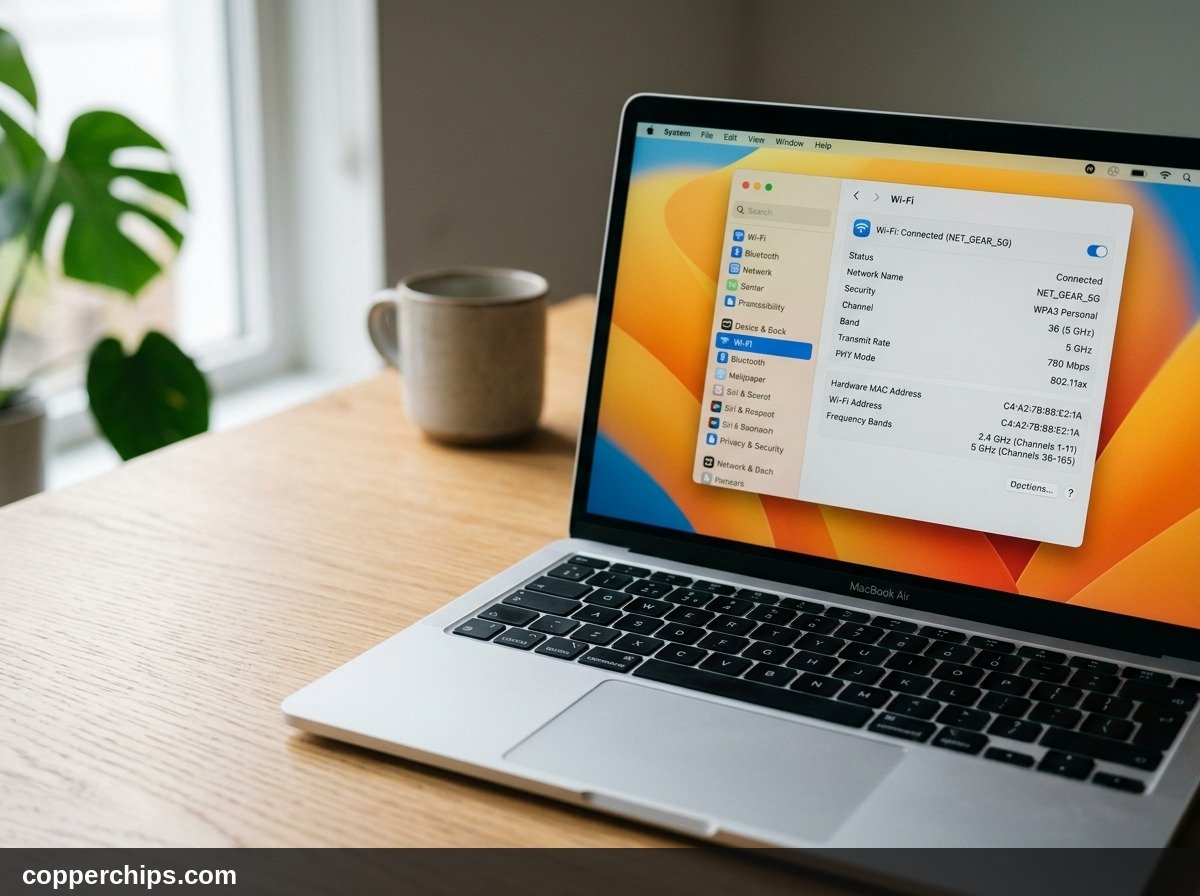
On Windows 11 and Windows 10:
- Press the Windows Key on your keyboard, type
cmd, right-click Command Prompt, and select Run as administrator. - Type
ipconfig /flushdnsand press Enter. You will see a confirmation stating “Successfully flushed the DNS Resolver Cache.” - Type
ipconfig /releaseand press Enter. Your network will disconnect for a moment. - Type
ipconfig /renewand press Enter. Wait five to ten seconds while your router assigns a clean private IP address.
On macOS:
- Open Terminal via Spotlight Search (Command + Space).
- Type
sudo dscacheutil -flushcache; sudo killall -HUP mDNSResponderand press Return. - Enter your Mac user password when prompted to complete the cache flush.
- Open System Settings > Wi-Fi, click Details next to your network, select TCP/IP, and click Renew DHCP Lease.
These commands force your operating system to clear stale routing tables, as detailed in official Microsoft network troubleshooting documentation.
Fix 3: Switch to High-Reliability Public DNS Servers
Replace your internet service provider default DNS servers with public resolvers from Google or Cloudflare. Internet providers frequently experience partial DNS outages where broadband lines remain active, but their domain resolution servers stop translating website names into numerical IP addresses.
- Open Control Panel on Windows, select Network and Internet, and click Network and Sharing Center.
- Click on your active Wi-Fi connection link next to “Connections,” then click Properties.
- Select Internet Protocol Version 4 (TCP/IPv4) and click Properties.
- Click the radio button labeled Use the following DNS server addresses.
- For Cloudflare DNS, enter
1.1.1.1as Preferred and1.0.0.1as Alternate. For Google Public DNS, enter8.8.8.8and8.8.4.4. - Check the box labeled Validate settings upon exit and click OK.
If you use an Apple iPhone, iPad, or Mac, open Wi-Fi settings, select your connected network, click the DNS tab, remove existing entries, and add 1.1.1.1 and 8.8.8.8 directly. Full setup steps are outlined in Apple official Wi-Fi diagnostic guidelines.
Fix 4: Reset the TCP/IP Stack and Winsock Catalog
Rebuild your core networking transport layers from scratch using administrative command line resets. System updates, third-party VPN uninstalls, and firewall utilities can leave corrupted sockets in the Windows registry, blocking packet flow.
- Open Command Prompt as an administrator.
- Type
netsh winsock resetand press Enter. This restores the Windows socket catalog to default state. - Type
netsh int ip resetand press Enter. This rewrites the TCP/IP stack registry keys. - Type
ipconfig /registerdnsand press Enter to refresh DNS registrations. - Restart your computer immediately for changes to take effect.
When Windows reboots, the operating system reinitializes all network sockets with clean default parameters. This single fix cures thousands of persistent “no internet access” errors where hardware diagnostics report no physical faults.
Fix 5: Forget the Network and Clear Saved Security Profiles
Delete your saved wireless network profile and reconnect cleanly. When routers update wireless security protocols (such as moving from WPA2 to WPA3) or rotate group keys, computers can hold onto stale encryption tokens that prevent the handshake from negotiating an active data stream.
- On Windows, open Settings > Network & internet > Wi-Fi > Manage known networks. Locate your home network and click Forget.
- On macOS, open System Settings > Wi-Fi, scroll down to Known Networks, click the three dots icon next to your network, and choose Forget This Network.
- On iOS or Android, open Wi-Fi settings, tap the information “i” or gear icon beside your network name, and select Forget This Network.
- Toggle Wi-Fi off for ten seconds, then toggle Wi-Fi back on.
- Select your network from the list, enter your wireless password carefully, and establish a fresh connection.
Fix 6: Disable Conflicting VPNs, Proxy Settings, and Antivirus Firewalls
Temporarily turn off virtual private networks and web proxies running on your machine. Third-party VPN software creates virtual network adapters and kill switches designed to block all traffic if the encrypted tunnel drops.
If your VPN client crashes or fails to terminate cleanly, its virtual adapter remains locked in place, preventing your physical Wi-Fi card from routing packets to the gateway. Open your VPN software (such as NordVPN, ExpressVPN, or ProtonVPN) and disconnect completely. Open Windows Settings, navigate to Network & internet > Proxy, and verify that Automatically detect settings is turned on while Use a proxy server is toggled off.
Third-party security suites like Norton, McAfee, or Bitdefender also install network packet filtering drivers. Disable their real-time firewall for five minutes to test whether aggressive heuristic filters are erroneously blocking outbound port 80 and port 443 traffic.
Fix 7: Inspect Physical Gateway Cables and Modem Status LEDs
Check the physical cables and status indicator lights on your networking equipment. If multiple devices report no internet access, the issue is almost always a physical hardware disconnect between your home and your provider.
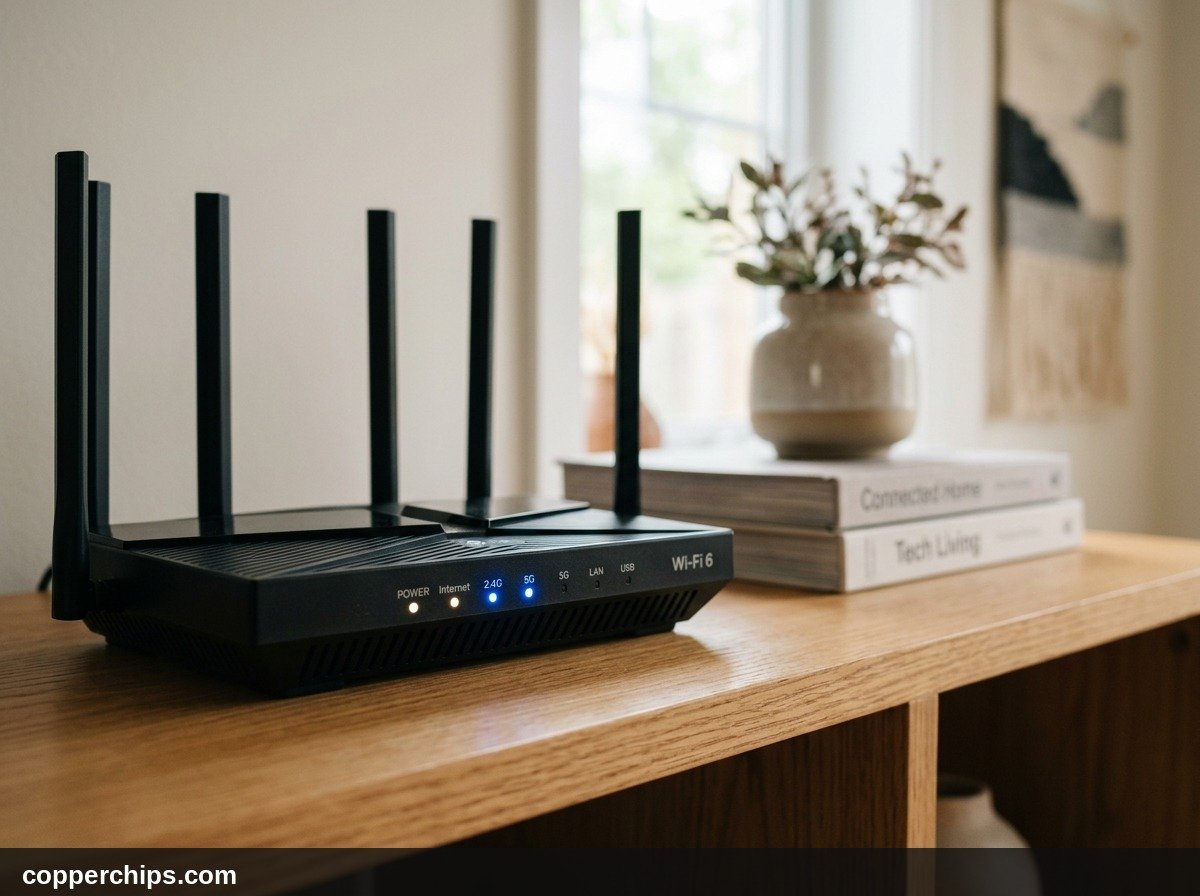
- Walk to your networking cabinet or shelf and inspect the Ethernet cable running between the modem LAN/WAN port and the router Internet port. Unplug both ends, listen for a distinct click as you reseat them, and verify the plastic latch is intact.
- Inspect the coaxial cable or fiber-optic line entering your modem from the wall. Gently tighten the coaxial connector finger-tight to prevent RF signal leakage.
- Examine the Internet (WAN) status light on your router. A solid green or white icon indicates an active internet link. A solid amber or flashing red light means the router cannot establish broadband synchronization.
- Open your smartphone cellular browser and visit your service provider status portal (such as Comcast Xfinity, AT&T, Spectrum, or Verizon) to check for local maintenance outages in your neighborhood.
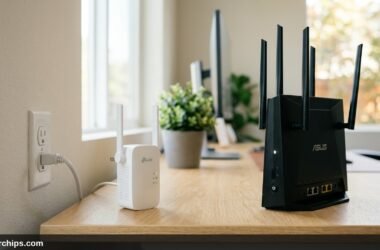
Understanding broadband delivery requirements and common neighborhood infrastructure drops is outlined in Federal Communications Commission broadband network guidelines. If your home has multiple coverage dead zones, consider reading about WiFi boosters versus WiFi extenders to expand coverage reliably.
Network Status Diagnostic Matrix
Use this diagnostic reference table to correlate your specific system symptoms with the most probable network fault and immediate corrective action.
| Symptom | Affected Scope | Root Cause | Immediate Action |
|---|---|---|---|
| Wi-Fi connected, no pages load | One computer only | Corrupt DNS resolver cache or stale IP lease | Run ipconfig /flushdns and ipconfig /renew in Command Prompt |
| Router Internet LED is solid amber | All household devices | Modem lost WAN synchronization with provider | Unplug modem and router for 60 seconds; check provider app |
| IP address starts with 169.254.x.x | One device | APIPA self-assigned IP because DHCP server failed | Forget Wi-Fi network and restart router to refresh pool |
| Apps work, but websites fail to load | Multiple devices | ISP DNS server outage while IP routing is intact | Switch adapter DNS to 1.1.1.1 (Cloudflare) or 8.8.8.8 (Google) |
| Internet drops when VPN disconnects | One computer | Active VPN kill switch or orphaned virtual adapter | Disable VPN kill switch or reset Winsock with netsh command |
Still Not Working? When to Replace Hardware or Request a Truck Roll
If you systematically completed all seven solutions and your devices still report no internet access, perform one final isolation test before scheduling a technician visit.
Take an Ethernet cable and connect your laptop directly into the LAN port of your standalone modem, bypassing your wireless router completely. Restart your modem and test if your laptop can browse the web. If direct modem connection provides instant internet, your modem and ISP line are working perfectly, but your wireless router WAN routing chip or firmware has failed.
However, if connecting directly to your modem still yields no internet connectivity and the modem Downstream or Online lights continue flashing, the hardware cannot establish a frequency lock with your internet service provider street node. Loose outdoor coaxial splitters, water intrusion in underground service boxes, damaged fiber drop cables, or degraded hardware require professional diagnostics. Contact your provider customer support and request an on-site service truck roll to test signal levels with a field meter.
For more home connectivity breakdowns, visit our dedicated WiFi and internet troubleshooting guides hub.
Frequently Asked Questions
Why does my Wi-Fi say connected but there is no internet?
This notification means your device has an active radio frequency connection to your local router, but the router cannot route data out to the wider internet. Common causes include an ISP broadband outage, an unassigned local IP address, or corrupted DNS server tables.
How do I fix an APIPA 169.254 IP address?
An IP address starting with 169.254 means your device could not obtain a valid private IP address from your router DHCP server and assigned itself an Automatic Private IP Address (APIPA). Restart your router, open Command Prompt as an administrator, and run ipconfig /renew to request a valid IP address.
Does resetting my router fix no internet access?
Yes. Performing a sixty-second power cycle clears temporary routing cache, flushes stale ARP tables, and forces your modem to request a new external IP address from your internet service provider. A simple restart resolves the vast majority of broadband drops.
Why does internet work on my phone but not on my computer?
If other devices on your home network access the internet without issue, your router and ISP are functional. The problem on your computer is caused by a corrupt DNS cache, an active VPN kill switch, an aggressive third-party firewall, or outdated wireless network adapter drivers.
What DNS servers should I use when Wi-Fi has no internet?
Switch your DNS settings to Cloudflare Public DNS (Primary: 1.1.1.1, Secondary: 1.0.0.1) or Google Public DNS (Primary: 8.8.8.8, Secondary: 8.8.4.4). These public resolvers offer 99.99 percent uptime and eliminate ISP-specific DNS resolution failures.
The Bottom Line
Finding out that you have Wi-Fi but no internet access is frustrating, but it rarely points to permanent hardware destruction. The error simply reflects a communication gap between your local wireless home network and the external internet backbone.
Start by checking a second device to determine whether the issue is local to your computer or affects the entire building. If multiple devices fail, power-cycle your modem and router in sequence. If only your laptop suffers, flush your local DNS cache, renew your DHCP lease, and verify your VPN settings. With the correct diagnostic approach, you can restore full internet access within minutes.