You mount your wireless security camera outside your front door, open the mobile app to verify your video feed, and encounter a red error banner stating “Camera Offline” or “Cannot Connect to Sync Module.” You wonder why won’t my blink camera connect to wifi when your laptop and smartphone browse the internet without a hitch. Smart security cameras operate under strict radio frequency constraints that make them sensitive to home network settings.
Blink cameras do not connect to home Wi-Fi the same way standard mobile devices do. Most battery-powered Blink models communicate through a hybrid connection system involving low-frequency proprietary radio waves to a Sync Module, combined with 2.4 GHz Wi-Fi to your router. When frequency bands mismatch, battery voltages sag, or router firewalls block local IP handshakes, your cameras drop offline immediately. This guide walks you through seven field-tested solutions to reconnect your Blink system in minutes.
Blink cameras fail to connect to Wi-Fi primarily due to 5 GHz frequency band steering conflicts on dual-band routers, depleted non-lithium batteries, or desynchronized Sync Modules. Blink hardware requires a dedicated 2.4 GHz Wi-Fi network broadcasting WPA2-PSK (AES) security. To fix connectivity, separate your router 2.4 GHz and 5 GHz networks or temporarily pause 5 GHz in your router mobile app. Next, power cycle your Blink Sync Module by unplugging it for thirty seconds until both green and blue LEDs glow solid. Finally, verify your camera runs on fresh 1.5V non-rechargeable AA lithium batteries, as standard alkaline cells produce inadequate voltage under load.
- ✓Strict 2.4 GHz Requirement: Blink cameras contain no 5 GHz wireless hardware and cannot connect to modern 5 GHz or 6 GHz Wi-Fi bands.
- ✓The Lithium Battery Standard: Alkaline or rechargeable NiMH batteries drop below the required 1.5-volt operational threshold under radio transmission bursts, dropping Wi-Fi links.
- ✓Sync Module Triangulation: Outdoor and Indoor Blink cameras rely on the Sync Module as a relay bridge. The module must sit within 30 feet of both router and camera.
Understanding Blink Wireless Architecture: The Communication Triangle
To diagnose why your Blink camera fails to connect, you must understand how Blink devices communicate with your home network. Unlike standard Wi-Fi security cameras that maintain continuous connection to your router, Blink engineers built a proprietary low-power system designed to extend battery life up to two full years.
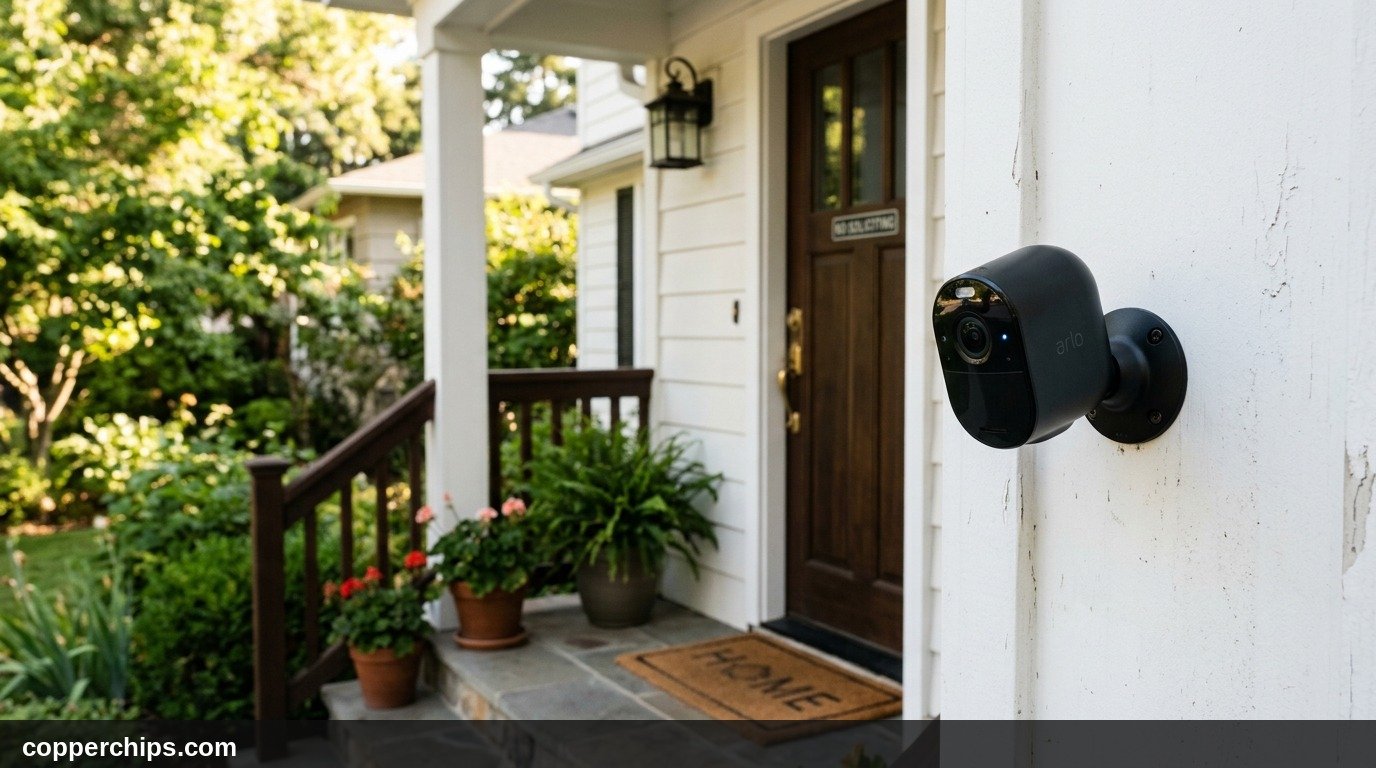
This architecture forms a communication triangle with three distinct endpoints:
- The Blink Camera (Outdoor, Indoor, XT2): Sleeps in ultra-low power standby mode until triggered by passive infrared (PIR) heat motion or a live view request.
- The Blink Sync Module: Plugs into an indoor wall outlet and maintains continuous connection to your home router over 2.4 GHz Wi-Fi. It wakes the camera via proprietary Sub-1 GHz Low Frequency Radio (LFR) signals.
- Your Home Wi-Fi Router: Routes encrypted 1080p video clips from the camera to Amazon Web Services cloud servers using standard 2.4 GHz wireless protocols.
If any single leg of this communication triangle weakens, the camera displays an offline error in the Blink Home Monitor app. Only standalone wired models like the Blink Mini or Blink Video Doorbell in standalone mode connect directly to Wi-Fi without requiring a Sync Module.
Top 5 Reasons Blink Cameras Fail to Connect to Wi-Fi
Before jumping into solutions, review the common root causes behind Blink network dropouts:
- Dual-Band Mesh Band Steering: Modern mesh routers automatically force devices toward the 5 GHz band. Because Blink cameras lack 5 GHz radio chips, band steering kicks them off the network.
- Sub-Par Battery Chemistry: Installing household alkaline batteries causes rapid voltage dips. When the camera transmitter demands a burst of current to send video packets, alkaline voltage plunges, triggering an instant radio shutdown.
- Dense Building Materials: Exterior stucco reinforced with wire mesh, brick veneers, low-E window glass, and foil radiant barrier insulation attenuate 2.4 GHz radio waves severely.
- Sync Module Desynchronization: Router reboots or power flickers can cause the Sync Module to lose its local IP lease, stranding every camera bound to that system.
- WPA3 Security Incompatibility: Older Blink radio firmware struggles to negotiate security handshakes with modern WPA3-Personal encryption.
How to Fix a Blink Camera That Won’t Connect to WiFi: 7 Solutions
Follow these proven troubleshooting steps in order. Most Blink connectivity problems resolve within the first three fixes.
Fix 1: Split Dual-Band Wi-Fi or Pause the 5 GHz Band on Mesh Routers
Force your phone and Blink hardware onto a dedicated 2.4 GHz wireless channel during initial setup and everyday operation. Blink hardware cannot detect or communicate over 5 GHz or 6 GHz wireless frequencies.
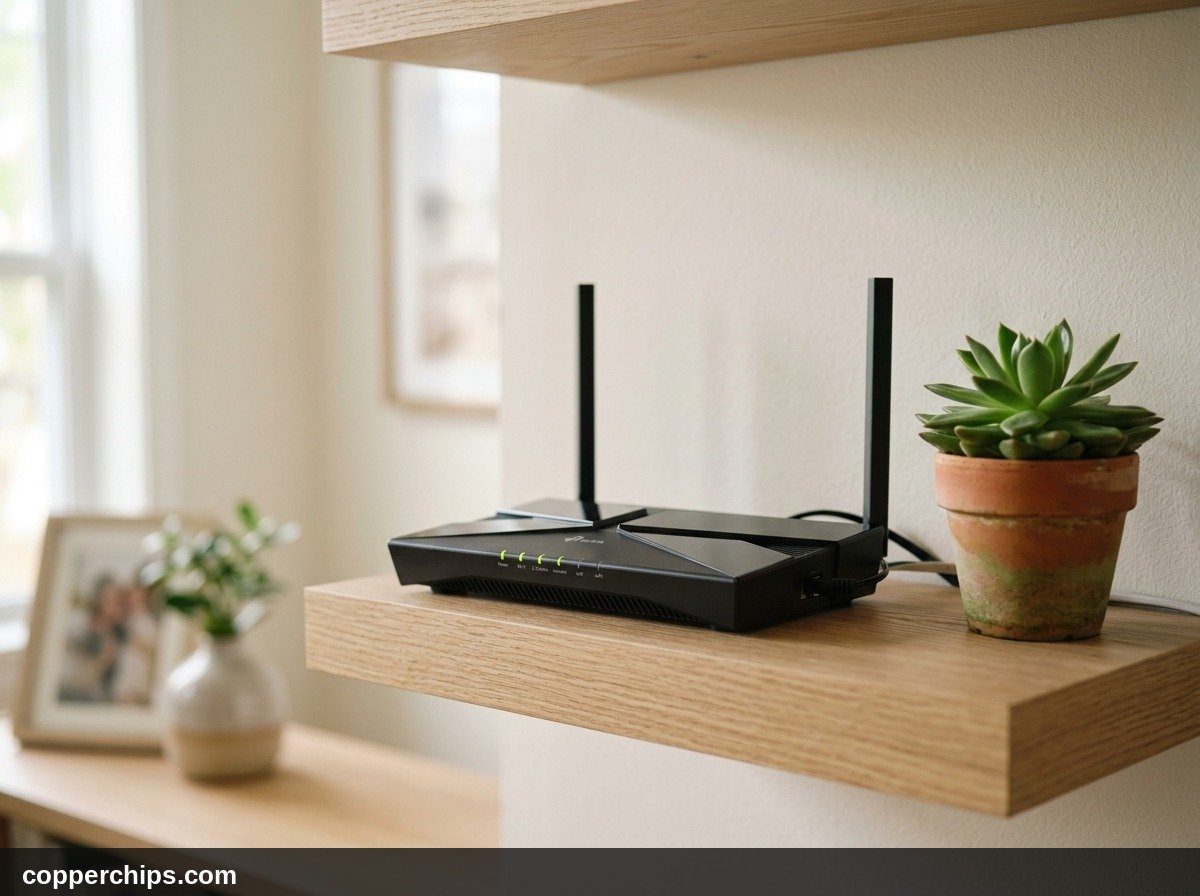
- Log into your home router web admin interface or launch your router management app (such as Eero, Google Nest Wifi, TP-Link Deco, or Netgear Nighthawk).
- Navigate to wireless settings and look for the option labeled Smart Connect, Band Steering, or Combine 2.4 GHz and 5 GHz.
- Disable Smart Connect and create two distinct network names (SSIDs). Label one
HomeNetwork_2.4Gand the otherHomeNetwork_5G. - Assign the exact same Wi-Fi password to both bands.
- Connect your smartphone to the dedicated
HomeNetwork_2.4Gnetwork, open the Blink app, and initiate camera Wi-Fi pairing.
If you own a mesh system that does not allow separate network names (such as Amazon Eero), open the Eero mobile app, navigate to Settings > Troubleshooting > My device won’t connect, and tap Temporarily pause 5 GHz. This disables the 5 GHz radio for ten minutes, allowing your Blink hardware to pair without interference.
Fix 2: Power Cycle and Pinhole Reset the Blink Sync Module
Reboot and re-synchronize the central Sync Module hub that bridges your cameras to the cloud. Corrupted cache tables in the module prevent cameras from obtaining valid network tokens.
- Unplug the power adapter of your Blink Sync Module from the electrical wall outlet.
- Wait thirty full seconds to allow internal capacitors to discharge.
- Plug the power adapter back into the wall outlet.
- Observe the front status LEDs. You should see the top LED illuminate solid green and the bottom LED glow solid blue.
If the LEDs flash red or cycle continuously without settling on green and blue, perform a hardware pinhole reset. Locate the small reset button on the side edge or back panel of the Sync Module. Using an unfolded paperclip, press and hold the button for five seconds until you hear a faint click and the LED turns solid red. Release the pin and allow two minutes for the module to enter setup mode (blinking blue light and steady green light).
Similar physical pinhole resets also restore synchronization when diagnosing Ring doorbell chime troubleshooting across battery-powered smart door hardware.
Fix 3: Install Fresh 1.5V Non-Rechargeable AA Lithium Batteries
Replace your camera batteries with genuine Energizer Ultimate Lithium AA cells. Battery chemistry is the single most overlooked reason outdoor Blink cameras drop offline unexpectedly.
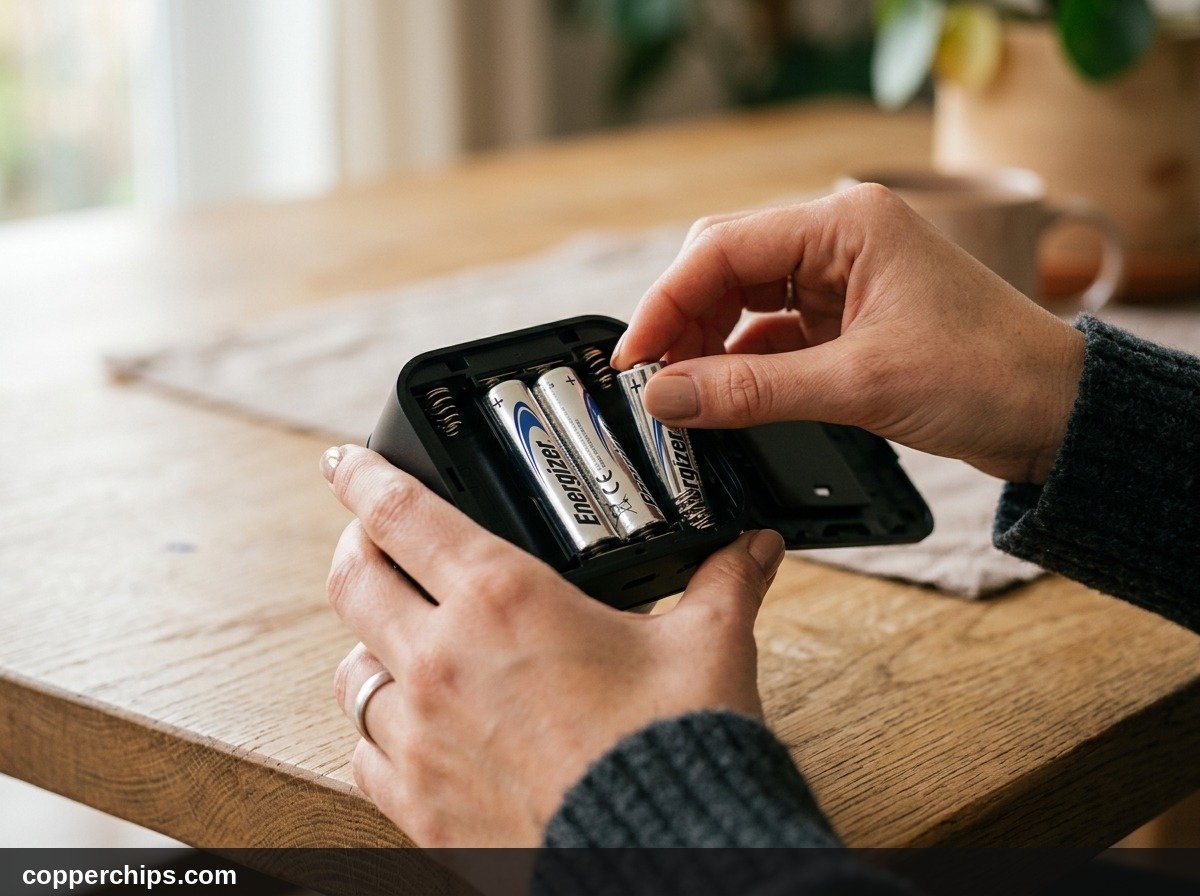
Blink cameras require a constant 1.5 volts per cell. Standard alkaline batteries start at 1.5 volts but quickly drop to 1.2 or 1.1 volts under minimal drain. Rechargeable Nickel-Metal Hydride (NiMH) batteries supply only 1.2 volts fresh out of the charger. While low voltage can power an idle sensor, triggering the high-power Wi-Fi transmission chip drops the voltage below the camera operating threshold, causing the camera to freeze and drop Wi-Fi.
- Remove the camera from its mounting bracket using the plastic opening key or a flathead screwdriver.
- Loosen the center rear screw and lift off the weatherproof back cover.
- Remove both existing batteries and inspect the spring terminals for dust or corrosion.
- Insert two brand-new, matching 1.5V non-rechargeable AA lithium batteries from the same package.
- Verify that the status LED on the front of the camera flashes red five times, confirming a successful hardware power cycle.
Fix 4: Optimize Distance and Obey the 30-Foot Triangle Rule
Reposition your Sync Module to balance signal strength between your router and outdoor cameras. In the Blink app under Camera Settings > General > Network, you will see two signal indicators: Camera to Sync Module and Camera to Wi-Fi.
Both indicators must display at least three bars of signal strength for reliable video streaming. Keep all three nodes within practical wireless boundaries:
- Router to Sync Module: Maximum distance of 30 to 35 feet through standard drywall. Avoid placing the Sync Module inside metal media enclosures or directly on the floor.
- Sync Module to Camera: Maximum distance of 30 to 40 feet. The Sub-1 GHz signal penetrates exterior walls effectively, but brick, stone, and stucco with wire mesh absorb radio frequencies rapidly.
- Router to Camera: Maximum distance of 30 to 50 feet. The camera uploads high-definition video directly to your router over 2.4 GHz Wi-Fi, bypassing the Sync Module.
If your exterior camera sits on a detached garage or backyard fence, install an indoor access point or read our guide on WiFi boosters versus WiFi extenders to deliver strong 2.4 GHz coverage to outer walls.
Fix 5: Adjust Router Wireless Security from WPA3 to WPA2-PSK (AES)
Configure your router security mode to WPA2-PSK (AES) or WPA2/WPA3 Mixed mode. Older Blink chips frequently fail authentication handshakes on routers enforcing strict WPA3-Personal encryption.
- Open your browser and navigate to your router administrative gateway (typically
192.168.1.1or192.168.0.1). - Navigate to the Wireless / Security Settings menu.
- Check the encryption standard applied to your 2.4 GHz network.
- If set to WPA3 Only or WPA3-SAE, change the security protocol to WPA2-PSK (AES) or WPA2/WPA3 Mixed.
- Save your changes and allow your router sixty seconds to restart its wireless radios.
This protocol adjustment aligns with Wi-Fi Alliance 2.4 GHz frequency standards and resolves immediate authentication rejections during the Blink camera pairing handshake.
Fix 6: Assign a Static DHCP IP Reservation and Enable UPnP
Reserve a dedicated local private IP address for your Blink Sync Module in your router settings. When home routers rotate DHCP leases, the Sync Module can experience temporary IP routing conflicts that disconnect connected cameras.
- Log into your router admin panel and navigate to Advanced > LAN Setup > DHCP Reservation.
- Locate your Blink Sync Module in the list of active connected devices (identify it by its MAC address printed on the bottom product sticker).
- Click Add or Reserve to bind that MAC address to a permanent local IP (such as
192.168.1.85). - Navigate to Advanced > UPnP (Universal Plug and Play) and confirm the feature is toggled Enabled. UPnP allows Blink devices to open ports automatically for video packet forwarding.
- Save your settings and reboot your router.
According to Federal Communications Commission wireless interference guidelines, stable local network addressing minimizes packet drops across dense residential wireless environments.
Fix 7: Delete and Re-Add the Camera in the Blink App
Purge stale cloud configuration tokens and establish a fresh device handshake through the Blink Home Monitor mobile application.
- Open the Blink Home Monitor app on your iOS or Android phone.
- Tap the More (three dots) icon on the thumbnail of your unresponsive camera, then select Device Settings.
- Tap General Settings, scroll to the bottom, and select Delete Device.
- Confirm deletion by tapping Delete.
- Return to the home screen and tap the + (Plus) icon in the top right corner.
- Select your camera model (such as Blink Outdoor 4 or Blink Mini), scan the QR code located inside the battery compartment or on the back panel, and follow the on-screen pairing prompts.
Re-adding the camera forces Amazon Blink cloud servers to generate clean cryptographic keys and refreshes network routing tables from scratch.
Blink Camera Status LED Diagnostic Matrix
Blink cameras and Sync Modules use small LED indicator lights to communicate system status. Use this diagnostic matrix to interpret light behaviors.
| Hardware Component | LED Light Behavior | System Status Meaning | Recommended User Action |
|---|---|---|---|
| Camera Front | Flashes Red 5 Times | Power reset successful after battery insertion | Normal startup behavior; ready for pairing |
| Camera Front | Continuous Flashing Red | Low battery voltage or failure to reach Wi-Fi | Install fresh Energizer Ultimate Lithium AA cells |
| Sync Module | Solid Green & Solid Blue | Module connected to local Wi-Fi and Blink servers | Normal operating state; system is fully online |
| Sync Module | Blinking Blue & Steady Green | Ready for initial setup or network reconfiguration | Connect phone to module temporary setup network |
| Sync Module | Solid Red or Flashing Red | No internet connection or router authentication failed | Power cycle router and check 2.4 GHz Wi-Fi password |
Still Not Working? When to Replace Hardware
If you verified 2.4 GHz frequency settings, installed verified Energizer Ultimate Lithium cells, and relocated the Sync Module within ten feet of your router, but connection errors persist, test your system with a mobile hotspot.
Enable a 2.4 GHz personal hotspot on a family member smartphone. Open the Blink app and attempt to connect your Sync Module and camera to the mobile hotspot. If the camera connects instantly and streams video over cellular data, your Blink hardware is fully functional. The failure points directly to your home broadband router, such as aggressive parental firewall filters, port blocking, or ISP-level DNS drops.
However, if the camera fails to connect even to an open mobile hotspot, the internal wireless transceiver or PIR sensor logic board has suffered electrical failure. Contact official Blink camera support documentation to verify your warranty status and request a replacement camera or Sync Module.
For additional smart home hardware guides, visit our complete smart home connectivity guides hub.
Frequently Asked Questions
Does a Blink camera work on a 5 GHz Wi-Fi network?
No. Blink cameras and Sync Modules contain single-band 2.4 GHz Wi-Fi radios. They cannot detect, connect to, or transmit data over 5 GHz or 6 GHz wireless frequencies. Your home router must broadcast an active 2.4 GHz channel using 802.11b/g/n standards.
Can I use rechargeable batteries in my Blink camera?
No. Rechargeable NiMH or lithium-ion batteries produce insufficient or erratic voltage that drops below the required 1.5-volt threshold under transmission load. Blink requires two 1.5V non-rechargeable AA lithium batteries (Energizer Ultimate Lithium or equivalent) for proper operation and battery life.
Why does my Blink camera say offline when Wi-Fi is working?
A Blink camera reports offline if it loses communication with either the Sync Module or your home router. Common causes include depleted AA lithium batteries, moving the camera beyond radio range, physical obstacles like brick or metal siding, or a temporary Sync Module IP freeze.
How do I reset my Blink camera to factory settings?
For the Blink Mini and Video Doorbell, press and hold the small reset button on the back or bottom casing for ten seconds using a paperclip until the LED blinks red and blue. For battery-powered Outdoor and Indoor cameras, remove the batteries for sixty seconds, reinsert them, and perform a pinhole reset on the Sync Module.
What does a flashing red light on a Blink camera mean?
A flashing red light on the front of a Blink camera during operation indicates either weak battery voltage or failure to establish a connection with the Sync Module or Wi-Fi network. If the light flashes red five times right after battery insertion, that is normal and indicates startup.
The Bottom Line
A Blink camera that refuses to connect to Wi-Fi is almost always struggling with a 5 GHz frequency band conflict, dying alkaline batteries, or a desynchronized Sync Module. Because Blink uses a dual-radio communication triangle, isolating each component leads to a swift fix.
Start by splitting your router networks to provide a clean, dedicated 2.4 GHz Wi-Fi band with WPA2-PSK security. Next, install fresh 1.5V non-rechargeable AA lithium cells and power-cycle your Sync Module until both green and blue status lights glow solid. By aligning your home network with Blink hardware requirements, your security system will deliver dependable video protection year-round.