You held the power button, the light blinked, and your phone still can’t see the headphones. Or it sees something called “LE_WH-1000XM4” that refuses to play music. Sony WH-1000XM4 pairing mode trips up a lot of owners. The button press that works on day one stops working once the headset remembers a device.
Below you’ll find the exact hold time, what the light should do, and pairing steps for iPhone, Android, Windows, and Mac. Six fixes follow for when the headset still won’t show up. They run from 10-second checks to a full factory reset.
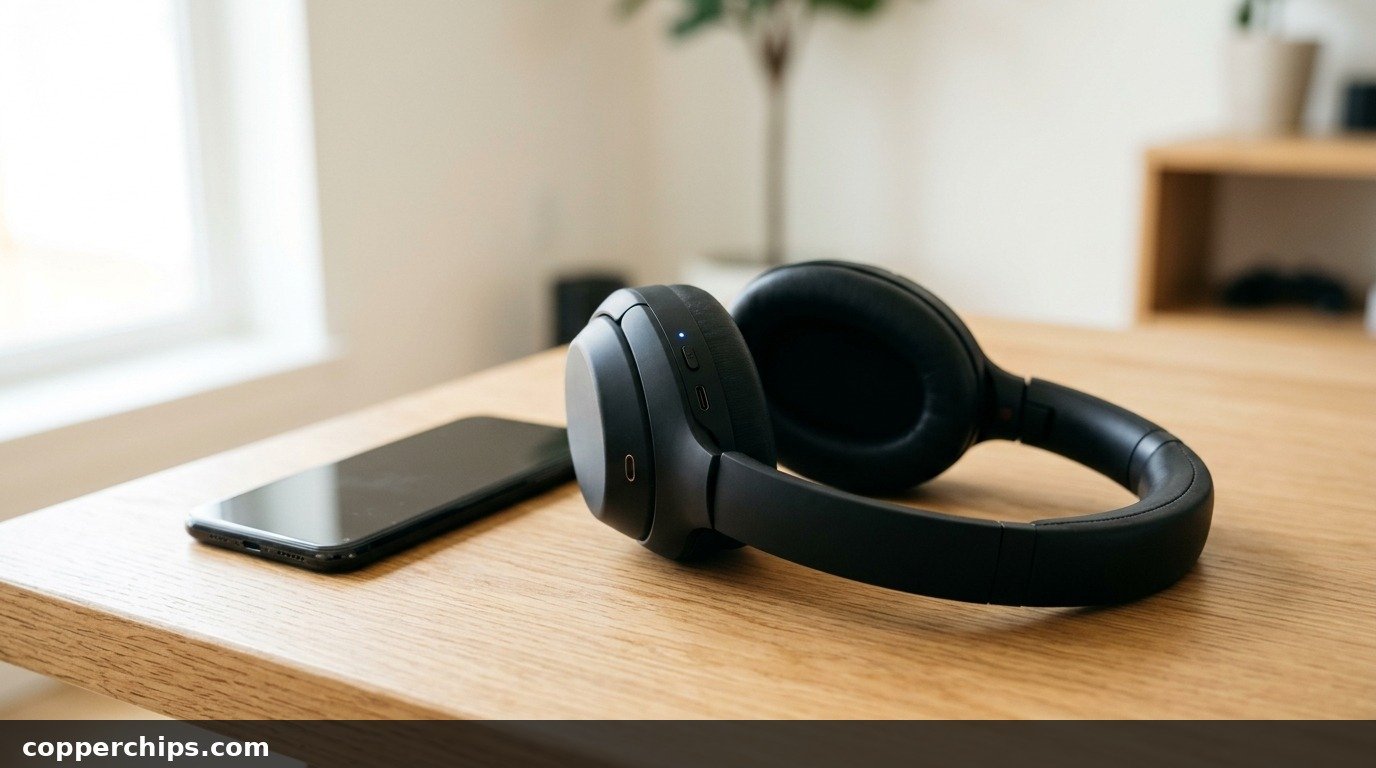
To put the Sony WH-1000XM4 in pairing mode, turn the headset off, then press and hold the power button for about 7 seconds. The blue light flashes twice in a row on a loop, and a voice says “Bluetooth pairing.” A brand new or freshly reset headset enters pairing mode on its own when you switch it on. On your phone or computer, pick “WH-1000XM4”, never “LE_WH-1000XM4”. If it won’t appear, turn off Bluetooth on the last device it used, then try again.
- vMost common mistake: A 2-second press only turns the headset on. Pairing needs a 7-second hold from the off position.
- vTop fix: Forget the headset on your device and switch off Bluetooth on the last device it used. Then pair again within 1 meter.
- vEscalation: Try a soft reset first, which keeps your pairings. A factory reset wipes all 8 saved devices, so save it for last.
How to Enter Sony WH-1000XM4 Pairing Mode
Sony built two different behaviors into the power button. Which one you get depends on whether the headset already remembers a device.
First time out of the box (or after a factory reset)
Just turn the headset on. With no saved devices, it goes straight into pairing mode. The blue indicator flashes twice, pauses, and repeats. Voice guidance then says “Bluetooth pairing.”
Pairing a second, third, or later device
- Turn the headset off. Hold the power button about 2 seconds until the voice says “Power off.”
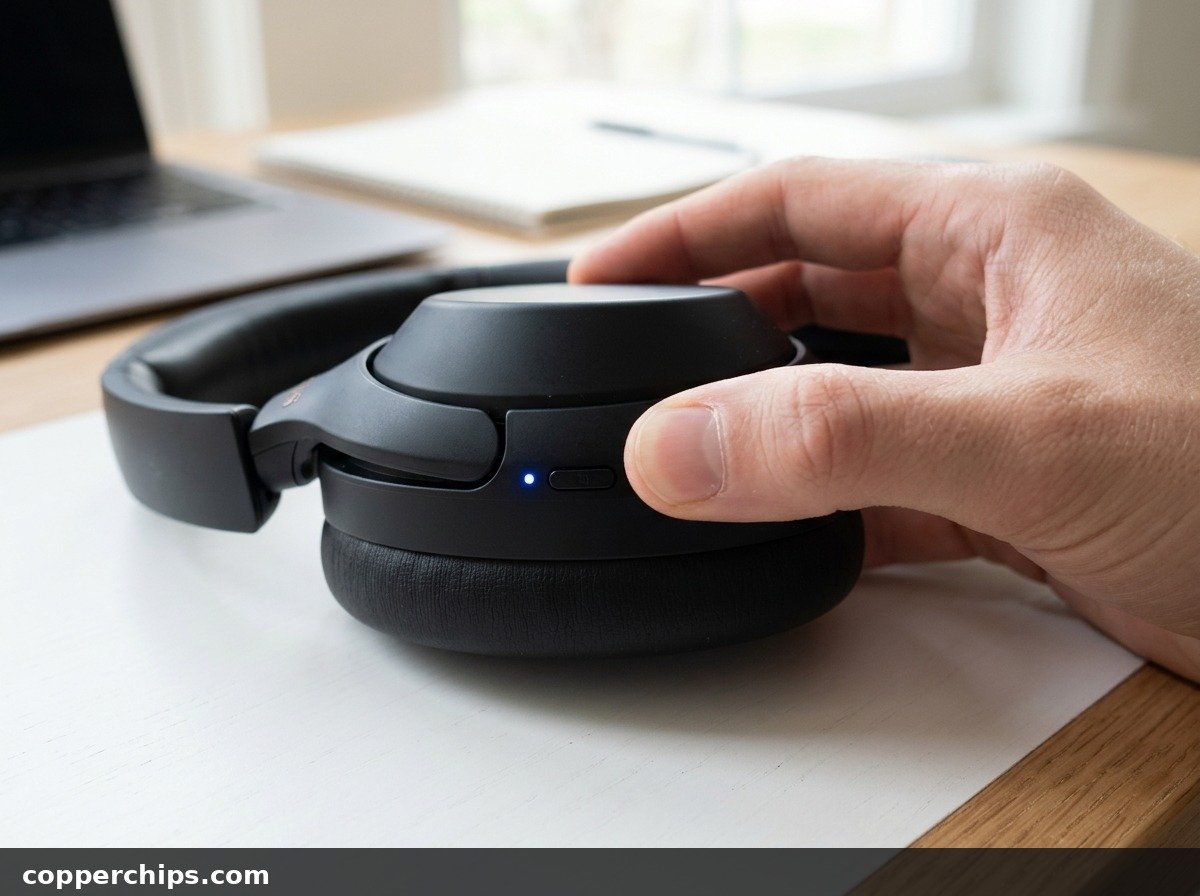
- Press and hold the power button again for about 7 seconds. Keep holding past the “Power on” prompt.
- Let go when the blue light flashes twice in a row, repeatedly, and you hear “Bluetooth pairing.”
WH-1000XM4 pairing mode times out after 5 minutes. If your device didn’t connect in that window, repeat the hold.
Connecting to iPhone, Android, Windows, and Mac
Keep the headset within 1 meter (3 feet) of the device while you pair. Sony’s own WH-1000XM4 iPhone pairing guide lists that distance for every platform.
iPhone or iPad
- Open Settings > Bluetooth and make sure the switch is on.
- Wait for WH-1000XM4 under Other Devices. It can take 30 seconds to a minute to appear.
- Tap it. You’ll hear “Bluetooth connected.”
Android phone
- Open Settings, then the Bluetooth menu. Pixel phones use Connected devices > Pair new device, while Samsung Galaxy phones use Connections > Bluetooth.
- Tap WH-1000XM4 once it shows up.
- If your phone asks for a passkey, enter 0000.
Many Android phones also show a Google Fast Pair pop-up as soon as the headset is ready. Tapping Connect there does the same job. Phones with NFC can pair by touching the back of the phone to the N mark on the left ear cup.
Windows 11 or Windows 10
- Windows 11: open Settings > Bluetooth & devices > Add device > Bluetooth.
- Windows 10: open Settings > Devices > Bluetooth & other devices > Add Bluetooth or other device > Bluetooth.
- Pick WH-1000XM4 and click Pair or Done.
Microsoft’s Windows Bluetooth pairing instructions cover laptops whose adapter is switched off in hardware.
Mac
- Open the Apple menu, then System Settings > Bluetooth (older macOS: System Preferences > Bluetooth).
- Find WH-1000XM4 under Nearby Devices and click Connect.
Why Your WH-1000XM4 Won’t Show Up in Bluetooth
Most failures come down to four causes. Knowing which one you’re facing saves you from resetting the headset for no reason.
- It never entered pairing mode. A short press only powers it on. The headset then tries to reconnect to a saved device instead of advertising itself.
- It grabbed another device first. The XM4 auto-connects to the last device it used. If your laptop is nearby with Bluetooth on, the headset links to it and ignores your phone.
- You picked the wrong name. “LE_WH-1000XM4” is a low-energy listing used by Sony’s app. It shows up first, but it won’t carry calls or music the normal way.
- Old pairing data clashes. After a reset or repair, your phone may still hold the headset’s old record, which blocks a fresh pairing.
How to Fix WH-1000XM4 Pairing Mode Problems: 6 Solutions
Fix 1: Do the 7-Second Hold From Off
Power the headset off completely before you start the hold. Pressing the button while it’s already on just turns it off. Count a full 7 seconds and wait for the “Bluetooth pairing” voice prompt.
The long hold makes the headset advertise itself to new devices instead of hunting for old ones. You’ll know it worked when the blue light double-flashes on a loop.
Fix 2: Disconnect the Last Device It Used
Turn off Bluetooth on every other phone, tablet, or laptop the headset knows. Sony’s troubleshooting page says the headset may fail to pair with something new when it auto-connects to the last device.
- Switch Bluetooth off on the old device, or put it out of range.
- Turn the headset off.
- Repeat the 7-second hold and pair the new device.
Success looks like the new device listing the headset as Connected while the old one shows it as Not Connected.
Fix 3: Forget the Headset, Then Pair Again
Delete the headset from your device’s Bluetooth list before you pair it again. A stale entry causes “Couldn’t connect” errors on iPhone and endless “Pairing…” on Android.
- iPhone: Settings > Bluetooth, tap the (i) next to WH-1000XM4, then Forget This Device.
- Android: Open Bluetooth settings, tap the gear next to WH-1000XM4, then Unpair or Forget.
- Windows 11: Bluetooth & devices, click the three dots next to the headset, then Remove device.
- Mac: In Bluetooth settings, hover over the headset, click the (i) or the X, then Forget This Device.
Delete any “LE_WH-1000XM4” entry too. Then put the headset back into pairing mode and choose plain “WH-1000XM4” this time.
Fix 4: Check Multipoint Settings in the Sony App
Open Sony’s companion app and look at the “Connect to 2 devices simultaneously” switch. The app was called Headphones Connect for years and now appears as Sony Sound Connect in the app stores.
With multipoint on, the headset can hold two active links. A third device that connects will knock off whichever of the first two didn’t play music last. If two devices are already linked, your new pairing may look like it failed when it actually bumped something else.
One trade-off matters to audio fans. Sony states that LDAC can’t be used while multipoint is on, so the codec drops to AAC or SBC. If you pair a high-res Android phone and the quality sounds flat, that setting is the reason.
Fix 5: Soft Reset the Headset
Plug the headset into a USB-C charger, then press the power and CUSTOM buttons at the same time. This restarts the headset’s software without deleting your saved devices.
Use this when the headset ignores button presses, won’t power on, or freezes with the light stuck. After the reset, try the 7-second pairing hold again.
Fix 6: Factory Reset (Initialize) the Headset
- Unplug the USB-C cable. The reset won’t work while charging.
- Turn the headset off.
- Press and hold the power and CUSTOM buttons together for 7 seconds or more.
- Let go when the blue light flashes 4 times.
- On every device, forget the old WH-1000XM4 entry.
- Turn the headset on. It now enters pairing mode automatically.
Firmware updates you installed stay in place after the reset. Sony’s factory settings restore steps confirm the exact button combination.
Still Not Working? Try This
Restart the phone or computer you’re pairing with. Sony lists this as a fix in its own help guide, and it clears Bluetooth stacks that have hung in the background.
Check whether the problem follows the headset or the device. Try pairing with a second phone. If the second phone finds the headset in seconds, the issue sits with the first phone’s Bluetooth, not your XM4. Our guide on turning Bluetooth on across devices covers hidden adapter switches on Windows laptops.
Keep the battery above about 20 percent. A nearly flat headset can power on, then drop out mid-pairing. Charge it for 10 minutes and try again.
Remember the 8-device limit. When you pair a ninth device, the headset quietly overwrites whichever device it used least recently. That older device will then fail to reconnect until you pair it again.
Sometimes the light never flashes blue after a factory reset, or the headset stays dead on the charger. That points to a hardware fault. Contact Sony support or the retailer, especially if the headset is still under warranty.
Frequently Asked Questions
Why won’t my Sony WH-1000XM4 show up on Bluetooth?
The headset is usually not in pairing mode, or it has already connected to another device it remembers. Turn it off and hold the power button for 7 seconds until you hear “Bluetooth pairing.” Also switch off Bluetooth on the last device it used.
How long do you hold the button for pairing mode?
About 7 seconds, starting with the headset switched off. A shorter press only turns it on. The headset confirms pairing mode with a repeating double blue flash and a voice prompt.
What is LE_WH-1000XM4 and should I connect to it?
It’s a Bluetooth Low Energy listing that Sony uses for its app connection. Wait for the plain “WH-1000XM4” entry and pick that one. It can take up to a minute to appear after the LE version.
Can the WH-1000XM4 connect to two devices at once?
Yes. Turn on “Connect to 2 devices simultaneously” in Sony’s app, then connect both devices. LDAC turns off while this setting is active.
How do I connect my Sony WH-1000XM4 to my laptop?
Put the headset in pairing mode, then add it from your laptop’s Bluetooth settings. Windows 11 users go to Settings > Bluetooth & devices > Add device. Mac users open System Settings > Bluetooth.
Does a factory reset delete firmware updates?
No. Sony says updated software stays installed after you initialize the headset. The reset only clears pairings and settings such as volume and the voice guidance language.
The Bottom Line
Start with the basics: headset off, 7-second hold, wait for the voice prompt, then pick “WH-1000XM4” on your device. Getting into Sony WH-1000XM4 pairing mode the right way fixes most complaints.
If the headset keeps skipping your phone, switch off Bluetooth on the last device it used and forget the old entry. Save the factory reset for when nothing else works, since it wipes all eight saved devices.
Paired but the sound cuts in and out? Our guide to Bluetooth that keeps disconnecting covers range, interference, and power-saving fixes. If it connects but stays silent, see Bluetooth connected but no sound.