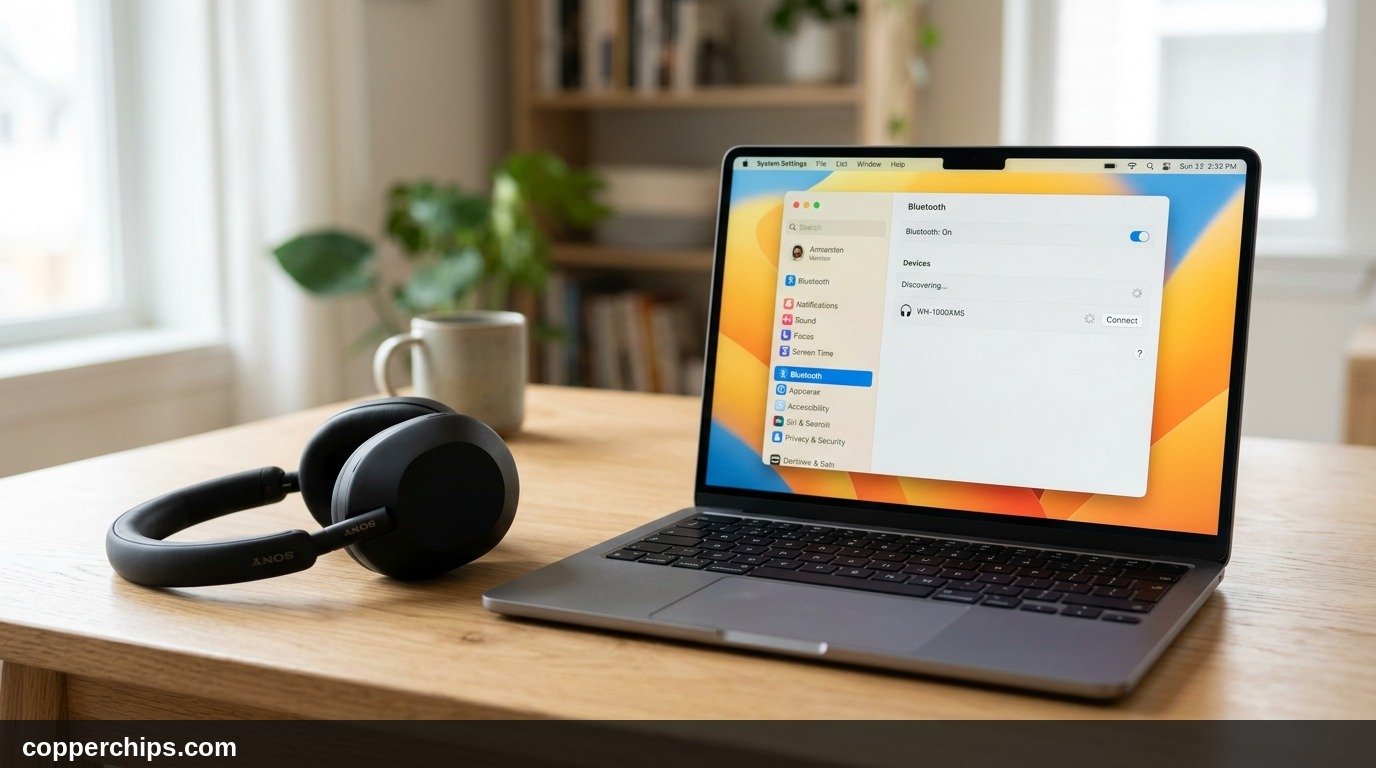
Nothing breaks your concentration faster than audio that skips, crackles, or cuts out every five seconds. When experiencing bluetooth audio stuttering on your wireless headphones, earbuds, or desktop speakers, toggling the connection off and on rarely cures the problem. Wireless audio relies on a fragile balance of radio frequency transmission, real-time packet buffering, and software codec negotiation. A single dropped data packet can force your hardware to pause playback while it waits for retransmission.
Most stuttering is not caused by broken headphones. It stems from background profile switching, channel congestion on the 2.4 GHz frequency band, or corrupted system caches. In this guide, you will learn the exact steps to eliminate playback hiccups across Windows 11, macOS, Android, and iOS.
Bluetooth audio stuttering happens when packet loss exceeds the buffer limit of your receiving device. On Windows 11 and 10, the most common culprit is the Handsfree Telephony service hijacking bandwidth from high quality stereo playback. Disable Handsfree Telephony in the Classic Control Panel under Devices and Printers. On Mac, switch your Sound Input away from the Bluetooth headset to the internal microphone. On mobile devices, clear the Bluetooth system cache and move away from active 2.4 GHz Wi-Fi routers.
- ✓Windows Handsfree Conflict: Windows often tries to run the microphone and stereo audio at the same time, cutting bandwidth by 75 percent and causing audio stutter.
- ✓2.4 GHz RF Overlap: Bluetooth shares the 2.4 GHz spectrum with home Wi-Fi and USB 3.0 ports. Shifting your router to 5 GHz stops packet collisions immediately.
- ✓Desktop Antenna Rule: Desktop motherboards require the external Wi-Fi fin antenna attached to the rear I/O shield to transmit Bluetooth signals beyond two feet.
Why Bluetooth Audio Stutters: 5 Core Radio and Software Causes
Understanding how wireless audio travels between your device and your headphones helps you pinpoint the failure point without wasting time. Bluetooth audio transmission is a real-time stream that operates within strict microsecond tolerances.
When data packets fail to arrive within the designated time slot, your audio processor has no choice but to insert micro-silence. Here are the five primary engineering reasons your audio stutters:
- Profile Switching Conflicts: Bluetooth devices support multiple profiles. The Advanced Audio Distribution Profile (A2DP) handles high quality stereo playback. The Hands-Free Profile (HFP) handles voice calls and microphone input. When an app pings your microphone in the background, your computer downshifts to HFP. This collapse in throughput drops audio bitrates from 328 kbps to 64 kbps, creating audible dropouts.
- 2.4 GHz Band Congestion: Bluetooth relies on Frequency-Hopping Spread Spectrum (FHSS) technology across 79 channels between 2.402 GHz and 2.480 GHz. Nearby Wi-Fi routers broadcasting wide 40 MHz channels flood these same frequencies. Microwave ovens, baby monitors, and unshielded USB 3.0 cables also leak radio frequency noise into this band.
- Buffer Underruns in Operating Systems: If your system processor experiences sudden CPU spikes or your audio driver lags, the audio buffer empties before the next frame arrives. This produces a telltale rhythmic clicking or stuttering sound.
- Missing Desktop Motherboard Antennas: Many PC users do not realize that the Wi-Fi card inside their desktop also drives the Bluetooth controller. If you leave the external magnetic antenna unplugged from the rear I/O shield, your Bluetooth signal cannot travel more than 24 inches without dropping packets.
- Corrupted Bluetooth System Caches: Over months of pairing different devices, the Bluetooth stack stores stale Link Keys, device descriptors, and Generic Attribute Profile (GATT) tables. Corrupted cache entries create negotiation loops where the host repeatedly requests re-authentication during playback.
According to technical specifications published by the Bluetooth Special Interest Group Standards, maintaining stable wireless throughput requires strict signal-to-noise margins. When interference degrades packet integrity, the audio stack must either drop data or retransmit frames immediately.
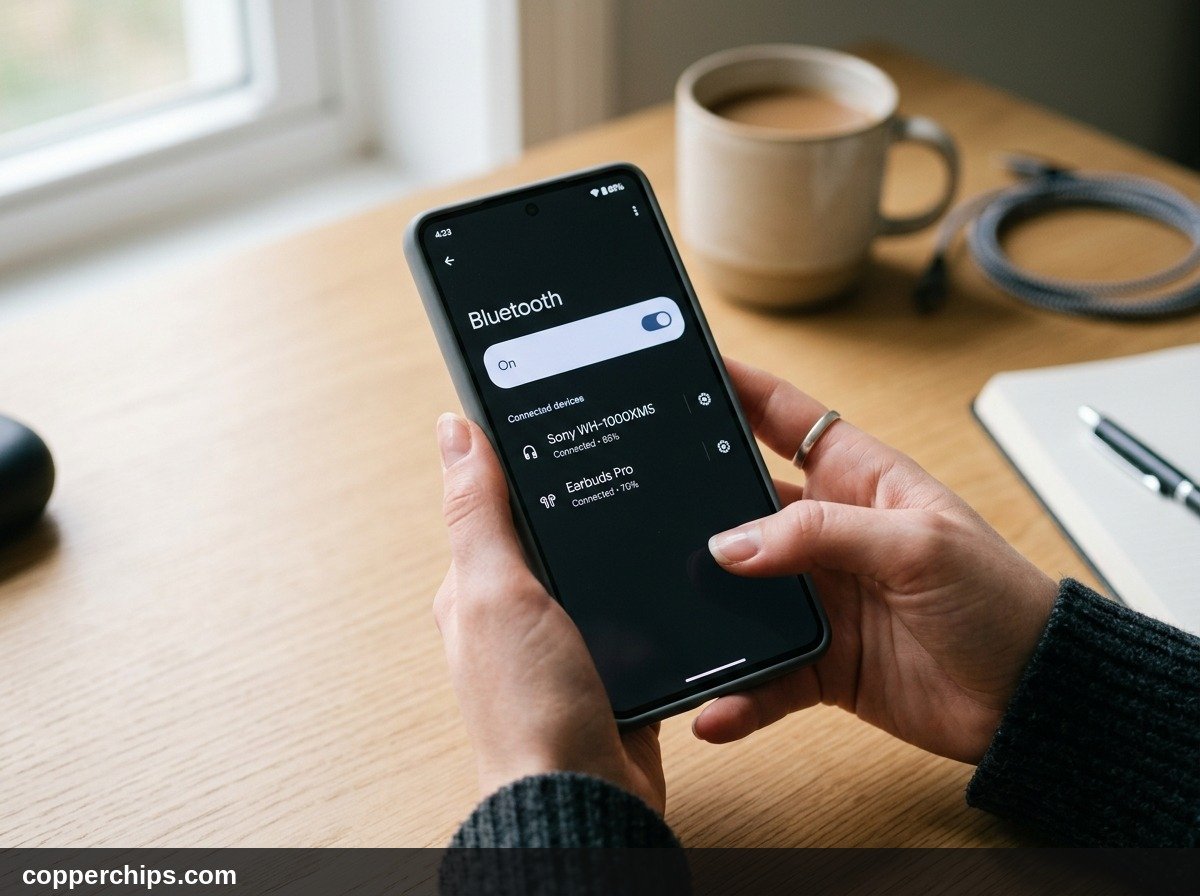
How to Fix Bluetooth Audio Stuttering: 7 Solutions
Work through these solutions in sequence. We start with the fastest software fixes that resolve over 80 percent of stuttering cases before moving into driver adjustments and hardware checks.
Fix 1: Disable Handsfree Telephony in Windows
Turn off the Handsfree Telephony service in the classic Windows Control Panel. This is the single most common fix for Windows 11 and Windows 10 users wearing gaming headsets or modern noise-canceling headphones.
Windows often attempts to keep the headphone microphone channel open for voice assistants or background communication apps. This action forces your headset into mono communication mode, wrecking your stereo playback stream.
- Press Windows Key + R on your keyboard to open the Run dialogue box.
- Type control printers and press Enter to launch Devices and Printers.
- Locate your Bluetooth headphones or speaker under the Devices section.
- Right-click your audio device and select Properties.
- Click on the Services tab at the top of the properties window.
- Uncheck the box next to Handsfree Telephony.
- Click Apply, then click OK.
- Restart your media player or browser to test playback.
Disabling this service tells Windows to treat your headphones strictly as a stereo playback device. If you need a microphone for voice calls or multiplayer gaming, use an external USB microphone or a standalone desk mic instead.
Fix 2: Switch macOS Sound Input Away from Your Bluetooth Headset
Change your Mac Sound Input setting to the internal microphone. When macOS detects an active microphone on a connected Bluetooth headset, it splits the controller bandwidth between input and output channels.
This duplex requirement forces your Mac to downsample high-resolution AAC audio to low-bandwidth SCO voice packets. The constant bandwidth shifting sounds like random skipping.
- Click the Apple menu in the top left corner of your screen and select System Settings.
- Click Sound in the left sidebar navigation menu.
- Scroll down to the Output & Input section.
- Verify that your Bluetooth device is selected under the Output tab.
- Click over to the Input tab.
- Select MacBook Pro Microphone, Mac mini Microphone, or any connected USB input instead of your Bluetooth headset.
If stuttering continues on your Mac, reset the Bluetooth background daemon without restarting your computer. Open the Terminal app, type sudo pkill bluetoothd, and press Enter. Enter your macOS administrator password. Your Bluetooth connections will cycle off for two seconds and reload cleanly.
Refer to official guidelines from Apple Official Sound and Bluetooth Support if your Mac fails to recognize paired audio accessories after resetting background services.
Fix 3: Clear the Bluetooth App Cache and Reset Network Settings on Android
Clear stored cache data from the system-level Bluetooth service on your Android device. Android stores temporary transmission logs and device profiles in a dedicated system partition. When these files accumulate errors, audio streams begin skipping.
- Open the Settings app on your Android smartphone or tablet.
- Tap on Apps, then tap See all apps.
- Tap the three vertical dots in the top right corner and choose Show system.
- Scroll down the list and tap on Bluetooth.
- Tap on Storage & cache.
- Tap Clear Cache, then tap Clear Storage (or Clear Data).
- Restart your phone to let Android rebuild a fresh cache table.
If you have developer options enabled on your Android device, you can also inspect your active codec. Navigate to Settings > System > Developer options. Look for Bluetooth Audio Codec. If your phone is pushing high-bitrate LDAC at 990 kbps in an area with heavy wireless traffic, lock the codec to AAC or SBC to prevent packet buffer exhaustion.
If you also have trouble establishing connections initially, read our complete guide on how to connect bluetooth speaker to tv for step-by-step pairing tips.
Fix 4: Screw the External Wi-Fi Antenna into Your Desktop Motherboard
Attach the physical external fin antenna to the brass SMA connectors on the back of your desktop PC. This physical hardware issue accounts for thousands of unresolved Bluetooth audio complaints on custom desktop computers.
Modern gaming motherboards from ASUS, MSI, Gigabyte, and ASRock bundle Intel or Realtek wireless cards. These chips handle both Wi-Fi and Bluetooth through the same antenna terminals. Without the antenna connected:
- Your Wi-Fi might still pick up a faint signal from a nearby router.
- Your Bluetooth signal drops from a normal 30-foot range down to less than two feet.
- Leaning back in your desk chair or placing your phone near your PC will instantly cause audio stuttering.
Locate the black plastic shark fin or twin dipole antennas that came in your motherboard box. Thread them firmly onto the gold screw terminals on the back metal plate. Move the antenna onto your desk away from metal computer cases or power supply cables.
Fix 5: Eliminate 2.4 GHz Wi-Fi Congestion and USB 3.0 Interference
Separate your Bluetooth audio devices from high-power 2.4 GHz radio sources. Bluetooth operates on the same unlicensed 2.4 GHz spectrum used by older home Wi-Fi networks and unshielded peripheral cables.
If your router sits within four feet of your desk, its 2.4 GHz radio waves can drown out low-power Bluetooth signals. Follow these isolation steps:
- Migrate to 5 GHz or 6 GHz Wi-Fi: Connect your laptop, phone, and desktop to your home router’s 5 GHz or 6 GHz wireless band. Leaving the 2.4 GHz band clear gives your Bluetooth radio room to frequency-hop without collisions.
- Set 2.4 GHz Channel Width to 20 MHz: Log in to your router settings and verify that your 2.4 GHz channel width is locked to 20 MHz rather than 40 MHz. A 40 MHz channel consumes over half the entire band, leaving almost zero clean space for Bluetooth audio packets.
- Shield USB 3.0 Ports: Unshielded USB 3.0 external hard drives and hub cables emit broad-spectrum radio noise right at 2.4 GHz. If you plug a Bluetooth USB dongle directly beside an active USB 3.0 flash drive, the dongle will experience heavy packet drops. Use a short USB extension cable to move your dongle 12 inches away from USB 3.0 ports.
If your device frequently drops off the network entirely while listening to audio, check our in-depth diagnosis on why does my bluetooth keep disconnecting to identify firmware-level sleep traps.
Fix 6: Disable Audio Enhancements and Exclusive Mode Control
Turn off third-party audio processing enhancements and exclusive mode hooks in Windows. Virtual surround sound drivers, spatial audio plug-ins, and equalizer utilities add latency to the rendering pipeline.
When the software audio engine takes too long to process an audio frame, the Bluetooth transmission buffer starves, causing rhythmic audio stuttering.
- Press Windows Key + R, type mmsys.cpl, and press Enter to open Sound Settings.
- Under the Playback tab, right-click your default Bluetooth headphones and choose Properties.
- Navigate to the Enhancements tab (or Advanced tab on newer systems).
- Check the box that says Disable all enhancements (or turn Audio Enhancements to Off).
- Click on the Advanced tab.
- Under Exclusive Mode, uncheck both:
- Allow applications to take exclusive control of this device
- Give exclusive mode applications priority
- Click Apply and OK.
Review detailed troubleshooting advice directly from Microsoft Official Windows Bluetooth Documentation if your audio playback device fails to save audio property changes.
Fix 7: Unpair and Re-pair Devices with a Fresh Cryptographic Handshake
Delete the device pairing profile from both sides and perform a clean handshake. Over time, reconnecting across multiple operating systems can cause clock synchronization drift between the master host and the slave receiver.
A simple disconnect and reconnect command only loads the existing cached parameters. A full unpair forces both devices to exchange new cryptographic Link Keys and negotiate buffer sizes from scratch.
- On your phone or computer, open Bluetooth settings.
- Locate your headphones, tap the settings gear or info icon, and select Forget Device or Remove Device.
- Turn off Bluetooth on your host computer or phone.
- Put your headphones or speaker into true pairing mode by pressing and holding the pairing button until the LED flashes rapidly.
- Turn Bluetooth back on at your host device.
- Select your headphones from the discovered list to pair freshly.
Bluetooth Audio Codec Diagnostic Matrix
Different Bluetooth audio codecs balance sound fidelity, latency, and connection stability differently. When your wireless environment experiences radio noise, higher bitrate codecs struggle first.
| Codec | Max Bitrate | Latency | Stutter Risk in Busy RF | Best Platform |
|---|---|---|---|---|
| SBC (Subband) | 328 kbps | 150 to 250 ms | Very Low (Highly stable) | Universal standard |
| AAC | 256 kbps | 100 to 180 ms | Low (On iOS / macOS) | Apple ecosystem |
| Qualcomm aptX | 352 kbps | 60 to 80 ms | Moderate | Android & PCs |
| aptX Adaptive | 279 to 420 kbps | 50 to 80 ms | Low (Dynamic scaling) | Modern Android |
| Sony LDAC | 990 kbps | 200 ms | High at 990 kbps | Sony audiophile gear |
If you own Sony headphones like the WH-1000XM4 or WH-1000XM5 and experience frequent stuttering outdoors or in transit, open the Sony Headphones Connect app. Switch your sound quality mode from Priority on Sound Quality to Priority on Stable Connection. This change drops LDAC from 990 kbps to 660 or 330 kbps, eliminating packet loss completely.
Still Not Working? Try This
If you have implemented every software fix, checked your Wi-Fi environment, and your audio still stutters, you are likely dealing with hardware degradation or bus controller bottlenecks.
Try these deeper hardware escalation steps:
- Test with an External USB Bluetooth 5.3 Dongle: Integrated motherboard and laptop Bluetooth controllers share antenna lines and bus power with internal Wi-Fi chipsets. If the internal module is failing, an inexpensive USB Bluetooth 5.3 adapter will bypass the internal hardware completely. Disable the internal radio in Device Manager before plugging in the new adapter.
- Check for Battery Voltage Sag in Earbuds: Lithium-ion batteries in small wireless earbuds degrade significantly after 18 to 24 months of daily use. When earbud battery health falls below 20 percent, internal voltage sags whenever the radio amplifier boosts power to receive packets. If your stuttering only begins after 30 minutes of listening, failing battery chemistry is the root cause.
- Isolate Against Smartphone Hotspot Tethering: If your laptop stutters only when tethered to your phone’s mobile hotspot, the close proximity of cellular transmissions and local hotspot Wi-Fi creates an insurmountable noise floor. Connect using a USB-C cable for tethering to free up your laptop’s wireless spectrum.
Explore our full catalogue of wireless fixes in the Bluetooth troubleshooting hub for device-specific teardowns and connectivity tutorials.
Frequently Asked Questions
Why does my Bluetooth audio stutter only when I move my phone?
The human body consists largely of water, which absorbs 2.4 GHz radio frequencies efficiently. Placing your phone in a back pocket or covering the phone’s internal antenna band with your palm can reduce signal strength below the packet decode threshold, causing brief stuttering.
Does high CPU usage cause Bluetooth headphones to stutter?
Yes. The operating system audio engine requires dedicated CPU cycles to encode audio streams into Bluetooth packets in real time. If a background render, virus scan, or gaming load hits 100 percent processor usage, the audio buffer starves before packets can reach the wireless transmitter.
Why do my headphones stutter on Windows but sound fine on my iPhone?
Apple hardware uses custom silicon and strict AAC hardware acceleration tuned specifically for wireless audio stability. Windows supports hundreds of varying motherboard adapters and frequently mismanages the Handsfree Telephony microphone service, causing profile conflicts that iOS handles smoothly.
Can low headphone battery cause audio to skip?
Yes. As wireless headphone batteries near exhaustion, internal voltage regulators struggle to supply steady power to both the Bluetooth radio receiver and the digital-to-analog converter. This voltage fluctuation leads to packet dropouts and audible crackling.
Does clearing the Bluetooth cache delete my paired devices?
Clearing the Bluetooth app cache on Android deletes temporary connection logs and transmission buffers without removing your saved devices. Clearing Bluetooth storage or data, however, resets your pairing list and requires you to pair your accessories again.
The Bottom Line
Bluetooth audio stuttering is almost never a death sentence for your wireless headphones or speakers. In the vast majority of cases, the problem boils down to Windows Handsfree Telephony conflicts, 2.4 GHz router channel congestion, or missing desktop motherboard antennas.
Start by unchecking Handsfree Telephony on Windows or routing audio input away from your headset on Mac. If you are on a desktop PC, ensure your physical Wi-Fi fin antenna is screwed in securely. By addressing the root causes of packet loss, you will restore smooth, uninterrupted wireless audio playback in just a few minutes.