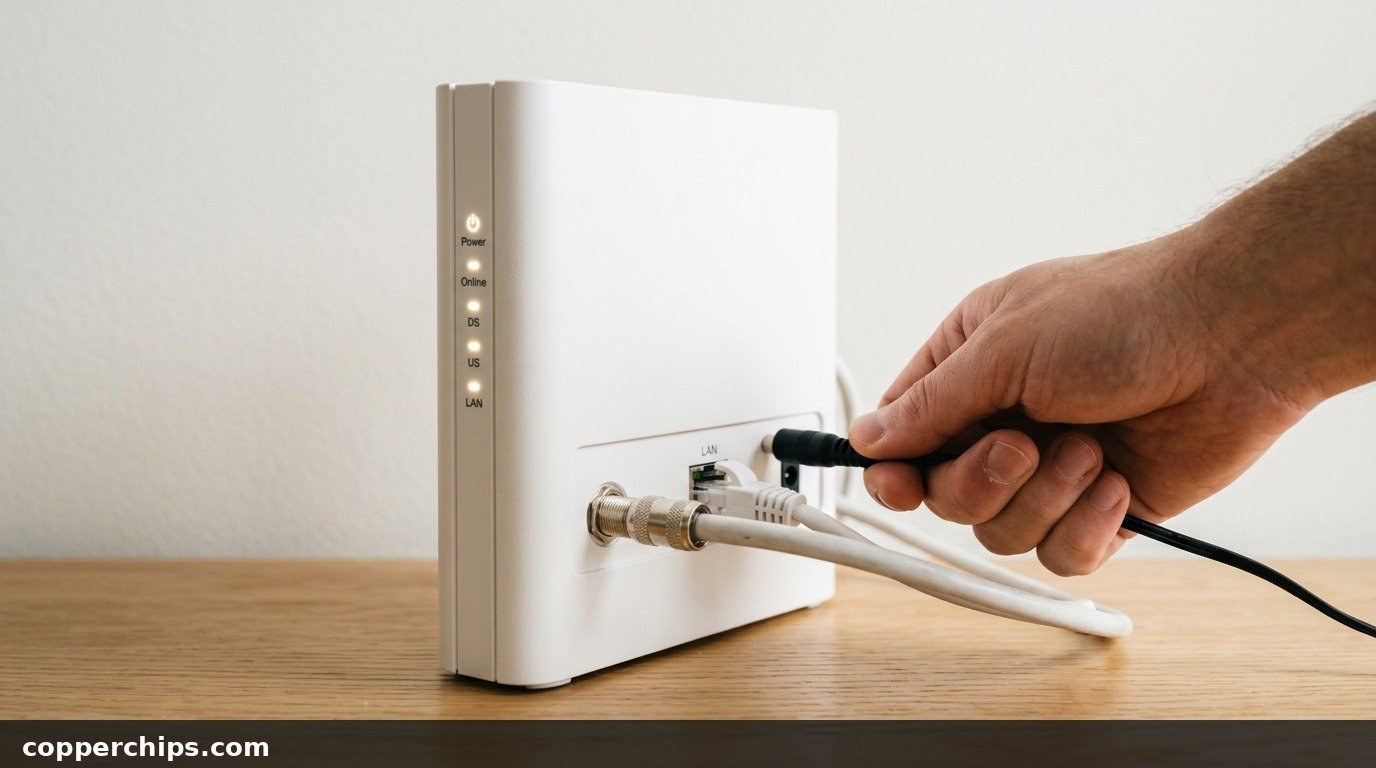
Your internet dropped, and somebody told you to “just reset the modem.” Simple enough, until you spot a pinhole button on the back and wonder if it will wipe everything. That hesitation is smart.
“How do I reset my modem” covers two very different jobs. Pick the wrong one and a two-minute fix becomes an hour on the phone with your ISP.
This guide covers both.
Below is the safe restart that fixes most dropouts, plus three other ways to trigger it, including from your phone. You also get the right order for restarting a modem and router together, and the full factory reset for when nothing else works. Each method lists what the lights should do and how long to wait.
To reset a modem safely, unplug its power cord, remove the backup battery if it has one, wait 60 seconds, then plug it back in. Give it 2 to 5 minutes until the Online or Internet light turns solid. This restart keeps all your settings. A factory reset is different: hold the recessed Reset button with a paperclip for about 30 seconds (time varies by model). That wipes custom WiFi names, passwords and port forwards, so only use it when a restart fails or you are locked out of the admin page.
- vRestart vs. reset: Unplugging the modem restarts it and keeps every setting, while the Reset button erases them.
- vTop fix: Power down for a full 60 seconds, pull any backup battery, and restart the modem before the router.
- vEscalation: If the Online light never goes solid after a factory reset, call your ISP to check the line and reprovision the modem.
Restart vs. Factory Reset: Which One Do You Need?
Most ISP support pages use “reset,” “reboot,” “restart” and “power cycle” as if they mean the same thing. Three of them do.
A restart (also called a reboot or power cycle) shuts the modem off and lets it reconnect with fresh settings from your provider. Nothing you configured is lost.
A factory reset returns the modem to the state it shipped in. Standalone cable modems store very little, so the loss barely matters. On a modem/router combo (a “gateway”), it erases your WiFi name, WiFi password, admin password, port forwards, DNS settings and device reservations.
| Restart (power cycle) | Factory reset | |
|---|---|---|
| How | Unplug power, app button, or admin page | Hold the recessed Reset button |
| Time | 3 to 6 minutes | 10 to 30 minutes, plus setup |
| Settings kept? | Yes, all of them | No, back to the label defaults |
| Use it for | Dropouts, slow speeds, blinking lights | Forgotten passwords, broken settings, failed restarts |
Start with a restart every time. It clears most modem problems because it forces a fresh connection to your provider and a new IP address.
How Do I Reset My Modem? 5 Methods, Easiest First
Fix 1: Power Cycle the Modem the Right Way
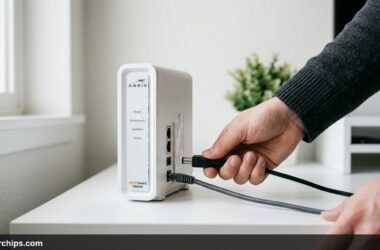
Unplug the modem’s power cord and leave it out for a full 60 seconds. Most people plug it back in after five seconds, which often isn’t long enough for the modem to fully shut down.
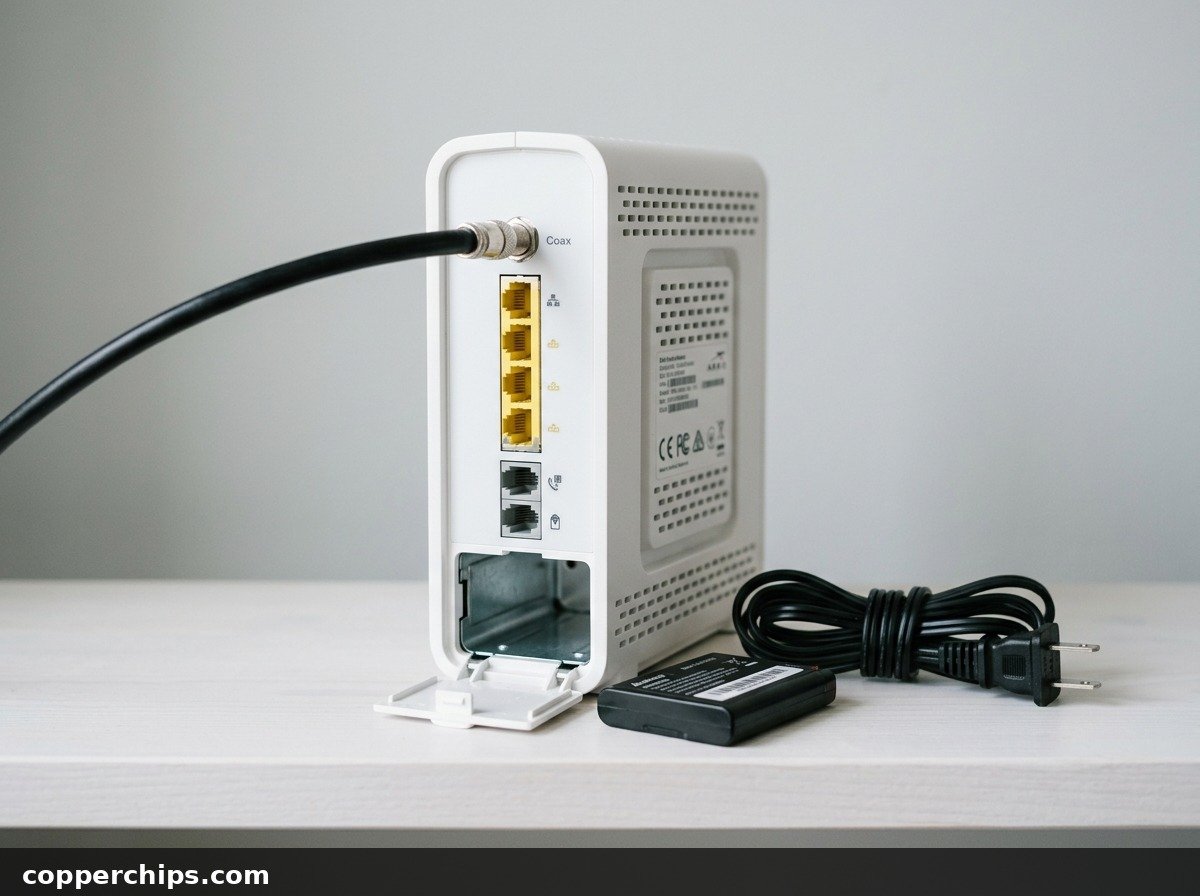
- Find the modem. It is the box connected to the coax cable (cable internet), phone line (DSL) or the fiber terminal on the wall.
- Pull the power cord from the back of the modem, not just the power strip switch.
- If the modem has a backup battery compartment, remove the battery too. Modems that run home phone service often have one, and Spectrum’s own Spectrum modem restart instructions include this step.
- Wait 60 seconds.
- Reinsert the battery, then plug the power back in.
- Watch the lights. Downstream and upstream lights will blink while the modem searches for a signal. Wait until the Online or Internet light stays solid, which can take 2 to 5 minutes.
Why this works: a cold start clears the modem’s memory, drops any stuck connection, and makes it register with your ISP from scratch.
You will know it worked when the Online light is solid and a device plugged into the router loads a web page.
Fix 2: Restart the Modem From Your ISP’s App
Use your provider’s app to send a restart command remotely. This is handy when the modem sits behind furniture or in a basement. It also triggers a restart from the ISP side, which sometimes clears problems a local unplug won’t.
- Xfinity: Open the Xfinity app, go to the WiFi or Internet section, select your gateway, and choose the restart option.
- Spectrum: In the My Spectrum app, open Services, select Internet, and look for the Restart Equipment option under troubleshooting.
- AT&T: The Smart Home Manager app lets you open your gateway under Network and restart it.
Menu labels move around between app updates. If you can’t find the button, search the app’s help section for “restart.” These remote options work only on ISP-supplied equipment. A modem you bought yourself won’t show up in the provider’s app.
Fix 3: Restart From the Modem’s Admin Page
Type 192.168.100.1 into a browser on a device connected to your network. That address opens the status page on most cable modems, including ARRIS SURFboard, Netgear and Motorola models.
- Connect a computer or phone to your network. A wired connection is more reliable here.
- Open a browser and go to 192.168.100.1. AT&T gateways use 192.168.1.254 instead.
- Log in if prompted. Newer firmware often asks for a password, and the default is usually printed on the modem’s label or listed in the manual.
- Find the restart control. On SURFboard models it is under the Configuration tab as Restart Modem. Other brands put it under Status, Maintenance or Advanced.
- Confirm, then wait 3 to 5 minutes before testing.
The admin page is also worth a look before you restart. Its downstream and upstream signal tables show power levels and errors. Huge error counts or missing channels point to a line problem, which no reset will fix.
The ARRIS SURFboard support library has model-specific guides on reading these tables.
Fix 4: Restart the Modem and Router in the Right Order
If you have a separate router, always bring the modem up first. The router needs a working modem to get its internet address. Start them in the wrong order and the router can sit there with no connection, even though the modem is fine.
- Unplug both the modem and the router.
- Wait 60 seconds.
- Plug in the modem only. Wait until its Online light is solid (2 to 5 minutes).
- Plug in the router. Give it another 2 minutes to boot and broadcast WiFi.
- Test on a device that was showing the problem.
If you only have one box with both coax and WiFi antennas, it is a gateway. Fix 1 covers it, and the order doesn’t matter. Mesh systems follow the same rule as routers: modem first, then the main mesh unit, then the satellites.
Fix 5: Factory Reset the Modem With the Reset Button
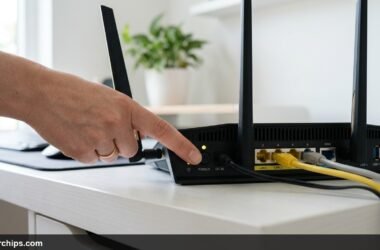
Use the recessed Reset button only after restarts have failed. It is also the fix when you have forgotten the admin password or changed a setting that broke your connection.
- Leave the modem plugged in and powered on.
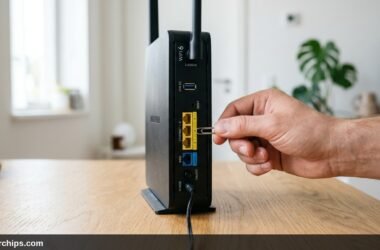
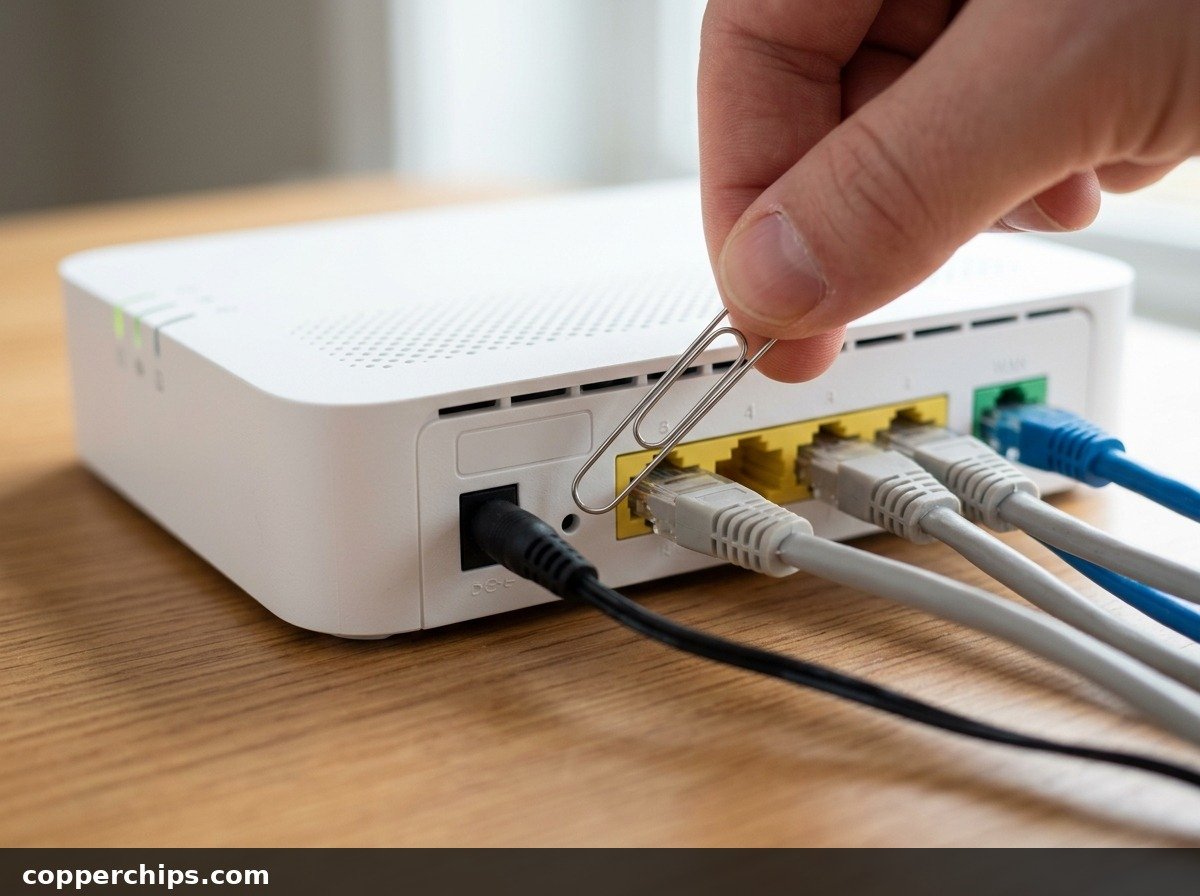
- Find the Reset hole on the back. It is small and recessed on purpose, so a bump can’t trigger it.
- Press it with a straightened paperclip or pen tip until you feel a click.
- Hold it. About 30 seconds works on most cable modems, while some models need only 10 to 15 seconds. CenturyLink’s CenturyLink modem reset guide walks through its own models.
- Release when the lights flash or go dark, then let the modem reboot. Plan on 5 to 10 minutes before it is fully online.
Don’t confuse the Reset button with a power button. Holding Reset for a second or two does nothing on some models and triggers a restart on others. A long hold is what wipes it.
What to Set Up After a Factory Reset
What you need to redo depends on the type of modem. A standalone cable modem usually needs nothing. When it boots, it pulls its configuration from your ISP, and your separate router keeps its own settings.
A gateway is different. Work through this list after the reset:
- WiFi name and password: Log in to the admin page and set them back to what they were. Every device will reconnect on its own, with no need to re-pair anything.
- Admin password: Change it from the default right away.
- Port forwards and reservations: Game consoles, security cameras and home servers may need these rebuilt.
- Bridge mode: If you used your own router behind the gateway, turn bridge mode back on or you’ll get a double NAT.
- DSL login details: Some DSL and fiber connections, including many CenturyLink lines, use a PPPoE username and password. A reset wipes them, and the modem won’t connect until you enter them again. Your ISP account page or support line can give you those details.
If the modem was working before and has gone quiet since the reset, that last point is the usual cause on DSL connections.
Still Not Working? Try This
If the Online light keeps blinking after a restart and a factory reset, the modem can’t lock onto a signal. Check the physical connection first.
Hand-tighten the coax connector on the back of the modem, and remove any splitters between the wall and the modem as a test. Every splitter weakens the signal.
Next, check your ISP’s outage map or app. A listed outage in your area means no reset will help, so wait for it to clear.
With no outage showing, call support. Ask them to check your line’s signal levels and send a refresh or reprovisioning signal to the modem. They can see things you can’t, like noise on the line outside your home.
Fiber is a slightly different case. The box on the wall (the ONT) converts the fiber signal, and your gateway plugs into it. If restarting the gateway fails, unplug the ONT’s power for 60 seconds too, then start the ONT first and the gateway second.
Consider replacing the modem if it is five or six years old, runs hot, or keeps dropping after the ISP confirms a clean line.
Check your ISP’s list of approved modems before buying one, because an unlisted model may not activate. A current DOCSIS 3.1 model is the safe choice for cable internet.
If the modem is online but your devices still can’t load pages, the problem has moved downstream. Our guide to fixing WiFi with no internet access picks up from there.
Frequently Asked Questions
Is unplugging a modem the same as resetting it?
Unplugging a modem restarts it, which some ISPs also call a reset. It keeps all your settings. A factory reset, done with the recessed Reset button, is the version that erases your settings.
Do modems have a reset button?
Almost all of them do. It is usually a small recessed hole on the back labeled Reset, and you need a paperclip to press it. Because it erases your settings, use it only after a regular restart fails.
Is it good to reset your modem regularly?
Restarting it occasionally is harmless and can clear slowdowns. There is no need for a schedule, though. Restart when something is wrong, and save the factory reset for real problems.
How long should I wait after resetting my modem?
Wait 2 to 5 minutes after a restart for the Online light to go solid. After a factory reset, allow 5 to 10 minutes. If the light is still blinking after 15 minutes, the modem probably isn’t getting a usable signal.
How do I get my modem back online after a reset?
Check that the coax, phone or fiber cable is tight, then give the modem the full boot time. DSL users may need to re-enter their PPPoE login details. If it still won’t connect, ask your ISP to reprovision the modem from their end.
Will resetting my modem change my WiFi password?
Restarting won’t. A factory reset on a modem/router combo returns the WiFi name and password to the defaults printed on its label. Standalone modems have no WiFi, so your router’s password stays the same.
The Bottom Line
When someone asks how to reset a modem, the answer that fixes most problems is the simplest one. Unplug it, pull any backup battery, wait a full minute, and give it up to five minutes to come back.
Use the app or the 192.168.100.1 admin page when you can’t reach the box. If you have a separate router, restart the modem first.
Save the Reset button for when restarts fail or you’re locked out, and photograph the gateway label before you press it. If the router is the box giving you trouble, our Netgear router reset walkthrough covers that side. You’ll find more fixes in the routers and modems troubleshooting hub.