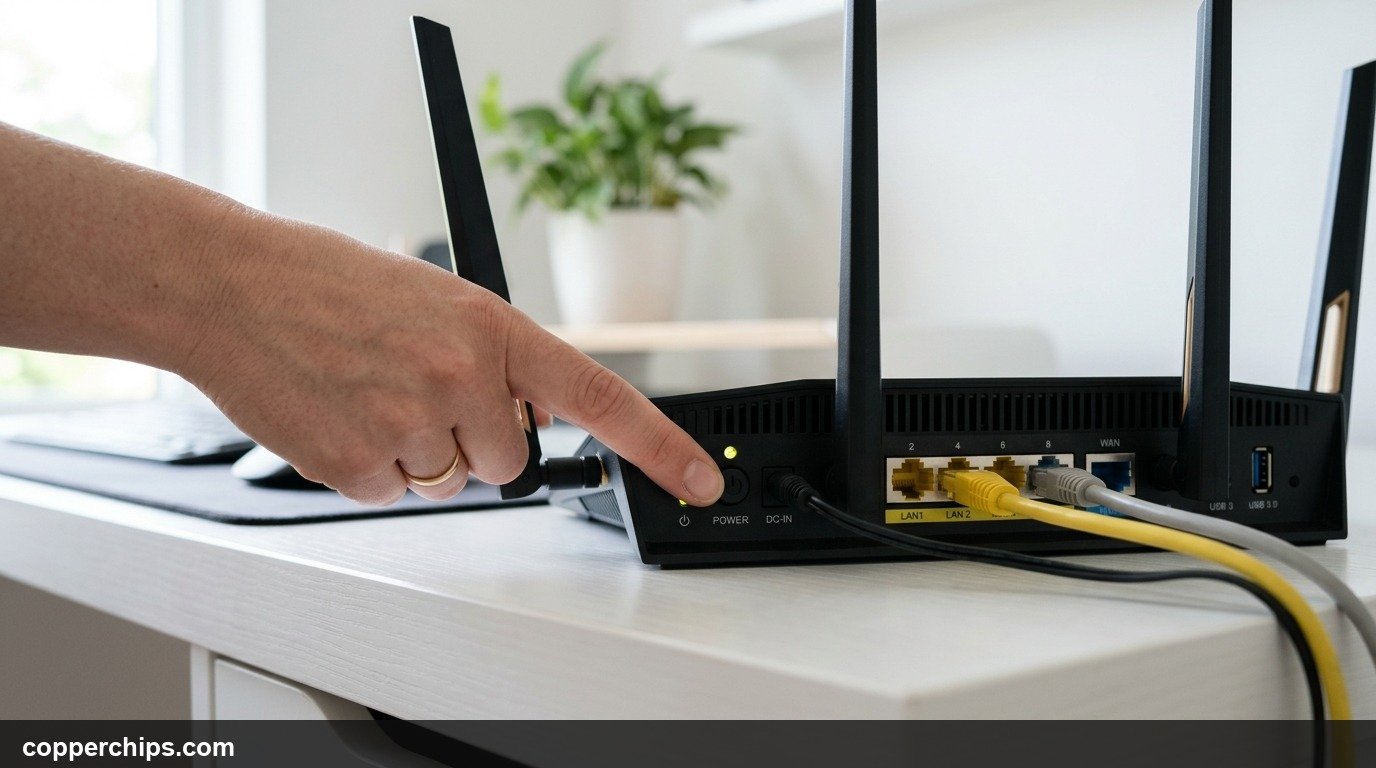
Few things disrupt a workday faster than an internet connection that suddenly drops. When web pages freeze and video calls buffer, your network hardware is usually the culprit. Knowing how to restart your router properly fixes most wireless connection problems in under two minutes.
Most guides give one generic piece of advice: pull the power cord. While that works, software reboot methods are often faster. This guide explains why restarts fix connection drops, covers three reboot methods, and shows you how to automate the process.
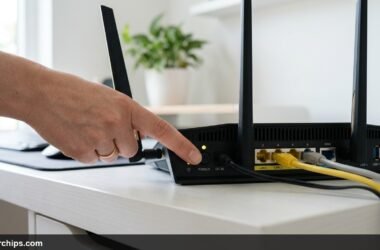
To restart your router, disconnect the power cable from the back. Wait 30 seconds for internal capacitors to drain completely. Plug the power cable back in and wait two minutes for the status lights to turn solid green or white. You can also reboot via your admin panel at 192.168.1.1 under System Tools.
- vWhy Rebooting Works: Restarting purges temporary RAM, clears stale DNS records, empties congested NAT tables, and renews DHCP IP leases.
- vThe 30-Second Rule: Always pause 30 seconds before reconnecting power so residual electrical charge drains from memory chips.
- vAutomated Maintenance: Setting a weekly auto-reboot at 3:00 AM keeps your wireless network stable without manual effort.
Why Restarting Your Router Solves Connection Problems
Your wireless router functions as a specialized computer. It features a processor, flash memory, volatile RAM, and an operating system that runs non-stop. Over weeks of continuous operation, several technical bottlenecks develop in the background.
Every active phone, computer, and smart home gadget opens data channels. Over time, four specific internal conditions degrade network performance:
- NAT Table Saturation: Network Address Translation (NAT) tables map outgoing requests. P2P downloads and video streams leave orphan connections that clog the table.
- Memory Fragmentation: Minor firmware memory leaks consume system RAM. As free memory dwindles, packet routing slows down.
- Corrupted DNS Records: Routers cache Domain Name System queries locally. Stale lookup records trigger DNS resolution errors in web browsers.
- DHCP Lease Collisions: When guest devices join and leave, IP address conflicts can emerge. Rebooting forces clean IP assignments.
A power cycle drains electrical charge, clears volatile tables, and boots firmware fresh. It also forces your modem and router to establish a clean handshake with your internet provider.
Method 1: The 30-Second Physical Power Cycle
The physical power cycle remains the most dependable reboot technique. Cutting electrical current resets all hardware components even if router firmware freezes completely.
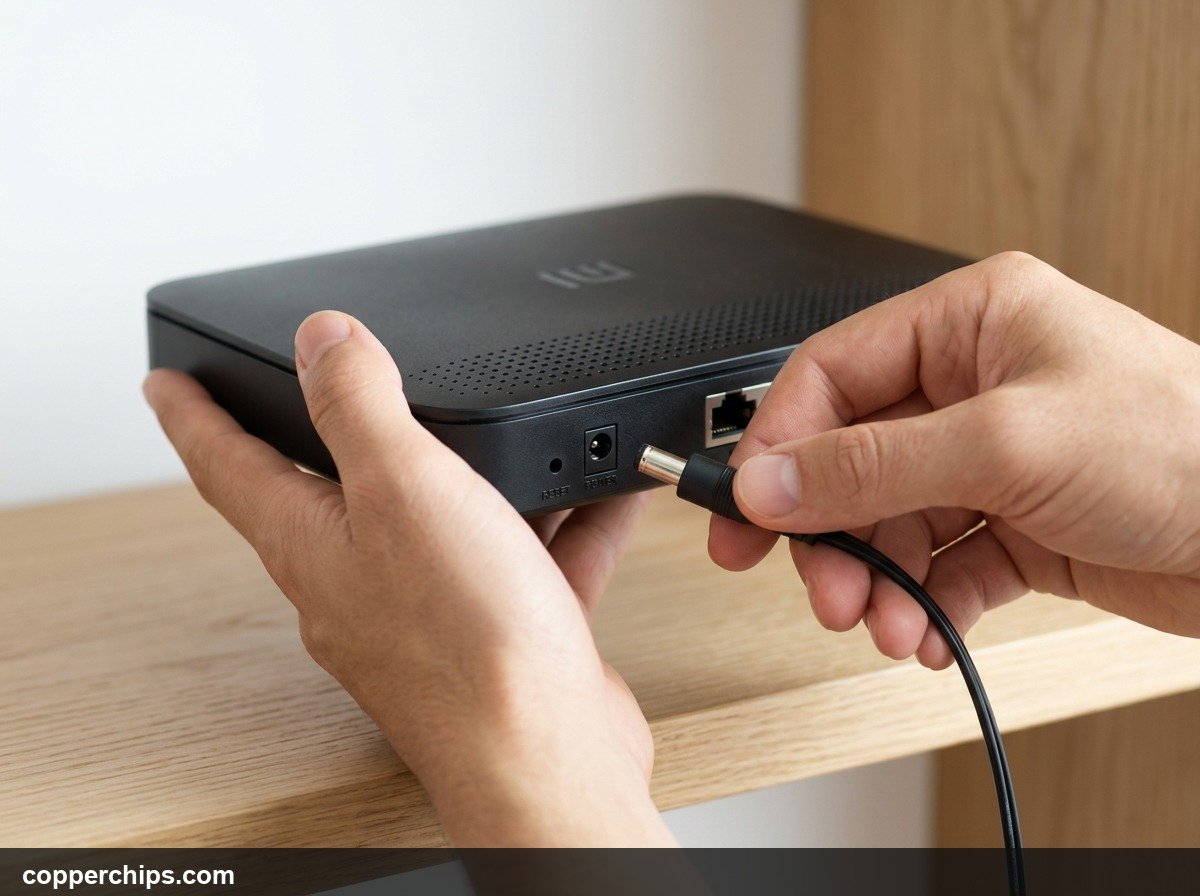
Follow these steps to complete a clean power cycle:
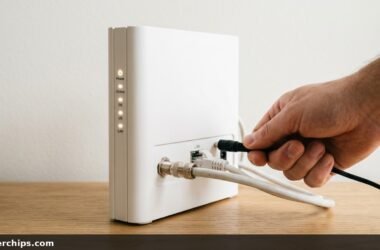
- Locate the power connector: Find the round DC power barrel on the back panel of your router. If your model has a physical power rocker switch, toggle it off.
- Unplug the power cord: Disconnect the adapter lead from the rear port or unplug the power brick from your wall socket.
- Wait 30 full seconds: Tiny internal capacitors store residual power for 10 to 20 seconds. Waiting 30 seconds ensures all volatile memory wipes clean.
- Reconnect the power adapter: Plug the power cable firmly back into the router.
- Check the front LEDs: The status indicators will blink amber during startup. Wait two to three minutes until the Internet and Wi-Fi LEDs turn solid green or white.
Method 2: How to Restart Your Router via Admin Panel or App
A software restart is ideal when your router sits in a high closet or attic. Software reboots issue a clean operating system shutdown command before reloading firmware.
Connect a laptop or smartphone to your network via Wi-Fi or Ethernet. Open a browser window to access the management interface.
Finding Your Router IP Address
Most routers use standard gateway addresses. Enter one of these into your browser URL field:
192.168.1.1(Default for ASUS, Netgear, Linksys)192.168.0.1(Default for TP-Link, D-Link)10.0.0.1(Standard on Comcast and Xfinity gateways)192.168.50.1(Common on ASUS gaming models)
Check the bottom label on your device if these fail to open. You can also run ipconfig in Windows Command Prompt to view your default gateway address.
Brand-Specific Software Reboot Menus
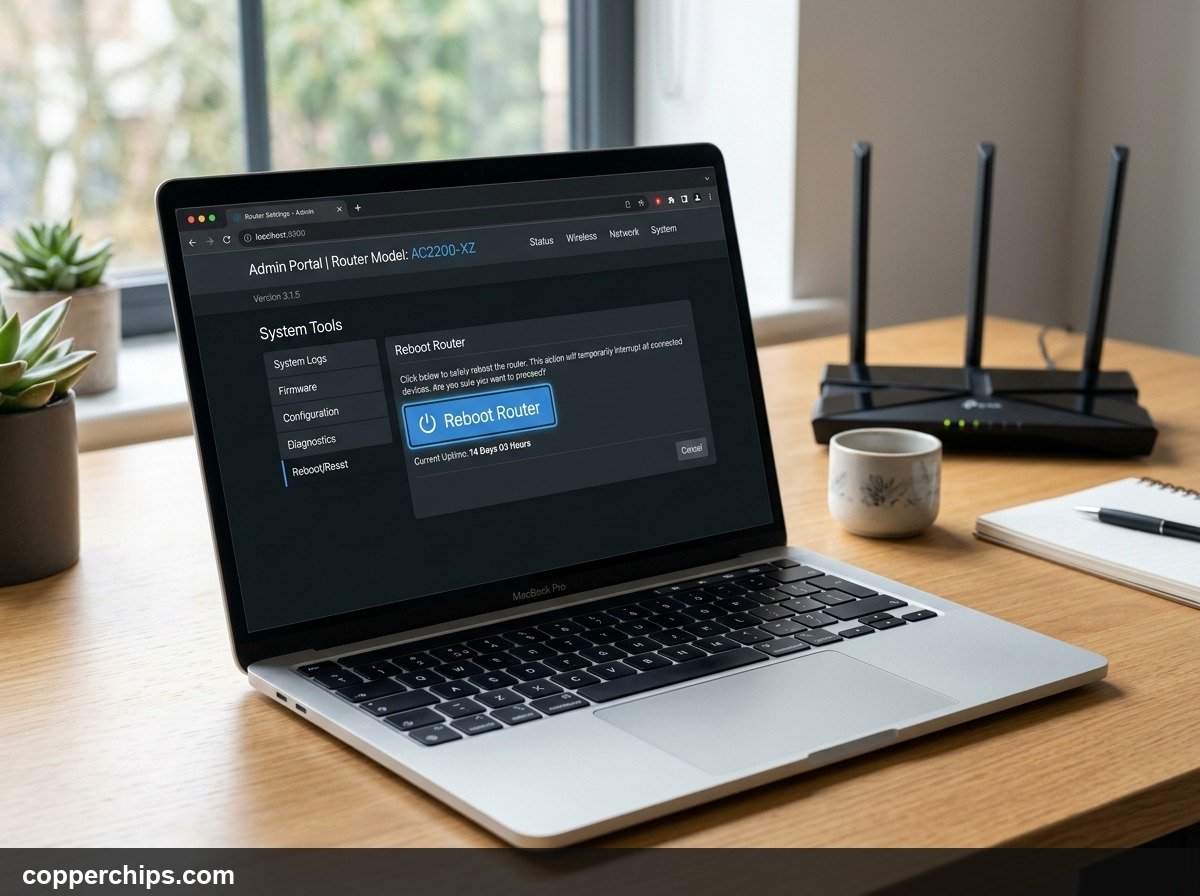
After logging in with your administrator credentials, navigate to the reboot option for your brand:
- TP-Link: Select Advanced > System Tools > Reboot and click the Reboot button. In the Tether app, tap Tools > System > Reboot. Find technical guides at TP-Link official support.
- Netgear: Click the Advanced tab > Administration > Router Status. Click Reboot under the router information box. In the Nighthawk app, tap Home > Settings > Reboot.
- ASUS: Click the yellow Reboot button at the top of the web interface. In the ASUS Router app, open Settings > System Settings > Reboot Router. Official manuals are at the ASUS support center.
- Linksys: Navigate to Router Settings > Troubleshooting > Diagnostics. Click Restart under the Reboot section (as documented in Linksys official router reboot instructions). In the Linksys app, select Manage Wi-Fi > Network Administration > Restart.
- Amazon Eero: Eero mesh units do not have a web portal. Open the Eero mobile app, tap Settings, choose Network Settings, and tap Restart Network.
The reboot process takes between 60 and 90 seconds. Your client devices will reconnect automatically once wireless radios re-initialize.
Method 3: Set Up an Automated Scheduled Reboot
Restarting networking gear manually whenever speeds drop is frustrating. Scheduling an automatic weekly restart maintains peak performance without any manual effort.
A reboot scheduled for 3:00 AM on Sunday morning clears out memory congestion. The two-minute restart happens during sleep hours so network users never experience interruptions.
Configuring Built-In Reboot Schedulers
Leading router brands include automated reboot scheduling tools within their admin settings:
- ASUS Routers: Open your AsusWRT interface. Click Administration > System tab. Scroll to the Basic Config area. Set Enable Reboot Scheduler to Yes. Choose your preferred day and set the time to
03:00. Click Apply. - TP-Link Routers: Open the web dashboard and click Advanced > System Tools > Reboot. Toggle Reboot Schedule to On. Select the weekly frequency and time. Check your time zone settings under System Tools > Time Settings to ensure accurate execution.
- Custom Firmware: On OpenWrt or DD-WRT, go to System > Scheduled Tasks. Enter the cron job line
0 3 * * 0 /sbin/rebootto schedule a Sunday restart.
Smart Plug Setup for Unsupported Routers
If your router firmware does not offer a reboot schedule feature, use an inexpensive smart plug. Plug your router power brick into a Wi-Fi smart plug from Kasa or Tapo.
Create a weekly schedule rule in the plug mobile app. Program the plug to switch off at 3:30 AM and turn back on at 3:31 AM. This automates the physical power cycle seamlessly.
Restart vs. Factory Reset: Understanding the Difference
Home users often mix up restarting with factory resetting. These two operations serve entirely distinct roles:
| Feature | Router Restart (Reboot) | Factory Reset |
|---|---|---|
| Operation Type | Soft power cycle or software reboot | Complete configuration wipe |
| Data Loss | Zero loss; all settings preserved | All custom passwords and rules deleted |
| Wi-Fi Password & SSID | Remains unchanged | Reverts to factory defaults on sticker |
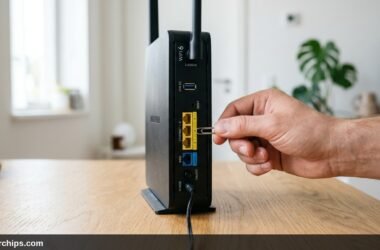
| Trigger Method | Unplug power cord or click Reboot | Press pinhole reset button for 15 seconds |
| When to Use | Slow speeds, DNS glitches, dropped Wi-Fi | Forgotten login credentials or unit resale |
A restart is non-destructive and safe. You will not lose network passwords or connected devices. Factory resets should remain a last resort when troubleshooting corrupt configurations.
Still Not Working? Try This
If internet problems persist after completing a reboot, the issue lies beyond temporary RAM congestion. Try these next troubleshooting steps:
- Check ISP Service Outages: Switch your phone to cellular data and check your internet provider outage page or Downdetector. Node failures and line damage cannot be resolved locally.
- Test an Ethernet Cable Connection: Plug a computer directly into a router LAN port with an Ethernet cable. If wired internet works while wireless fails, radio interference or dying wireless radios are responsible.
- Check for Overheating: Routers tucked into tight entertainment centers can overheat. High internal temperatures cause system chips to throttle performance. Relocate the unit to an open shelf.
- Update Firmware: Old router firmware contains software bugs and performance flaws. Check your manufacturer settings page to install available patches.
- Upgrade Aging Hardware: Units older than five years struggle with modern multi-device loads. If you need upgraded hardware, browse our Routers & Modems guides for top recommendations.
Frequently Asked Questions
What is the difference between restarting and resetting a router?
Restarting power cycles the hardware to clear volatile memory while preserving your network name and password. Resetting restores the device to factory settings, erasing all personal configurations.
How long should you leave a router unplugged before plugging it back in?
Wait at least 30 seconds before reconnecting the power cable. This allows internal capacitors to discharge fully, ensuring RAM memory clears completely.
Will restarting my router change my Wi-Fi password or network settings?
No. A restart never modifies your Wi-Fi credentials, SSID names, or port rules. Your settings remain safely stored in flash memory.
How often should you restart your home Wi-Fi router?
Rebooting once a month keeps average home networks running smoothly. If you experience frequent connection drops, set a weekly automated reboot schedule.
Does restarting the router improve internet speed?
Yes. Restarting restores bandwidth lost to congested NAT tables, memory leaks, and channel interference. It cannot exceed your contracted ISP plan speed.
The Bottom Line
Learning how to restart your router gives you immediate control over your home network. Pulling the power cable for 30 full seconds remains the most dependable fix for connection bugs. Web admin consoles and mobile apps offer convenient remote reboot options when hardware is hard to reach.
Setting up an automated reboot schedule eliminates manual troubleshooting completely. Keeping your routing tables and DNS cache clean guarantees reliable connectivity across all your home devices.